
How to Detect Web Page Fonts Using Inspect Element or Browser Plugins

Browser Plugin: One Of The Most Important Reasons For A Site’s success is its appearance. Using The Right Combination Of Colors And Themes Will Keep The Audience On The Site Longer And, Of Course, Encourage Them To Visit It More In The Future.
In addition to colors and textures, fonts are also necessary. In this article, we want to teach you how to recognize the font of a web page in two ways.
While browsing the Internet, you may find a site with a beautiful font. At this time, you want to know the font type of this site.
To do this, you can use the Inspect Element tool or browser extensions to find out the font type as soon as possible. For information on how to identify the font type of a site or web page with these two methods, click here.
How to detect fonts with Inspect Element
A browser tool called Inspect Element lets you view a website’s source code. By looking at HTML, CSS, and other information, you can understand the design elements. This tool is also effective for designing your site.
Identifying fonts using the Inspect Element tool is very simple and does not require any programming knowledge. This tool is available in all browsers and uses the same form.
Follow the steps below to recognize the font using the browser Inspect tool:
- Open the website you want.
- Highlight the text containing the font you want, then right-click it.
- In the menu that opens, click Inspect.

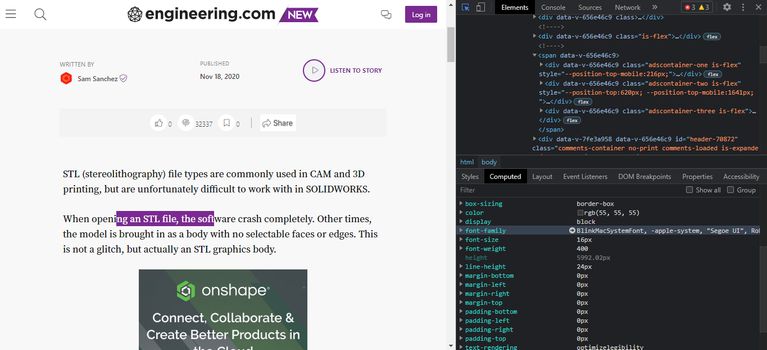
- Click the Computed section when the Inspect menu opens.
- Scroll down to the Font-Family section. Here, you can find the font’s name, style, and dimensions.
Other ways to use the Inspect tool
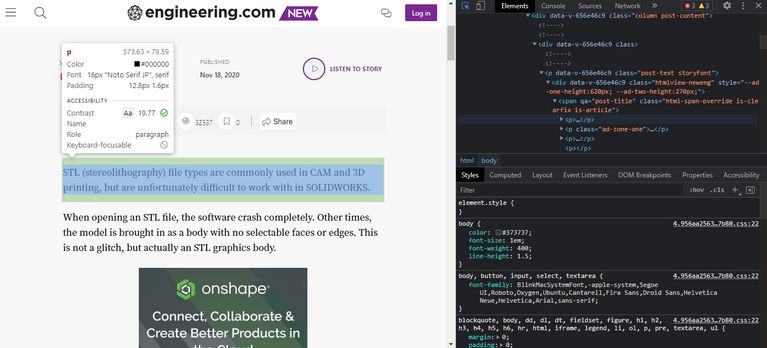
If you are looking for a faster way to recognize a site’s font using the Inspect tool, try the following method:
- Open your desired site.
- Press Ctrl + Shift + C on Windows and Cmd + Shift + C on Mac OS.
- Hold down the mouse pointer over the text to display the font style, color code, and border.
You can also find a list of fonts used on sites with the help of the browser Inspect tool. To do this, follow these steps:
- Go to the webpage you want.
- Press Ctrl + Shift + I on Windows and Cmd + Shift + I on Mac OS.
- Click the Network tab and then select the Font tab.
- Here is a list of fonts used on the web page.

You must refresh the page to see the list of all fonts instantly.
Detect fonts with browser extensions.
If you want an easier way to identify a font, you can install a plugin. Although many plugins have been developed for this purpose, two of the most prevalent are WhatFont and Font Finder.
In the following, we want to look at how to identify fonts using these plugins.
1. WhatFont
One of the reasons this plugin is popular is its ability to identify multiple fonts quickly. But how should we use this plugin?
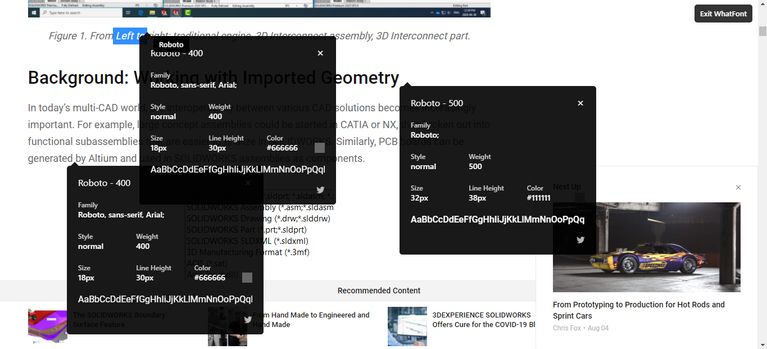
- While WhatFont is enabled in your browser, hover the mouse pointer over the text to indicate its font.

- When you click the text, a pop-up window appears with more details about the font, such as font size, color, and style.

- In addition, you can select multiple sections of text on the page at once to compare fonts.
You can download this plugin for free for Chrome, Firefox, and Safari.
2. Font Finder
This plugin also displays the details when you hover the mouse pointer over a text. However, it does provide a lot of technical information. For this reason, if you are unfamiliar with web design, you will probably be confused.
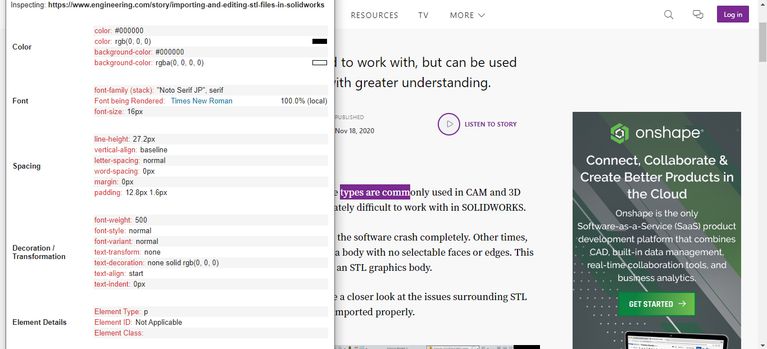
Font Finder is better suited to web developers who want to replace existing fonts with new ones. This approach allows you to test the fonts before making any permanent changes.
To test a font using the Font Finder, follow these steps:
- Highlight part of the text of a web page.
- Right-click on it and select Font Finder from the menu that opens.

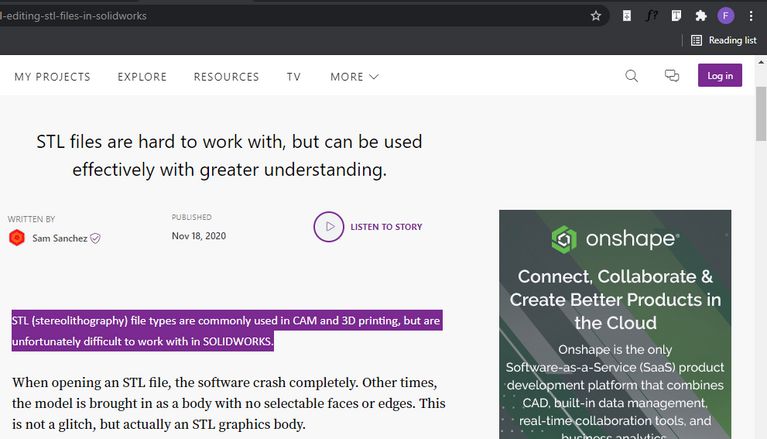
- Select the Replace option, then enter the font name. For example, type the Calibri font and see how to change the text in the preview.
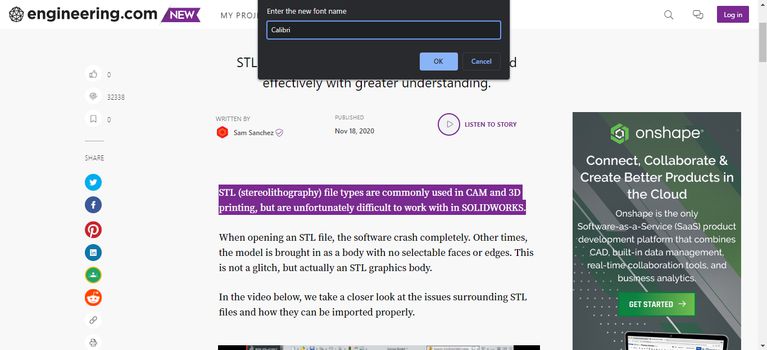
- To reset the font, refresh the page.
You can download the Finder font plugin for Chrome, Microsoft Edge, and Firefox for free.
How to identify the font type in the photo
If you want to recognize a font in a photo, browser extensions and the Inspect tool may not work. However, you can use online tools like WhatFontis or WhatTheFont.
The process for identifying fonts in photos is pretty much the same on all of the above tools, so let’s do this with the WhatTheFont tool:
- Download the photo you want.
- Enter this image into the WhatTheFont tool.
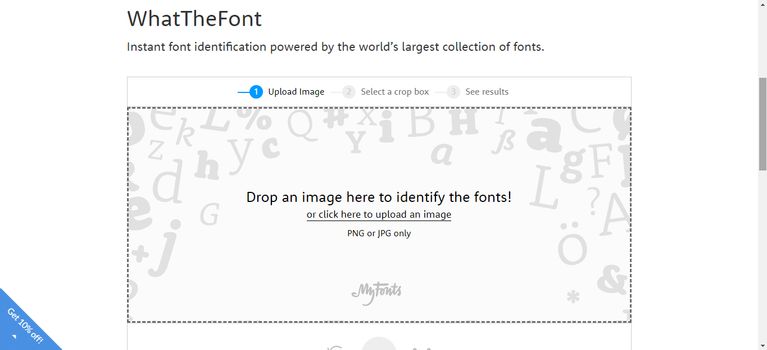
- This tool automatically detects the text inside the image. Zoom in or out on the box to fit the font you want. When you are done, click on the arrow option.
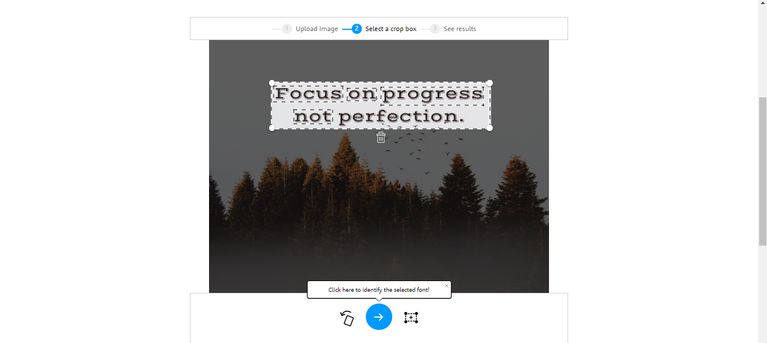
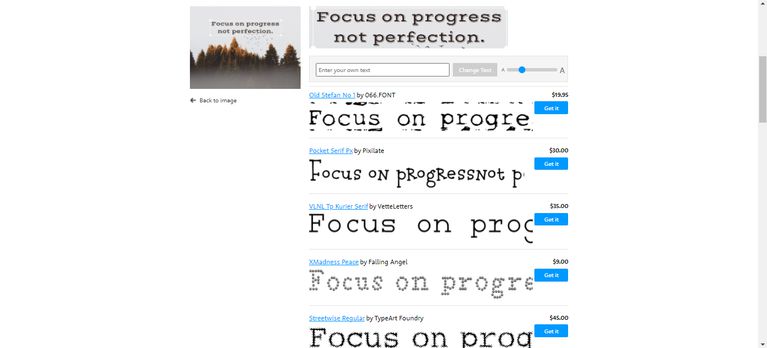
- Next, WhatTheFont matches the font in the image with the fonts in its gallery and shows you the closest fonts.
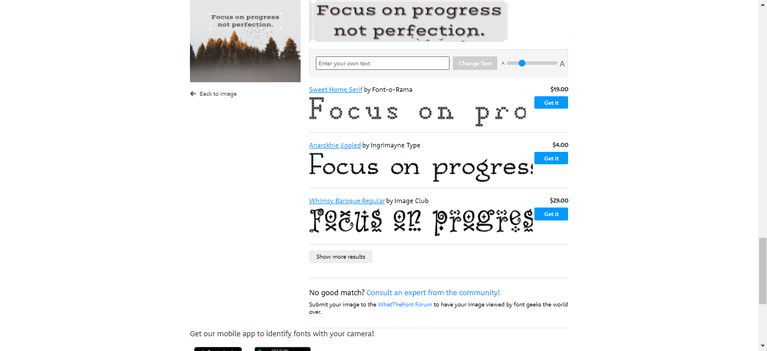
- If you do not find a suitable option among the fonts, you can see more related fonts by clicking on the Show More Results option.
As we said at the beginning of the article, fonts play an essential role in the success of a site or graphic design. So, with the right font, you can increase your website or design’s contact with your audience. You can also use the above methods to identify the fonts you want.
FAQ
How can I find out what font a website is using?
You can open your browser’s Inspect Element tool or use a font-inspection plugin to view the font family, size, and related typography details.
Do I need to install anything to detect fonts on a web page?
Not necessarily — most browsers include Inspect Element or Developer Tools, though a plugin can make the process easier and more user-friendly.
Will I be able to copy the font and use it on my own projects?
You can identify the font name, and if it’s free or licensed appropriately, you may download or use it — but always respect licensing rights.