
How to Use SQL Server Management Studio (SSMS) to Manage Your Databases — Step-by-Step Guide

SQL Server Management Studio is one of the most powerful database management systems (DBMS) available To Network Administrators for Managing and interacting with Databases.
The above tool is so comprehensive and robust that it is difficult to provide a similar example. All network administrators using SQL Server must be familiar with this utility’s modules. This article will explain how to install, implement, and use this application tool.
What is the language of a structured query?
Structured Query Language (SQL) is used to interact with databases. This powerful language enables database administrators to extract, edit, delete, and add new information to database records. Application developers and database administrators must pay attention to three crucial points about SQL.
The first reason is that SQL is an essential language to learn because all online businesses, like online stores, rely on databases; therefore, knowing it is necessary.
As more online businesses are added and businesses are forced to register their information in databases and retrieve it when needed, people proficient in SQL will have job opportunities.
The second reason is that data is one of the most essential requirements for data scientists and machine learning engineers. Any data received must eventually be stored in a database using a structured model, so a developer or programmer should know the database format so it can be retrieved via simple SQL statements.
Therefore, familiarity with the syntactic composition of this language is essential.
Third, SQL includes various management systems such as SQL Server, MySQL, and PostgreSQL. So, to interact with these databases, you need to be familiar with the basics and syntax of SQL.
The fourth reason is that SQL implements dialog-based operations on relational databases, which follow a pattern based on hierarchy and object interaction.
To be more precise, these databases consist of rows and columns where information is stored. So, to extract information from a particular column or to receive a specific group of information, you need to know the syntactic composition of the information.
SQL Server is a comprehensive management solution
Microsoft SQL Server is a relational database management system (RDBMS) that enables database dialog. This dialog can be used to select, update, delete, or add information to the database.
Fortunately, SQL Server fully supports SQL, and developers can execute SQL statements in the software.
When SQL Server receives a command, it communicates with the database files and displays the results to the user. When you install a security server on a system, it appears as a Windows service and is ready to serve.
What is the role of SQL Server Management Studio in this regard?
SQL Server Management Studio provides a powerful user interface that connects to the SQL Server service. It allows database administrators to access databases more easily and intelligently and execute SQL commands.
When you install the above tool, you can write SQL language commands and click the Execute button to send the SQL Server database engine commands. In this case, depending on the process type, instructions are executed on the database.
This process may involve retrieving or modifying the database. Fortunately, the tool provides a graphical user interface or scripting environment for developers to manage databases effectively.
How to install SQL Server Management Studio?
Fortunately, the installation process of this tool is not very complicated. The software installation tutorial is as follows:
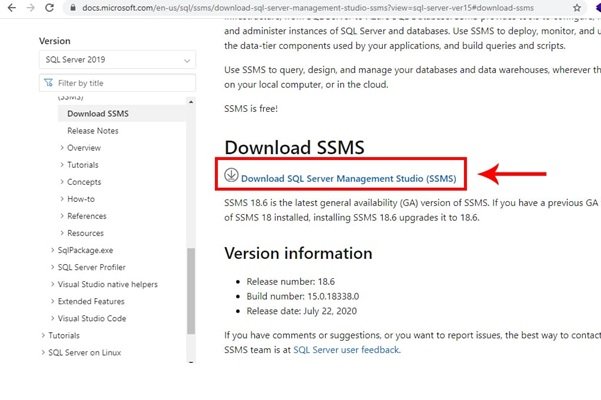
- First, go to the Microsoft site and download the software. Click the Download SQL Server Management Studio option on the page that appears to start the download process.
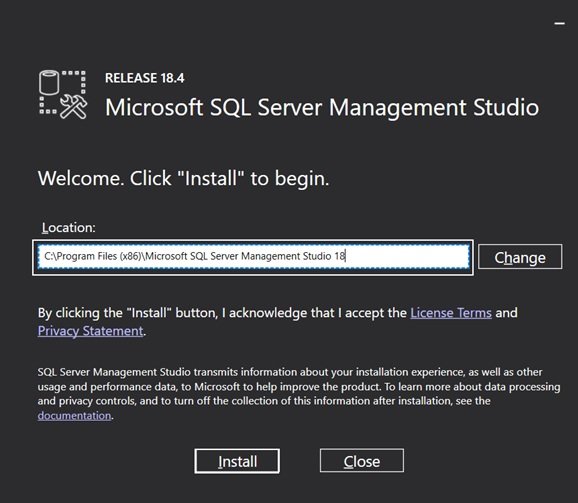
After downloading, run the file and then click on Install. The installation process is not very complicated and starts by clicking the Install button.
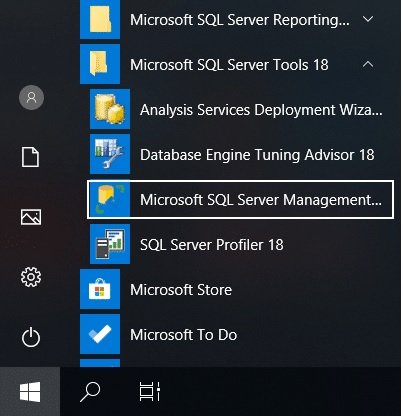
3. After the installation, find the SSMS icon in the Windows menu and click on it.
How do you connect SQL Server Management Studio and the database?
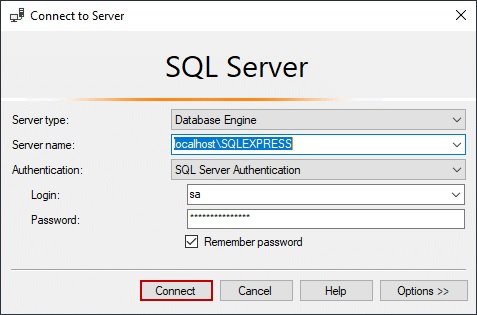
You will see the Connect to Server window when you run the above tool. There are several fields in the window, as follows:
Server Name: Enter the server name or IP of the server to which you want to connect. Use the dot character if you’re connecting to a server installed on a local system.
Authentication Type: In this field, you must specify the authentication mechanism and connection to the server.
Remember Password: You do not need to enter a password on future visits by activating the above option.
When you enter the information, click Connect.
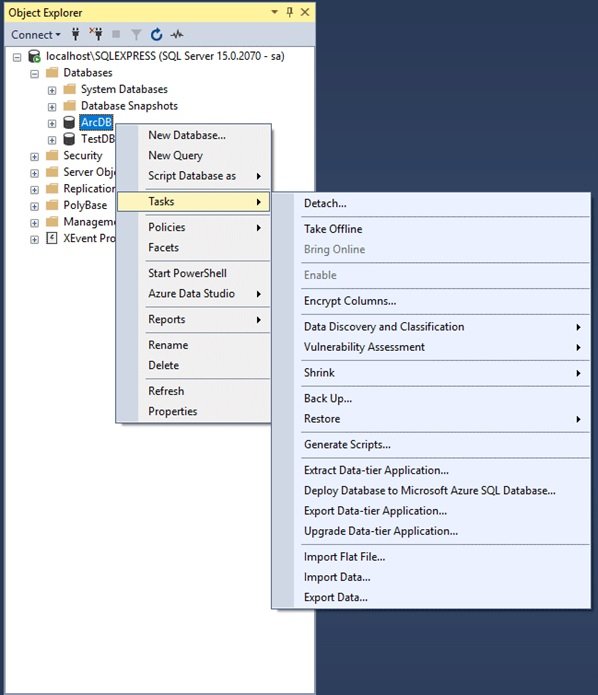
If the information is correct, you will be connected to the database and see the information. After connecting to the server, the Object Explorer panel will appear on the left side of the screen. In this panel, you can change the SQL Server settings and the database you created.
How do you create a database using SQL Server Management Studio?
To build an information bank, follow the steps below:
1. In the left panel, click the Databases option and select the New Database option.
2. In the New Database, enter the name of the desired database.
3. Accept the default settings to create the database and click Ok.
When creating a new database, change the owner name, retrieval model, filegroup model, collocation, etc.
How do you use Transact-SQL to build a new database?
Run New Qua ery from the standard bar to connect to the database engine. In the window that appears, type the following commands and run Execute.
In the following example, a database called Sales is created. Since the PRIMARY keyword is not used, the first Sales_dat entity is selected as the primary file.
Because MB and KB are not selected in the SIZE parameter for Sales_dat, the default MB option is used.
The Sales_log file is also based on MB because the MB prefix is explicitly stated in the MB parameter.
USE master;

GO

CREATE DATABASE Sales

ON

( NAME = Sales_dat,

    FILENAME = ' C: \ Program Files \ Microsoft SQL Server \ MSSQL13.MSSQLSERVER \ MSSQL \ DATA \ saledat.mdf ',

    SIZE = 10,

    MAXSIZE = 50,

    FILEGROWTH = 5)

LOG ON

( NAME = Sales_log,

    FILENAME = ' C: \ Program Files \ Microsoft SQL Server \ MSSQL13.MSSQLSERVER \ MSSQL \ DATA \ salelog.ldf ',

    SIZE = 5MB,

    MAXSIZE = 25MB,

    FILEGROWTH = 5MB);
go
Query Editor in Microsoft SQL Server Management
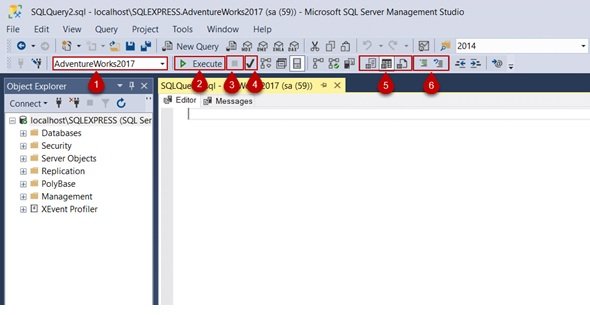
SSMS provides developers with the functionality to execute T-SQL scripts. When you click New Query in the toolbar, the Query Editor appears. In the above editor, inserting and executing SQL dialogs is possible, Similar to what we did in the previous paragraph. In the following example, we run a simple dialog to view user data.
Open the above window, enter the dialog, and click the Execute option in the toolbar. The dialog results are shown in the Results section below.
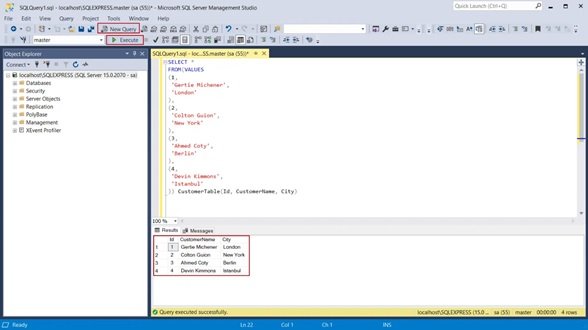
The editor offers various capabilities to users. For example, you can change the display type. For this purpose, in the editor toolbar, we can set the display type to be saved in a file. In this case, the information is displayed as plain text.
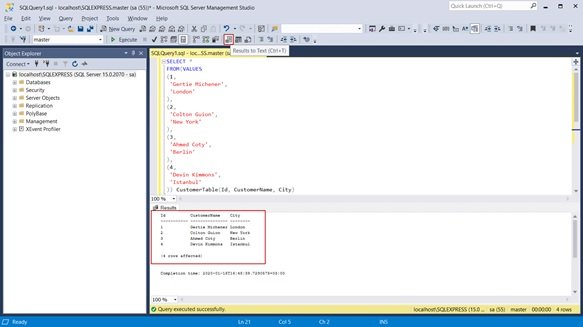
Additionally, if you plan to separate the dialog pages, there is an option called Display Results in a separate tab. To activate this option, click on the Tools menu and select Options. In the screen that appears, select Display Results in a Separate tab.
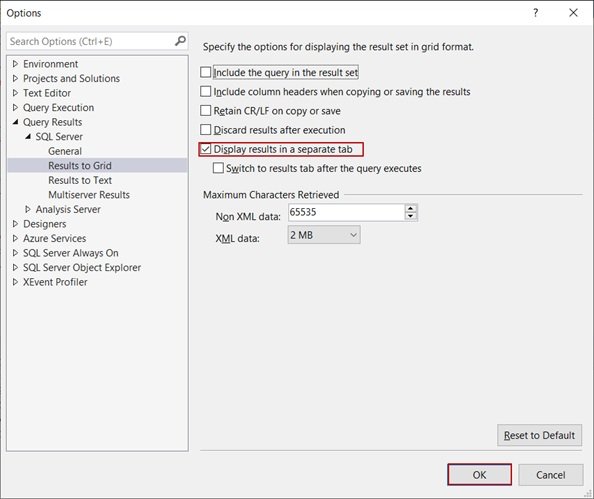
In this case, the results of the dialogs are displayed in different windows.
SQL Server Management Studio has many applications, which we will discuss in more detail in future articles.
FAQ
What is SQL Server Management Studio used for?
SSMS is a graphical interface for administering Microsoft SQL Server: you can create or delete databases, manage tables and other objects, run SQL queries, and configure server settings.
How do I connect to a database server using SSMS?
Open SSMS, then in the “Connect to Server” dialog enter the server name (or localhost for local), choose authentication type (Windows or SQL), enter credentials if needed, and click “Connect” to access the server.
Can I create a new database with SSMS without writing SQL code?
Yes — using the Object Explorer, right-click “Databases” → “New Database”, enter the name (and optionally adjust settings), then click “OK” to create it without needing SQL scripting.