
Learn How to Rename a Disk in macOS Easily

Are you planning to rename the disk in macOS? In this article, we will teach you a simple way to rename a disk on a Mac. MacOS storage does not have the partitions that Windows 10 has. However, you can create storage drives, which are similar to partitions.
The disk is where the operating System is installed. When you access it in the Finder, it will be displayed with the name assigned to it, and you can rename the macOS disk at any time.
Rename the disk in macOS
You can rename any disk attached to the Mac, and there is a tool for renaming the System.
Disk access tool
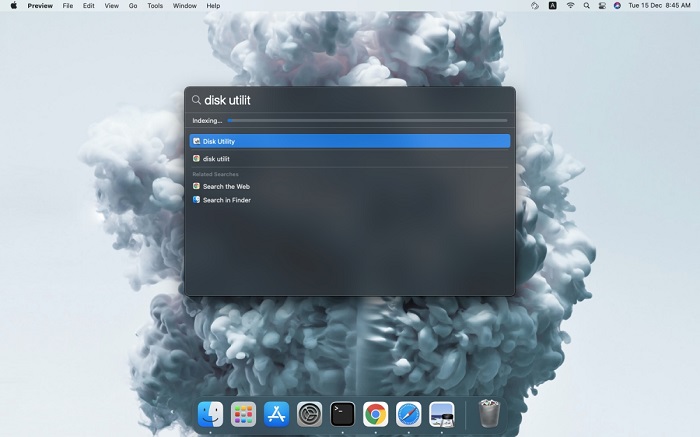
- Press Command + Spacebar at the same time to open Spotlight.
- In the new window, enter Disk Utility.
- Select the program with the matching name.
- If the disc is not connecting, make the connection. Of course, this is not necessary for the internal disk.
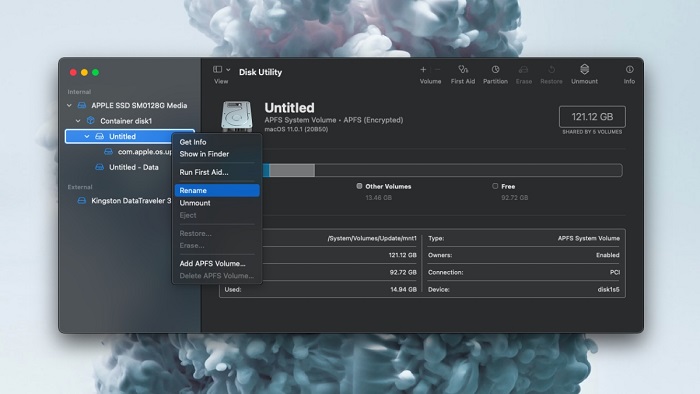
Now that you have opened Disk Utility, you can rename the disk by following the steps above.

- Click the disk in the right column.
- Select Rename from the menu.
- You can edit the disk name on the right page.
- Enter a new name and press Enter to save.
- The disk name will be changed.
Note that renaming the disk will not erase its data and will not cause any issues.
Limitations
Disk Utility can be used to rename internal and external disks connected to the Mac, but we use the macOS tool. If the disk you want to rename is not formatted correctly (APFS or exFAT), it is not possible to rename it.
For example, if your disk is formatted with NTFS, you must first modify its File System, which will result in data loss. If you want to rename an NTFS disk and do not want to back it up, you must use a Windows 10-based system.
Conclusion
Renaming a disk helps make it easier to identify. You may not always be able to remember the available disk space, or if it has a generic name, it will always be detected in the Finder.
The real name, not the default home name, can help identify the disk and make it easier to manage.
FAQ
Why would I rename a disk in macOS?
Renaming a disk helps you identify drives more easily, especially when using multiple internal, external, or network disks.
How can I rename a disk on macOS?
You can rename a disk by right-clicking it in Finder or using Disk Utility to change the disk name safely.
Does renaming a disk affect the data on it?
No, renaming a disk only changes its label and does not modify or delete any stored data.