

How to Convert MBR Disk to GPT – Safe and Step-by-Step Methods

In this article, we want to familiarize ourselves with two formats, or partitioning styles, including the old MBR format and the new GPT format, and check how to convert them.
Introduction of MBR and GPT formats in hard disk partitioning
Every day, we see advances in storage technology and, of course, increases in hard drive storage capacity. As a result, using old partitioning formats is not the answer for new equipment.
The MBR Format is considered legacy and cannot meet new storage requirements. Instead, the GPT format is a good alternative to the MBR format and covers its limitations. These limits include the maximum number of partitions, storage capacity, and redundancy.
What is the MBR Format?
MBR stands for Master Boot Record. When the drive is formatted, a sector is created that stores the partitioning structure, the boot partition of the operating System, and other information. The MBR format supports up to 2 TB of capacity and does not recognize partitions larger than 2 TB, so if you want a partition larger than 2 TB, you should use the GPT Format. Also, in this Format, you can create at most four primary partitions, and redundancy is not supported.
What is the GPT Format?
GPT stands for Guid Partition Table. When the system uses a Firmware or middleware interface (for example, UEFI or BIOS), the GPT format must be used to install the operating system. Also, in this format, there is no partition-size limit, and each partition can be up to 9.4 ZB. Another advantage of this format is the ability to create 128 partitions. Therefore, the GPT format is more flexible than the MBR format and performs better.
Important note: To convert from MBR to GPT, or vice versa, you must first back up your data, as all data will be deleted.
How to distinguish between MBR and GPT
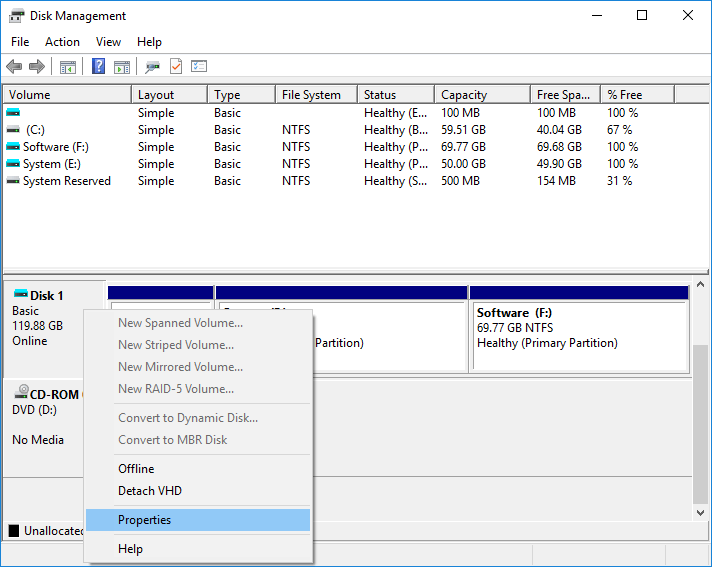
Press Windows + X to detect MBR, GPT, and your System’s current partition Format. In the opened page, click on the Disk Management option. As shown in the image, right-click the desired partition and select Properties.
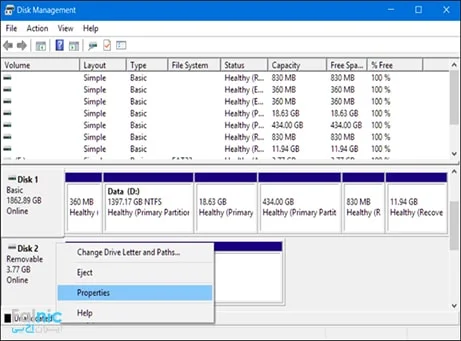
In the window that opens, click on the Volumes tab. Pay attention to the Partition Style section to see the System partitioning Format.

How to convert MBR to GPT and convert GPT to MBR
In response to the question of why we convert MBR to GPT?
Each drive is used based on the capacity required for each partition and the number of partitions, with one of the MBR or GPT styles.
As mentioned, the system firmware is also a determining factor in the choice of formats. UEFI and BIOS are two firmware.
Important note: To convert from MBR to GPT, you must first back up your data, as all data will be deleted.
Convert MBR partition to GPT using the Disk Management panel
To convert an MBR partition to GPT, select the Disk Management option by pressing the Windows key + X and entering the Disk Management panel.
Now, right-click all desired disk partitions to format them. After deleting all disk partitions, right-click the desired disk and select Convert To GPT or Convert To MBR, depending on your needs. In this way, the MBR hard drive is converted to GPT.
Convert the MBR disk to GPT using the command prompt.
To run the Command Prompt in the Windows environment, use the combination keys Windows + R, write the word cmd, and press Enter.
In the opened window, type Notepad and press Enter.
Connect your hard drive or flash drive to the System, then click Open in the File section.
Select your memory File and back up the information.
Now enter the Diskpart command.
Then run the List Disk command to display a list of your System’s disks, including their specifications and volumes.
The desired disk is selected using the Select disk * command (enter the number of the desired disk instead of the*). Then run the Clean command to delete all data on that disk.
Enter the Convert to MBR command to convert the target disk to MBR Format. But if you convert your disk to GPT, enter the Convert to GPT command. Then, enter the Exit command and exit.
Convert MBR partition to GPT when installing Windows
During Windows installation, when you reach the first screen of Windows installation, press Shift+F10 keys to open Command Prompt. Now you can follow the steps of the second method in the above material.
Programs and software to change hard drive Format to GPT and MBR
Many software applications can change the hard drive Format to GPT and MB. Examples of these software are Minitool Partition Wizard, AOMEI Partition Assistant, and EaseUS Partition Master. However, some of these peripheral software applications may cause irreversible damage to your hard disk. Given the importance of user data, we have refrained from raising issues related to peripheral software and have examined only official and guaranteed methods.
MBR2GPT
Microsoft’s MBR2GPT tool is now available as part of the Windows 10 Creators Update. The free MBR-to-GPT tool supports Windows 10 systems. However, you can use it to convert your MBR drive to GPT with minimal hassle.
First, check your disc number. Complete the Start Menu search for program management and select the best match. Next, open Disk Management and choose the desired drive. Right-click the disk number, then select Properties, open the Volume Check dialog, and set the current partition type to MBR.
Now, press the Windows + X keyboard shortcut and select Command Prompt from the menu. Right-click on the Command Prompt section and choose Run as Administrator.
Now, you need to validate the disk you want to use. Enter mbr2gpt /validate /disk:[enter your disk number here] /allowFullOS and wait for validation. If the disk cannot meet the conversion requirements, you will receive an error.
Type mbr2gpt /convert /disk:[enter your disk number here] /allowFullOS and press Enter to start the MBR to GPT conversion process. The conversion is quick and takes only a few seconds. Do not forget to put the drive number in the desired box.
Now you need to change your operating System to UEFI mode to boot. After the System reboots, press the BIOS/UEFI entry key. Change the boot mode to UEFI instead of Legacy or similar.
EaseUS Partition program
If you plan to convert MBR to GPT without losing data, using EaseUS Partition can be effective. Some may find this program easier than other methods. Don’t forget that you have to pay $39.95 to use EaseUS Partition, and this tool is already available for free and is now a part of your operating System.
Log in to the EaseUS Partition Master website. Purchase and download or install the software.
Next, you must enter the program and wait for it to load your drives. Then, find the drive you want. Select the disk, right-click it, and choose Convert MBR to GPT.
Select the Apply option in the toolbar. After selecting this option, the system will restart. You will then be taken to a new page that shows the conversion process.
Additionally, you need to switch your operating system to UEFI mode. After the system reboots, press the BIOS/UEFI entry key. Change the boot mode to UEFI instead of Legacy.
You will see that EaseUS Partition Master can simplify the process of converting from MBR to GPT, but it is slower than Microsoft’s tool.

Conclusion
As you can see, GPT has more advantages than MBR, but you may be worried about converting from MBR to GPT. In this article, we present the best methods for converting MBR to GPT so you can achieve the desired result quickly and easily.
FAQ
What is the difference between MBR and GPT?
GPT supports more partitions and larger drives, while MBR is older with limitations on size and partition count.
Can you convert without losing data?
Yes — using tools like mbr2gpt.exe in Windows allows conversion without data loss if prerequisites are met.
Which Windows tool can convert MBR to GPT?
Use Disk Management, Command Prompt (mbr2gpt), or third-party tools depending on your scenario and risk tolerance.