

How to Send a Message from Your Computer — Simple and Practical Methods

Imagine working on a computer when suddenly you receive a message on your phone. In such cases, many users go to their phones to view the message and reply if needed.
But did you know that some apps and services allow you to view and reply to incoming messages on your computer without going to your phone?
It does not matter whether your phone is Android or iPhone; you can receive and reply to these messages on Mac, Windows, or even Chrome OS. Stay tuned to learn more about these methods.
Send messages via the Your Phone app in Windows 10
This application is designed for Windows 10 and Android phones. Users can receive and send messages in Windows 10 using the native Windows Your Phone app, added to this platform in the April 2018 update, along with the Your Phone Companion app on Android.
This way, Android notifications appear in the Windows Action Center, and the user can also access images stored on their phone.
Of course, the Your Phone app is also compatible with iPhones. Still, it can only download web pages from Microsoft H to iOS, and users can not send messages, receive notifications, or access images.
To use this method, you must:
- An Android device is equipped with Android 7 or a newer version
- Windows 10 has also received the April 2018 update or newer versions
Step 1: Click the Start Button in Windows and run the Your Phone app.
Step 2: After opening the application, click Android and then Continue.
Step 3: On your Android phone, download and install the Your Phone Companion app from the Play Store. This app links to the Windows application.
Step 4: After installing the program, return to your Windows System and log in to Your Phone. Click the box next to “Yes, I Finished Installing Your Phone Companion.”
Then select the Open QR Code option.
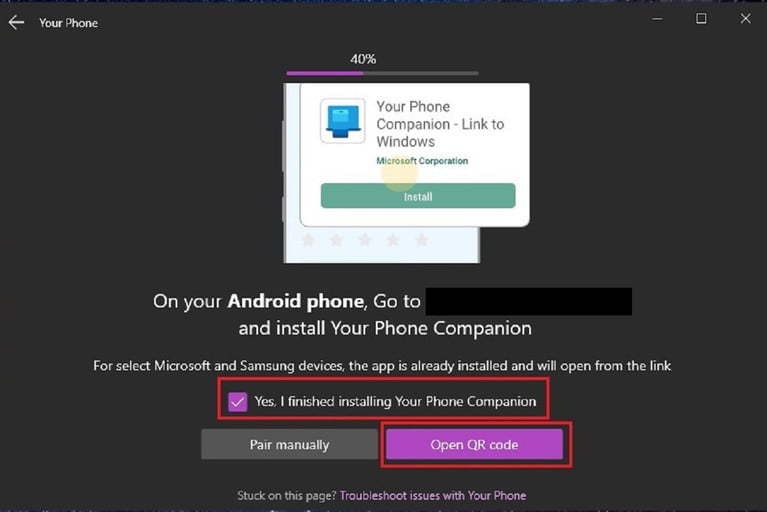
Step 5: Go back to your phone and click on the phrase “Is There a QR Code On Your PC?” Tap. Then click Continue to allow the app to access the phone’s camera. Place your camera in front of the computer screen so it can scan the QR code. Then click Done on the computer screen.
Step 6: Click Continue on the phone, then allow the app to access some parts of the phone so the Your Phone app can communicate with the device. You have to click Allow for all accesses and then select Continue. You will then be asked whether you want this application to remain active in the phone’s background. You have to choose one of the two options: Allow or Deny.
Step 7: Finally, the mobile application performs a final check of the communication process, after which you must select the Done option.
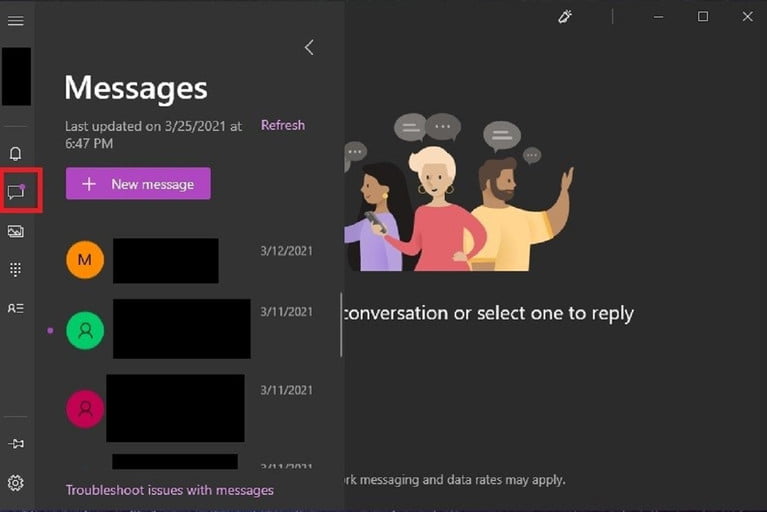
After connecting the computer and the phone, you can use Windows 10’s Messages icon on the toolbar to send and receive messages through the System. Users can also view images, make and receive calls, and receive notifications.
Send messages via iMessage (iOS, iPad OS, and Mac OS)
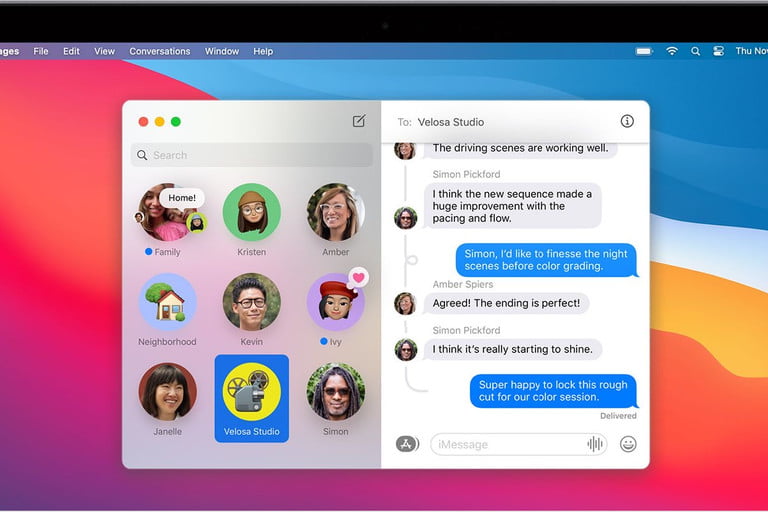
In this method, you must use one of Apple devices equipped with cellular communication because cellular communication (SIM card) will be required to send a message via iMessage to send a message via iMessage.
However, iPhone users can receive or send messages on their phones in two ways.: through the Internet-assisted iMessage, which is displayed in the form of blue bubbles, and regular SMS messages. You must follow the steps below to send and receive iPhone or iPad messages on the computer.
Step 1: First, ensure your iPhone is connected to your Apple ID.
Step 2: Open the Settings app and select Messages.
Step 3: Switch the iMessages switch to active.
Step 4: Tap Send & Receive and confirm the registered phone number and email account to send and receive messages in iMessage. You must also select a number or email address to start a conversation.
Step 5: Repeat the previous steps on all iOS and iPad devices. Make sure this device is connected to a Wi-Fi Network.
Step 6: Open the Messages app on your Mac. Select the Messages option in the menu bar. When the pop-up message appears, click the iMessages tab and sign in with the same Apple ID.
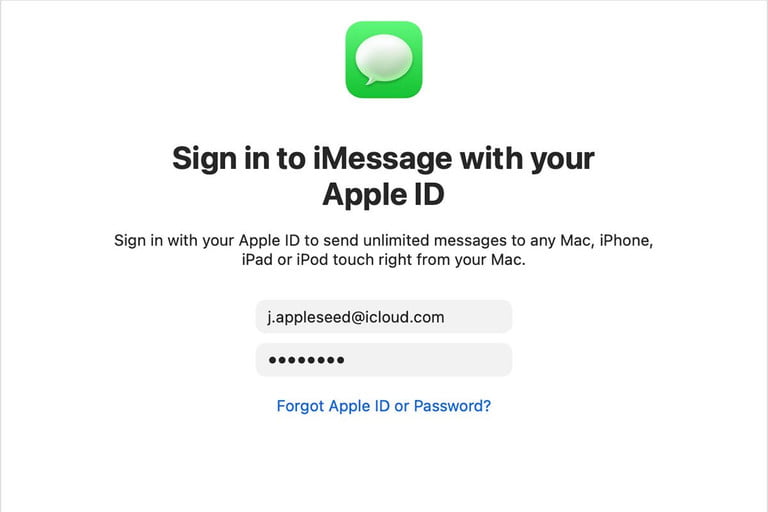
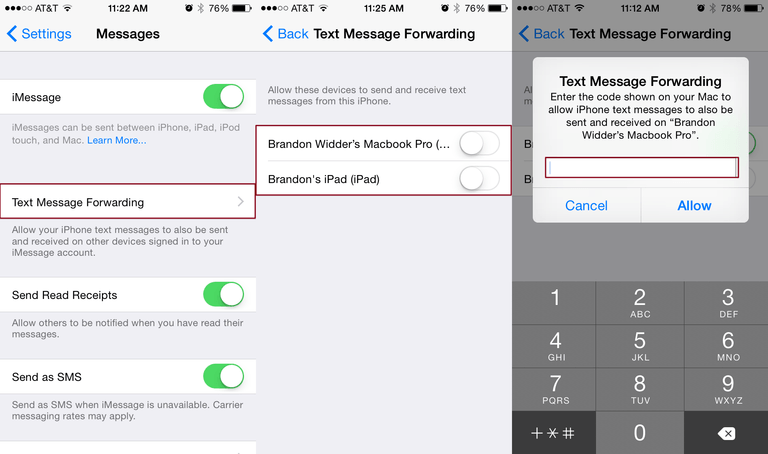
Step 7: Open the iPhone’s Settings app and go to the Messages section. Tap Text Message Forwarding. This section covers sending SMS messages.
Step 8: Select the switch for the device you want to send or receive SMS messages.
Doing so confirms that you want to send or receive an SMS or message on your Apple device.
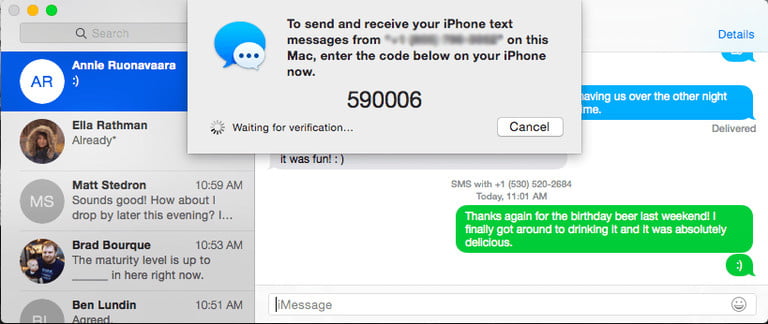
Tap the Pencil icon in the contacts list to send a message to any Apple device. Then, enter the intended recipient or recipients and write your message.
Note that there is also a 160-character limit here. But if the message exceeds this limit, it will be sent in two or three messages.
Send messages via Android Messages on Android and PC
This method works for all Android phones, regardless of computer model. You only need a browser and the Android Messages app, which also works on Desktop systems, laptops, and Apple devices.
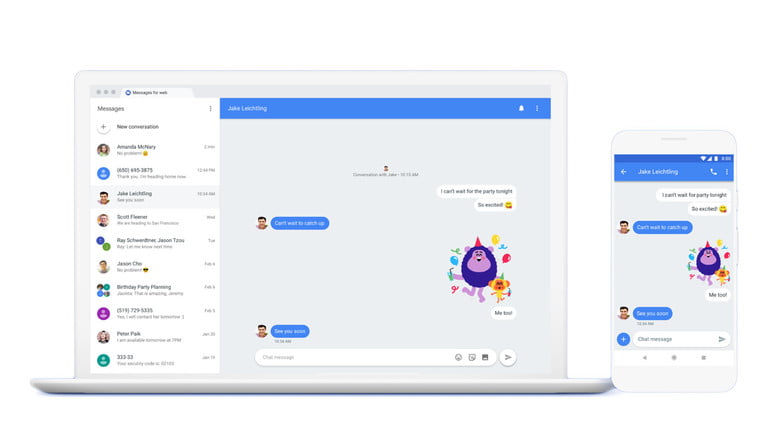
Step 1: Go to the Android Messages site.
Step 2: Launch the Android Messages app on your phone.
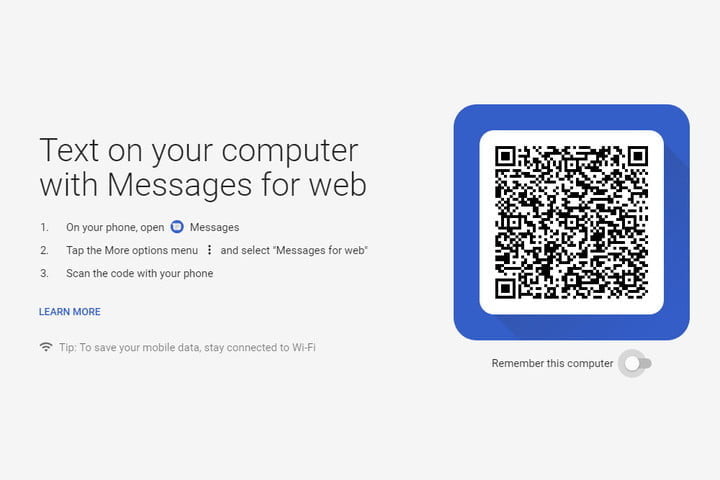
In Step 3, tap the menu icon with three dots, then select Messages for Web.
Then, in Step 4, click the blue QR Code Scanner Button and scan the QR code from the Android Messages page with your phone. This will connect the device to the browser.
Step 5: Now, using your browser, you can chat with your friends or family like on an Android phone.
FAQ
Can I send SMS messages from my PC without a phone?
Yes — you can use web-based SMS services or email-to-SMS gateways that let you send texts from a browser or email client.
How do I send a message from PC if I use an Android phone?
You can link your Android device to your Windows PC using an app like Microsoft Phone Link, then send and receive text messages directly from your computer.
What if I just want to send an email-style message via computer — is that possible?
Yes — you can compose an email and, if needed, use a carrier’s SMS-gateway address (for users whose carriers support it) to send it as a text to a mobile phone.