

How to Identify Devices Connected to Our Wi-Fi

Many of us use a personal Wi-Fi network at home or work. On The Other Hand, Many Other People Constantly Try To Use Other people’s Wi-Fi networks in Some Way.
Therefore, one way to increase your network’s security is to identify unknown devices connected to your Wi-Fi and block them.
One way to prevent unknown devices from connecting to your Wi-Fi network is to check who is using it and identify any unknown devices.
How to expel other unknown devices from your Wi-Fi network with a PC
In this method, you use a practical and valuable tool to identify all devices connected to your Wi-Fi network from your computer. After that, you block the network access of selected devices. To do this, follow the steps below:
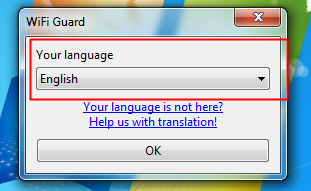
Step 1. First, download the Wi-Fi Guard software and install it on a Windows computer. During the installation, you can also choose your desired language.
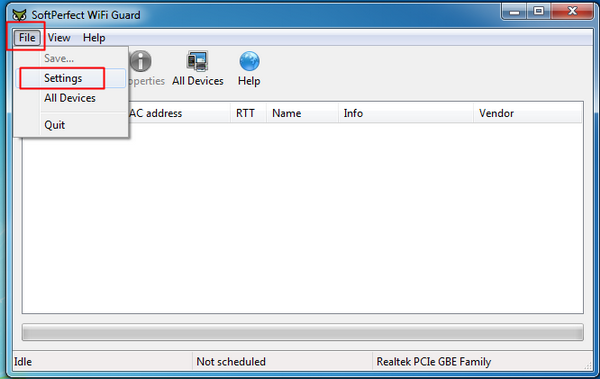
Step 2. Now, you need to retrieve the MAC addresses of all devices currently connected to your Wi-Fi network. To do this, go to the File menu and select Settings.
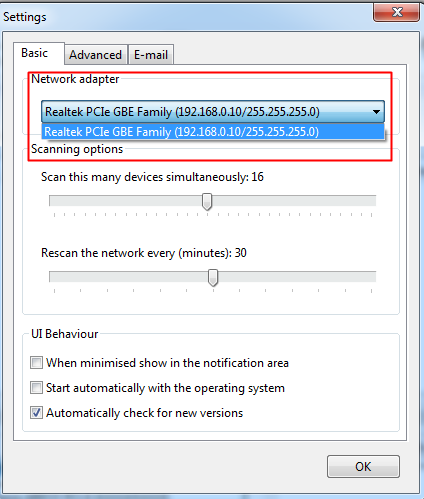
Step 3. Select your Wi-Fi network card (the same card you are currently connected to) from the network adapter section. Its IP address is typically 192.168.1.1.
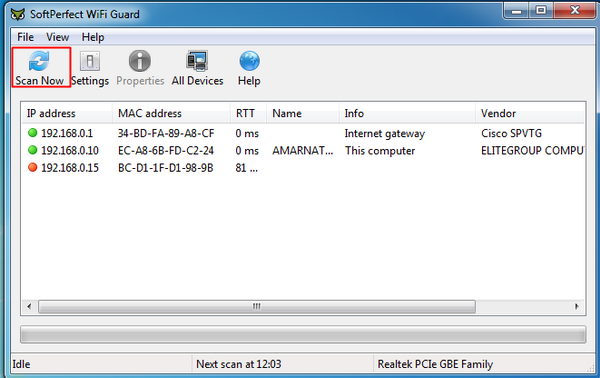
Step 4. Now, you should scan for devices and generate a list of all devices connected to this network and their MAC addresses.
Step 5. Go to your router’s settings, enable the MAC filter, and add only the MAC addresses of the devices you want to connect to your Wi-Fi network.
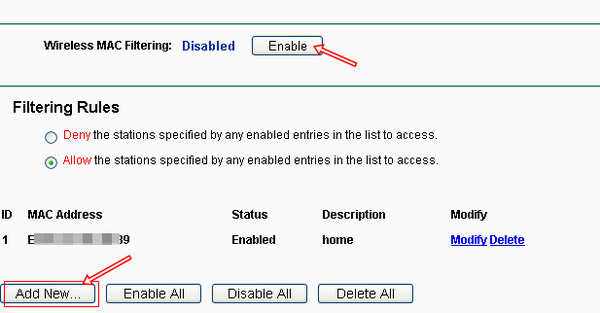
Step 6. Only devices whose MAC addresses are in your router’s MAC filter list can connect to your network.
Using the Netcut tool
If you use a smartphone to manage your Wi-Fi network, you are familiar with the NetCut tool. Netcut also has a Windows version that helps you kick users out of your Wi-Fi network. The Windows version of this tool has not been updated in a long time, but it still works well and can be considered one of the best Wi-Fi blocking tools.
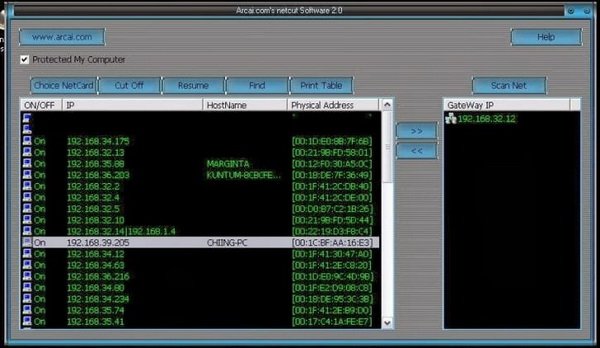
First, go to the Netcut website and download the Windows version of this application. After installation, Netcut will ask you to install another application called WinCap. After the installation is complete, restart your computer and open Netcut.
This tool will display a list of all devices connected to your Wi-Fi network at each address. Select their MAC address and click the Cut button to remove devices connected to the network.
How to Identify and Secure Your Network from Unknown Devices
Keeping track of devices connected to your network is essential for maintaining security and ensuring optimal performance. Here are several methods to check for unknown devices and tips to secure your network effectively.
Method 1: Check Unknown Devices Using Your RouRouRouRouter’sbface
- Open a web browser and enter your router’s (commonly
192.168.1.1or192.168.0.1). - Log in to your router using your router’s credentials (check the router’s security settings).
- Navigate to the De ice List of connected EVs action.
- Revi”w “is the list of connected devices, which typically includes details like device names, IP addresses, and MAC addresses.
- Note: Some devices may appear with identifiable names (e.g., “Jo “John”), while” wh”le “ther” m” might show up as random strings of letters and numbers. Compare the list with the number of devices you own to identify any unknown connections.
Method 2: Check Unknown Devices Using Terminal/Command Prompt
The arp -a The command displays the ARP (Address Resolution Protocol) table, showing IP addresses and corresponding MAC addresses of devices on your network.
For Windows:
- Open Command Prompt as an administrator.
- Type
arp -aand press Enter.
For Mac:
- Open Terminal.
- Type
arp -aorarp -anand press Enter.
For Linux:
- Open Terminal.
- Type
arp -aorarp -nand press Enter.- A list of IP and MAC addresses of connected devices will appear on your screen.
Method 3: Identify Unknown Devices Using Their IP Address
The ping -a <IP Address> The command retrieves a device’s hostname from its IP address. This helps identify unknown devices on your network.
For Windows:
- Open Command Prompt.
- Type
ping -a <IP Address>and press Enter.- Replace
<IP Address>with the IP address of the unknown device.
- Replace
Check Connected Devices on Android and iPhone.
You can also monitor connected devices directly from your smartphone using these methods:
Method 1: Using the Router
- Connect to your router’s SSID. Allow the steps outlined in Method 1 above to access the router’s interface.
Method 2: Using Network Scanner Apps.
- Install a network scanner app (e.g., Auvik, Intruder, SolarWinds, NetScan Tools Pro, or NMap) from the Play Store or Apple Store.
- Open the app and scan your local network.
- Please review the list of connected devices and their details.
Method 3: Using Device Settings
- Open Settings on your smartphone.
- Tap on Wi-Fi, select your connected network.
- Look for Connected Devices.
Tips to Secure Your Network from Unknown Devices
Preventing unauthorized access is more straightforward than dealing with its consequences. Here are some practical tips to safeguard your network:
- Regularly Scan Your Network: Periodically check for connected devices and remove unfamiliar ones.
- Use a strong Wi-Fi password: Create and change it periodically.
- Update Your Default SSID: Change your Wi-Fi network name (SSID) to something unique and avoid using personal information.
- Disable WPS Wi-Fii Protected Setup): Turn off WPS on your router several times to prevent easy access.
- Enable New Device Approval: Some routers allow you to approve new devices before they can connect.
- Update Router Firmware: Keep your router up to date to patch security vulnerabilities.
- Use a Guest Network: Set up a separate network to isolate guests from your primary network.
Why Secure Your Network?
Securing your network prevents unauthorized usage (which can slow down your internet) and protects your data from hackers. By following these steps, you can ensure a safer and more efficient network environment.
For more detailed tips on securing your home wiwifietwork, check out our comprehensive guide, “How to Protect Your Home wiwifietwork.”
FAQ
How can you see connected devices from your router?
Log into your router’s admin panel and check the device or network status list to view active connections.
Can mobile apps help identify Wi-Fi devices?
Yes, network scanner apps like Fing show connected devices with details like names and IP addresses.
Why is identifying Wi-Fi devices useful?
It helps detect unauthorized access, manage bandwidth, and improve network security.