
How to Install Windows 11 on Old and Weak Systems – Comprehensive Installation Guide

If you want to install Windows 11, it doesn’t support older hardware, but that’s an artificial limitation.
Interestingly, Microsoft recently inadvertently enabled installing Windows 11 on older systems in one of its builds. Read interesting details in Hardware City.
Installing Windows 11 on an older computer is a common challenge for many users. Special hardware is required to install Windows 11 on an old system.
The minimum processor required to run this version is 1 GHz with at least two 64-bit 8th-generation Intel or Ryzen 2000 cores. Of course, Windows 11’s compatibility and proper functioning depend more on the amount of RAM.
However, installing Windows 11 on low-end systems can cause users to experience issues running programs. Following Microsoft’s introduction of these restrictions to enhance the security of its new operating system, we will share tips and tricks for installing Windows 11 on an older computer.
Microsoft’s Windows 11 has strict prerequisites and cannot be installed on systems with older processors. However, some users have found ways to bypass Microsoft’s artificial limitations, and installing Windows 11 on a weak system is possible.
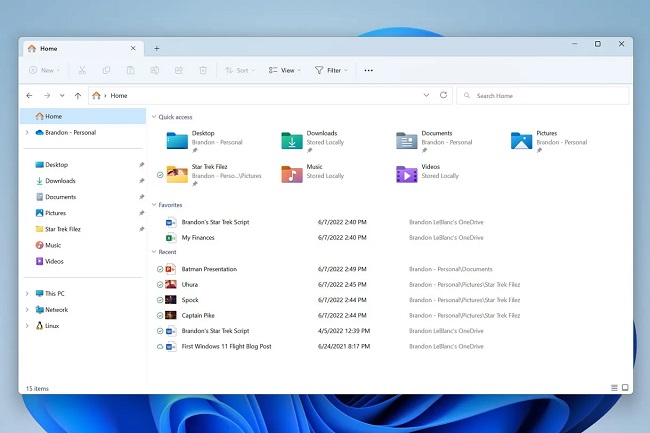
Is it possible to install Windows 11 on old processors?
Continuing the tutorial on installing Windows 11 on a weak system, we recommend downloading and installing the Health Check app before proceeding. Then scan the system with it and check whether Windows 11 can be installed.
If you see a message indicating that your system doesn’t currently meet Windows 11 system requirements, it’s incompatible with Windows 11. The letter explains why the problem exists and how you can fix it or work around it differently.
Despite this description, installing Windows 11 on an older computer is not impossible, and we will show you how in the simplest possible way.
How do you install Windows 11 on old and incompatible processors?
To install Windows 11 on weak systems, four GB of RAM, 64 GB of internal memory, an 8th-generation Intel Core processor, an AMD Ryzen 3000 series processor, and TPM 2.0 support are required. Microsoft is trying to reduce the number of bugs by not supporting older hardware and by lowering the cost of maintaining and developing Windows 11.
Download the ISO file first to install Windows 11 on a weak system. For this purpose, enter the Microsoft website and open the Select Download drop-down menu from the Download Windows 11 Disk Image section.
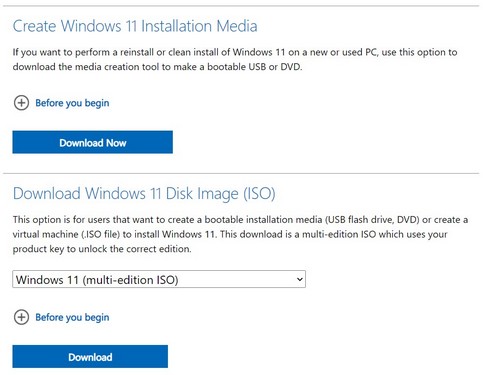
Then select Windows 11 and click the Download button. A menu titled “Choose One” will appear; select the language you want. Then select Confirm and click on the 64-bit Download option.
It has been a while since the latest Windows 11 update, known as the 22H2 update or the second half of 2022, was released, which introduced many new features.
Recently, Microsoft made a preview build of the Windows 11 update available to some users, inadvertently removing some limitations and enabling them to install Windows 11 on older computers.
The published reports indicated that Windows 11 could be installed on older systems, including seventh- and even sixth-generation Intel processors. The bad news is that Microsoft has realized its mistake and emphasized that you should not be happy about this.
Microsoft has made it clear that its development team is restoring restrictions ahead of the broader release of this build. Unfortunately, those who installed Windows 11 on weak systems with old hardware do not seem to receive any new updates and will probably be forced back to Windows 10. Installing Windows 11 on an old computer is now available to Windows 10 users on the Release Preview channel.
First step: Changing the registry
Continuing the tutorial on installing Windows 11 on older systems, the key factor is changing the registry. To bypass the CPU check and install Windows 11 on an older computer, you must modify the registry to enable installation.
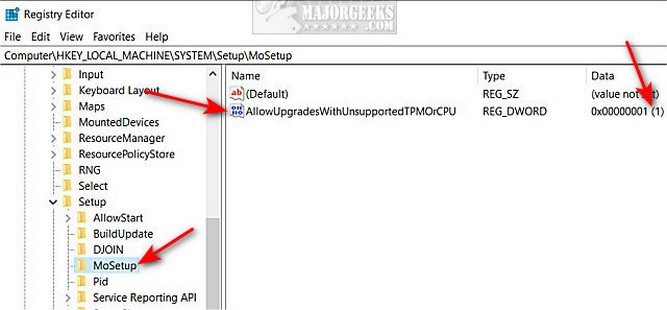
To do this, open the Start menu, type Regedit, and press Enter. This will open the Registry Editor. Then go to the address below.
Computer\HKEY_LOCAL_MACHINE\SYSTEM\Setup\MoSetup
Now, right-click on the right panel and select DWORD (32-bit) Value from the New menu; then, you must name AllowUpgradesWithUnsupportedTPMOrCPU. Now, double-click on this name and enter the number 1 in the Value data section. At the end of this operation, click OK, then close the Registry Editor.
Step 2: Run the ISO file from Windows Explorer
Continuing the Windows 11 installation on a weak system: after downloading the ISO file, right-click it. Then, select Windows Explorer in the Open with a menu to make the virtual disk available.
After finishing this step, start installing Windows 11. After completing this part of the tutorial on installing Windows 11 from an ISO file on an old system, the installation process on weak systems is complete. You can benefit from its new and attractive features.
How do you resolve the UEFI issue when installing Windows 11 on an older system?
Continuing the tutorial on installing Windows 11 on older systems, note that UEFI is required to install it. On some older computers, users can choose between UEFI and BIOS.
If you use an MBR partition table on your computer’s hard drive but your system supports UEFI, you can switch to a GPT partition table and use UEFI during Windows 11 installation.
You can use tools such as Microsoft’s MBR2GPT to switch from MBR to GPT partitions easily. Of course, you should be careful: only if you are sure your system supports UEFI can you update your firmware to enable Windows 11 installation on the old system. Additionally, your system settings must be changed so the computer boots through UEFI instead of BIOS.
One problem with installing Windows 11 on an older system is that it lacks UEFI support. If installing Windows 11 on weak systems encounters a UEFI issue, it is better to use the Clean Install method to download Windows 11 for older systems and install it. All information in your Windows installation driver should be cleared using the Clean Install method.
To install Windows 11 on older systems, back up your important data before installing Windows so you don’t lose anything. After downloading the Windows 11 files, transfer them to a USB flash drive or DVD and install Windows 11 on the old CPU using this method.
Also, before using the Windows 11 installation method on the old system, you must enable UEFI mode. By allowing this, Windows 11 will delete all Windows 10 system files, and the new OS will be installed in GPT mode. Using this activation method, Windows 11 can be installed quickly on older systems.
FAQ
What counts as an “old or weak” system for Windows 11?
It typically means devices that lack official Windows 11 requirements such as TPM 2.0, sufficient RAM, or a supported CPU.
Is it possible to install Windows 11 on unsupported hardware?
Yes, by using bypass methods like modifying the ISO or adjusting registry settings during installation.
How can performance be improved after installation?
You can optimize system settings, disable unnecessary startup apps, and keep drivers up to date.