
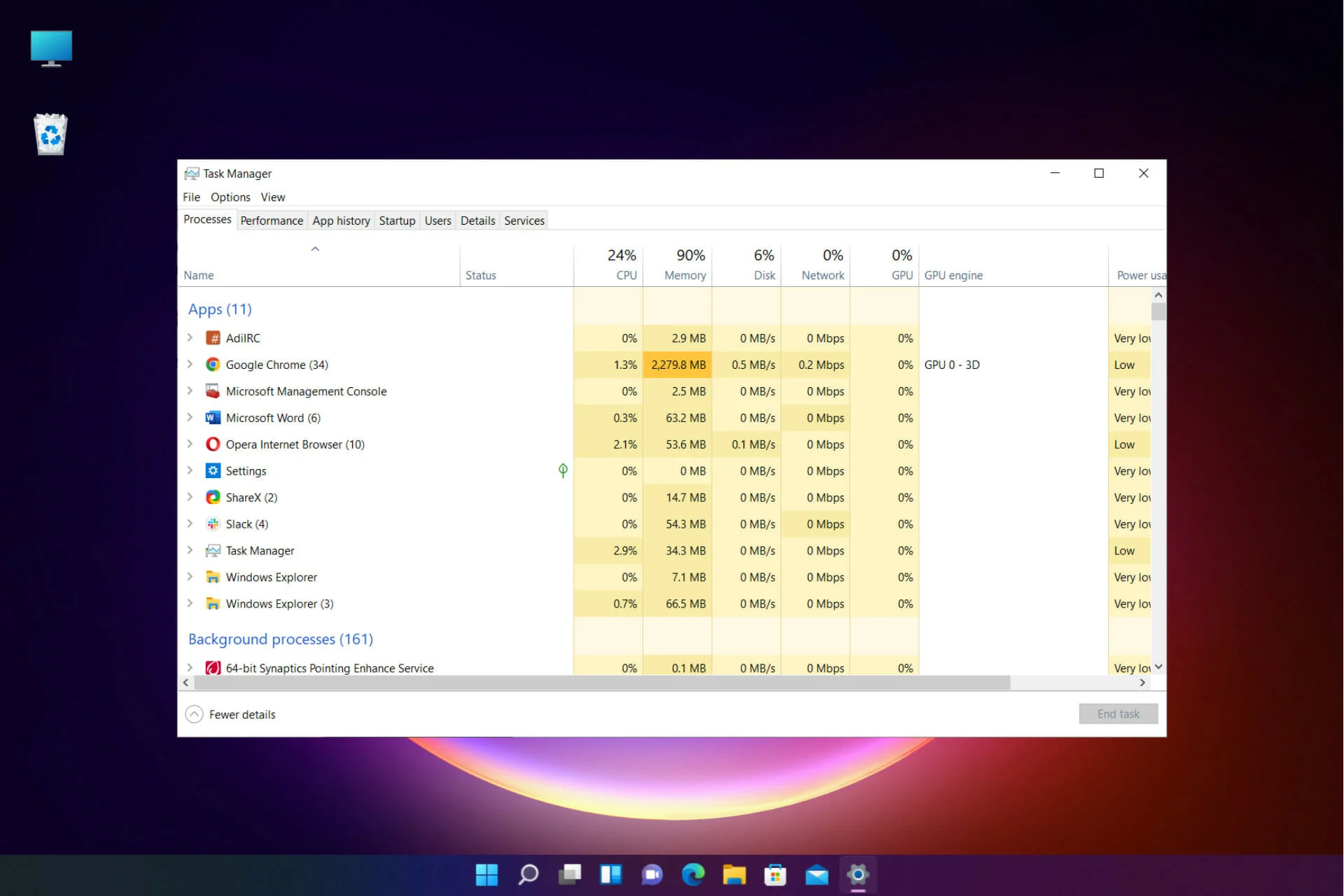
How to Disable Background Programs in Windows 10 and Windows 11

Disable Background Programs In Windows 10 And Windows 11. Some Windows software runs in the background even when it is not in use and performs tasks such as updates, Which Can Drain the System Battery Prematurely and Consume Your Internet data.
In Hardware City, we have introduced solutions to disable background programs in Windows 10 and 11. We have answered these questions: why and how to stop Windows programs from running in the background.
All default Windows applications are allowed to run in the background by Default. However, all Windows users want to improve their computer’s speed. This is possible to some extent by closing background programs.
You may know that these two operating systems are loaded with background software to send notifications and receive updates. Restricting the program from running in the Windows background prevents it from doing so.
Although running Windows applications in the background is a practical and appropriate feature, you will noticeably see a decrease in system performance and speed if many programs run in the background.
In addition, many users may face RAM limitations, and running programs in Windows may cause issues. Therefore, it is essential to stop active programs.
Preventing programs from running in the background is a capability of the Windows operating system.
In the rest of this article, we will discuss how to limit background program execution in Windows and how to stop background programs in Windows 10 and Windows 11.
How to disable background programs in Windows 10
To close background programs through Privacy settings, follow the steps below:
- First, open the Settings section.
- Click on the Privacy option.
- Select the Background Apps option.
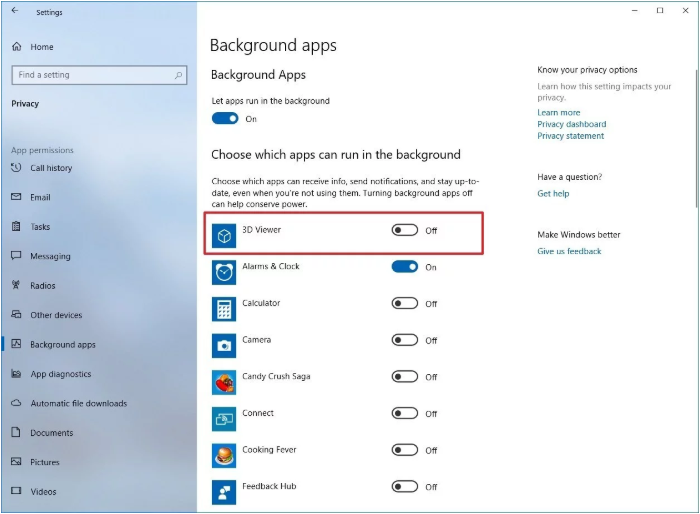
- In this section, you can control the execution status of your system programs. Active programs can be stopped by changing the position from On to Off.
Also, to prevent apps from running in the background, just set the “Let apps run in the background” option to “Off.”
After completing the above steps, you can continue to use your system software daily. However, when closing each of them, the activity of that software is generally stopped until it is rerun.
How to stop programs running in the background of Windows 10 through system settings
There is another method for tablets and laptops equipped with Windows 10, in addition to the possibility of disabling background programs through Privacy settings. Portable device users can also prevent apps from running in the background through power-saving settings.
Of course, this feature is automatically activated when the device’s battery is reduced to less than 20%. However, closing background programs by starting them manually is also possible. To do this, follow the steps below:
- First, open the Settings section.
- Click on the System option.
- Select the Battery option.
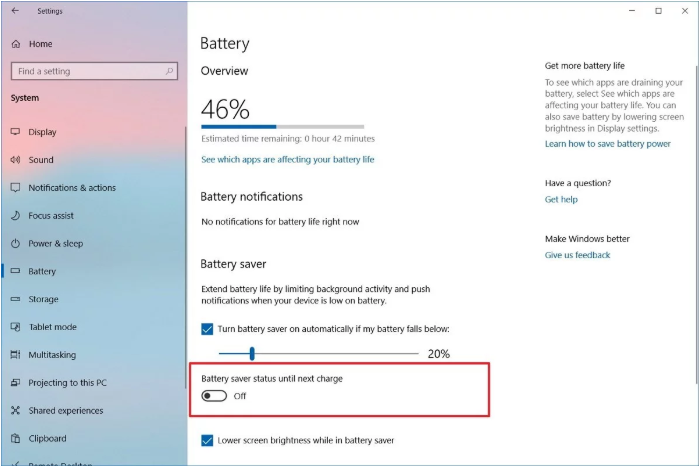
- At the bottom of the screen, set the “Battery saver status until next charge” option to off.
How to stop programs running in the background through Windows 11 settings
The easiest way to prevent programs from running in the background is through the program settings in Windows 11. Follow the steps below to disable background apps from settings.
- First, click the Start menu and select the gear cycle icon or Settings. You can also press Win + I to open the Settings window more quickly.
- Click on the Apps option on the left side of the opened window.
- On the right side, select Installed Apps.
- Find the desired program, click the three dots menu next to it, and select Advanced Options.
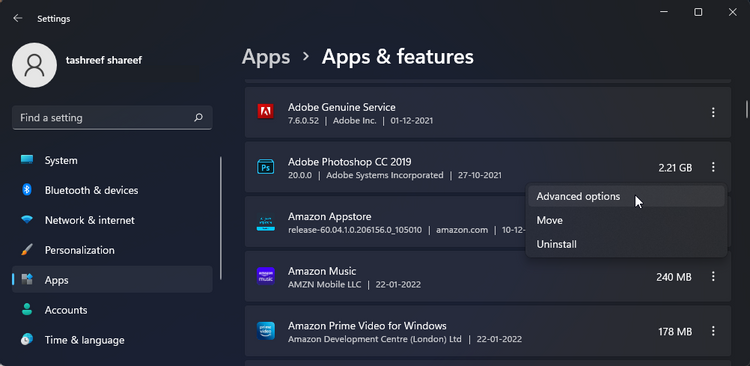
- Select Never from the drop-down menu in the background apps and permissions section. This will prevent the desired program from running in the background on Windows.
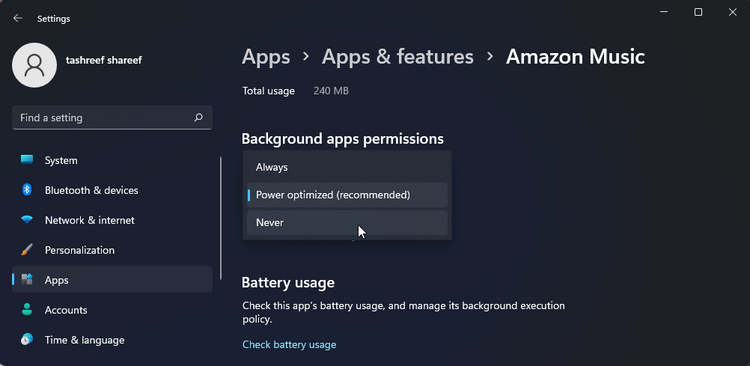
Note that this method disables only UWP apps installed on the user’s system when Windows is installed. Therefore, you can use Task Manager to personalize settings and prevent software from running automatically at startup.
Preventing software from running automatically when Windows starts up
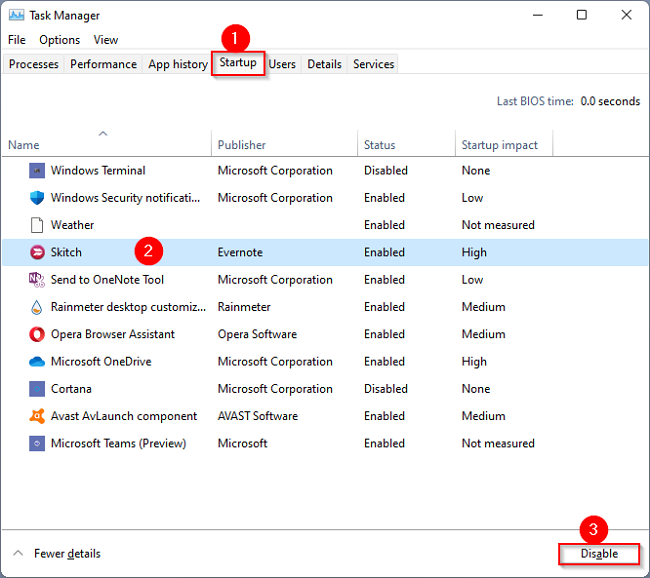
Stopping programs from running in the background is simple in Task Manager; select the Startup tab after opening it. The list of programs that run automatically when Windows starts is available here.
Now, like the desired application, click on the Disable button.
Remember that running some applications, such as drivers and antivirus software, is necessary when the system is turned on, so you should not turn off such applications in this section.
Another method to prevent unwanted applications from running at Windows startup is to use the MSConfig command. To do this, open the Start menu and type Run. Then press Enter and enter the MSConfig command in the small windows that open.
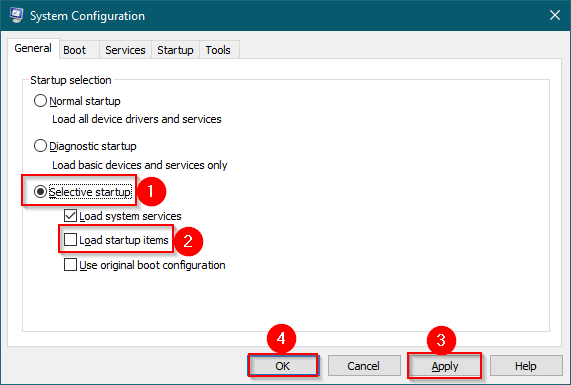
Click the General tab in the System Configuration window and enable the Selective startup option. You must turn off the check before the Load startup items option.
How to close and turn off background apps in Windows 11 by changing battery settings
If you’re using a laptop, you can stop apps running in the background in Windows 11 by analyzing their battery usage in Settings.
Note that preventing apps from running in the background with this method is reversible; when you change battery mode, your settings will update accordingly. Next, we will explain how to close background programs.
- First, click the Start menu and select the gear cycle icon or Settings. You can also press Win + I to open the Settings window more quickly.
- Click on the System option on the left side of the opened window.
- On the right side, select Power & Battery.
- Click the battery usage option in this section to view additional settings.
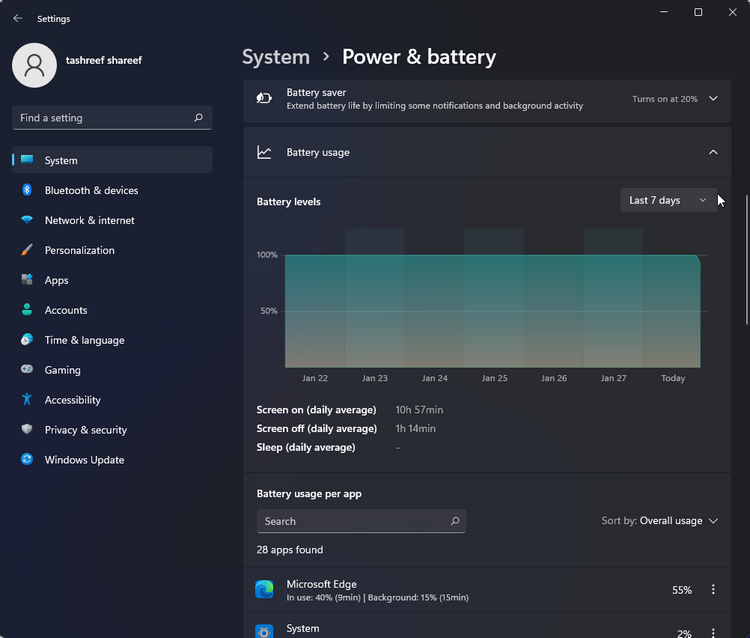
- In this section, you will see a list of software available on the computer and their battery consumption.
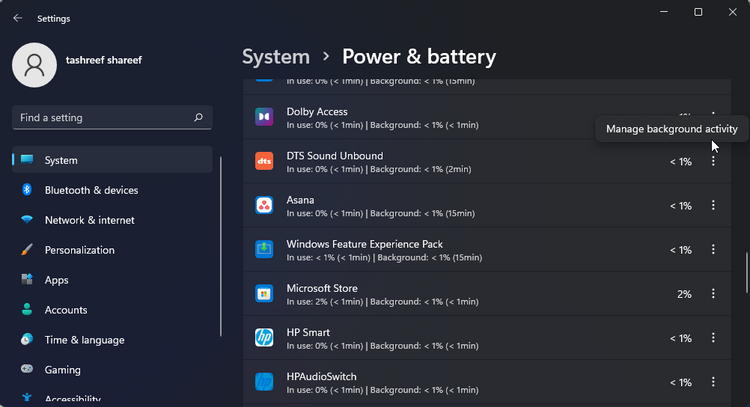
- Find the software you want to disable from running in the background. Tap the three-dot menu icon next to it, then select Manage background activity.

Close background programs by changing the Windows 11 registry
You can also use the Registry Editor method to modify the registry files to turn off background programs in Windows 11. Registry files are a sensitive part of the Windows operating system. You must follow the steps carefully and back up the registry files before closing background programs.
- Press Windows + R, type regedit, and press Enter.
- Use the address bar at the top to navigate to the following key:
HKEY_LOCAL_MACHINE\SOFTWARE\Policies\Microsoft\Windows
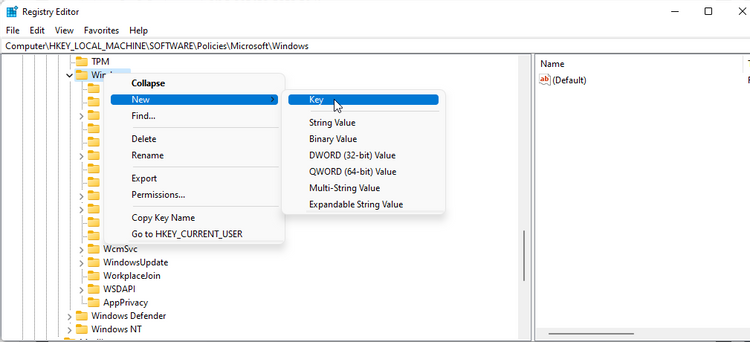
- Right-click the Windows key, go to the New section, select the Key option, and name AppPrivacy.
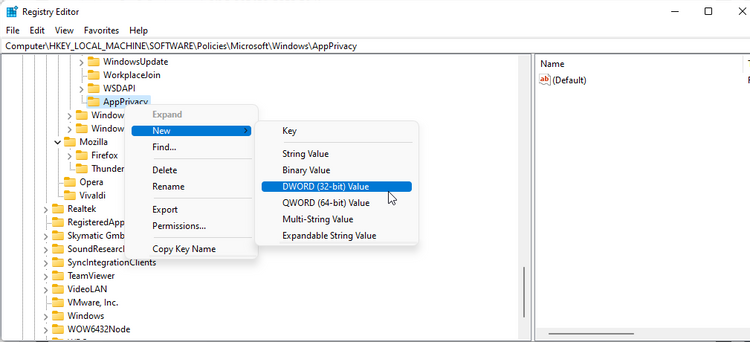
Inside the AppPrivacy section, right-click anywhere in the space, go to New, and select DWORD (32-bit) Value. Name it LetAppsRunInBackground.
Right-click the LetAppsRunInBackground value and select Modify. In the Value data field, type 2 and click OK to save the changes.
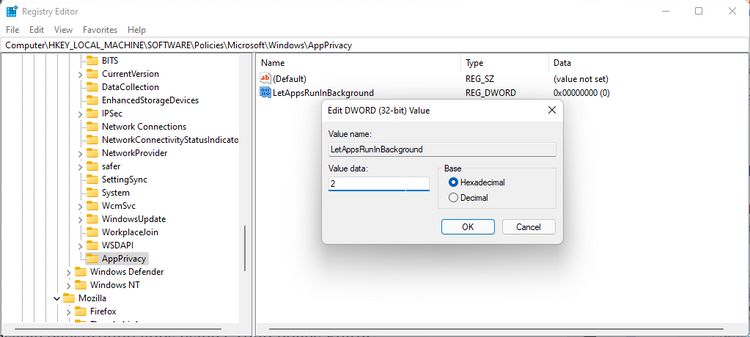
Exit Registry Editor and restart your computer to prevent the active programs from taking effect. This method should stop all software on your computer from running in the background.
Prevent programs from running in the background on Windows using Group Policy.
Group Policy helps configure how your system works. Naturally, it can also be used to close computer background programs.
You can also use the Group Policy editor to turn off the simultaneous execution of all programs in the background. Note that the Group Policy Editor is available only in the Pro, Education, and Enterprise editions of Windows. You cannot use this feature if you want to disable background programs in versions like Home.
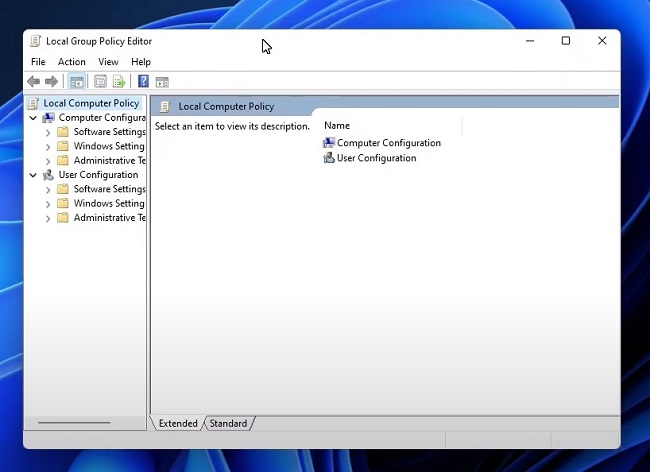
To stop active programs, press the Windows key + R to open the Run dialog. After that, type gpedit. msc and press Enter.
In the Group Policy window, follow the path below:
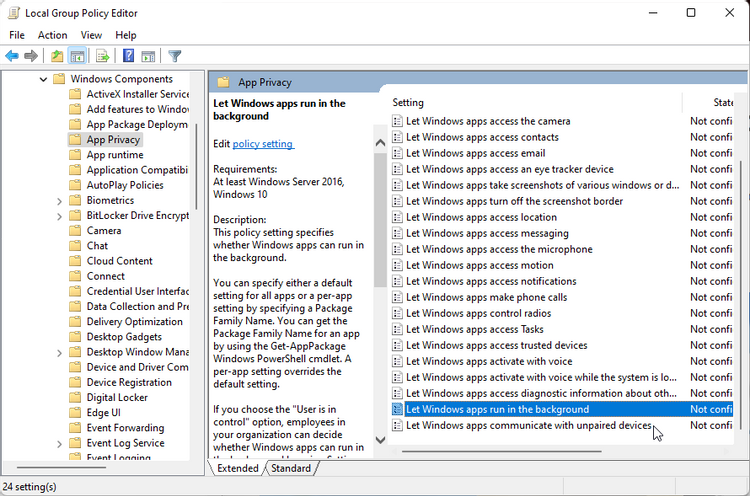
Configuration\ Administrative Templates\ Windows Components\ App Privacy
Double-click the “Let Windows apps run in the background” option on your right side.
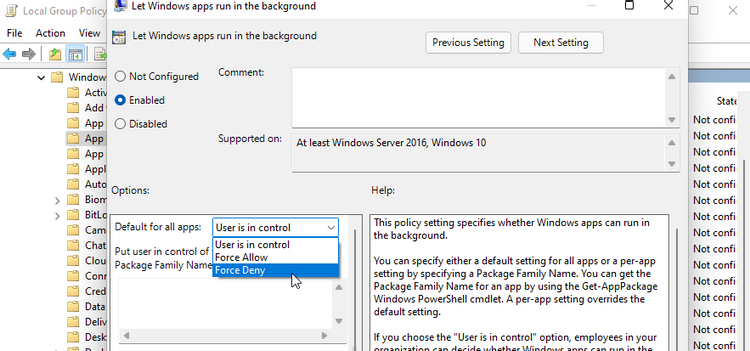
Select the Enabled option, and then in the Options section, click on the Default for all aDefaultp-down menu and select the Force Deny option. Finally, click OK and Apply to save the changes.
Conclusion
The tutorial on disabling and closing background programs in Windows 10 and 11 ends here. All core Windows software runs in the background by Default. Preventing default programs from running in the background is an effective way to manage system resources and free them for other programs. Doing this will be very useful for users with limited RAM, as it can free up more RAM after closing background programs in Windows.
Also, note that the above methods only work for software downloaded from the Windows Store. You should close the software manually to turn off background programs and prevent wasting system resources.
Closing background programs on laptops reduces battery drain and reduces unnecessary workload on your system. However, if keeping software up to date is essential to you, this method can be problematic in some cases. Of course, all the items mentioned in this article can be reversed. If the user encounters a problem after closing background Windows processes, they can return to the same path and complete the process as a photo.
It is hoped that you can use Windows more effectively by learning to end active programs in Windows 11 and 10 at Hardware City. Ultimately, we invite you to share your opinions and ask questions.
FAQ
What does disabling background programs do?
It stops apps from running tasks when not actively in use, saving CPU, memory, and battery.
Where can you turn off background apps?
In Settings > Apps > Installed apps or Background apps (Windows 11/10) to manage which apps run in the background.
Can Task Manager help disable background programs?
Yes — end unnecessary processes temporarily or disable startup apps to reduce background activity.