

How to Change the Background of the Google Chrome Browser

Google Chrome’s new tab page is functional, But Not Very Interesting. However, Chrome Gives You Several Ways To Customize The Background.
In this way, you can change the entire look of the browser with Google Chrome themes, create a new tab page with a fresh, unique look, and even upload and use your own images as backgrounds.
If you are tired of the blank white homepage in Google Chrome, use these methods to change your Google background.
Before describing the process for making changes, there are a few essential points: the methods described below work only in Google Chrome and do not apply to Chromium-based browsers such as Brave or Microsoft Edge. Still, most of them are customization settings after they have their context.
Google Chrome themes may work in other Chromium browsers, but with limited results. And the Google background can only be changed in the Google Chrome desktop app. It is possible to do this on Chromebooks, Windows PCs, and macOS computers. This option is not available in the Google Chrome browser app on Android or iOS.
Customize Chrome using a custom background.
The Chrome customization feature is the easiest way to change the Google background. This feature lets you set a custom background by uploading images and adjusting themes, colors, and more.
Chrome customization steps:
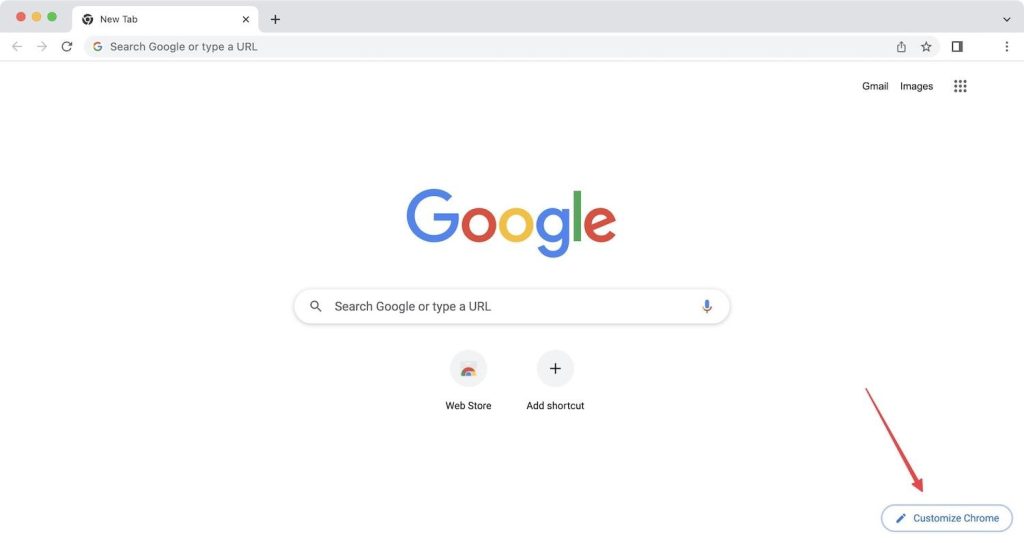
After launching the Google Chrome program, click the Customize Chrome button.
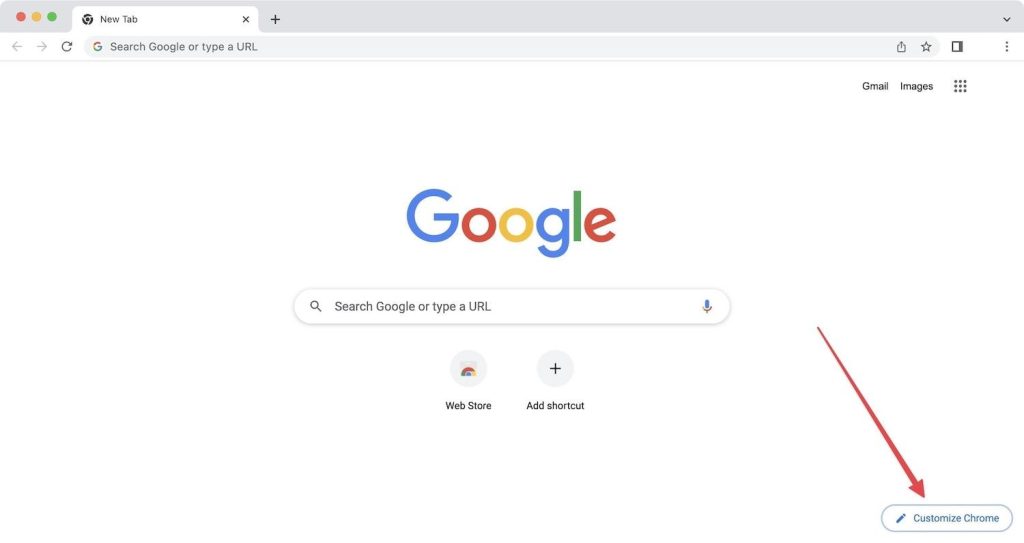
A selection of several background sets will be displayed. Select the collection you want to set as the Google background.
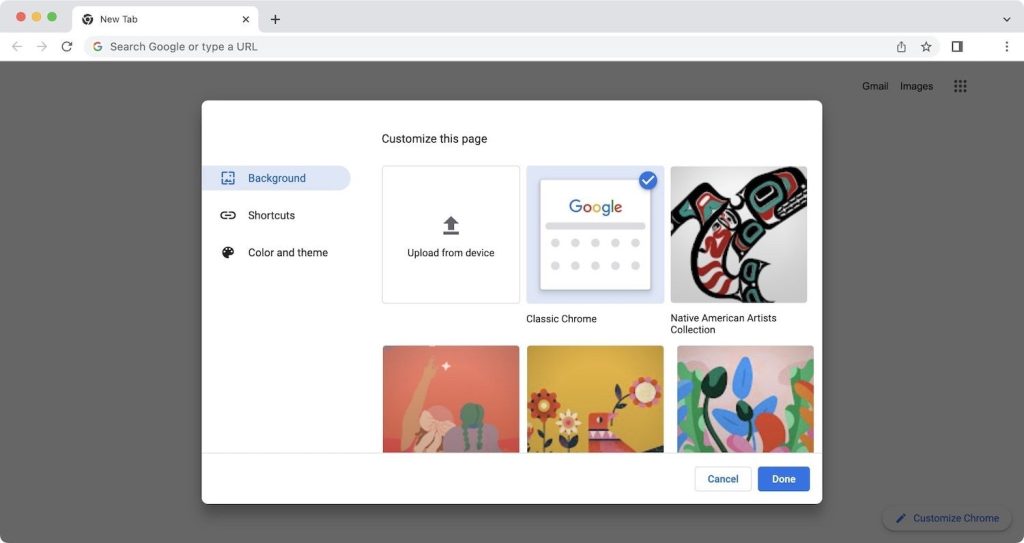
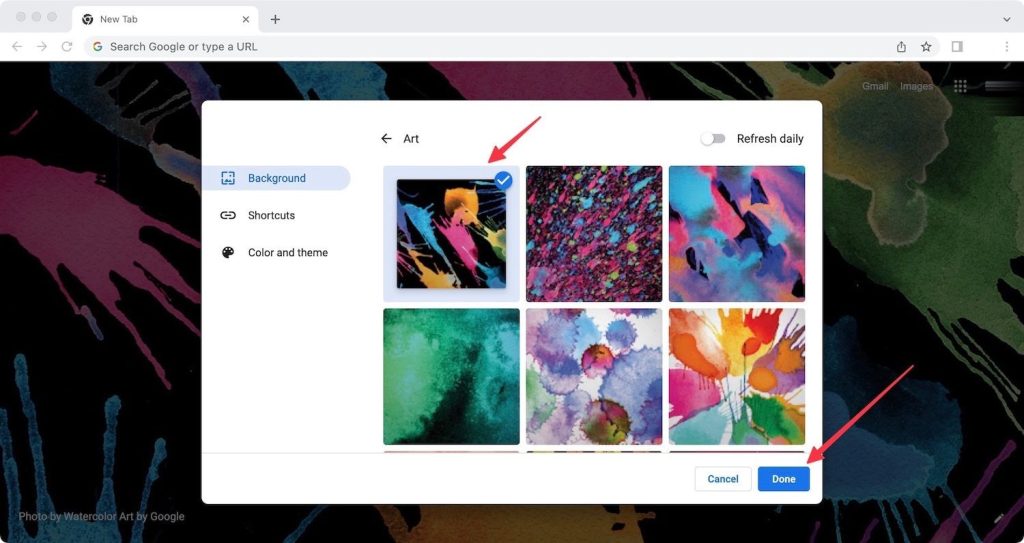
Select an image set to use as the background, then click Done to save the changes.
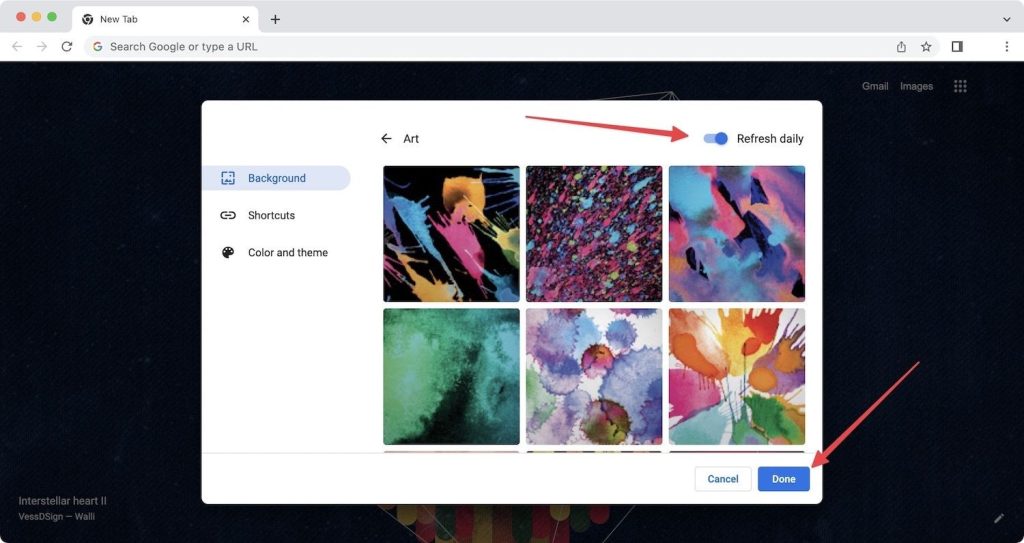
Also, enable the Refresh Daily button to change the background automatically daily. Click Done to save the changes.
Use the uploaded image as your Google background
1. Click the Customize Chrome button after launching the Google Chrome program.
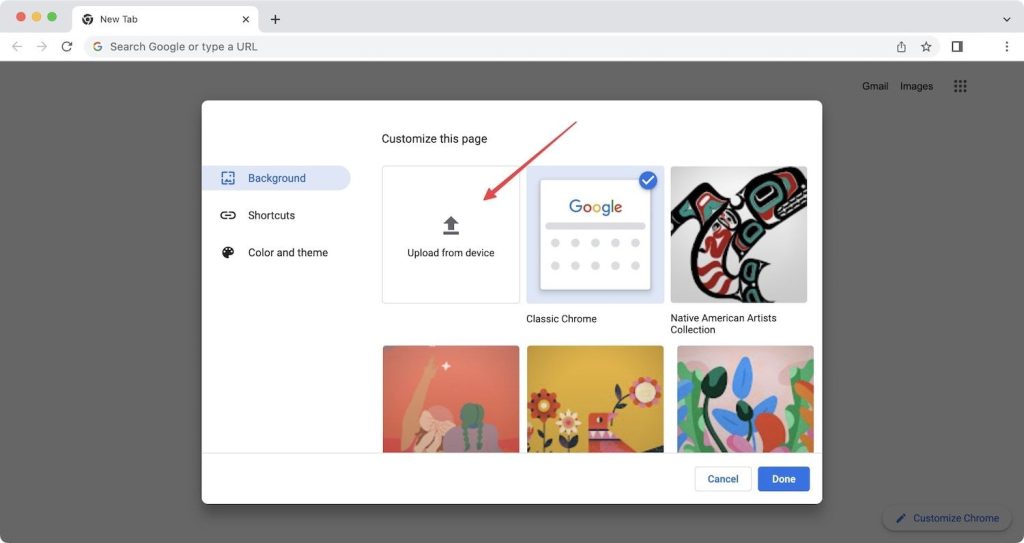
2. Click on the Upload from device option and select your image.
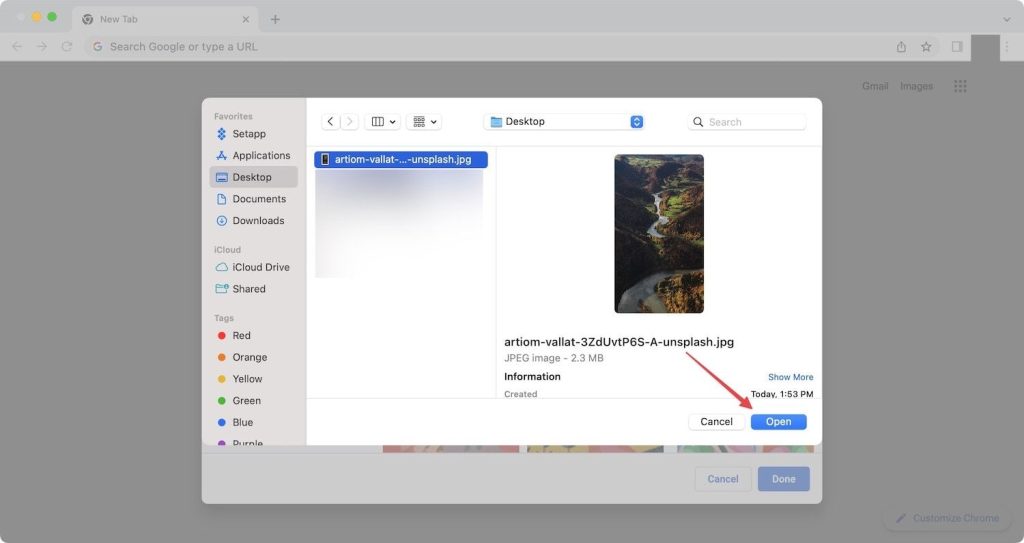
3. After selecting the image, click the Open button and set it as the background.
Changing the theme and background color of Google Chrome
Changing the Chrome theme and Color makes it look good. One advantage of this method is that it changes the program’s entire color theme by following these steps.
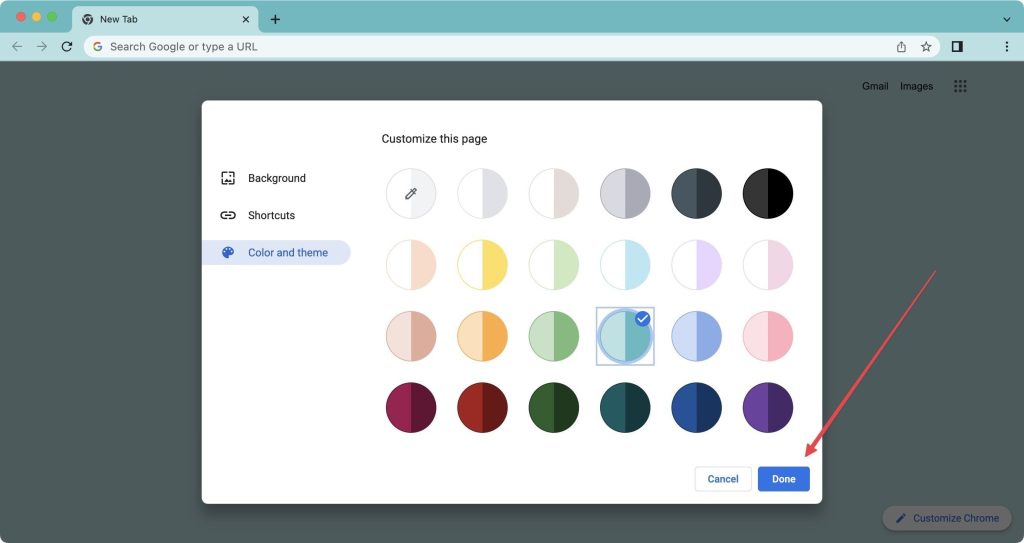
1. In the pop-up corresponding to the Customize Chrome menu, select the Color and Theme option.
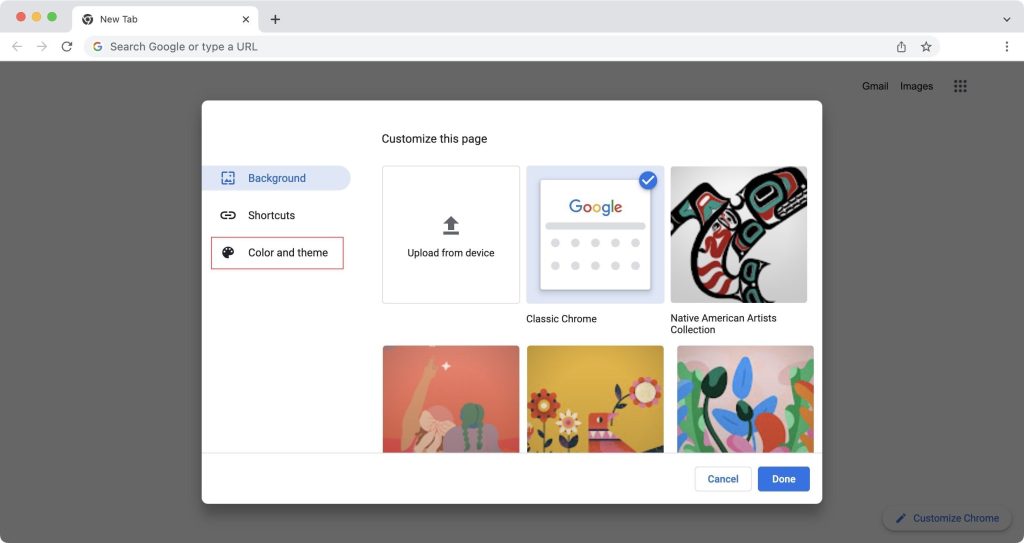
2. Choose a color scheme and click the Done button to save the changes.
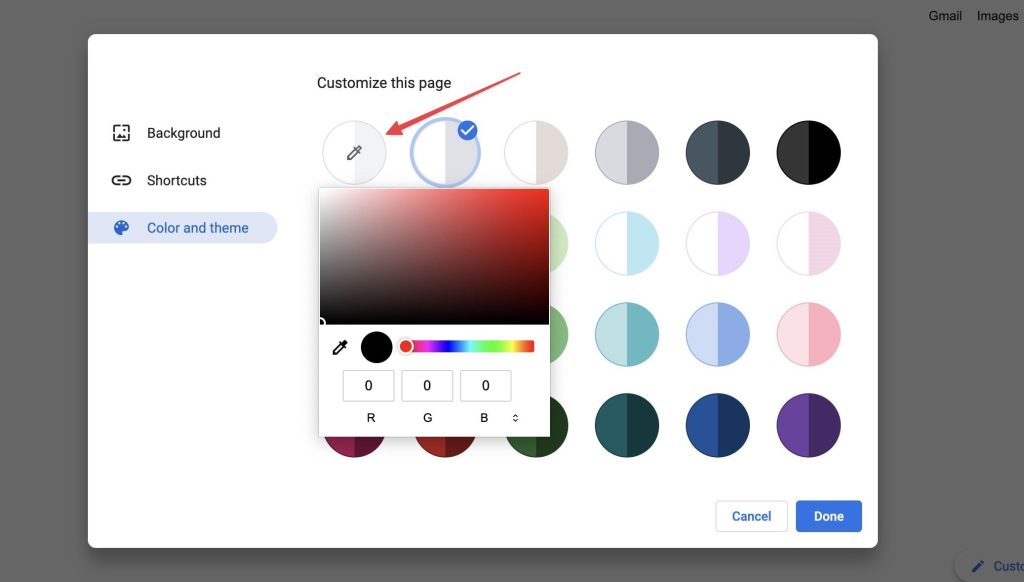
3. If the set colors are not to your liking, it is also possible to create custom color themes.
Use the Theme Store to change your Google background
Like Google Chrome’s Extensions, this browser also includes a Theme Store for downloading and installing powerful extensions. It can be used to download themes created by other users and change the look of the entire Chrome browser. For this purpose:
Open Google Chrome and sign in to your Google account.
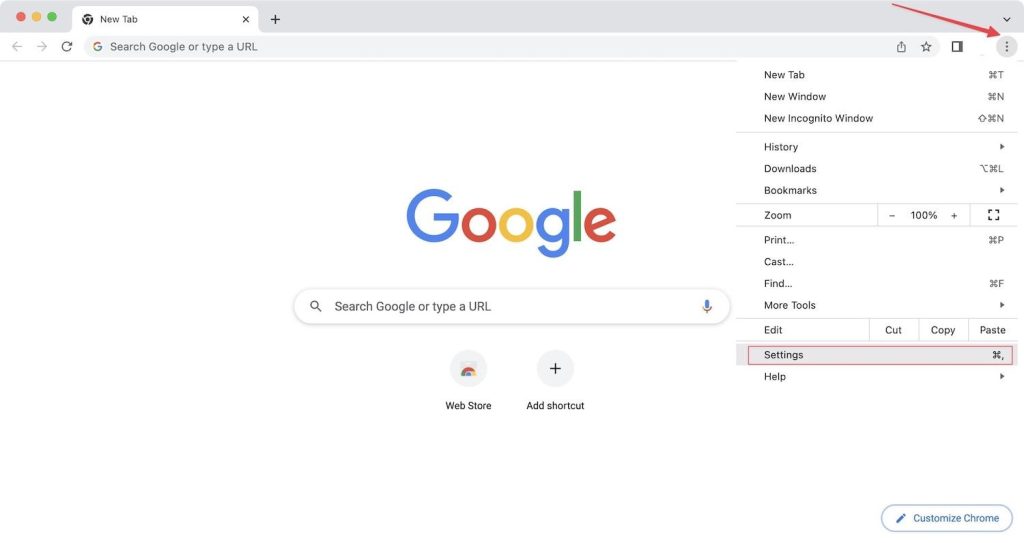
Click on the three-dot menu in the upper right corner and open Settings.
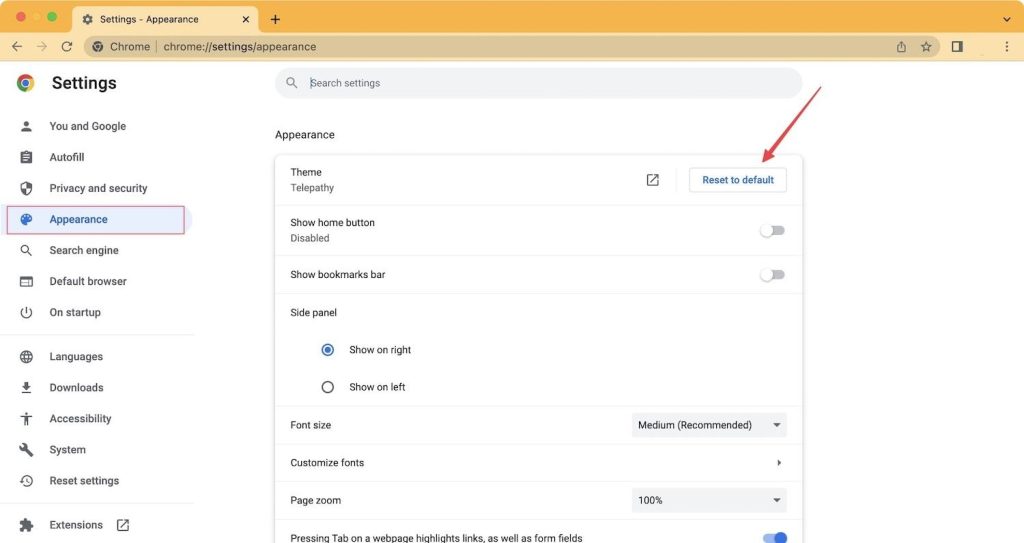
Select Appearance from the left sidebar and click on Theme.
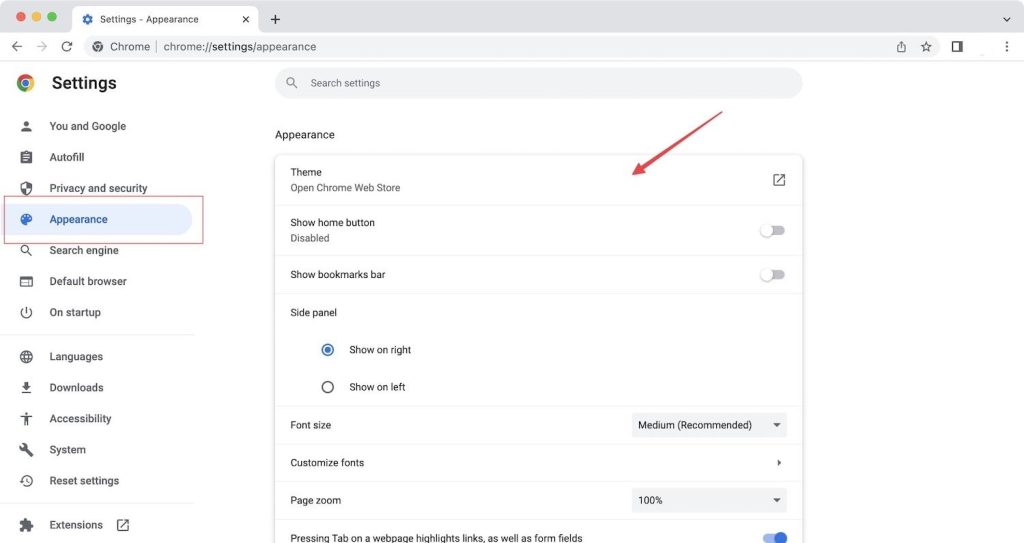
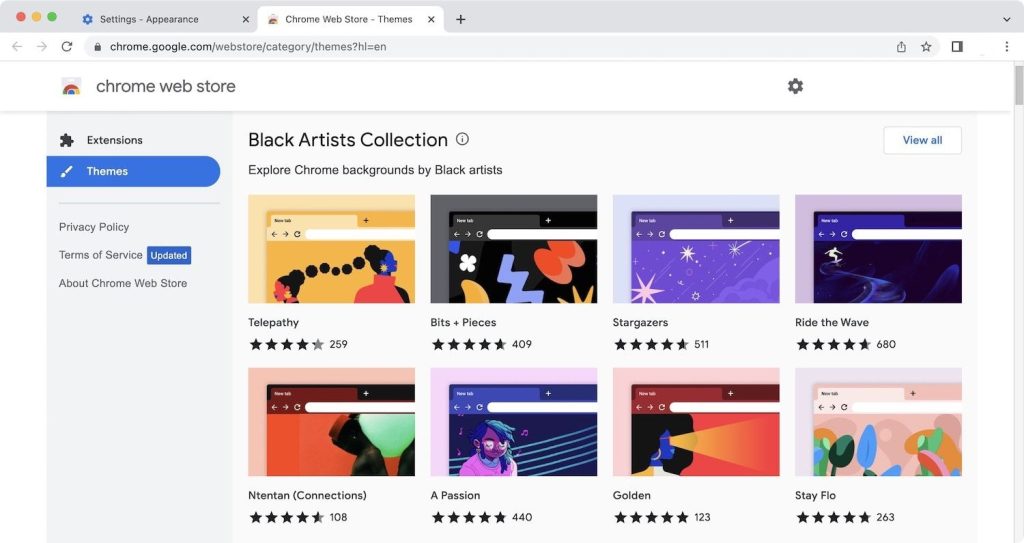
A list of themes will be displayed on this page. Click on the desired Theme to install.
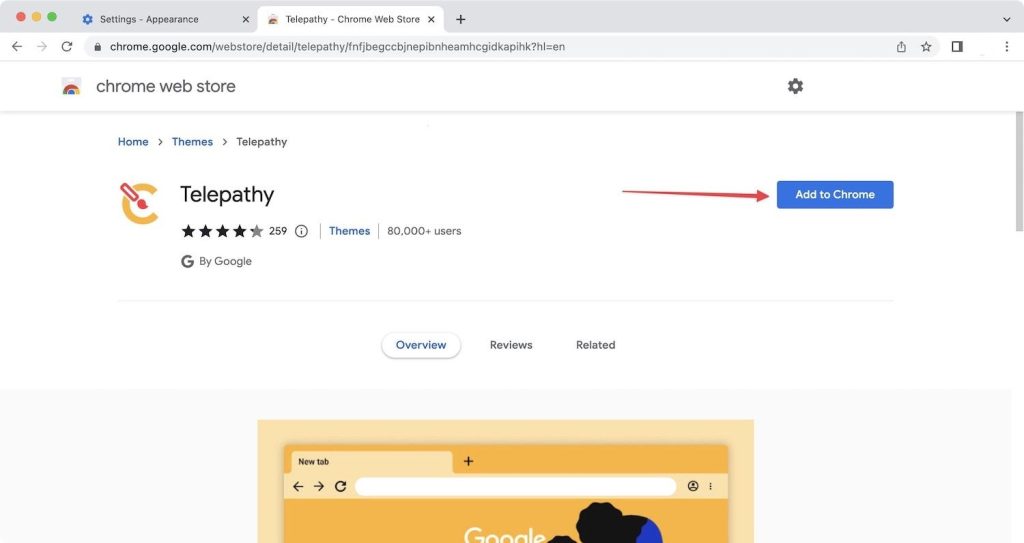
Click the Add to Chrome button to install the Theme.
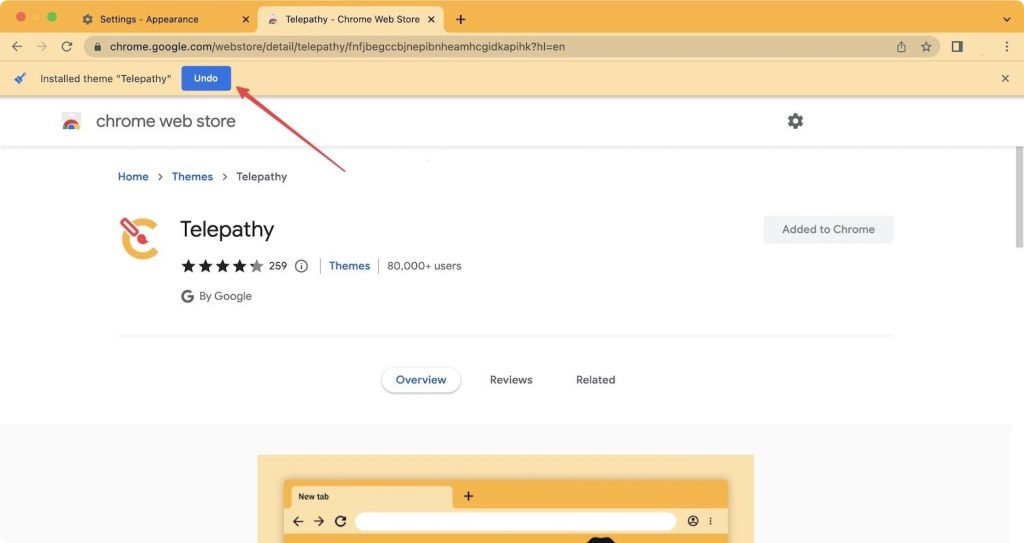
If you don’t like the Theme, click the Undo button and delete it.
To remove the Theme at other times, go to Appearance in the settings and click the Reset to Default button.
FAQ
How do you change Chrome’s background using built-in themes?
Open Chrome Settings, go to Appearance, and select a theme from the Web Store.
Can you use a custom image as the background?
Yes, choose “Customize” on the new tab page and upload your own image.
Will the new background apply to all Chrome windows?
Yes, the selected background will appear on all new tab pages across your Chrome profile.