
External Hard Drive Not Recognized in Windows: Fix the Problem

If You Have Connected Your External Hard Drive To Your Computer Or Laptop but cannot See Its Contents, this Article Explains Some Causes of the Problem and how To Troubleshoot And Fix It.
The inability to recognize an external drive (usually a hard disk) in Windows is one of the most common issues users encounter, and it can lead to data loss.
It doesn’t matter whether you have connected a brand-new drive to the system, an industry drive, or a hard drive you previously used in the strategy. The problem of not displaying the external hard drive can happen.
The drive may be detected on the computer, but the partitions may not be visible. It may also not be detected at all and show no response. In any case, this can be a minor software issue that can be fixed, or it may indicate hardware problems.
Possible reasons for not displaying the computer’s external drive include an insufficient power supply, a faulty USB port, a missing drive name, outdated drivers, file system, or partition issues.
In this article, we will examine common reasons an external drive does not appear on a computer and available solutions to resolve the issue. So, if you are having trouble accessing your files, don’t miss this article.
What do you do when the external hard drive is not shown?
If an external hard drive doesn’t appear in File Explorer, first verify that it’s connected to the computer and powered on.
Some hard drives use a separate cable (usually USB) to supply power, or a separate adapter, in addition to the standard USB cable for data transfer. Therefore, check whether you have connected this cable correctly to the power source.
After this, you should check whether the operating system recognizes the hard drive. To do this, use the Windows tool Disk Management.
Suppose you see the external hard drive as Unallocated, Not Initialized, or offline in Disk Management. In that case, it will be easy to fix the problem of not recognizing it.
In cases where the external hard drive is detected but doesn’t appear in My Computer, you can resolve the issue by formatting the drive, creating a partition, initializing it to MBR/GPT, or bringing the drive online.
If the external hard drive still doesn’t appear in Windows Disk Management (the computer doesn’t recognize, see, or read it), try restarting it, enabling Legacy USB Support, and using a different USB port.
Your USB port may be out of order, and the computer cannot recognize the external hard drive. If you’re using USB 3.0, try a USB 2.0 port. Also, connect the drive directly to the computer using a USB hub.
Sometimes, the external hard drive is not displayed due to physical damage. With this overview of the issue, follow the methods described in the article to resolve the external hard drive not being recognized in Windows.
Changing the USB port or connecting the hard drive to another computer
The USB port may be damaged if the computer does not recognize the external hard drive. If the external hard drive doesn’t show up when connected via a USB 3.0 port, you can also try a USB 2.0 port to detect the movement.
Additionally, you should try connecting the external hard drive directly to your PC and see if your PC can recognize it. Windows 10 can also not show the USB drive when the USB port’s power supply is insufficient. In this case, we advise you not to use a USB hub because some cannot provide enough power for the external hard drive.
Also, don’t forget to connect your hard drive to another computer or laptop in such cases, so that you can determine from the beginning of the troubleshooting process whether the problem is with the laptop, ports, or operating system, or whether the pain comes back to the external drive itself.
Check the drive in Disk Management
Sometimes, an external hard drive that doesn’t show up in My Computer may show up in Disk Management. To check this issue, press the Windows + X keys and click on the Disk Management option from the menu that opens.
The following may prevent the drive from being displayed:
- Unallocated external hard drive
- Failure to initialize the external hard drive (Not Initialized)
- Offline external hard drive
- Lack of a letter (Drive Letter) to assign to the hard drive
Next, see the steps to resolve the issues above.
Create a new partition for the drive.
If the external drive is not partitioned, right-click on Unallocated space and select New Simple Volume.
- Click the Next button.
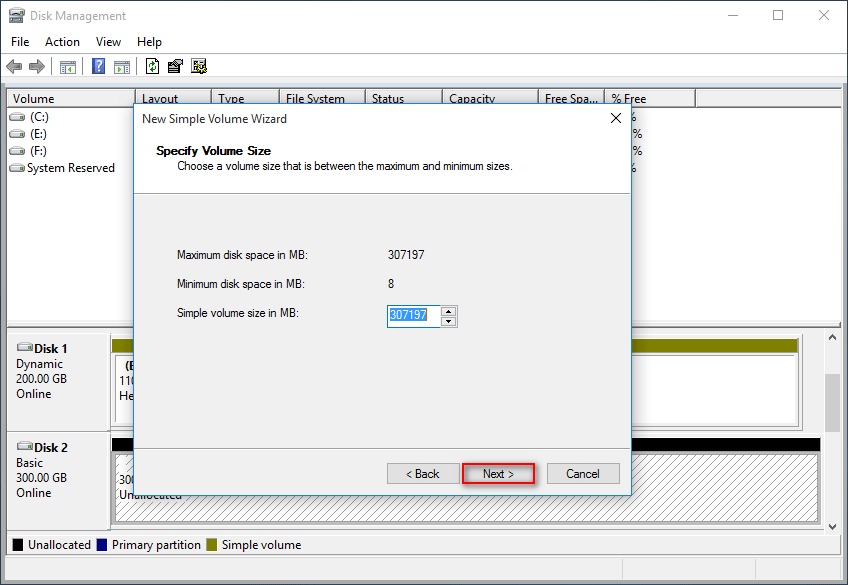
- Specify the partition size and click Next.
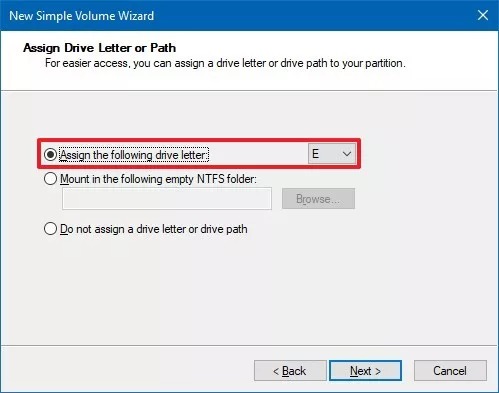
- Select the drive letter, then choose a letter from the drop-down menu to assign to the drive. Click Next.
- Select Format this volume using the following settings option. Use the default settings.
- In the Volume label section, enter a descriptive name for the drive.
- Check the Perform a quick format option. Click Next and then Finish.
After completing the steps, the system will create a usable drive space with a partition and a drive letter.
Initialize the drive
Sometimes, when you connect an external drive to Windows that has never been initialized or formatted or is being used on another computer, Windows may not recognize the drive correctly. This drive is shown as Unknown and Not Initialized in Disk Management. Therefore, you can quickly initialize the drive using the following steps:
- In Disk Management, right-click on the Unknown or Not Initialized space and select Initialize disk.
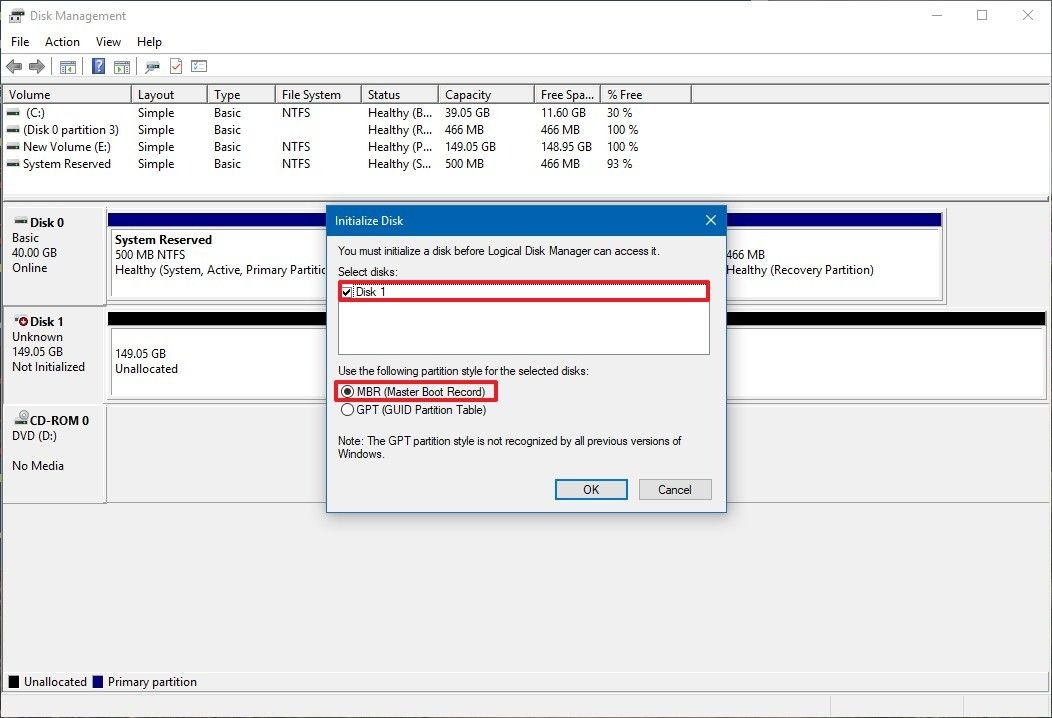
- If the drive hasn’t already been elected, select it.
- Select the MBR (Master Boot Record) option.
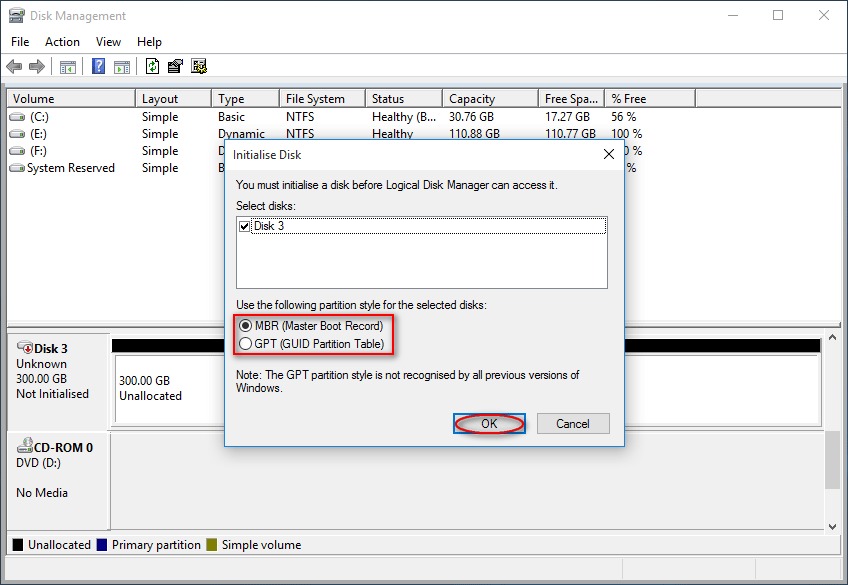
- Click the OK button.
Initialize the drive using the Online disk operation
If your dream is not shown in File Explorer and appears offline in Disk Management, you can use the following steps to fix the problem:
- If the hard drive appears as Offline in Disk Management, right-click it and select Online.
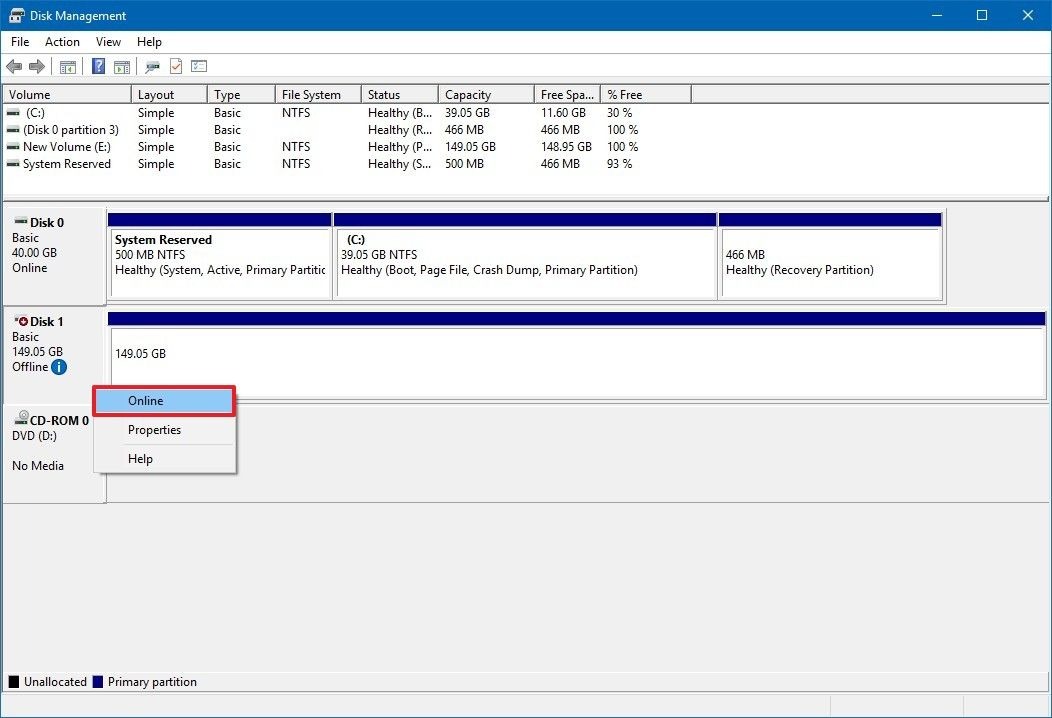
After completing the steps, you should be able to start using the memory as usual. If you can’t bring the storage online (even though it was recently available), the drive may be broken, disconnected, or not get power.
Change the drive letter.
Another way to indicate an unknown or unrecognized external hard drive is to change the drive letter.
- Right-click on the disk partition that does not have a drive letter.
- From the context menu, select Change Drive Letter and Paths.
- Click the Add button in the pop-up window.
- Assign a drive letter to the partition and click OK to confirm.
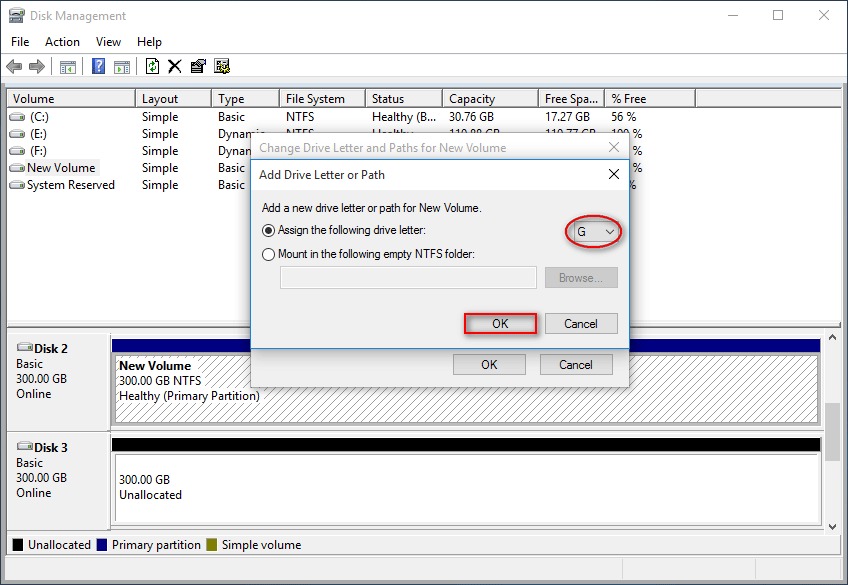
Wait a moment. The drive appears and works again.
Run the Windows troubleshooter
- In the Windows settings panel, select Update and Security.
- Go to the Troubleshoot tab.
- Scroll down and select Hardware and Devices on the right.
- Click the Run the Troubleshooter button.
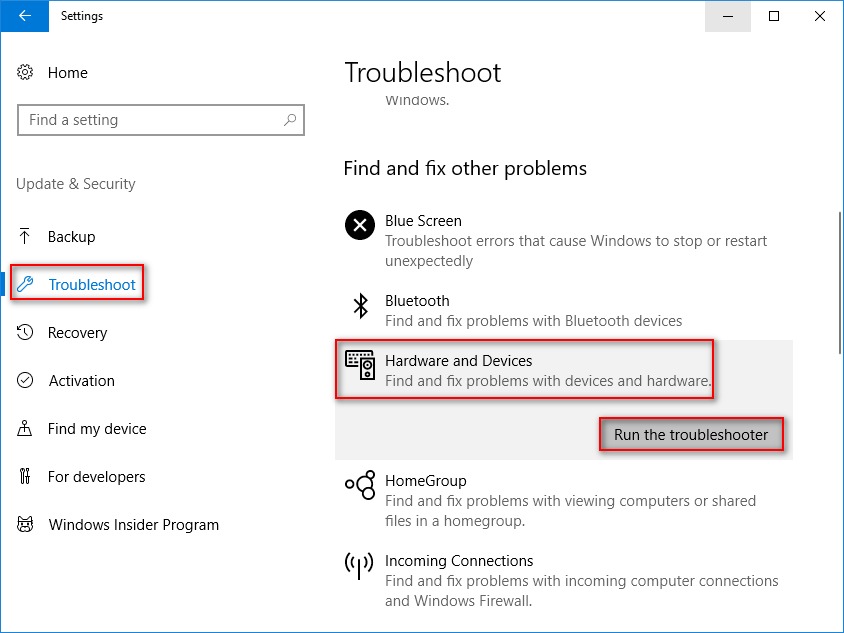
- Wait for the problems to be detected. After the scan is complete, Windows will list the issues found. Select the problem you want to fix, then click Next.
Update, remove, and restore the driver.
If the external hard drive is not visible on the computer, you can remove it from Device Manager (Uninstall or Delete). Then open My Computer or This PC to check whether the external hard drive appears. If it doesn’t show up, you should restart your computer and check again for this job:
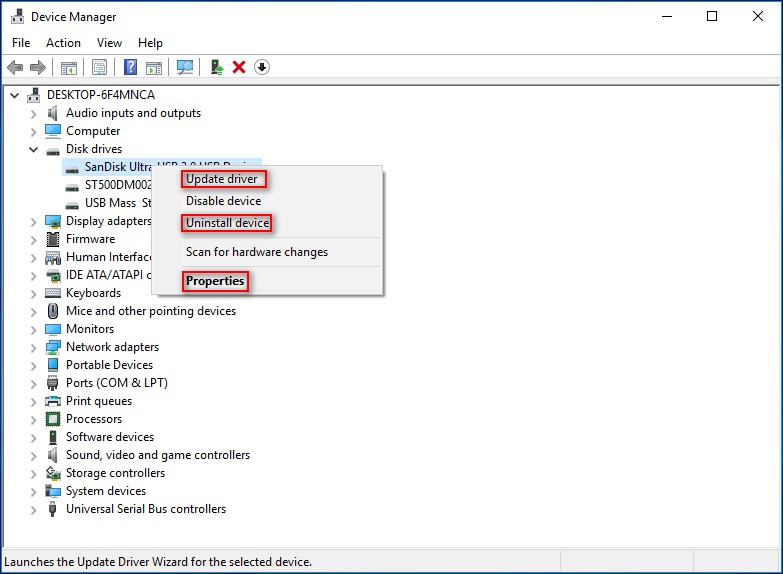
- Press the Start + X keys and select Device Manager from the menu.
- Expand the Disk drives option.
- Right-click on the hard drive.
- Choose one of the following options: Update drivers, Uninstall device, or Properties.
- The updated driver helps resolve the issue of the USB drive not being recognized due to damaged or outdated device drivers.
- The option to remove the device (Uninstall device) removes the external hard drive driver when connected to a defective USB port. It is useful when your USB driver is unstable or corrupted. After selecting it, remove the USB device from the computer and reconnect it at least one minute later.
- The Properties option will help you diagnose the error more effectively. After clicking on Properties, you can go to the Driver tab and select the Roll Back Driver option.
Complete the remaining steps by following the system prompts.
Reinstall the USB controllers
- In Device Manager, find and expand Universal Serial Bus controllers.
- Right-click an item and select Uninstall device from the context menu.
- Click the Uninstall button in the pop-up window.
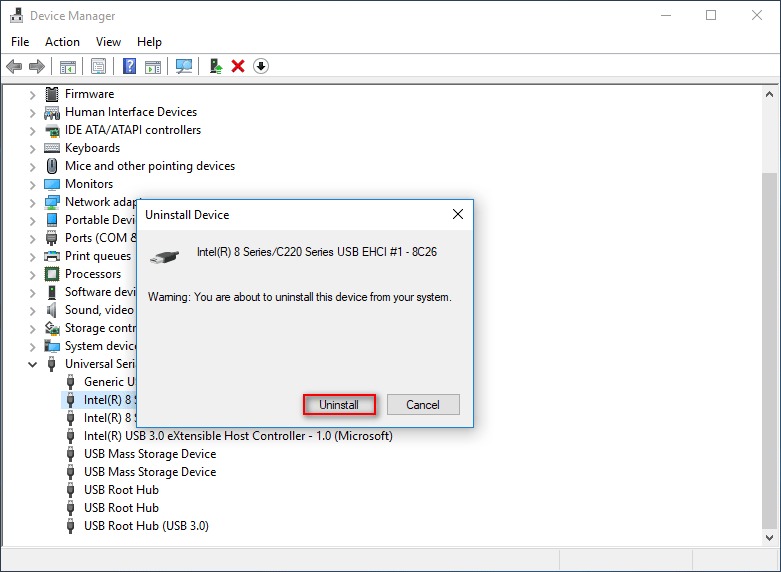
- Repeat steps 2 and 3 until all devices under Universal Serial Bus controllers are uninstalled.
- Restart your computer. Windows automatically installs USB controllers.
Enable legacy USB support in BIOS.
Sometimes, your hard drive may not be recognized in the BIOS. This may be due to Legacy USB Support being disabled.
- Restart your computer. Press the corresponding button to enter the BIOS.
- Go to the Advanced tab.
- Select USB Configuration.
- Select Legacy USB Support and set it to Enabled.
- Exit and save changes.
Note: This process may vary slightly across motherboards.
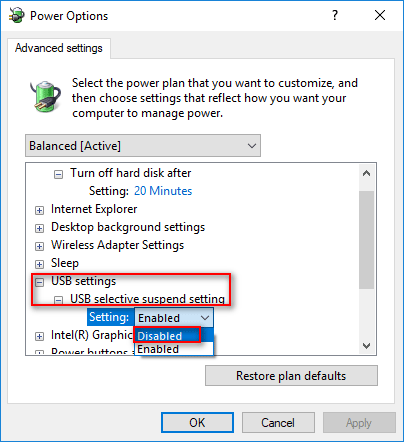
Disable the USB selective suspend setting.
- In Windows Search, type “power plan”. Choose a power plan option from the search results.
- Next to the currently used plan, click Change plan settings.
- Click on Change advanced power settings.
- Find USB settings and click the + button to expand it.
- Click the + button to expand the USB selective suspend setting.
- Change the setting to Disabled.
- Click Apply to confirm, then click OK to close.
Update motherboard chipset drivers
Sometimes, improper installation of computer drivers, especially motherboard chipset drivers, may cause this problem. We recommend you get help from the introductory training article on installing drivers.
To install special drivers for your device, you must first go to the website of the computer or motherboard manufacturer, search for its model from the support or downloads section, and install all the mandatory and essential drivers.
Identifying and removing computer viruses
If a virus attacks your computer, it may be affected by connecting an external hard drive to the computer and becoming inaccessible. To fix the problem, you can use Windows Defender or third-party antivirus software and run a system scan to detect the virus.
The drive will usually return to normal after the malicious agent is identified and removed. But if this does not happen, it is better to back up your drive using special software and then format it.
Unreadable drive
Suppose Windows does not recognize the external drive correctly and appears in Disk Management as Unreadable. In that case, it means that Windows has trouble reading and writing to the industry, or the movement has a hardware problem.
Suppose you have already tried the above methods to solve connection, initialization, and format problems and have not received any answers. In that case, the problem may be due to a hardware failure, so you should buy a new external hard drive.
Fixing the problem of not opening the external drive
If Windows recognizes the external hard drive, it can’t open it because the file system is unknown to Windows or corrupted. When Windows doesn’t support your hard drive’s file system, you won’t be able to access the drive. For example, Windows does not support the ext4 file system (designed for Linux) and the HFS+ file system (designed for Mac).
Therefore, you will be prompted to format the disk before using it after clicking on the drive. You should know that if you select Format, all your saved data will be lost. If you choose Cancel, you will encounter the message The volume does not contain a recognized file system.
In addition to the mentioned cases, the following reasons may have caused the problem:
- The file system is damaged.
- The drive is in RAW mode.
- The parameter is wrong.
- The file or directory is corrupted and cannot be read.
To fix this problem, try the following method:
- Type cmd in the search box. From the search result, right-click Command Prompt, select Run as administrator, and click Yes.
- * Type chkdsk /r (* for drive letter) and press Enter.

Wait for the process to complete.
Clean the disk with the Clean command.
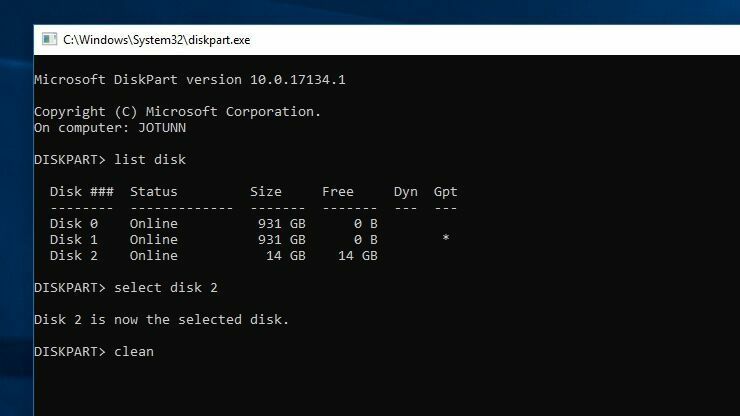
Sometimes, the drive appears in Disk Management, but formatting the drive is impossible. In these cases, to restore the total capacity of your campaign, you must run the Windows clean command, which converts the movement to its raw state. It will erase everything on the drive, so only run this command if you’ve tried all possible solutions.
- In the Start menu, type diskpart and press Enter.
- When the prompt appears, type list disk and press Enter to see the disks attached to your system. Please pay attention to the name and capacity of the desired drive to ensure it is selected correctly. We used Disk 2 in this example.
- Type select disk two and press Enter to select the disk you want to erase.
- Type the clean command and press Enter to wipe the disk. Next, follow the steps above to format the hard drive from the Disk Management console.
We hope this educational article has helped you solve the problem of not recognizing the external hard drive in Windows. If you have encountered issues while performing the recommendations and methods mentioned, share your questions with users and us. Which way solved the problem of not recognizing your external hard drive? If you know of other practical strategies, share them in the comments section.
FAQ
Why is my external hard drive not showing up in Windows?
It may be due to driver issues, connection problems, or uninitialized/unclean disk configuration.
How can I fix a drive that isn’t recognized?
Try updating drivers, changing USB ports/cables, and checking Disk Management to assign a drive letter.
Will formatting the drive help?
Yes, but formatting will erase data, so back up important files before proceeding.