
Windows Screen Recorder: Capture Video From Windows Screen Without Installing Software

Did you know that the Windows Screen Recorder tool can record your screen without any additional software? In the continuation of this article, a step-by-step guide for using the Windows 10 screen recorder tool to record video from the desktop without the need for a program has been provided.
Maybe you’ve wanted to record a video from your computer or laptop screen. For This, You Have Downloaded And Installed All Kinds Of Software, And You Have Probably Faced Problems Caused By Cracked And Illegal Tools.
There are many ways to record on your desktop computer. In this article, we have introduced several programs for recording videos from the computer screen. You can use them to take photos and videos from your computer screen.
Microsoft provides a screen recording tool that does not require installing software. The Windows Screen Recorder is part of the Xbox Game Bar program.
In addition, the ability to capture video from the computer screen has been added to the Snipping Tool in Windows 11, as explained in detail.
Introducing the best computer screen recorder software
In the following, we will introduce you to the best Windows video recording program, which will help you record your computer screen more effectively using the tools and settings you want.
The desktop screen recording software list has strengths and weaknesses; in this case, you can familiarize yourself with its additional features.
1. Bandicam, the best desktop screen recorder software, with the ability to record audio inside the system
Many users consider Bandicam the best desktop screen recording software. This program has three different modes. In one way, you can record a particular part of the screen; in Game Recording mode, it is possible to record gameplay; and in Device Recording mode, you can record webcams or devices connected to the system via an HDMI cable.
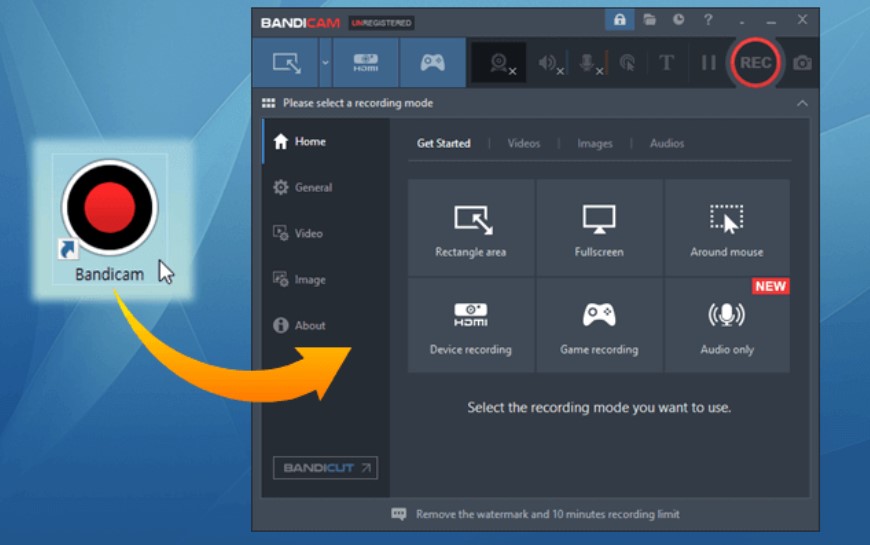
Bandicam also shows you the frame rate counter while recording the game. The program’s free version adds a watermark to your video and limits its features. For example, you can record up to 10-minute videos. The output can also be received in AVI or MP4 formats.
2- OBS Studio desktop video recording software
OBS is a strong choice if you are looking for the best desktop screen recording program. This program, the best computer screen recorder software, is open-source and completely free. This program, one of the best desktop recording software options with audio support, allows you to record, play online, and stream. The best video recording program for Windows does not impose any limits and does not add a watermark to your videos.
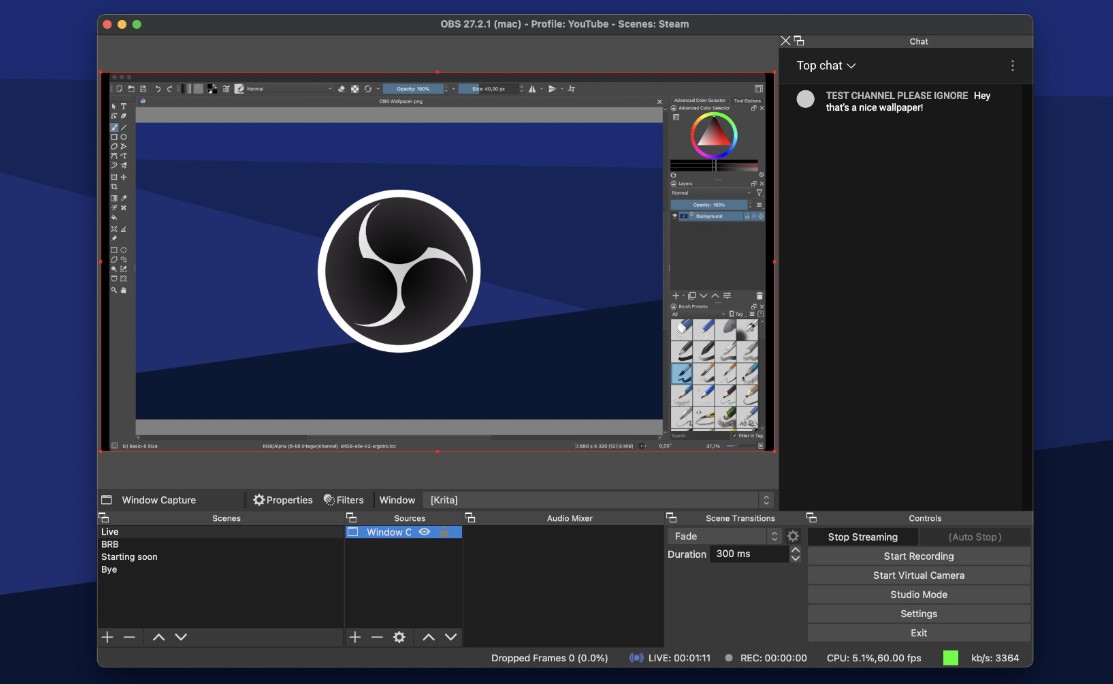
You can broadcast desktop content live on Twitch or YouTube with the help of the OBS Studio desktop capture program. One essential feature of this software for recording desktop video without requiring a separate program is the ability to capture the entire monitor while playing games. This laptop recording software may seem complex at first glance, with various options and menus, but with a few uses, you can get to know it well and enjoy the best Windows screen recorder.
3- Windows screen recording program Screen Grabber Premium
The best video recording program for Windows can record both the microphone and computer audio simultaneously. Windows Screen Grabber Premium is the best desktop screen recording program, offering a convenient, straightforward experience. You can use this program to record a part of the screen or the whole screen.
In addition, you can record a video of the screen without installing the software, as discussed below.
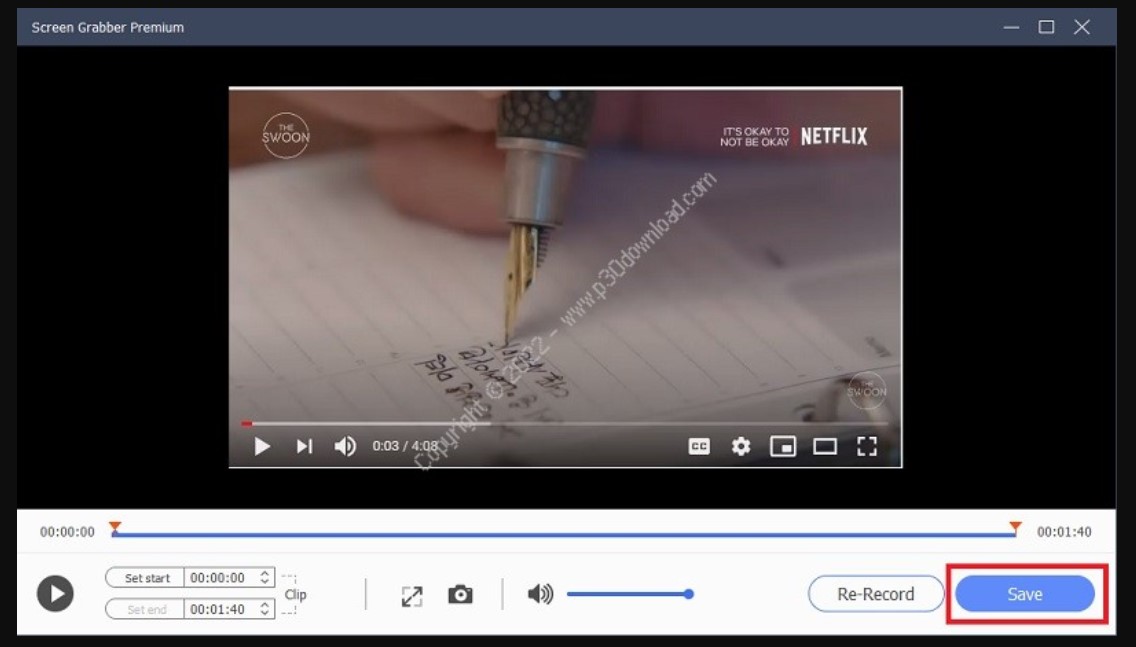
This screen recorder lets us record videos in popular formats like MP4 and MOV. You can also upload your recorded videos directly to YouTube, Google Drive, and Dropbox.
All these features mentioned above are available in the accessible version of this program. This program also offers a pro version that lets you schedule your page record.
If you need to record a live stream but can’t do so at the time of broadcast, install this program on your computer and set a specific recording time by activating the pro version. In this way, the software automatically records the page.
4- Action software
The best desktop screen recorder lets you capture gameplay with a 4K webcam and easily stream live. In addition, this software is straightforward to use. After recording the video, you can save it in MP4 format and upload it directly to Facebook or YouTube.
Among the other key features of the best computer screen recorder software, we should mention an easy, accessible user interface, support for live-stream gameplay, a slow-motion effect, and the ability to cut out the background of the video you are recording.
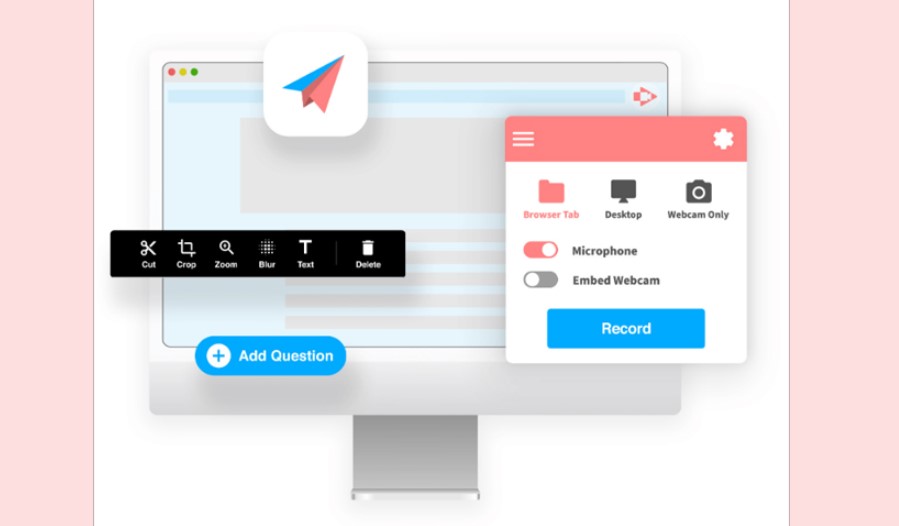
5- Windows screen recording program Screencastify
This Windows screen recording extension, the best desktop screen recording program, can be run through Google Chrome. If you are concerned about recording your screen and creating videos in this program, you will find all the tools you need to edit your videos as you wish.
Among the best computer screen recorder software features are the ability to highlight, use a pen for writing and drawing, and highlight the mouse pointer. Recorded videos can be saved in MP4, MP3, or GIF formats and uploaded to platforms such as YouTube.
Learning how to take a video from the computer screen without installing the program
If you are looking for the desktop video recording tool in Windows 10, note that the Windows screen recorder is built into Xbox Game Bar. Contrary to its name, it is not a game tool.
To record the screen in Windows 10 without using a screen recorder, follow this tutorial.
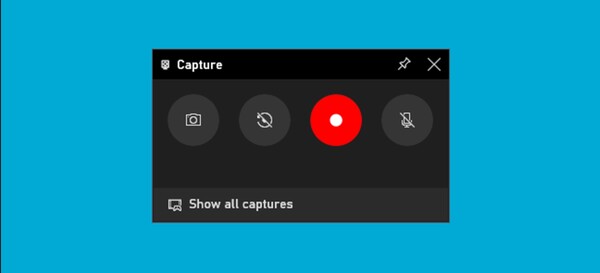
The tool captures videos from the computer screen without installing the program. It records in H.264 MP4 format and takes a screenshot of your screen, as described in detail below.
To use the Windows screen recorder, press Windows+G to open the Xbox Game Bar app and start recording. Of course, you can also call this program through the Start menu. If the Windows screen recorder program does not run, go to Windows Settings> Gaming > Xbox Game Bar to ensure the Game Bar option is active.
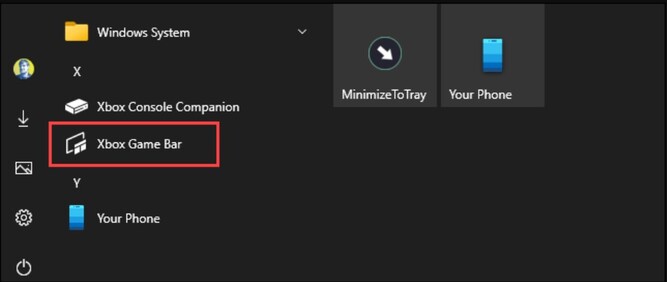
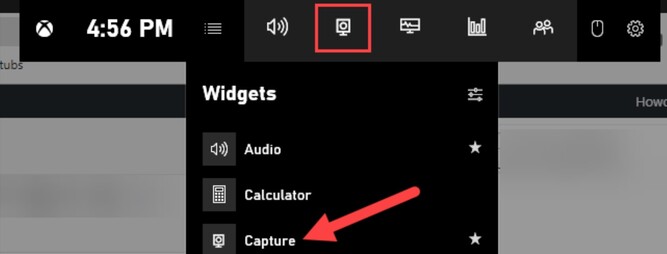
After running the program, look for the Capture window search. If you don’t find it, click the three-line icon in the picture and select the Capture option.
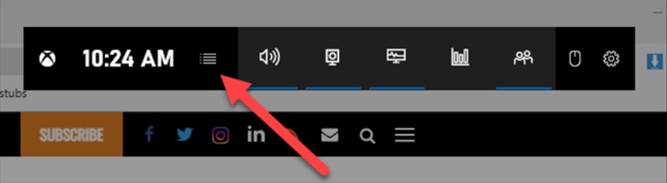
After that, the screen recording icon will appear in the toolbar, allowing you to record the screen without installing the software.
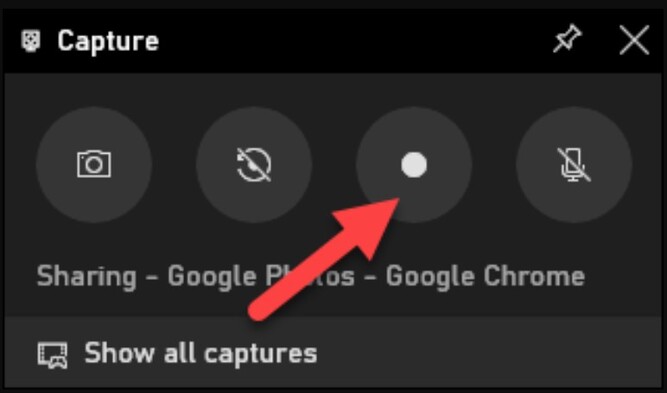
As can be seen in the image Capture widget, there are four options to record video from the desktop without the need for a program; the first option is to take a screenshot of the active window, and the second icon is used to record the last 30 seconds of the user’s activities.
By selecting the third icon, the program starts recording your screen. If you want your computer’s microphone audio added to the recording, enable the fourth option.
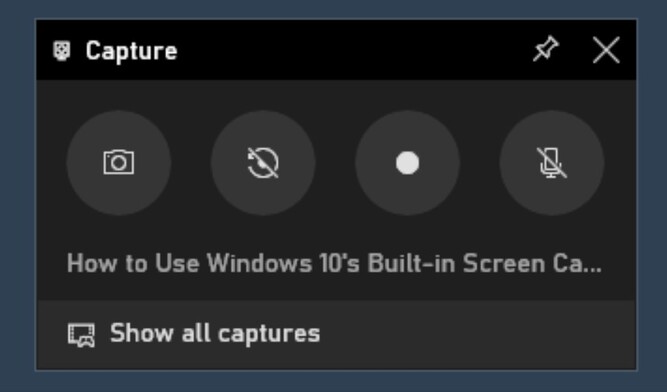
It may be at the bottom of the Capture window. There is also an option to determine which window the recording is currently running in; for example, if you are browsing the web, you will see the title of the open tab.
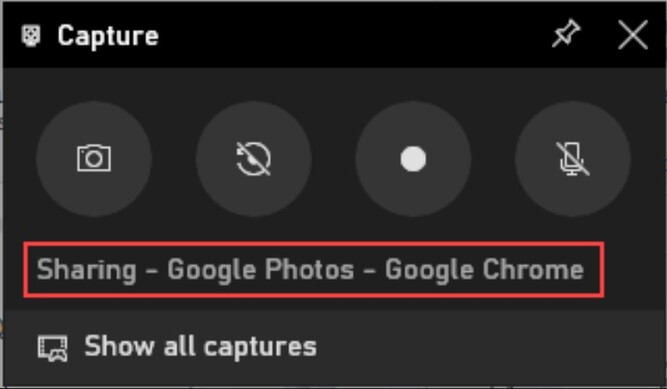
Before you start working with this tool, determine whether you plan to use your microphone.
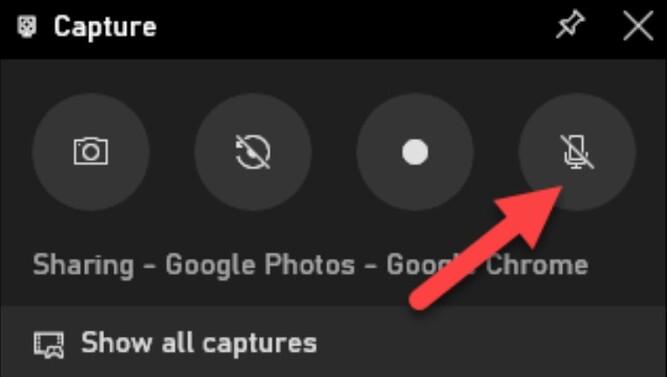
In the next step, click the Windows screen recorder’s Start Recording button.
Immediately, a video is recorded from the computer screen without installing the program. A small toolbar appears in the corner of the screen. Next to the timer, there are buttons to stop recording and mute the microphone.

After recording the video from the desktop without the program, click the Stop icon to end the recording.

But to see the result of your work, go to the Capture section. Go back and click Show All Captures. Click to view your recording.
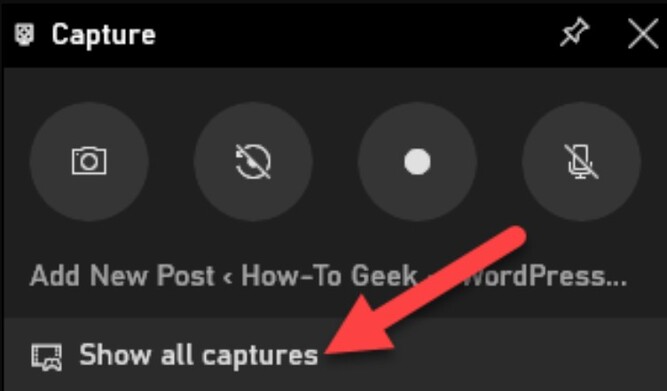
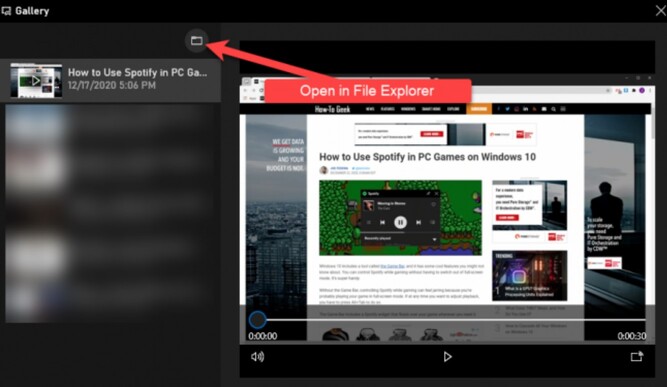
You can view and access the recorded files in the open window by clicking the folder icon. Now, you can copy or delete them. Additionally, the files are recorded by default in the Videos folder.
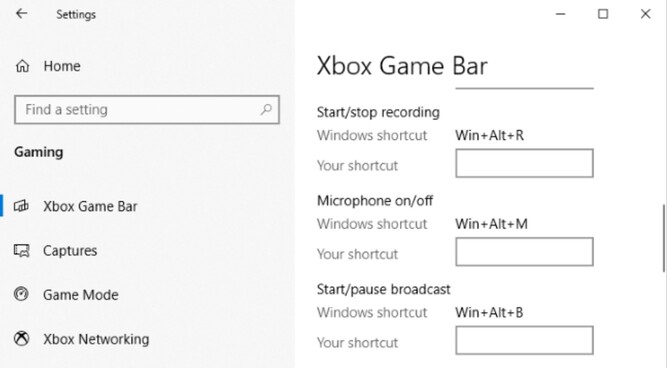
Of course, an easier way to run the screen recording program without installing the software is to press Windows + Alt + R. Go to Windows Settings, then navigate to Gaming > Xbox Game Bar> Customize hotkeys. This immediately starts the imaging operation.
And just as quickly, you can solve your needs by using the most straightforward tool provided by Windows to take a video from the computer screen without installing software.
The best way to record a Windows screen with the Snipping Tool software
Microsoft recently added the ability to capture video from the screen in Snipping Tool, so users no longer need to install a separate video-recording program on the desktop. Snipping Tool allows you to take screenshots or videos in different ways. You can select a rectangle or quickly capture a window or the entire screen.
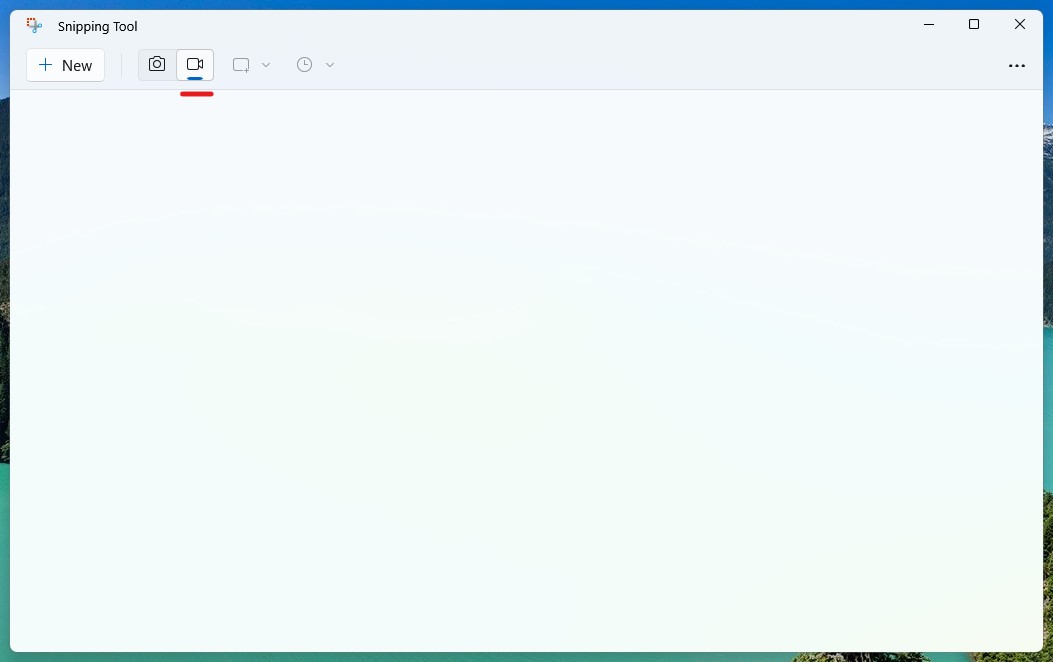
Also, a new editor has been added to this tool, allowing you to crop, annotate, save, or share screenshots. The snipping tool is a simple program that you can use to take screenshots or videos in Windows 11.

This program includes settings that let you use the Print Screen button instead of Windows + Shift + S. The Print Screen key can also open Snipping Tool.
FAQ
What built-in tool records your Windows screen?
Windows Game Bar lets you capture screen video without installing extra software.
How do you start recording with Game Bar?
Press Win + G to open Game Bar, then click the record button to begin capturing.
Can you capture audio with the screen recording?
Yes, Game Bar allows you to record system and microphone audio during the screen capture.