
How to Install Firefox Add-Ons on Android

Mozilla Has Introduced Several Authorized Extensions That Can Be Installed In Firefox On Android. How To Install These Plugins On The Mobile Phone Will Be Taught In The Following.
In 2020, Mozilla released a new version of Firefox for Android, rewritten from scratch. In the process, Firefox lost the add-on feature that distinguished it from the best Android browsers.
However, Mozilla has added a short list of virtual add-ons that you can install from a menu. Although you don’t have easy access to many Firefox add-ons, there is a simple way to get any add-on you need for your Android smartphone.
What extensions are officially available for Firefox on Android?
There are several add-ons available in Firefox for Android. To install and use these add-ons, tap the three-dot menu next to the Switcher tab, select Add-ons, and tap the + button next to any of the add-ons listed below :
- uBlock Origin
- Privacy Badger
- Tampermonkey
- Dark Reader
- AdGuard
- Ghostery
- FoxyProxy Standard
- Bitwarden
- NoScript Security Suite
- Search by Image
- Decentraleyes
- ClearURLs
- Read Aloud
- Firefox Relay
- YouTube High Definition
- AdNauseam
- LeechBlock NG
- Privacy Possum
- Web Archives
- Tomato Clock
- Video Background Play Fix
- Google Search Fixer
If the plugins meet your needs, you don’t need to read further.
Install any add-on on your mobile phone and continue browsing the web. If you need more add-ons, create a Firefox account to store your add-on collection, then sync it to the Firefox beta on your mobile phone. We guide you through the process.
Steps to Build Your Plugin Collection
To add add-ons that Mozilla does not officially support, you must go to addons.mozilla.org on your mobile device and sign in to your Firefox account or create an account.
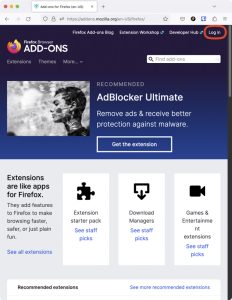
To enter mozilla.org, click on the log-in shortcut in the upper-right corner of the page.
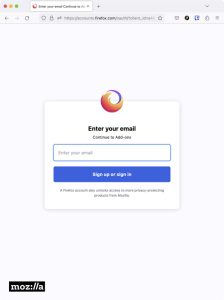
Sign in to your account or create a new one by following the instructions.
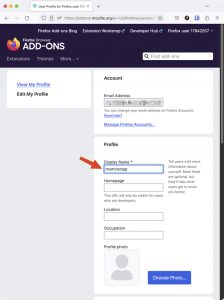
You will be redirected to the Mozilla Add-ons site. If you haven’t already, you must create a screen name and a profile.
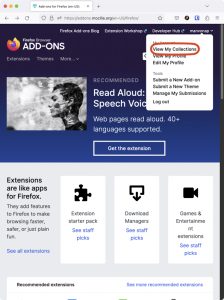
After doing this, return to the main page. In the upper-right corner, select View My Collections from the menu that appears.
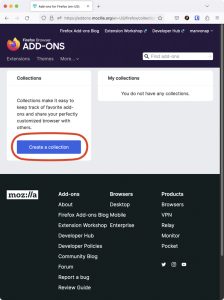
On the next page, select the Create a new collection button.
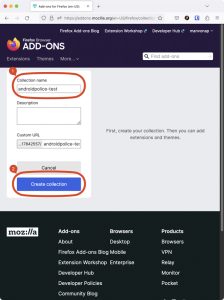
Choose a name for your collection and click the Create Collection button.
On the next page, use the search bar to find the plugins you want, then add them to the collection. In this example, we have chosen the Google Translate plugin.
Add all the plugins you want to use to this list. Your extension set overrides the default selection on your mobile phone, so you can’t rely on it.
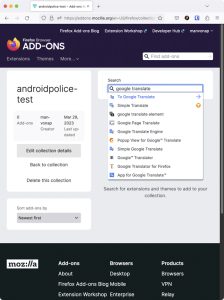
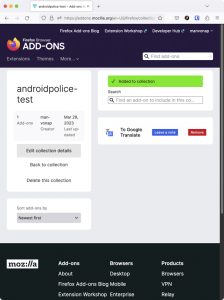
Write down the URL of your character extension collection. In this example, the URL is https://addons.mozilla.org/en-US/firefox/collections/17842557/androidpolice-test/edit/.
To add your own set of extensions to Firefox on mobile, follow these steps:
Now is the time to complete this process on your mobile device if you haven’t already. Start using your plugin collection by following these steps:
Download the latest Firefox beta using the widget below or the Play Store app on your mobile phone.
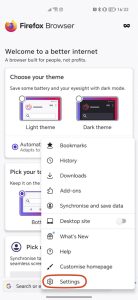
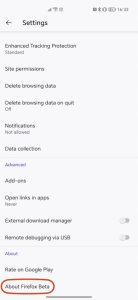
Open the Firefox Beta app, click the three-dot menu next to the address bar, and go to Settings.
Go to the bottom of the page, go to the About section, and click About Firefox Beta.
Click the Firefox logo several times until the “Debug menu activation” message appears at the bottom of the screen.
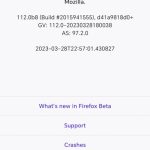
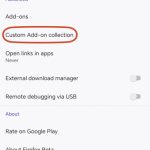
Go to the Advanced Settings section, locate the Development area, and click the Custom Add-on Collection option.
Look up the URL for your plugin collection and enter its numeric string in the Collection owner (User ID) field. Then enter your group name in the Collection name field and click OK.
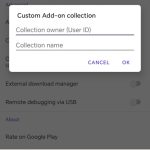
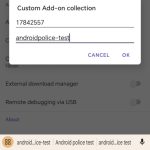
Firefox Beta will automatically close and reopen to apply the changes. Open the app again, click the three-dot menu next to the address bar, and go to Add-ons.
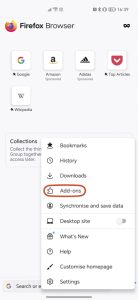
In this section, click the + button next to each add-on you want to add to your Firefox.
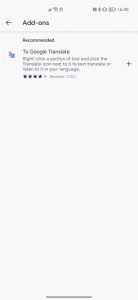
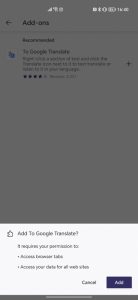
Use all your favorite plugins on mobile, just like the desktop version
The setup process may be a little tricky at first glance, but once you get the hang of it, you’ll find installing and removing add-ons for mobile use easy. However, not all of these plugins work well, as some require right-click menus or other desktop-specific dependencies.
For example, we found that the Google Translate plugin we used in this example doesn’t work in Firefox for Android. Your experience may vary, and you will need to do some trial and error.
FAQ
How do you open the add-ons menu in Firefox Android?
Tap the three-dot menu, then select “Add-ons” to view available extensions.
Can you install any desktop Firefox add-on on Android?
No, only extensions supported by the Android version of Firefox can be installed.
Do add-ons improve browser performance?
Yes, the right add-ons can enhance privacy, productivity, and browsing features.