
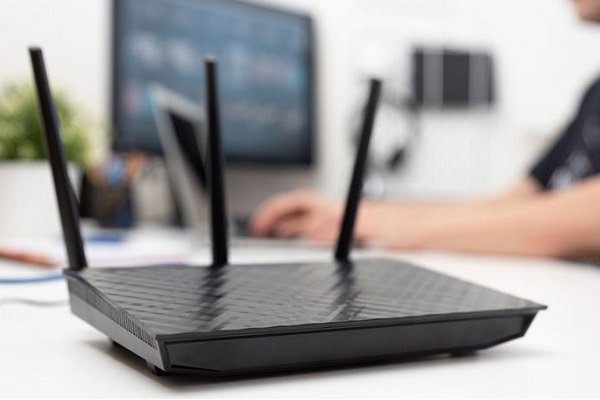
How to Set a Password on a Wi-Fi Network

A Home Wireless Network Makes Things Easy, But If You Don’t Choose A Good Password, You Expose Yourself To Malicious Attacks As Well As Access To Neighbors.
Choosing a password is quick and easy and can be very helpful in the future. This article explains how to set a strong password for your WiFi network in a few minutes.
1. Access the wireless router
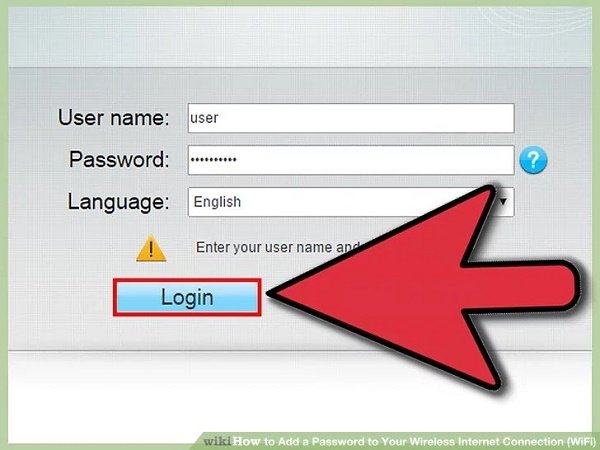
It is usually instrumental in doing this through the disk that came with the router. However, routers are designed to be connected remotely over the Internet. To access the router in a browser, enter one of the addresses 192.168.1.1, 192.168.0.1, or 192.168.2.1 in the address bar.
– If you can access the router through a computer connected to it by a network cable. If you connect to the modem via WiFi, you will be disconnected from the network when the settings change. You must reconnect to the network and return to where you were before.
– The default username and password for most routers is „admin.“
If you fail, log in, leave one field blank, and type admin in the other. If you still do not succeed, contact your router support.
If you have changed the router password before but do not remember it now, hold the Reset button for a few moments to return to the factory default settings.
If you cannot access the router’s manual, search the Internet for its model to find the default IP address and login details.
2. Find the wireless security settings
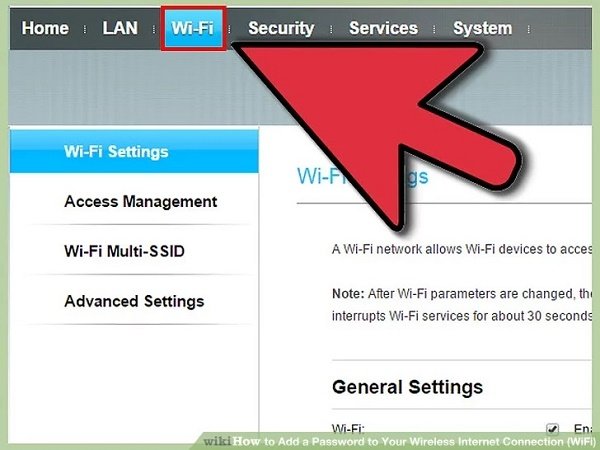
The label for this part varies by router, but it is usually in Wireless Settings or Security Settings. If you have trouble finding it, search for the router model number online and learn how to access the router’s security settings.
3- Specify the type of encryption
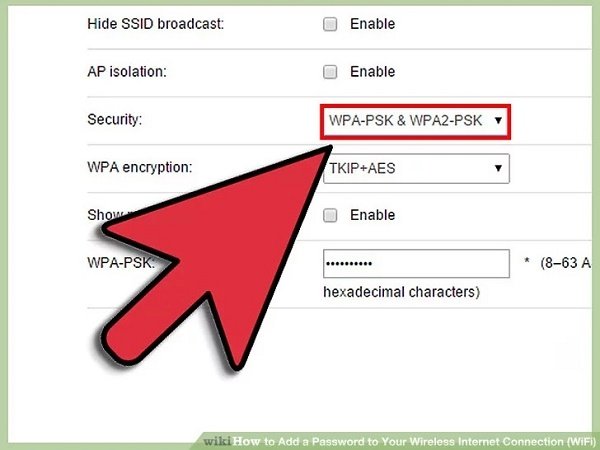
Most routers offer several security options. You can usually choose between WEP, WPA-PSK (Personal), or WPA2-PSK. You can select WPA2 because it is the most secure wireless encryption. Some older routers do not have this option.
Some older devices will not connect to networks that use WPA2. If you have several older devices you want to connect to the network, keep this in mind.
4. Select AES algorithms for WPA2-Personal
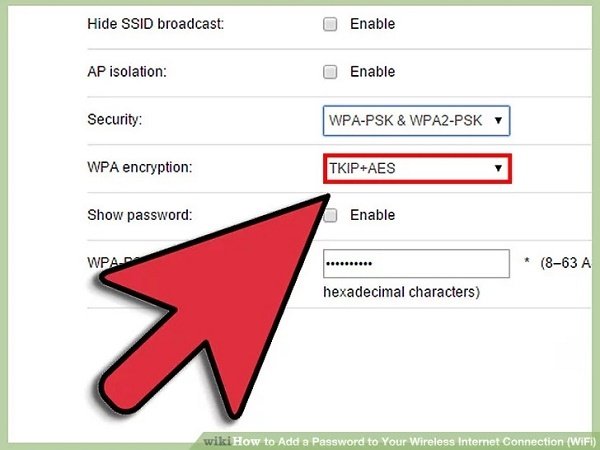
If you choose, use AES as the encryption algorithm for WPA2 security mode. Some routers only allow you to select AES. Another option is TKIP, which is both older and less secure.
AES means Advanced Encryption Standard and is the best algorithm for wireless encryption.
5. Enter the password and SSID
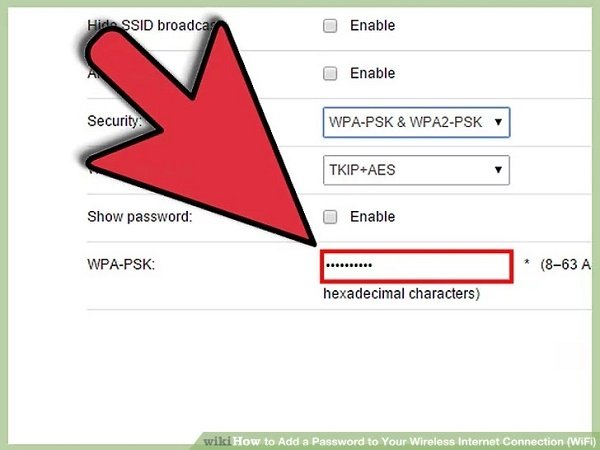
SSID is the network name, and you must enter the password for each device to connect to it.
The password should consist of letters, numbers, and symbols. The simpler the password, the easier it is for others to access the network. You can use online password generators to create the best, strongest passwords for your wireless network.
6. Save the new settings and refresh the router
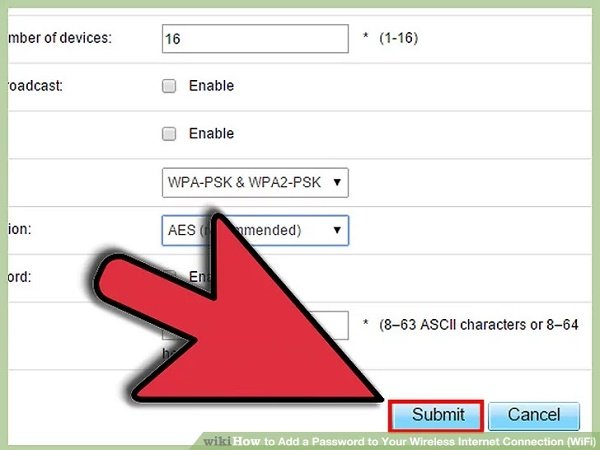
Click Apply or Save on the wireless settings page to save any changes you make. Many routers refresh automatically, and any device connected to the router wirelessly is disconnected from the network and must be re-signed.
To refresh the power router, turn it off and count to 10. Then please turn it on again and let the boot cycle complete. If your router does not refresh automatically, you must do so manually.
Be sure to enter the new login and password settings on all devices permanently connected to the wireless network. To improve WiFi security, it is recommended that you change your router password every 6 months.
FAQ
Why set a Wi-Fi password?
It prevents unauthorized users from connecting, protects your bandwidth, and keeps your data secure.
What makes a good Wi-Fi password?
A long passphrase (12–16 + characters) combining letters, numbers, and symbols — avoid common words or personal info.
Which encryption should I use for better security?
Use WPA3 if supported; otherwise choose WPA2 with AES encryption.