

We Are Connected to Wi-Fi but There Is No Internet – What Should We Do?

We Are Connected To Wi-Fi, But There Is No Internet. What Should We Do? Today, We Are Going To Teach You Tricks To Solve This Problem. It must have happened to you that you are busy browsing your favorite website or playing or watching content on YouTube when you suddenly face an internet outage! In this situation, the Wi-Fi indicator indicates that your laptop or phone is connected to the Internet, but you cannot receive any data!
This problem is one of the most common issues that affect people occasionally and disrupts the experience of using the Internet. Fortunately, some methods can be used to deal with this problem.
If Wi-Fi is on, but you are not connected to the Internet, the first and most important action you can take is to restart the modem and router. Therefore, in the first step, you must unplug the modem and router, reconnect it after 15 seconds, and turn it on. This method generally solves many minor problems related to an Internet connection. However, if this method does not work, you can use the other tricks mentioned below.
Tricks to fix the problem of not accessing the Internet despite being connected to Wi-Fi
Turning off and on connected devices or placing the modem in a new location. In addition to turning off and on the modem, another step that can solve minor problems caused by Internet access is to restart the devices connected to the Wi-Fi modem! Therefore, if your phone, computer, tablet, or console cannot access the Internet, turn it off and back on to resolve minor connection issues.
In addition, temporarily disabling Wi-Fi and then turning it back on after a short time has often solved the problem of users not connecting to the Internet.
Therefore, the first thing you should do after noticing a Wi-Fi connection problem with no Internet access is to restart the modem and the connected devices.
In addition, the Wi-Fi modem’s incorrect location is often the main reason for connection limitations. Therefore, moving the modem to a new place can be one of the solutions that will improve the quality of your internet connection. Similarly, you should ensure that if your Wi-Fi modem has a physical antenna, its antennas must be raised. Some websites claim that for various devices to connect to the Wi-Fi modem, there must be no obstacles between the modem and the device.
However, providing these conditions is often impossible, and devices such as Wi-Fi extenders should be used. A wireless Internet extender can provide Internet access to devices that appear connected to Wi-Fi, but they cannot use the Internet. If turning the modem and connected devices off and on does not solve your problem, try the following methods.
Soft reset and hard reset of the modem
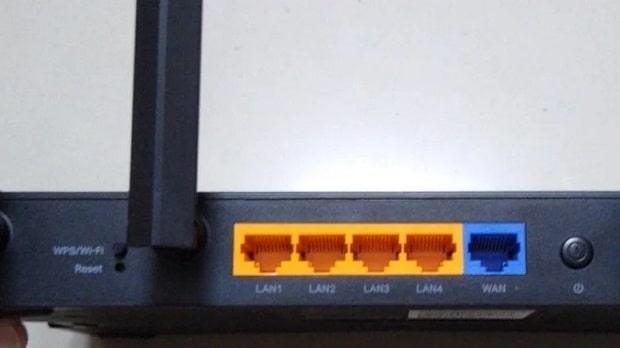
If restarting the Wi-Fi modem or connected devices does not solve the problem of not accessing the Internet, it’s time to use a more professional method. Although turning it off and on will fix some minor issues in the modem or router, sometimes the complete solution requires resetting them!
Resetting a modem is generally done through a method called 30-30-30.
In this method, in the first step, you must hold down the modem’s Power key for 30 seconds. This will cause it to shut down or reboot.
Next, you should unplug the device while holding the power key down.
Also, while the power key is still pressed down in the third step, connect the modem to the power so that the modem’s key information, cache memory, and other temporary data are deleted without damaging it.
Of course, this method is considered comprehensive and applicable to most modern models. However, we recommend that you read your modem’s user manual.
Keep the power key pressed down throughout all steps of resetting the device using the 30-30-30 method.
If you want a more effective way to fix your modem problem, you can restore it to factory settings by pressing the Reset key. To do this, use the tip of a pen or a paper clip to press the reset key.
Of course, by doing this, all modem and router settings, including the Wi-Fi name, password, internet connection information, and any other default options you selected, will be deleted, and the device will be returned to its raw state.
This method is called a hard reset and is recommended only when the other methods provided do not help you.
Clear browser cache and DNS
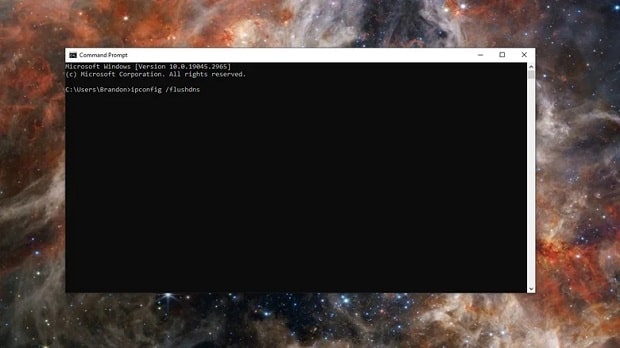
Sometimes, the problem of not being able to access the Internet despite being connected to Wi-Fi is not a hardware issue but is caused by the browser cache or the operating system.
Cache memory generally results in a faster response to user requests. However, sometimes, this same memory causes connection problems. For this reason, sometimes, clearing the cache can restore the Internet connection!
Clearing the cache in Google Chrome, Firefox, Safari, and Microsoft Edge is a relatively straightforward process you can learn about via the link below. This may temporarily slow down your browser, but it usually removes malicious data and fixes some problems.
In addition, your computer has a DNS cache; clearing it requires using Command Prompt in Windows or Terminal in macOS.
If you use a Windows computer, open the Start menu and type the command in the search field.
After the Command Prompt opens, enter the following commands:
- Type ipconfig /flushdns.
- Type ipconfig /registered.
- Type ipconfig /release.
- Type ipconfig /renew.
- In the end, type netsh winsock reset.
After typing each of these commands, restart your computer so the changes you made in the system settings take effect.
Also, for recent versions of macOS, you can open the terminal through Launchpad or Spotlight and type the following statement in it:
Sudo dscacheutil -flushcache; sudo killall -HUP mDNSResponder
Of course, the working method is slightly different from what was said for older versions of Mac OS. Therefore, using a form compatible with your operating system is necessary. Also, note that you must enter your password again after entering this code. Mac OS Terminal does not confirm that the process was successful. So, the process has been successful if you enter the command-line screen again after entering these codes. In the final step, restart your computer for your changes to take effect.
Contact your service provider.

If none of the above methods can establish your Wi-Fi Internet access, the problem is probably with your Internet Service Provider (ISP). Naturally, this issue will not be pleasant for many people because it means that it is not their fault, and the problem is beyond simple troubleshooting.
However, contacting your ISP can quickly fix your internet connection problem. In many cases, the problem is a disconnection in your area, and the service provider, by informing you of this issue, reassures you that there are no bigger problems. Also, sometimes the service provider resets your connection on their end and resolves your problem easily.
Of course, recently, special applications have been designed to monitor network coverage in different areas and announce Internet outages in specific areas. However, if your Internet access is interrupted and none of the above methods resolve your problem, there is no other option but to contact your ISP. In certain cases, the service provider sends an expert to your home and examines your problem more closely. Sometimes, your situation may be mechanical or related to the outside of your home!
It may also be that your modem or router needs to be replaced or that you have a bigger problem that needs to be checked by an expert. Therefore, contacting the Internet service provider is your last resort; with follow-up, it will probably solve the problem.
FAQ
What does it mean when Wi-Fi shows connected but no internet?
It means your device is linked to the wireless network but cannot reach the internet due to router, ISP, or configuration issues.
What is a quick first step to fix this issue?
Restart your router and modem, and reconnect your device to the Wi-Fi network.
How can you check if the problem is with your device or the network?
Try another device on the same Wi-Fi; if it also has no internet, the issue is likely with the router or ISP.