
How to Increase the Security of Router Firmware

A firmware update for the router is just as important as updating the firmware on other devices. Performing Middleware Updates Will Give You New Features, Security Enhancements / and Fixes.
If your router is a few years old, a new firmware update has likely been released, and you will need to install it. However, unlike computer software updates, which are easy to perform, upgrading router firmware is not.
How to update the router firmware
The steps for doing this vary by router, but they all use the same process to update the firmware. To get the details, first go to your router manufacturer’s website and read the step-by-step guide for your device model.
Some routers update their firmware automatically, but this feature is only available on newer smart routers, such as mesh routers. If you have one of these new routers and have heard it needs a firmware update, check the app’s update history to see if the new firmware is installed on your device.
Follow the steps below to update the router firmware manually:
Step 1. Download the firmware file from a reputable source. It is best to go to your device manufacturer’s website and download the firmware directly from there.
For example, if you want to update the firmware on a Linksys E1000 router, go to the Linksys website’s download page, search for and download the firmware, and remember to download the file for your router’s hardware version.
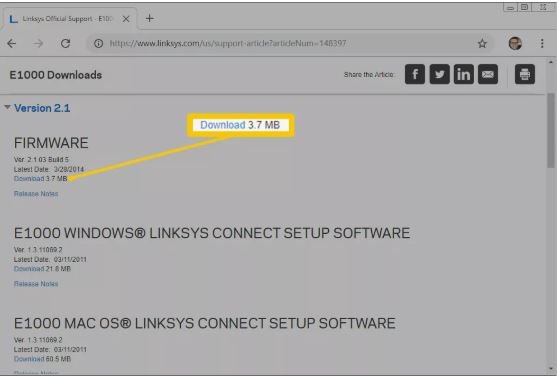
Step 2. Log in to the web-based management page of your router.
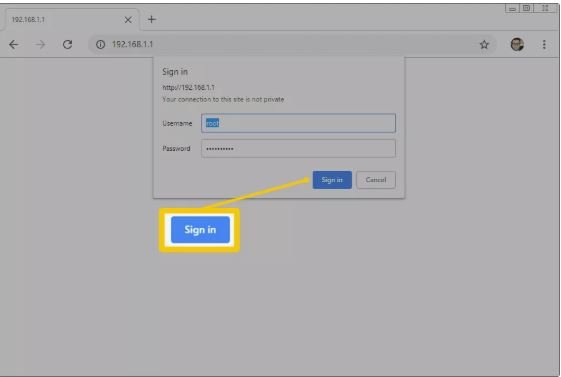
In the web browser address bar, enter the IP address to access the router settings management page. Most routers use the address 192.168.1.1.
The following is a list of default IP addresses of popular wireless router brands:
Apple: 10.0.1.1
Asus: 192.168.1.1
Buffalo Tech: 192.168.1.1
D-Link: 192.168.0.1 or 10.0.0.1
Cisco/Linksys: 192.168.1.1 or 192.168.0.1
NETGEAR: 192.168.0.1 or 192.168.0.227
Enter the admin username and password after accessing the router settings login page. The default login information is for the username and the admin password (lowercase).
Step 3. Find the firmware section in the router settings. This option is often under the Advanced or Management section. But depending on your router model, it could be somewhere else.
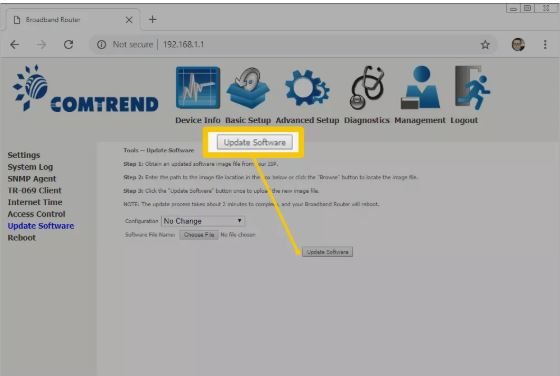
Make sure the firmware you already downloaded is newer than the version currently running on your router. Compare the firmware version number on the router with the version number in your download file.
Step 4. Transfer the firmware file to the router. Some routers may require a flash drive with a firmware file connected to their USB port, but others allow you to upload the file to the device via the router settings page.
Important Note:
Do not interrupt the firmware installation process; power outages or other disruptions can cause the router to malfunction permanently. Therefore, never turn off the router during the update.
Step 5. After the installation, your router will usually reboot once to get the new version of the condition control firmware.
FAQ
Why should you update router firmware regularly?
Because firmware updates patch security vulnerabilities, close known exploits, and add new protections — outdated firmware is a common gateway for hackers.
What login credentials should be changed on a router immediately?
Change the default admin username and password to a complex, unique passphrase — avoid generic credentials like “admin/admin” that attackers know.
Which router features should be disabled if not needed?
Turn off remote management, UPnP, and any guest networks — these often add unnecessary attack surfaces.