
How to View the Details of the Network Adapter in Windows 10

If You Are A Network Administrator Or A Professional User, You Probably Have Several Network Cards On Your Computer.
In such a situation, if you want to see the details of the network adapter in all the network cards you have installed, you will probably face a difficult task at first, but it will not be a problem.
You can view the network adapter details in Windows 10 through the system.
In this article, we will introduce you to two ways to view the details of the network adapter in Windows 10: one through the system itself and the second using the Nirsoft application tool NetworkInterfacesView, which provides a lot of information.
Use the System Information tool
One of the easiest ways to view network adapter information in Windows 10 is to use the System Information tool, which gives you the details of each network interface individually. Follow the steps below to access the System Information tool:
Step 1: Open the Start menu and type msinfo32 or system information. Then, select system information from the results list to open this tool. Note that you may need some time to receive and display accurate information.
Step 2: Go to Components -> Network -> Adapter. From the window on the right, scroll to the bottom of the page to see a list of your network adapters.
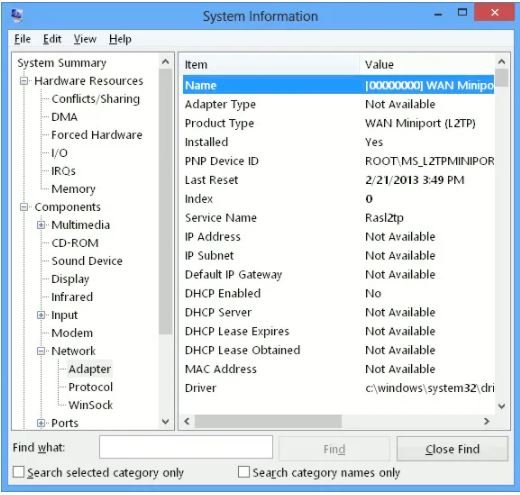
To copy any line of information, select the desired line and press Ctrl + C on the keyboard to add the information to the keyboard. To get the total output of network adapter information, you can go to File -> Export.
You can also access the same information using the command line. However, this method provides less information than the System Information tool.
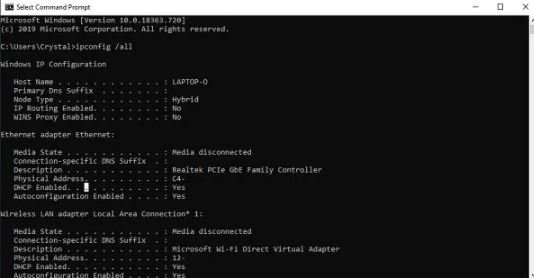
To get the network interface information via the command line, open the Start menu, type cmd, and select Command Prompt from the results list. After the command prompt window opens, enter the command Ipconfig /all.
This command will display the details of the network connections (whether turned on or off).
Use the NetworkInterfacesView tool.
NetworkInterfacesView is a small, compact tool from Nirsoft that uses the Windows Registry to obtain active and inactive network adapters. This tool also displays information about network adapters you previously connected to your computer. Three device modes are available in this tool:
Active devices will be indicated with a green status icon.
Appliances not currently in use will be marked with a yellow status icon.
Disconnected devices will display with a red status icon.
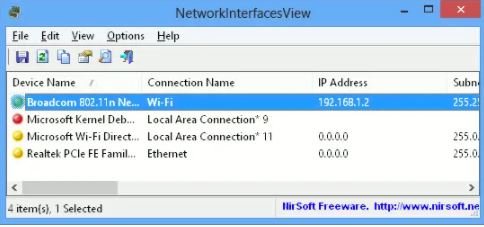
By default, the NetworkInterfacesView tool provides only brief information about all network adapters. Suppose you want more details about a particular adapter, just double-click on its name. This will open a new window with more detailed information about the device.
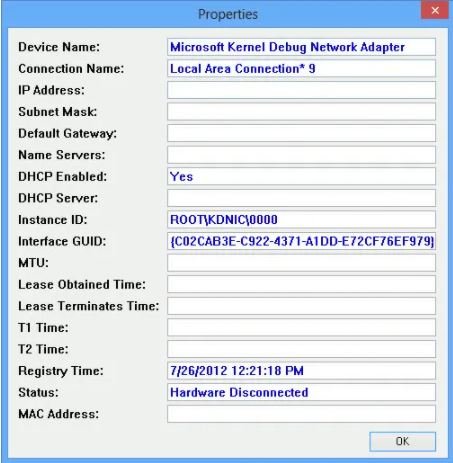
Another advantage of this software over the internal system information tool is that it lets you store and maintain information for each network adapter separately.
To save the details of each device, first select it, then choose Save from the File menu. Then, select the HTML Report—All items option to save details about all listed items.
NetworkInterfacesView Displays the following information about each network adapter:
- Device Name
- Connection name
- IP Address
- Subnet mask
- Default gateway
- DNS Servers
- DHCP information
- DHCP Servers
- Instance ID
- Instance GUID
- MTU
- Status
- MAC Address
FAQ
How can I view network adapter details using Windows built‑in tools?
Open the Start menu, type msinfo32 to launch System Information, then go to Components → Network → Adapter to see detailed information about each adapter.
What command shows network adapter information in Windows 10?
Open Command Prompt and type ipconfig /all; this displays configuration details like IP addresses, DNS servers, and MAC addresses for all adapters.
Is there a tool that provides more adapter details than the default Windows view?
Yes, NetworkInterfacesView (by Nirsoft) shows active and inactive adapters and lets you double‑click any adapter for extensive details and export reports.