

How to Check SSD Health Status in Windows

SSD Health, Solid State Drives, Or SSD Drives, Have Become Very Popular Due To Their Higher Speed Than HDD Drives And Have Become One Of The Vital Hardware Components Of Personal Desktops And Laptops.
You must occasionally check its critical components to keep your PC at peak performance. One essential component is the SSD drive, where your computer’s operating system is typically installed.
But if you want to ensure your SSD is working at its best, it’s recommended to check its health status occasionally. Some symptoms indicate SSD health; once they appear, your SSD may fail.
These symptoms can appear in the following forms:
- Your computer is generally running slower than usual
- Apps launch slowly or crash
- Blue Screen of Death errors occur frequently
- The SSD shows itself as read-only
Fortunately, there are several ways to monitor SSD health in Windows 11 using SMART (Self-Monitoring, Analysis, and Reporting Technology) and its associated software tools. Has it?
Using the Windows 11 command line to check SSD health
While you can download and install programs like CrystalDiskInfo and AIDA64, Windows 11 also has built-in analysis tools.
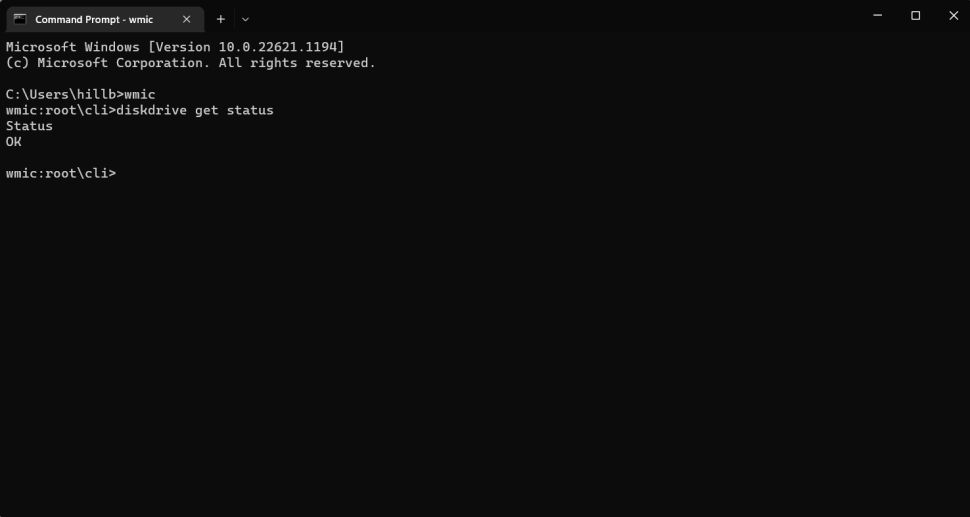
- Click the Search button on the taskbar
- Type “CMD” and hit enter
- Type WMIC and hit enter
- Type “disk drive get status,” and press Enter
It will now be displayed on the command line with one of two results. If you see “OK,” your SSD is working nominally. If you see “Pred Fail,” your SSD is most likely broken, and it is wise to back up your data as soon as possible.
Check SMART using CrystalDiskInfo.
CrystalDiskInfo is a handy tool that connects to SMART on your SSD and reports these values in an easy-to-use interface.
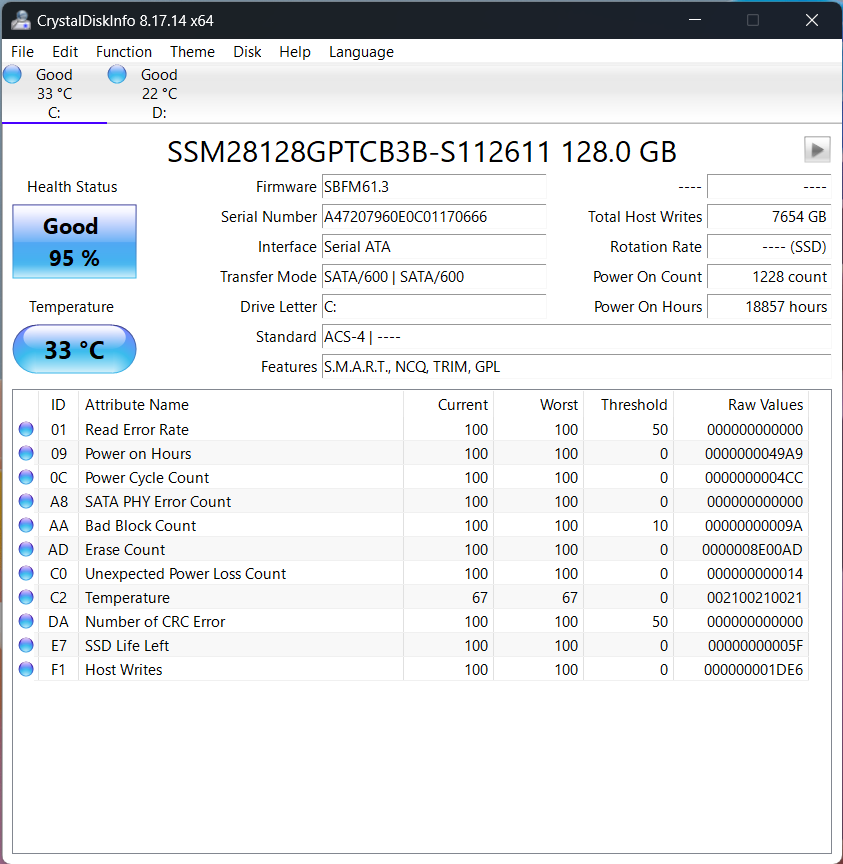
- Download and install CrystalDiskInfo from the program publisher’s website.
- Open CrystalDiskInfo, which immediately provides you with all the information about your SSD(s) and HDD(s).
In this example, the SSD in this system has a “Power On Hours” value of 18,857 SSD hours and has burned 7,654 GB of memory during its lifetime. You’ll also find details like the SSD’s current temperature and overall health. The SSD installed in the example above has 95% life remaining (good), which indicates how much it wears out.
Check SMART using AIDA64 Extreme.
- Download and install AIDA64 Extreme ( 30-day version ) from the publisher’s website.

- Open AIDA64 Extreme and click the Storage icon from the main menu.
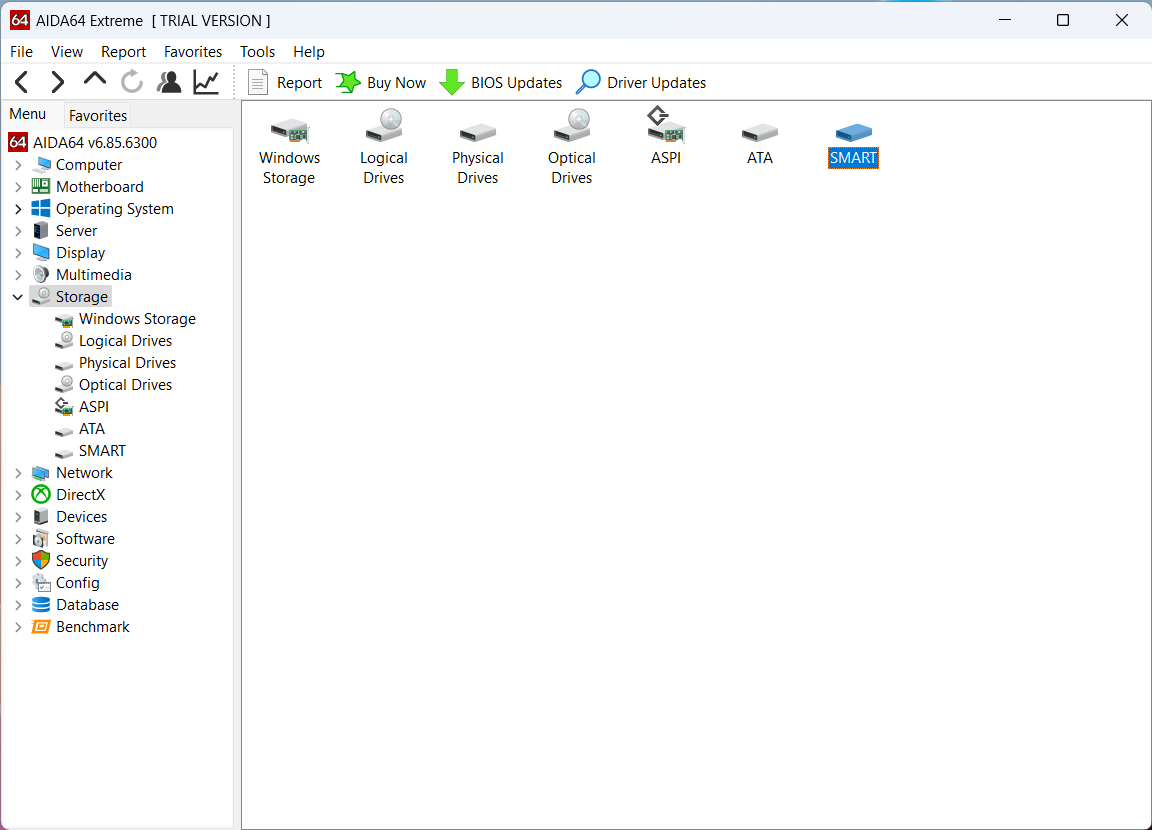
- Click on SMART.
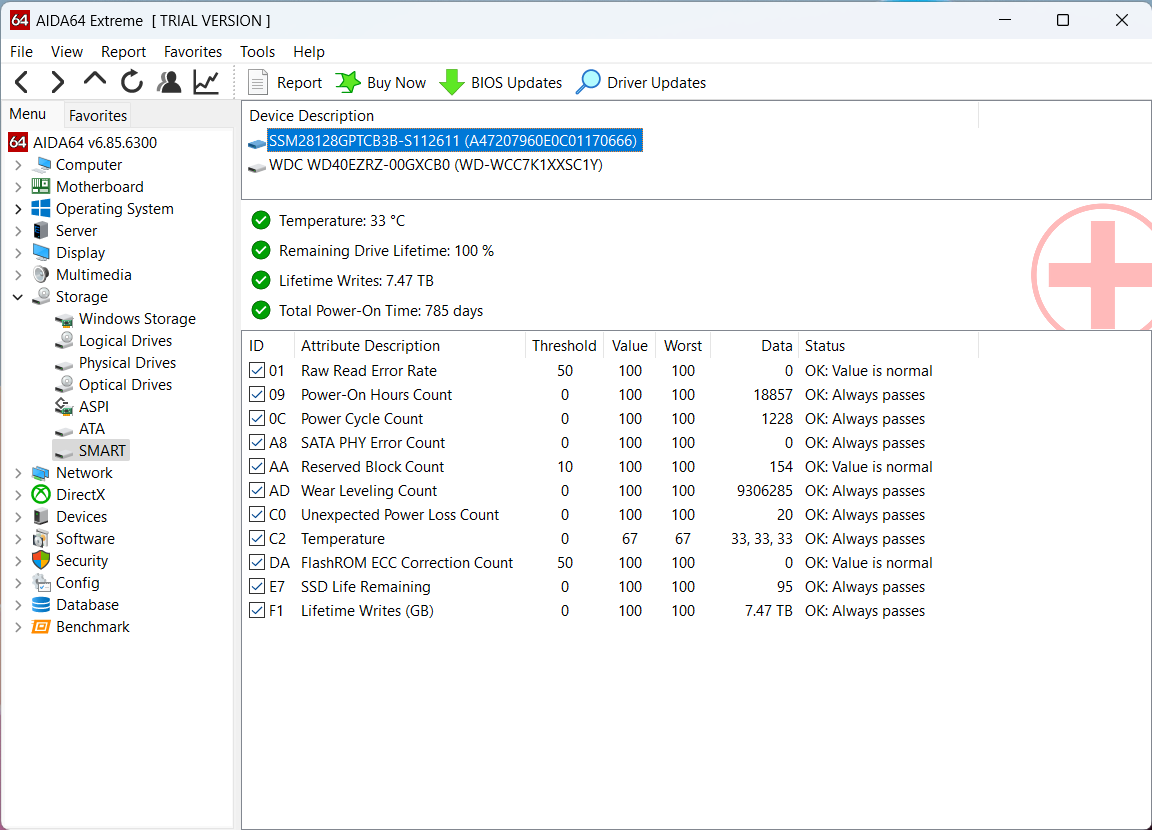
Like CrystalDiskMark, AIDA64 Extreme reports SMART data, but in a slightly different way. AIDA64 indicates that the drive is 100% of its estimated useful life and says the SSD life is in terabytes. It also lists the total “Power-On Time” as 785 days. Also mentioned are the same SMART feature values (threshold, current, and worst).
Use SSD manufacturer-specific tools to monitor SSD health and fix errors
Many SSD manufacturers offer tools to check the health status of their drives, which may provide users with more features than just giving statistics.
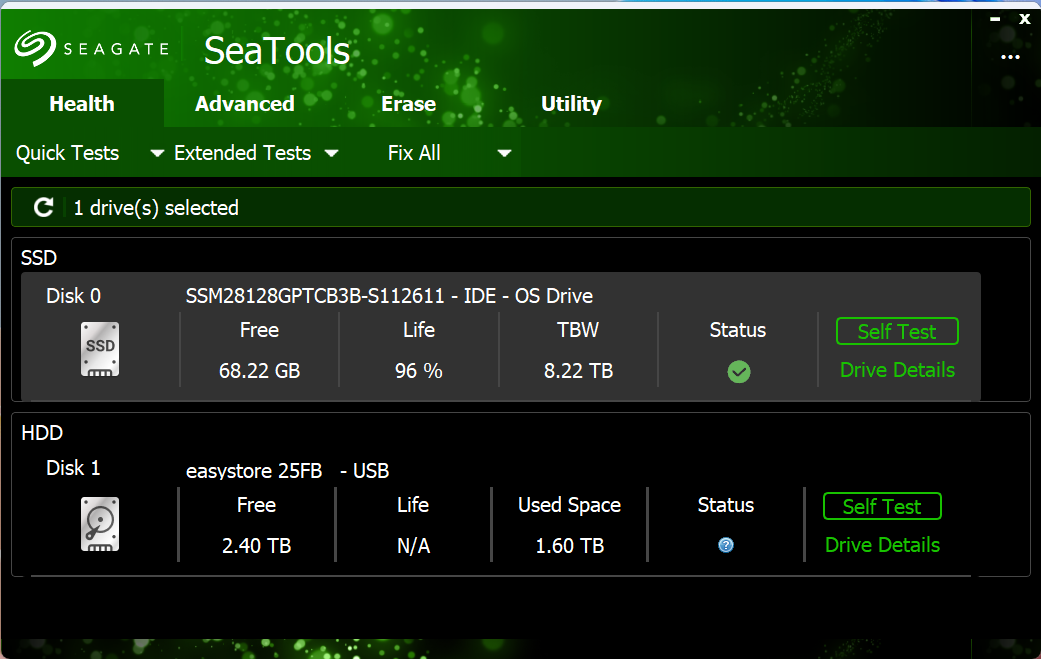
Seagate’s SeaTools software offers the same SMART information reading capabilities as AIDA64 Extreme and CrystalDiskInfo (including attribute tracking and SSD usage hours). Still, it also lets you run several non-destructive diagnostic tests. This program is also compatible with non-Seagate SSDs.
The short SSD self-test takes minutes and reports whether it passed or failed.
The straightforward general test also provides a pass/fail score for SSD health status and takes about one minute to complete.
Samsung Magician Software is another popular tool with SMART diagnostic capabilities and SSD health monitoring. Since this software is only for Samsung SSDs, it can also tell you whether the SSD in your system is a Samsung model.
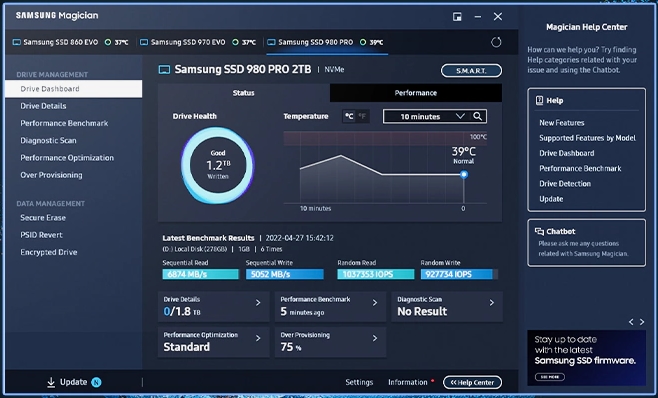
Samsung also ships the software with a performance benchmark tool to improve performance and lifespan, and to enable SSD firmware updates.
Another option is the Western Digital Dashboard, which is conceptually similar to Samsung Magician. It allows you to check the health of your SSD/SMART drive, monitor temperature, and even upgrade its firmware.
FAQ
What built-in tool can check SSD health?
Use Windows PowerShell with Get-PhysicalDisk or Command Prompt tools like wmic to view basic health indicators.
Can third-party tools show detailed SSD health metrics?
Yes, applications like CrystalDiskInfo and manufacturer utilities provide SMART data, temperature, and wear levels.
Why is monitoring SSD health important?
It helps detect early issues, prevent data loss, and plan for timely replacements.