
An Easy Way to Install Windows 11 on Older Computers

If your computer’s processor is incompatible with installing Windows 11 but you want to experience the latest Microsoft operating system, you can easily bypass this requirement.
Install Windows 11. Microsoft Windows 11 was released a few days ago; Microsoft’s operating system, designed for installation and implementation, has many prerequisites, including at least an eighth-generation Intel processor and a TPM 2.0 chip.
According to a survey, only 44.44% of workstations use a Windows 11-compatible processor, of which only 52.55% are equipped with a TPM 2.0 chip. This means many PC users do not have the prerequisites to run Windows 11.
If you have not installed Windows 11 due to missing prerequisites, there is still hope. Installing Windows 11 on computers with older processors is much easier than formatting the drive, deleting files, or even burning an ISO file to a USB drive.
According to The Verge, Microsoft approved this solution. It tested it on a Dell XPS 15 computer with a Core i7-7700HQ processor and a Microsoft Surface with a Pentium Gold 4415Y processor. None of these processors is on the list of Microsoft-compatible processors.
To run Windows 11 on computers with older processors, follow these three steps:
1. Download the Windows 11 ISO file
You can download the Windows 11 ISO file by visiting this Microsoft page or other software download websites. While you wait for the 5.1 GB Windows 11 download to complete, go to the next step.
2. Edit the Windows registry to skip the CPU review step
In Windows, click Start, then type regedit. Press Enter to open the Registry Editor window. In the following bar, “File, Edit, View, Favorites, Help,” paste the following path:
Computer\HKEY_LOCAL_MACHINE\SYSTEM\Setup\MoSetup
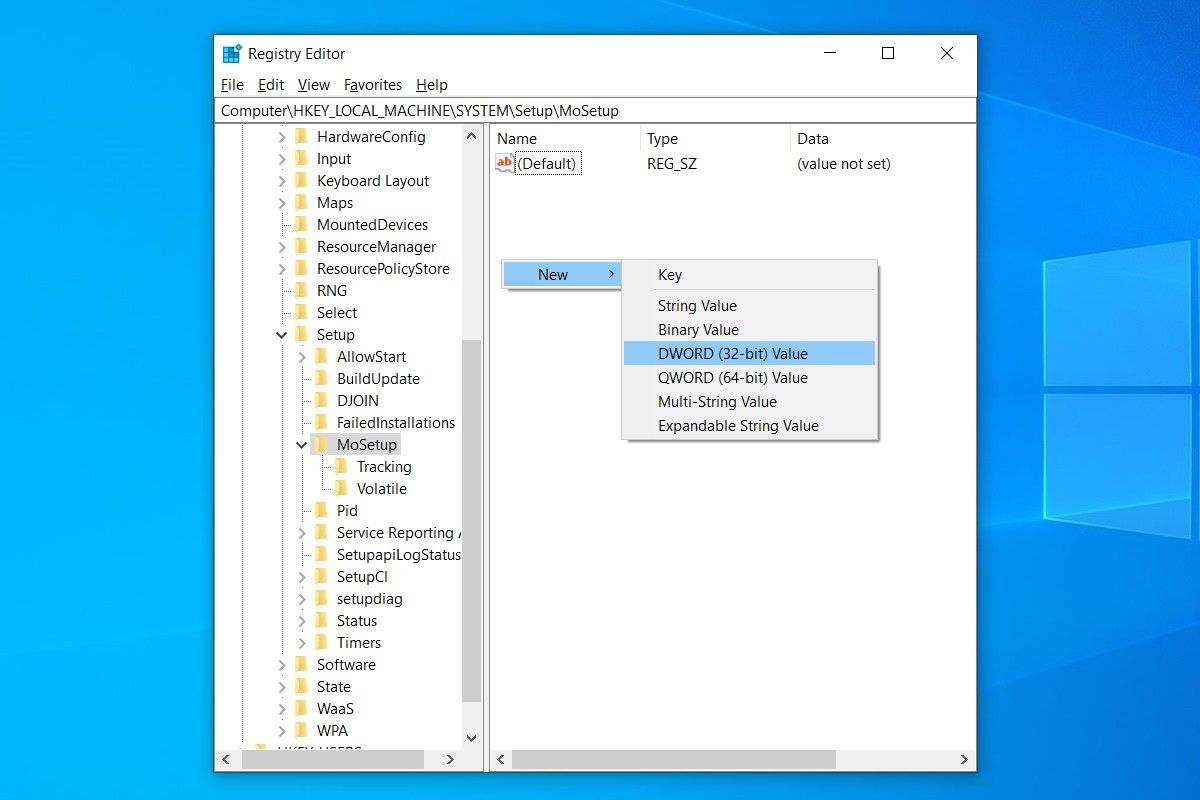
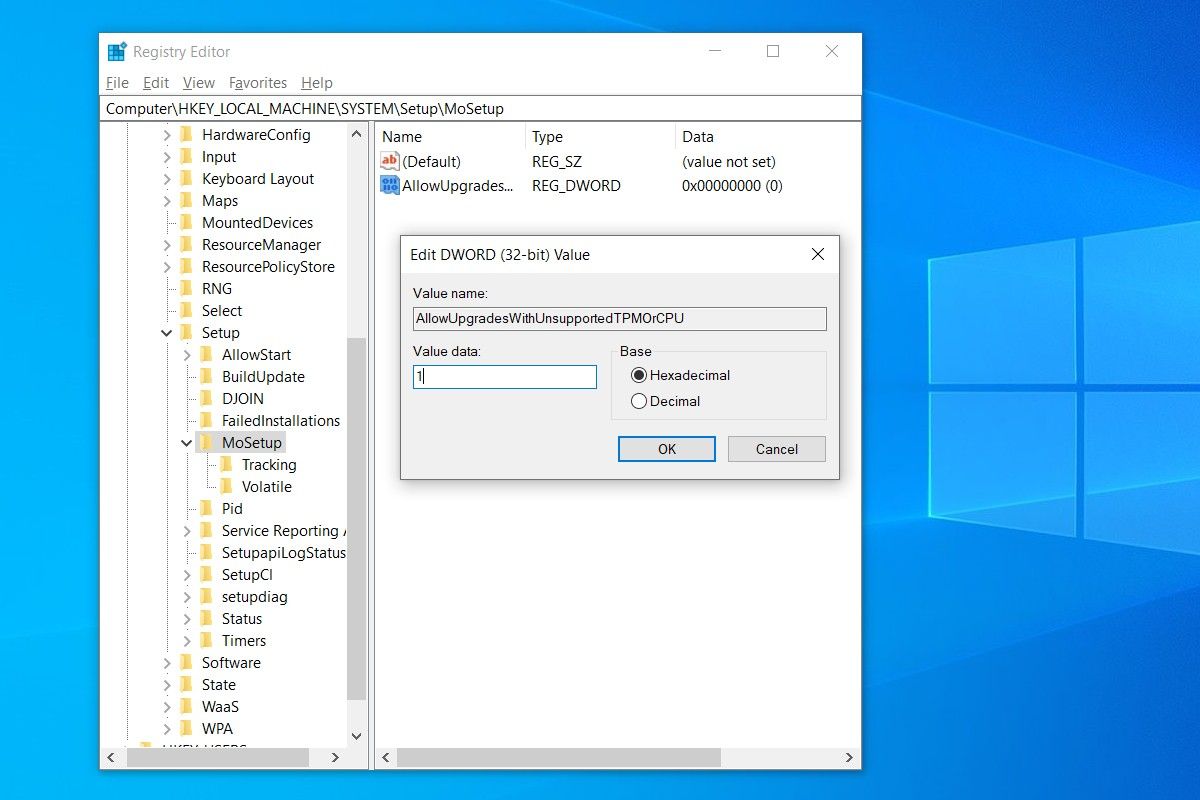
In the environment on the right side of the window, right-click and select DWORD (32-bit) Value from the New section. Name it “AllowUpgradesWithUnsupportedTPMOrCPU” (without quotes).
Double-click on the created file and enter the value “1”. Click OK and close the registry editor window.
3. Open the Windows 11 ISO file with Windows Explorer
After downloading the Windows 11 ISO file, right-click it and select Open with > Windows Explorer to mount it as a virtual disk. Then, double-click on the boot file to start the installation process.
If this solution works, you should see a warning message and the option to install Windows 11 without losing your data. Keep in mind that Microsoft has approved this solution, but did not recommend it. Also, by installing Windows 11 this way, Microsoft may refuse to provide you with security updates.
On the other hand, if your computer’s TPM 2.0 is installed, the problem you are experiencing is a solution Microsoft can bypass: the confirmation that TPM 2.0 provides tests. Your experience installing Windows 11 computers is incompatible. Please share with us.
FAQ
What’s the easiest way to install Windows 11 on older hardware?
Use the official installation tool with a registry tweak or unofficial patch to bypass TPM and Secure Boot checks.
Will this method preserve my files and settings?
Yes — the process can upgrade your existing Windows installation without wiping data, if done correctly.
Are there risks involved in installing Windows 11 on unsupported hardware?
Potentially — you may face stability, compatibility, or security update issues because hardware isn’t fully supported.