

How to Quickly Delete All Emails in Your Gmail Inbox — 2025 Guide

Are you looking for a way to delete your Gmail emails? You can do this by deleting individual emails, but there is another way to delete all emails simultaneously. In the following sections, we will show you how to delete all Gmail emails simultaneously.
How to quickly delete all emails in Gmail
Most email services allow you to apply filters to tidy your inbox. Of course, applying filters does not mean that you will no longer receive unsolicited emails. In such cases, the only reliable solution is to delete the emails you do not need. To delete emails in your Gmail inbox, you need to follow these steps:
- Go to the official Gmail website.
- Log in to your account.
- In the bar on the left, select “Inbox”.
- Click the “Select” key to the left of the “Refresh” key.
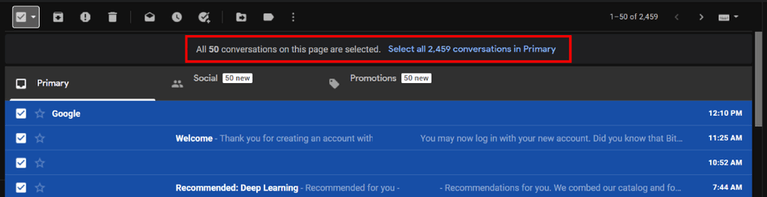
- The following is a message titled “All 50 conversations on this page are selected.” You will see “Select all conversations in Primary”.
- To continue, click “Select all conversations in Primary”.
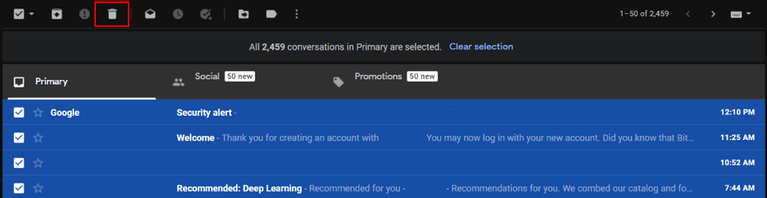
- You can now delete all the emails in your inbox by clicking the “Delete” icon.
- Click “Ok” to confirm your action.
You can find and delete specific emails using the Gmail search feature. For example, to see all emails received from a specific email address, you must use the search bar to search for the address. Next, you must follow the steps above to delete all relevant emails.
Concluding Remarks
If your Gmail inbox is not very tidy, this may not be a problem, as Google’s email service lets you delete your unsolicited emails quickly.
Although Google has a good storage space for your email account, in any case, your promotional emails, spam, and personal emails can take up a lot of this memory. Fortunately, you can have more space by deleting a group of unsolicited emails.
FAQ
How do I select all emails in Gmail at once?
In Gmail on a desktop browser, click the top-left checkbox, then choose the “Select all conversations in All Mail” (or current view) link to highlight all matching emails.
Can I delete emails by category or age only?
Yes — you can filter emails (e.g. by sender, date range, or category like Promotions) using Gmail’s search bar, then select and delete only the matching subset.
How do I permanently remove emails after deleting them?
After deleting, go to the Trash folder, then click “Empty Trash now” (or “Delete forever”) to erase all messages permanently instead of waiting the automatic 30-day removal.