

Security Solutions to Monitor Systems, Servers, and Network Performance

In The Security World, There Is A Bitter Truth That No System Or Infrastructure Is Completely Secure. New Exploits Are Discovered Daily; Their Details Are Available Online.
Monitor system performance to apply best security practices, such as access control lists, permissions, server security, precise patch management, and accurate firewall configuration. Still, if hackers focus enough on the infrastructure, they will eventually find a loophole to infiltrate.
Therefore, as a security expert, it is essential to note that if everything is under control, what should you do if an attacker succeeds in overcoming all security controls?
Security experts always consider worst-case scenarios when implementing security controls and have prepared contingency programs for when a user succeeds in overcoming all security controls.
What is monitoring? Security Solutions To Monitor The Performance Of Systems, Servers, And Networks
Monitoring involves implementing policies, solutions, and security tools to detect minor occurrences within networks or equipment. However, the critical point is the proper implementation of security mechanisms in the infrastructure.
For example, you need to know which tools to use in which parts of the network to closely monitor employee and equipment activities without affecting their performance. A large part of monitoring activities involves implementing network intrusion detection systems.
Typically, security experts have a thorough knowledge of host-based intrusion detection mechanisms and network-based intrusion detection systems. Important points to note about these two security mechanisms include the following:
- Host-based IDS: A host-based intrusion detection system (HIDS) is installed to monitor system activity. A HIDS system can detect suspicious activity by viewing reports generated by Windows components.
- Network-based IDS: A Network-Based Intrusion Detection System (NIDS) collects network traffic and analyzes it to identify suspicious activity. Typically, network-based intrusion detection systems compare traffic against known attack signatures to identify suspicious activity.
Surveillance systems, such as intrusion detection systems, can use various methods to detect suspicious activity. An intrusion detection system uses signatures or anomalies in network traffic to detect suspicious activity. In contrast, a Signature-based monitoring system records activities and compares them against a database containing definitions of known malicious activity.
A signature-based system produces few false positive alerts because it compares the activities performed on a system with the signatures it already has. When a signature-based system is first installed on a server, it collects information about the server’s functions and the equipment connected to it. Because these systems seek specific action, they make few false alarms.
For example, an IP address sends SYN messages at short intervals to several ports connected to the system; the system collects this information about the IP address and maintains it as a port-scanning signature.
Then, whenever the address receives new messages, it compares the latest information with the old information. If it detects a suspicious item, it sends a report to the network administrator.
Types of monitoring systems
A security expert should have comprehensive knowledge of the various surveillance systems. Standard security tools in this area include signature-based monitoring systems, anomaly-based surveillance, and exploratory analysis.
A signature-based system detects suspicious activity based on signatures in a file; an anomaly-based system detects regular activity relative to a baseline and considers any action outside the baseline abnormal and suspicious.
An exploration-based system detects suspicious activity using a predefined configuration provided by the device manufacturer and patterns that have caused security problems in the past.
Exploration-based intrusion detection systems are well-suited to zero-day exploits because they are still unknown, and signature-based systems lack signatures to address such threats.
An anomaly-based system recognizes regular activity and flags anything outside that range as suspicious. Typically, an anomaly-based monitoring system uses a baseline to distinguish normal from abnormal activities.
The advantage of such systems is that there is no need to configure the file to define suspicious activity. The system learns what is expected and questionable based on user activity. The problem with anomaly-based systems is that they treat anything outside the normal traffic profile as suspicious and generate many false positives.
Honeypot is one of the most effective monitoring tools
One of the most important concepts embedded in surveillance systems is the Honeypot. Honeypot is a seemingly formal, straightforward system designed to attract attackers’ attention and prompt them to install it within a system or network.
Typically, honeypot systems are securely configured to deter attackers and force them to expend more effort to gain access. While hackers breach the system, all their activities are recorded and audited to track them. Typically, security experts insert a decoy file with an enticing title referencing an organization’s financial statements into the Honeypot to lure hackers.
This file is called Honey. For example, you can place a file named password.txt on the system desktop so an attacker can view and open it when they gain access to the system. In this case, you can run an audit on this text file to determine when it was accessed, from which IP address, and which tools were used.
Monitoring tools
Intrusion detection or prevention systems perform very well and can detect a wide range of suspicious cases; however, sometimes circumstances require you to perform manual activities to obtain more accurate information in less time.
Fortunately, it is possible to use operating system tools and peripherals with manual intrusion detection systems to monitor a design manually. You need to be familiar with proper operating system commands to do this.
Windows operating system commands
The Windows operating system provides network administrators with interesting application commands for monitoring system activity. The following are some of the most widely used and essential orders in this field:
- Netstat: The first command you should be familiar with is netstat. The netstat command displays comprehensive information about network connections and protocols. For example, you can use the netstat -n command to view TCP connections to a system. In this case, the IP addresses and their protocols are displayed understandably. The netstat -na -o command lists all listening ports on the system. The -o switch in the command above outputs the process ID, which helps identify which ports programs have opened.
- Net session: Network administrators use the net session command to view computers connected to a system through a file-sharing mechanism. The above command lists the sessions, the clients’ IP addresses associated with the design, and their usernames for authentication. In Figure 1, the two computers (10.0.0.2 and 10.0.0.3) are connected to the same system and are authenticated using an administrator account.

Figure 1
- Tasklist is a favorite command among network and security experts, providing a detailed report on processes running on the system. When you run netstat with the -o switch, you get the process ID that opened the port. You can then use the tasklist command to find the executable file name (EXE) associated with that program or process for more information. Figure 2 shows the output of the above command.
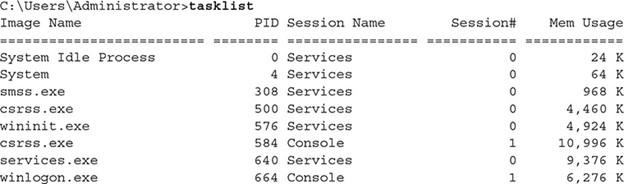
Figure 2
- Taskkill: When monitoring a system, if you notice a process that may be causing performance or security issues, you can use the taskkill command to terminate it. To terminate the execution of a process with the process ID number or executable file name, we use the following syntax:
taskkill / IM notepad.exe / F
If you are sure you want to terminate a process and do not want any data stored in the application, you must use the / F switch to end the execution of an application. If you do not use the /F switch to complete the process in the command above, a prompt to save changes will appear in the document, and the method or program will not end. The /IM switch in the above command is called Image Name, and the program name to terminate appears with it.
- Whoami: If you want to get information about the user logged in to a system, use the whoami command. This command displays the currently entered username. When using the whoami command, use the /groups switch to list the groups you are a member of, or use the /LOGONID switch to view your login ID. Both are useful for troubleshooting access control issues and for showing the groups you have defined on a server. In this case, you can delete or restrict the authority of these groups.
- Net statistics: Another excellent Windows monitoring command that can closely monitor everything happening on the server. This command provides valuable information about server performance. The command displays information such as the number of sessions admitted, the number of password breaches (failed login attempts), the number of license violations (resource access denied due to missing permits), and printing-related activities in the system. Figure 3 shows the information visible with this command.
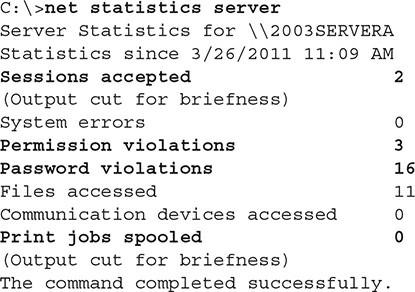
Figure 3
Other commands are used to monitor systems. For example, network and security experts use the netstat command to view information about client software installed on a system and the number of requests sent to access network resources. For example, you can view information about each failed request to access resources on the network with that command.
View a list of users: One of the most important things you should do as a security expert is to monitor users, groups, and shared resources constantly. You can use the net user command to list user accounts on the system, as shown in Figure 4.
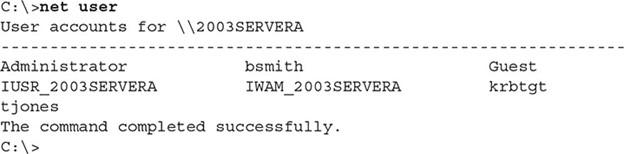
Figure 4
If you need more detailed information about shared groups and folders in a system, use the net localgroup command. This command lists shared resources in the design and their locations on a local disk. In Figure 5, you can see a summary of the information displayed by the above command.
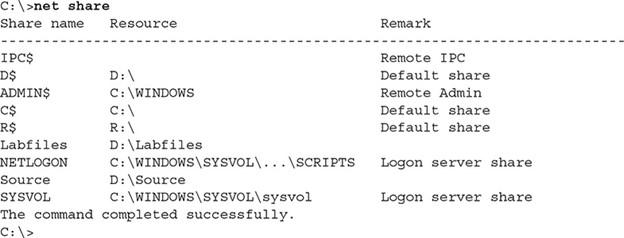
Figure 5
Linux operating system commands and protocols
The Linux operating system also includes tools for monitoring system activity. Important security instructions in this regard include the following:
- P.S.: This command lists running processes on the system. The above knowledge is equivalent to the tasklist command in Windows. In Figure 6, you can see the information shown by the above command. When you use the ps command to view a list of processes, you may see a process that you do not want to run in memory. To do this, you must use the kill command in Linux to terminate the process running in memory. For example, if a process running an operating system with an ID of 3139 is running, we use the following command to terminate it:
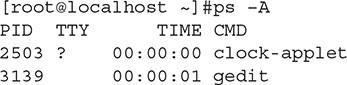
Figure 6
When monitoring user account activity, you can use the Last command to display the last time a user logged in. You can also use the lastlog control to view a list of users and the last time they logged in (Figure 7).
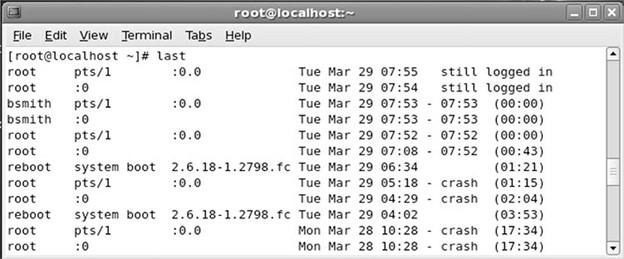
Figure 7
SNMP protocol
Simple Network Management Protocol (SNMP) is one of the oldest network protocols used to manage and monitor devices. Security experts use the above command to gather detailed information about running devices, memory consumption, CPU usage, and connected users.
This protocol also provides access to information about device configuration and settings. Note that the above protocol only allows SNMP to monitor or manage a device if the target device supports SNMP. Of course, most routers, switches, and printers support this protocol.
Fortunately, software for automated SNMP use is designed to connect to devices that support the protocol, making device data retrieval more accessible.
We recommend enabling SNMPv3 on your devices for security, as it is more secure than the original SNMP. SNMPv1 has relatively weak security and transmits usernames and passwords in clear text.
SNMPv2 addresses some security issues, but SNMPv3 provides a more secure monitoring mechanism by encrypting credentials and implementing stronger security controls.
FAQ
What are performance monitoring security solutions?
They are tools that track system, server, and network performance while identifying security risks and anomalies.
Why is monitoring important for servers and networks?
Continuous monitoring helps prevent downtime, detect threats early, and ensure optimal performance.
Who should use monitoring security solutions?
IT teams, system administrators, and organizations managing critical infrastructure and networks.