
How to Send a Secure Email in Gmail

Secure Email: Gmail is an excellent email tool used by millions. Its Intuitive Interface And Extensive Integration With Other Google Services Make Communication Between Friends, Family, And Colleagues Easier.
However, Gmail is a bit incomplete in terms of security. Follow this guide to send a secure email through this service.
The reason for the importance of sending secure emails
There are many reasons to send a secure email to Gmail on your computer or Android smartphone. Gmail has a feature called confidential mode that prevents emails from being forwarded, copied, printed, or downloaded. An even better part is that you can set an expiration date for the email and, if you decide to, revoke access at any time via the Gmail website or app.
Activating confidential mode on a computer or smartphone is straightforward.
While confidential mode prevents the recipient from resending, copying, printing, or downloading the email, it does not prevent taking screenshots or photos. This model is not error-free in Gmail, so avoid sending risky content.
How to send a secure email on a computer
For whatever reason, sending emails from a computer seems safer than from a smartphone. However, this will only be safe if you follow the steps below to send emails in confidential mode.
Open your favorite browser and go to gmail.com.
Click the Compose icon in the upper left corner.
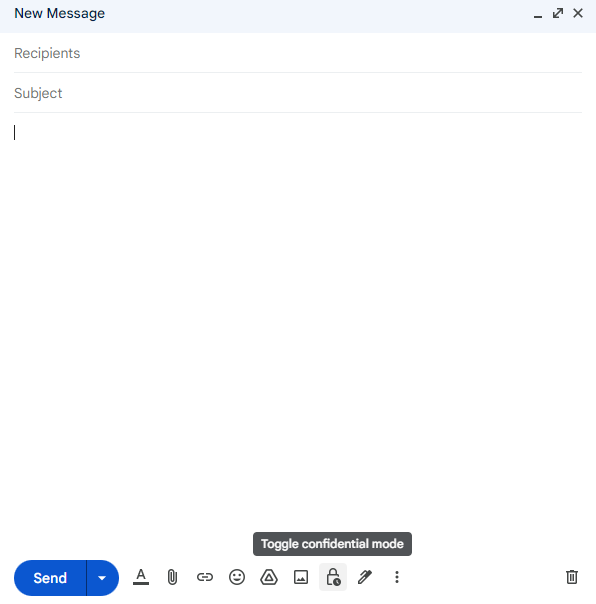
Click on the Toggle confidential mode icon at the bottom of the email window.
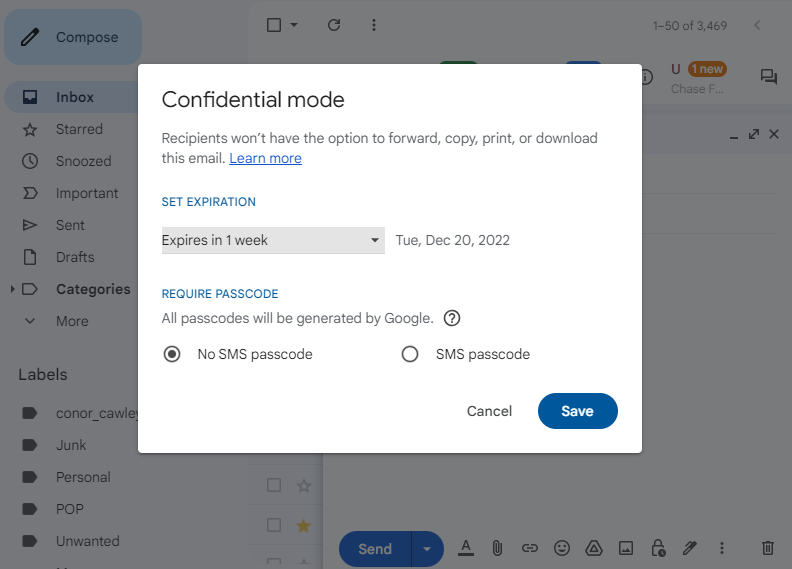
Set the expiration date in the pop-up menu.
If you want to use it, activate the SMS passcode option.
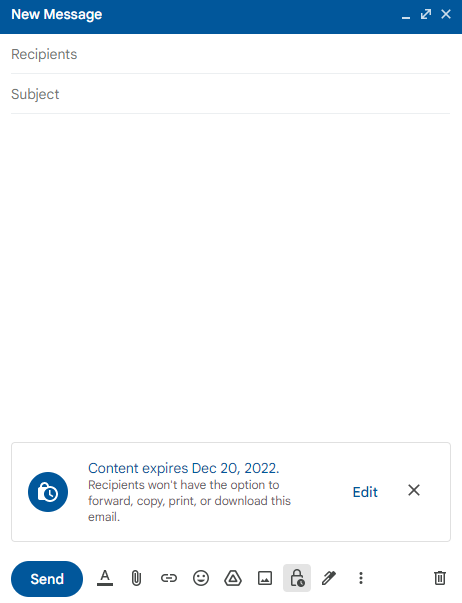 A message will be displayed to show the news expiration time.
How to send a secure email on Android and iPhone
Sometimes, you need to send a secure email quickly. The Gmail application on Android and iPhone keeps your attachments and information as safe as possible by accessing confidential mode. Levels:
- On your Android or iPhone, open the Gmail app.
- Click the Compose button in the lower right corner.
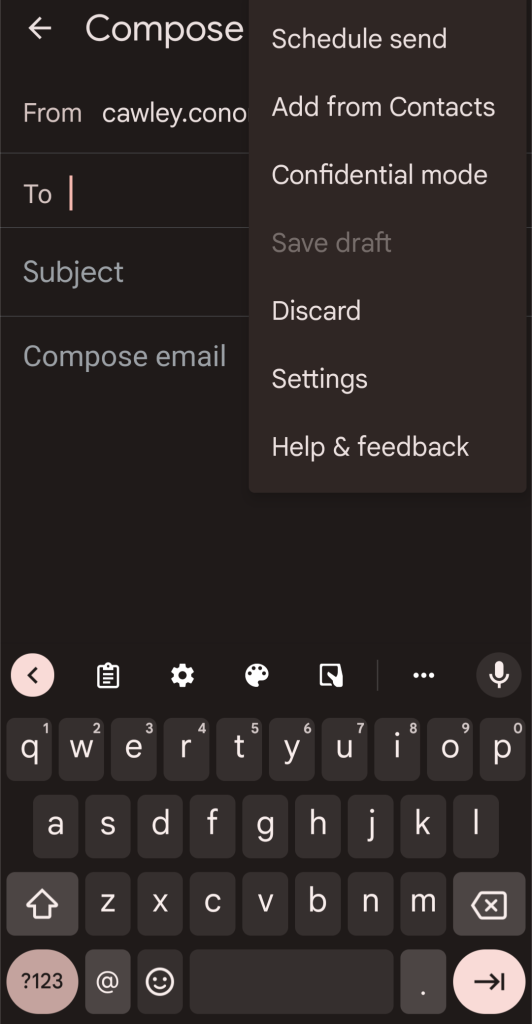
- Tap the three dots icon in the upper-right corner.
- Select a confidential mode from the drop-down menu.
- Turn on privileged mode.
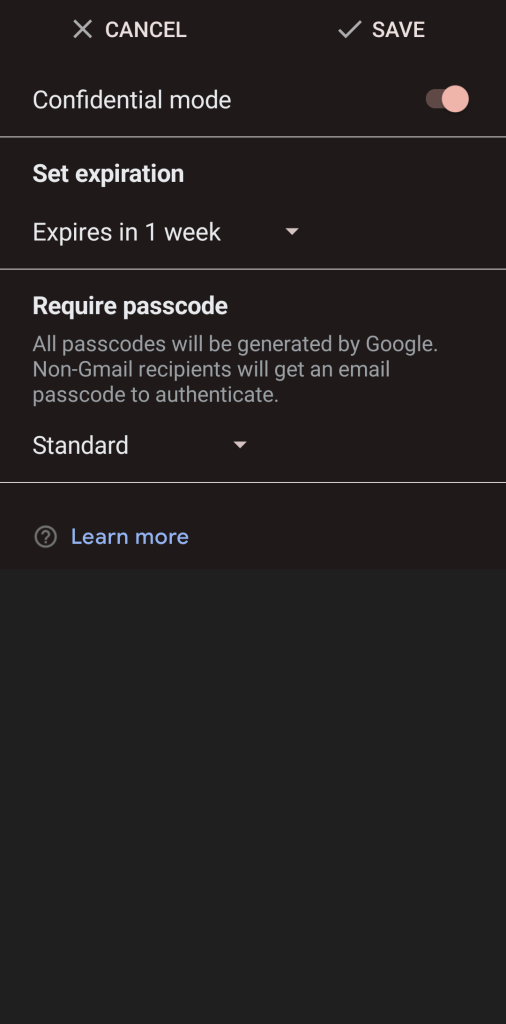
- Set the expiration date in the menu.
- Choose Standard or SMS passcode from the drop-down menu.
- Tap Save at the top.
- The email will display the expiration date.
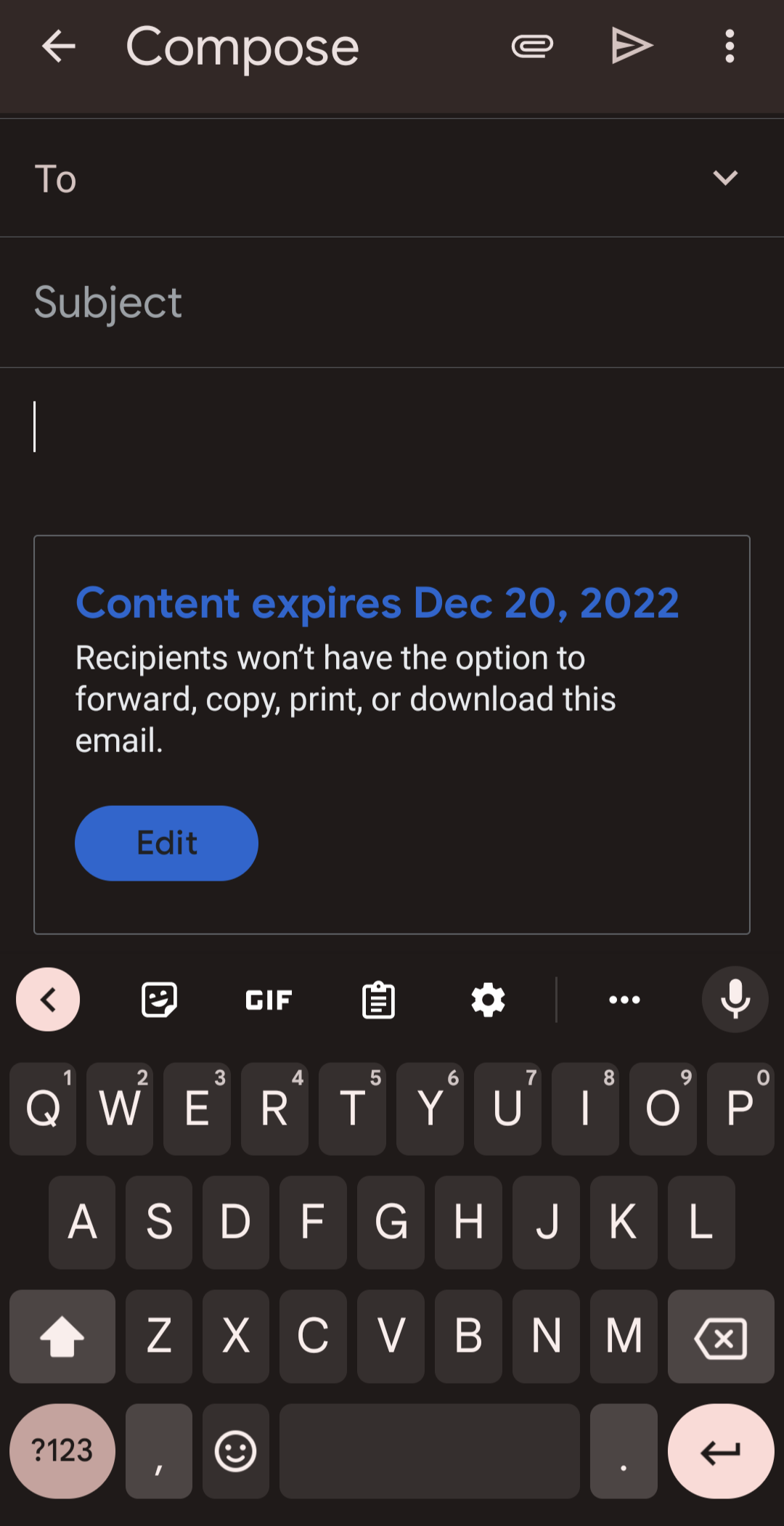
How to prematurely terminate access to a secure email in Gmail
If you decide to revoke a key for a particular email recipient before the expiration date, you can update the date and revoke access completely. This way, the user will have complete control over their secure email.
- Open the Gmail app or the Gmail website.
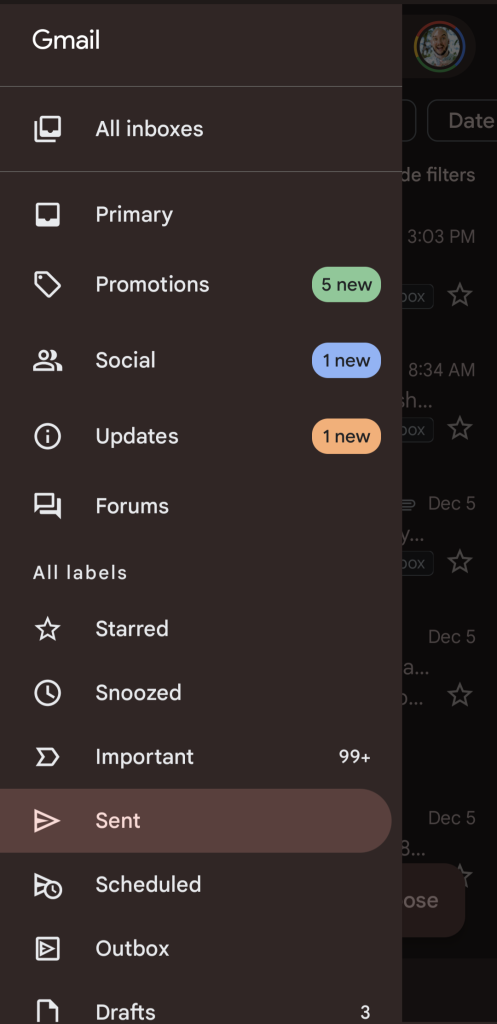
- Go to the Sent folder.
- Find the secure email you sent and open it.
- Click the Remove Access button.
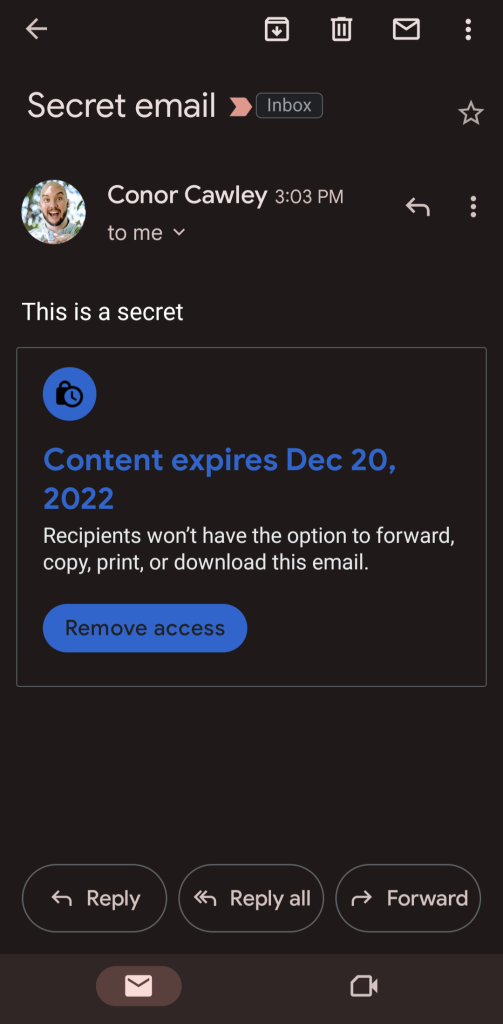
How to receive a secure email in Gmail
Recipients of confidential emails in Gmail cannot resend, copy, print, or download the email or its attachments. However, beyond these restrictions, a personal email will act like any other email, appearing in your inbox and allowing users to access it through their accounts.
Learn how to verify message security.
There are two ways to verify message security:
- When you compose a message on your computer or Android device, select Message Security
.
- When you receive a message, open the recipient’s details.
What to do if an email isn’t encrypted
- If you get a warning that your email isn’t encrypted or there’s a red lock icon
, the recipient may be using an email service that doesn’t support TLS or another encryption type supported by Gmail. Consider removing unencrypted addresses or deleting confidential information from the email before you send it.
- If you receive an unencrypted email containing sensitive content, inform the sender and ask them to contact their email service provider.
- If you use S/MIME, emails are encrypted in S/MIME whenever possible. To either sign or receive S/MIME-encrypted emails, you must have a valid S/MIME cert from a trusted root.
FAQ
How can you enable confidential mode in Gmail?
Use Gmail’s Confidential Mode to set expiration dates, require passcodes, and restrict forwarding.
Should you use encryption for sensitive emails?
Yes, using encryption such as S/MIME or third-party tools adds a strong layer of security.
Why is strong authentication important?
Two-factor authentication helps prevent unauthorized access to your Gmail account and protects your emails.