
How to Remove the Windows 8, 10, and 11 Password With or Without the Previous Password

Most of us in the tech world use a password to protect our computers and laptops, but not everyone needs a secret code. For example, if you do not share your laptop or personal computer with others, you may not need a password in the Windows system.
In this article, we will review how to remove the password from Windows 10 and 8 using the Control Panel, a local user account, and the command line. In short, to remove the password, open the Windows Password section, enter the password there, leave it blank, and click Next. The password will be deleted.
How to disable passwords in Windows 10
Disabling your account password resets it, so you don’t have to enter it whenever you want to access your device. Passwords are a required security feature in Windows 10; however, if your main concern is repeatedly entering the same code on the lock screen, you can disable it.
Here are the steps on how to remove the login password from Windows 10:
Step 1
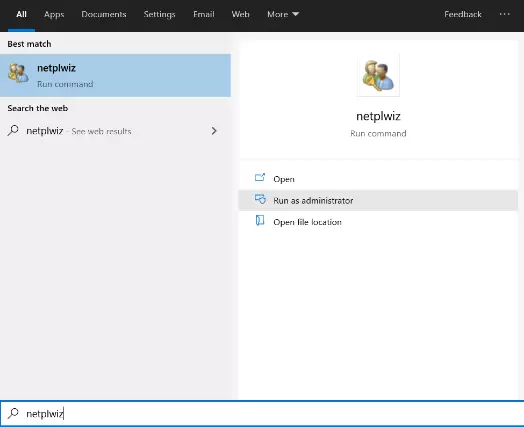
Open Start in Windows 10 and search for Netflix.
Step 2
Click on the result at the top of the page to open the control panel.
Step 3
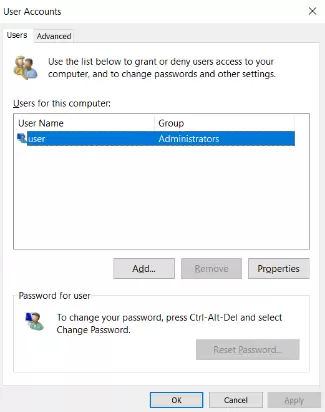
Click Users for this computer.
Step 4
Select the account whose password you want to remove.
Step 5
The User must enter their name and password to use the computer option and click Apply.
Step 6
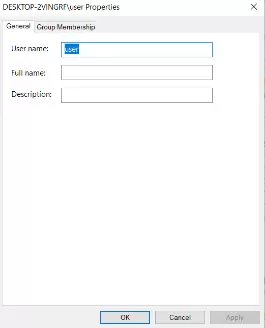
For security reasons, confirm your Microsoft account details by entering your current username and password.
Step 7
Click OK, then confirm by clicking OK again.
Did you know that if your primary problem is remembering and re-entering your password every time you turn on the device, a password manager can help you store all your passwords securely?
How to remove the password in Windows 10 from the Control Panel?
If you want to remove the login password on Windows 10 permanently, follow the steps below. However, you are exposing your device to cyberattacks by doing this. Since your device is not password-protected, the security risk is increased, and you must also have a local account.
If you still want to proceed with deleting your password completely, follow these steps:
Step 1
Click Settings, then Accounts.
Step 2
Click on the Your info option.
Step 3
Click on Sign in with a local account instead.
Step 4
Click the Next button and confirm your current password.
Step 5
Click Next.
Step 6
Create a username for your local account.
Step 7
Leave the Password and Re-enter the password blank.
Step 8
Click Next.
Step 9
Click on Sign out, and that’s it!
After completing all these steps, you will be logged out of your Microsoft account and become a local user.
How to remove passwords in Windows 10 with a local account
If you have a password on your local account and want to remove it, you can do so easily by following these steps.
Step 1
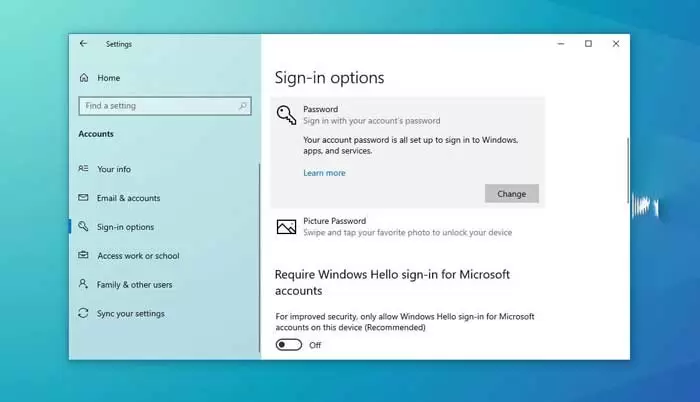
Open Settings, then click Accounts.
Step 2
Open Sign-in options.
Step 3
Select the Password option in the Manage how you sign in to your device tab.
Step 43
Click the Change button, then confirm your current password for added security.
Step 5
Click on the Next option.
Step 6
As with the previous steps, leave the Password and Re-enter the password fields blank.
Step 7
Click Next, then click Finish.
Following these steps eliminates the need to enter a password on the Windows lock screen.
Did you know that you can save all your passwords with the help of an offline password manager? This includes the login password. Using a password manager can protect your device and let you skip the login process every time you turn it on.
How to remove passwords from Windows 10 on the command line
Users who wish to remove passwords at the command line should follow the steps below:
- Click on the Start menu and search for Command Prompt.
- On the above result, Right-click and select Run as administrator.
- Type the Net user command. This option displays all accounts in the system. Then press enter.
- To remove the password, run the command: Net user USERNAME. USERNAME should be replaced with the name of the standard or administrator account you want to update.
Press Enter twice to confirm.
Note that you can only use this process to remove passwords from local PC and laptop accounts.
How to remove a password from Windows 8/8.1 in the command line
In addition to the previous password-removal methods, you can manage your password controls via the command line. This technique may seem a little scary, but it’s better to learn if you don’t want to re-enter your username and password. Here is a step-by-step yet easy guide to doing this:
Step 1
At the bottom left of your desktop, right-click on the Start menu.
Step 2
Select Command-prompt admin.
Step 3
After clicking, your computer will open a Command Prompt window. Now, you must type Net user coco in the dialog box to remove your password.
How to remove your password in Windows 8 in Safe Mode?
In addition to the other password-removal methods we’ve shown you, you can remove or reset your password using Safe Mode in Windows 8. Here’s a quick guide on how to do this:
- Go to the login page, and while holding the Shift key, click the Start menu.
- Select Troubleshoot, then click Advanced options.
- Click Startup settings, then select Enable safe mode.
- If you have not set a password for the admin account, you can enter Safe mode without a password. Otherwise, enter your password and username for added security.
- Open Command Prompt using the steps above.
- Delete the password by typing the command Net user coco.
Here are some methods for removing passwords in Windows 8. However, in Windows 8, instead of completely removing the password, it is recommended to disable it. This protects all personal information while saving time from repeatedly entering passwords.
Did you know that the method of removing passwords is the same regardless of whether you have Windows 8 or 8.1?
Conclusion
There are many ways to remove passwords from Windows 10 and Windows 8. You can disable the Windows 10 password, switch to a local account to remove it in the Control Panel, or permanently remove the password from the local account. Even in Windows 8, you can disable the password and remove it using the command line or in Safe Mode.
FAQ
Can I remove my Windows password from the login screen?
Yes — for local accounts you can remove the password by going to Settings > Accounts > Sign-in options, selecting “Change” under Password, and leaving the new password fields blank.
How do I disable the password prompt without knowing the current password?
If you’ve forgotten the password, tools like PCUnlocker or professional password reset utilities let you boot from a USB/CD and reset or clear the password without logging in.
What is netplwiz and how does it help?
netplwiz is a Windows utility that can configure automatic login; unchecking the requirement for a password lets Windows log in without prompting you, though it stores the credentials and is less secure.