
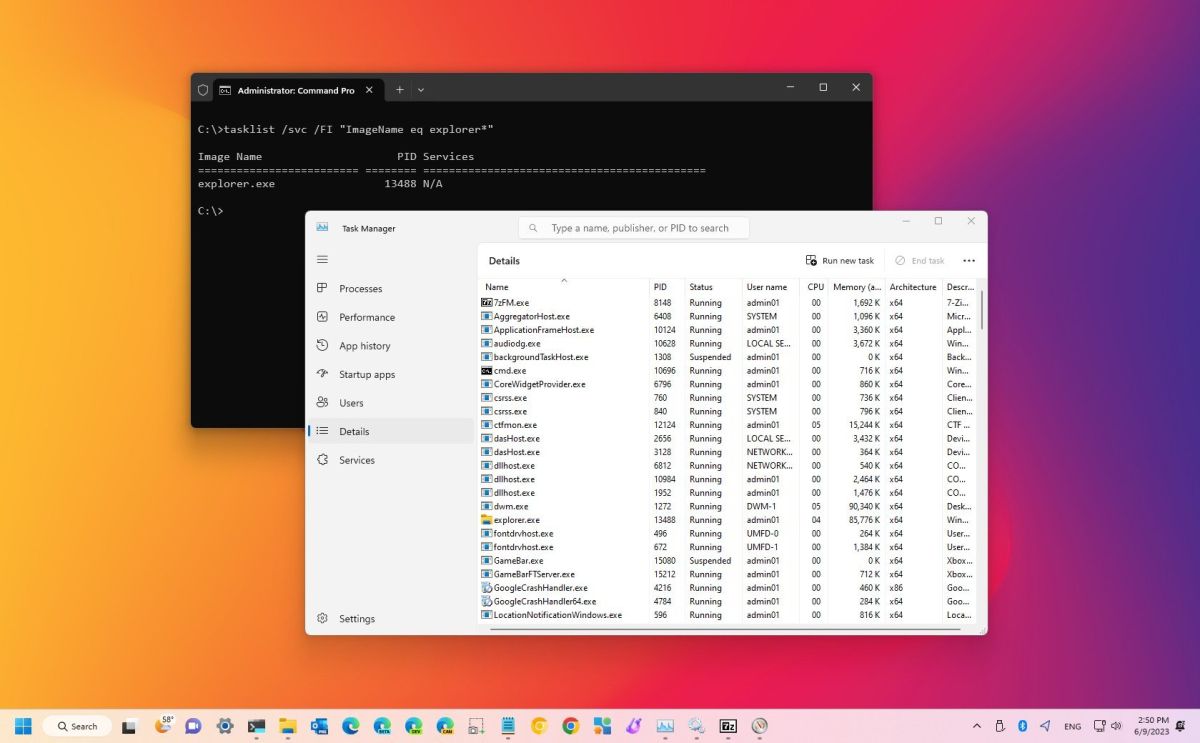
How to Determine the Process ID of a Program in Windows 11

In Windows 11, Programs And Services Receive Identification Numbers Called “Process IDs” (Pids) To Identify Each Process Running On The System And To Distinguish Between Different Instances Of The Same Program.
With these simple steps, you can determine a program’s process ID.
Checking an application or service’s process ID isn’t something everyone needs to know. However, checking system resources for a specific instance, or for debugging purposes when forcibly exiting a program, may be helpful.
If you need to determine the process ID of a specific program or service, Windows 11 allows you to do so using Task Manager and Resource Monitor, and you can even use PowerShell and Command Prompt commands.
This training guide includes the necessary steps to determine the identification number of a running program in Windows 11.
How to check process ID from Task Manager in Windows 11
To find the “Process ID” number of a program in Windows 11, follow these steps:
- Open the Start menu.
- Locate Task Manager and click the top result to run the program.
Note: You can also use the shortcut keys “Ctrl + Shift + Esc” or right-click on the “Taskbar” and select “Task Manager” or right-click on the “Start” button and select “Task Manager”.
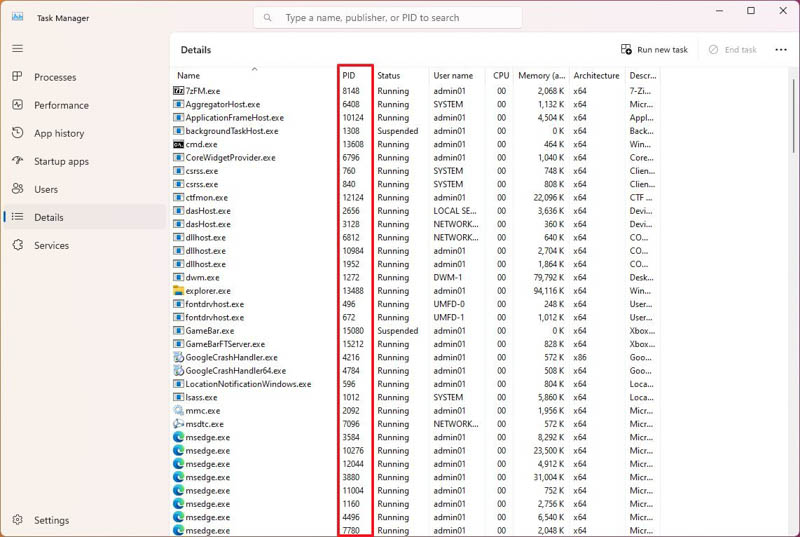
- In the left pane, click Details.
- Verify the program’s process identification number in the “PID” column in Windows 11.
- In the left pane, click on Services.
- Verify the program’s process identification number in the “PID” column.
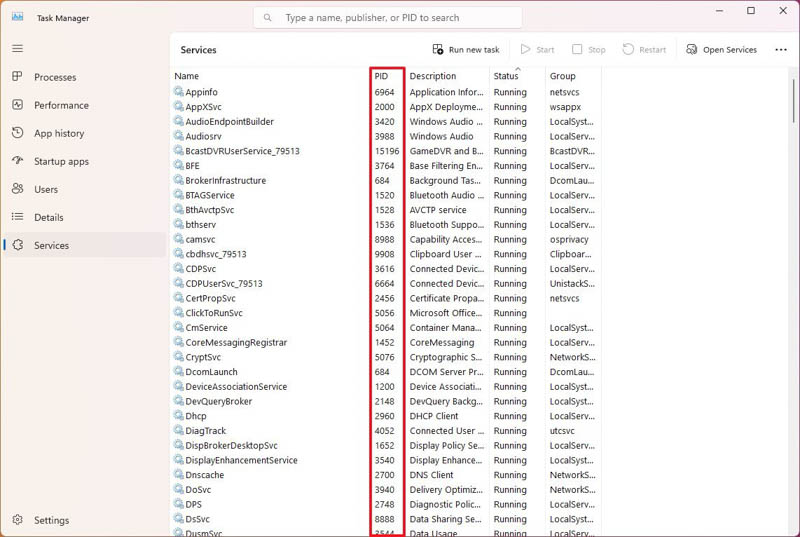
After completing the steps, Task Manager displays the process ID for each running process in Windows 11.
How to check process ID from Resource Monitor in Windows 11
To determine the program process ID through Resource Monitor in Windows 11, follow the steps below:
- Open the Start menu.
- Locate Resource Monitor and click the top result to run it.
- Click on the Overview tab.
- Verify the process ID of the programs and services in the PID column.
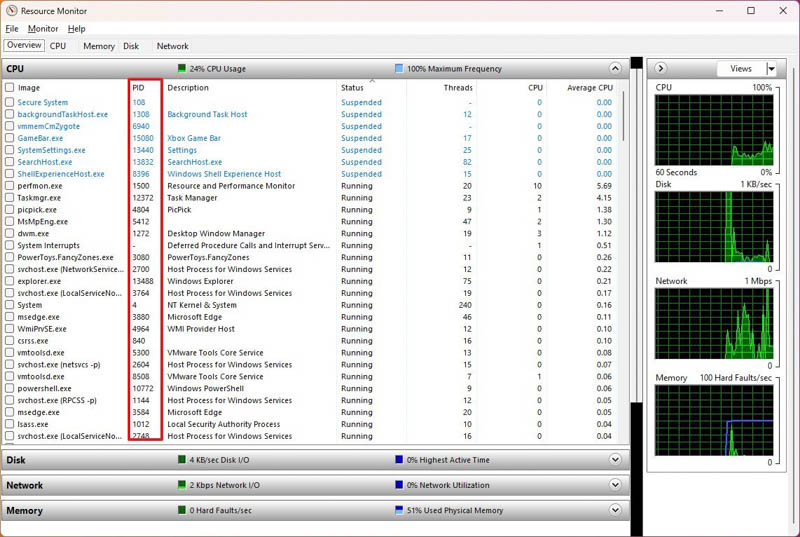
After completing the steps, the program displays the process ID in the “PID” column.
How to check process ID from PowerShell in Windows 11
To find the process identification number of an application through PowerShell commands in Windows 11, follow these steps:
- Open the Start menu.
- Search for PowerShell and click on the top result to open Terminal.
- Type the following command to display a list of running processes and press Enter: Get-Process
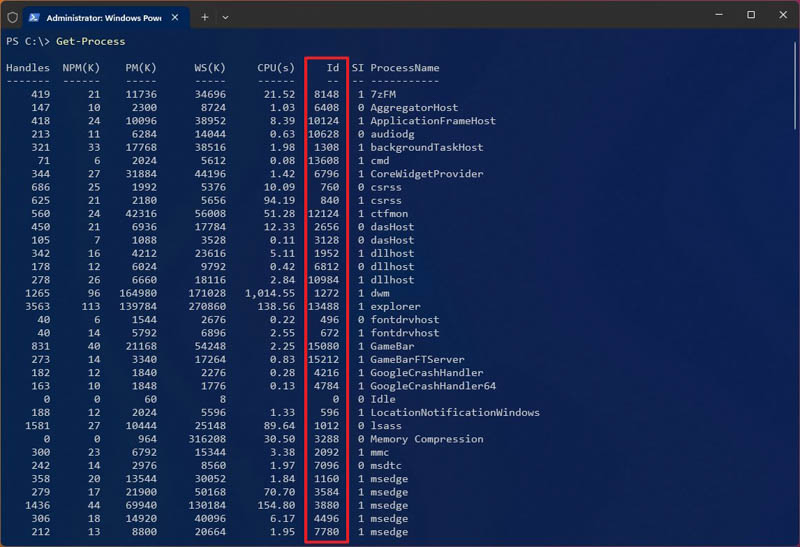
- Type the following command to view information (including ID) about a process and press Enter:
Get-Process PROCESS-NAME* | Format-List *
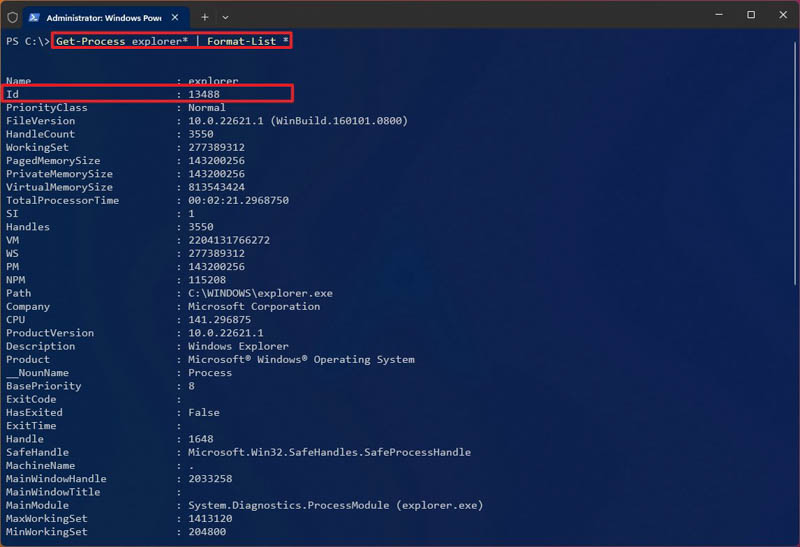
In the command, replace “PROCESS-NAME” with the name of the process .exe.” “*” is a wildcard that matches part of the name without specifying the exact name of the process. This example shows the Notepad process ID and all available information about it:
Get-Process explorer* | Format-List *
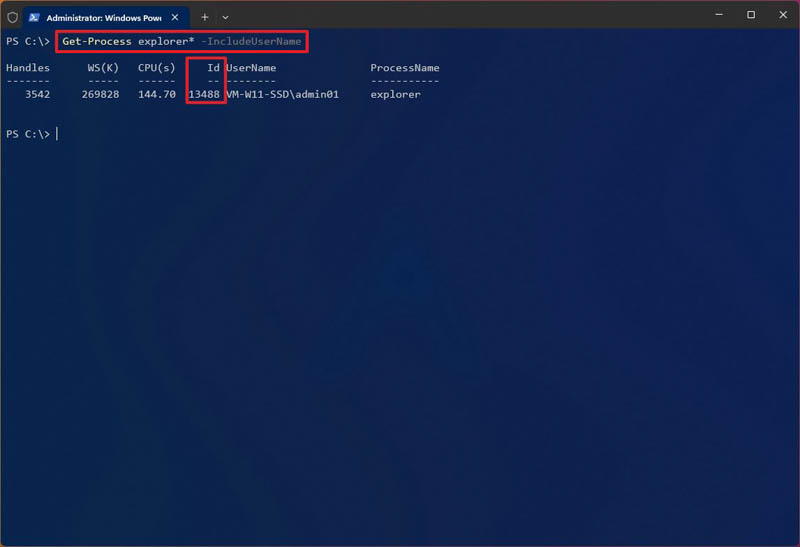
- To determine the ID and owner of the process, type the following command and press Enter:
Get-Process PROCESS-NAME* -IncludeUserName
In the command, make sure you replace PROCESS-NAME with the name of the process “.exe.” “*” is a wildcard that matches part of the name without specifying the exact name of the process. This example shows the Explorer processes:
Get-Process explorer* -IncludeUserName
After completing the steps, PowerShell will print a list of services with their respective process IDs.
How to Check Process ID from Command Prompt in Windows 11
To determine the application ID through Command Prompt commands in Windows 11, follow the steps below:
- Open the Start menu.
- Search for Command Prompt and click the top result to open the Command Prompt window.
- Type the following command to view the list of process IDs and press Enter: tasklist
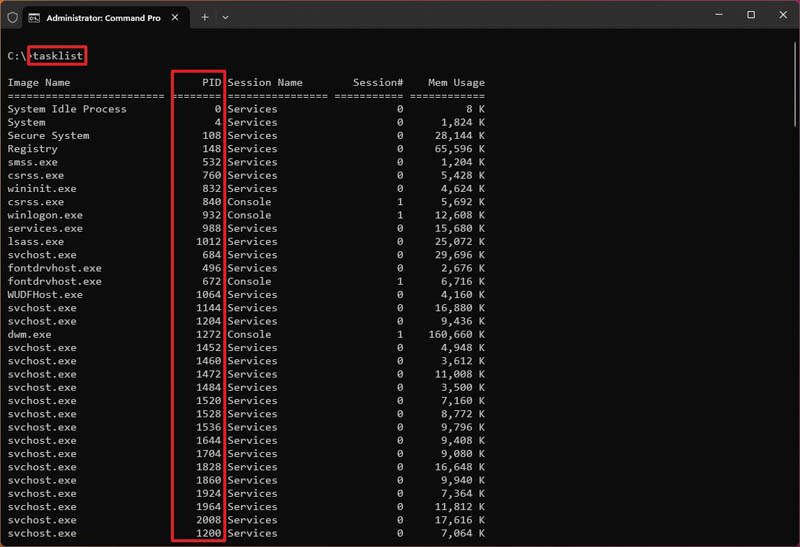
- Type the order to see a list of process IDs for Microsoft Store apps, and press Enter: tasklist /apps
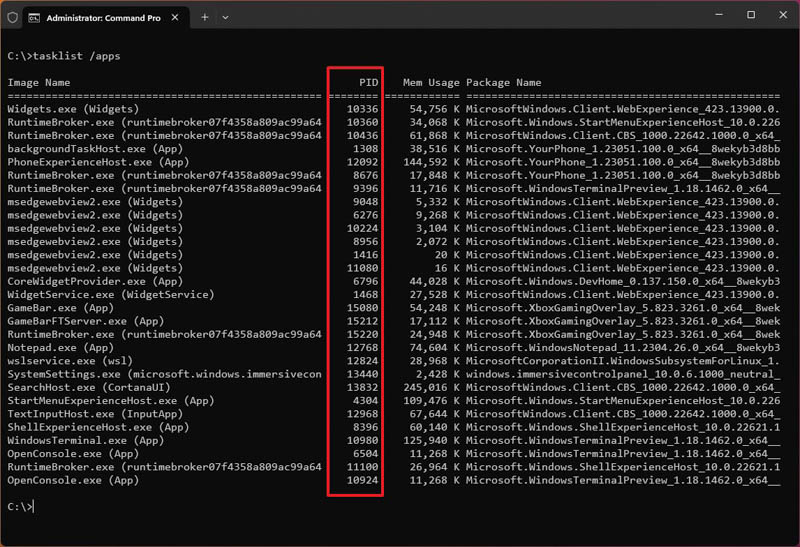
- Type the following command to get the ID from the process name and press Enter:
tasklist /svc /FI “ImageName eq PROCESS-NAME*
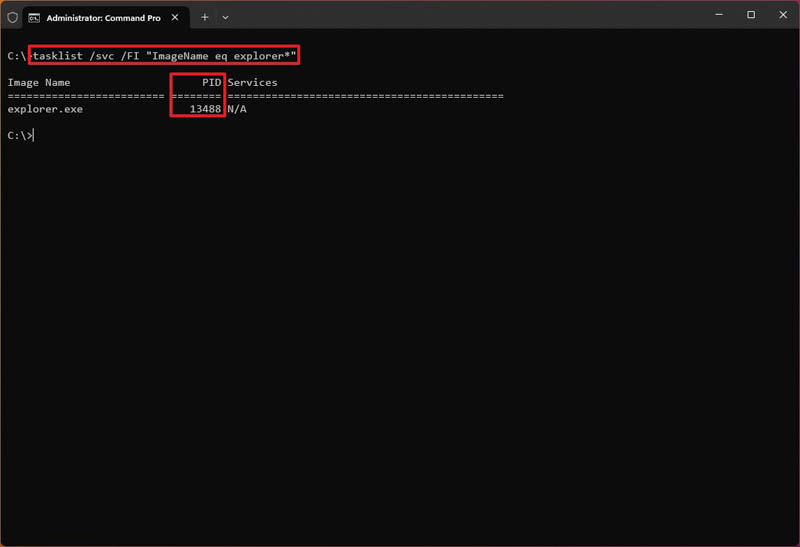
In the command, replace “PROCESS-NAME” with the name of the process .exe.” “*” is a wildcard that matches part of the name without specifying the exact name of the process. This example shows the Explorer processes:
tasklist /svc /FI “ImageName eq explorer*”
After completing the steps, Command Prompt will print the program information and the process ID.
FAQ
What is a process ID (PID)?
A PID is a unique number that identifies a running process in the Windows operating system.
How can you find a PID using Task Manager?
Open Task Manager, switch to the Details tab, and view the PID column next to each process.
Can Command Prompt show a program’s PID?
Yes, run tasklist in Command Prompt to list all running processes with their PIDs.