
How to Downgrade from Windows 11 to Windows 10

Users Are Always Interested In Installing Trial Versions Of New Windows, but in the meantime, Some Problems Cause them to Decide To Downgrade To The Previous Version Of Windows.
Read down, and we will teach you how to downgrade from Windows 11 to Windows 10.
Trial versions of operating systems invariably have problems and bugs that will likely cause issues for users. It does not matter if the trial version is for mobile or PC. These problems also occur in the Windows 11 trial version. If, for any reason, you plan to return to Windows 10 after updating to Windows 11, stay tuned for the rest of this article.
Download from Windows 11 to Windows 10 in the first 10 days
Microsoft allows users to return to Windows 10 within the first 10 days of installing Windows 11. In earlier versions of Windows 10, the ability to return to Windows 8.1 within 30 days was reduced to 10 days after the Windows 10 anniversary.
After 10 days, the old version will be erased from the computer’s memory, and it will no longer be possible to delete it. Similarly, in Windows 11, users can return to the previous version of Windows up to 10 days after installation.
The downgrade process should not affect your files. However, it is better to back up your important files safely before downgrading to the previous version.
Follow the steps below to downgrade from Windows 11 to Windows 10.
- Enter Settings or press the Win + I key combination to open Settings.
- Select the System option from the left, scroll down a bit, and click on Recovery.
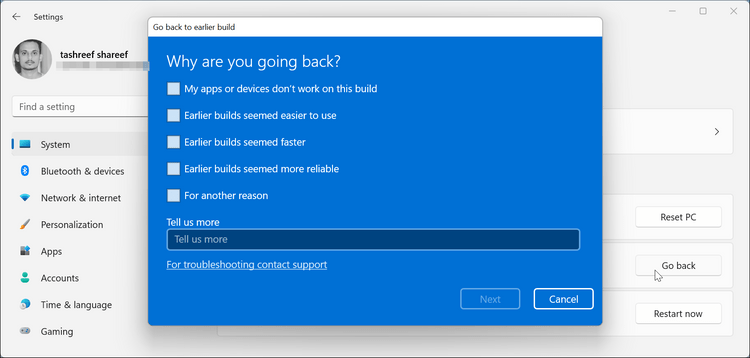
- Scroll down a bit to reach Recovery options. Then, click Go Back.
- No, the”Goo back to an earlier build “window will open. It will ask you to state your reason for going back to Windows 1,0, then click Next.
- On the next screen, click No, thanks.
- Finally, click Go back to the earlier build to begin the downgrade process.
The downgrade process may take some time. You will not be able to use your computer during this time. After the download, some programs may not work correctly, and you may have to reinstall them.
How to go from Windows 11 to Windows 10 after 10 days?
If you plan to return to Windows 10 after 10 days of installing Windows 11, you can only use Clean Install. Follow the steps below to upgrade from Windows 11 to Windows 10 using the Clean Install method.
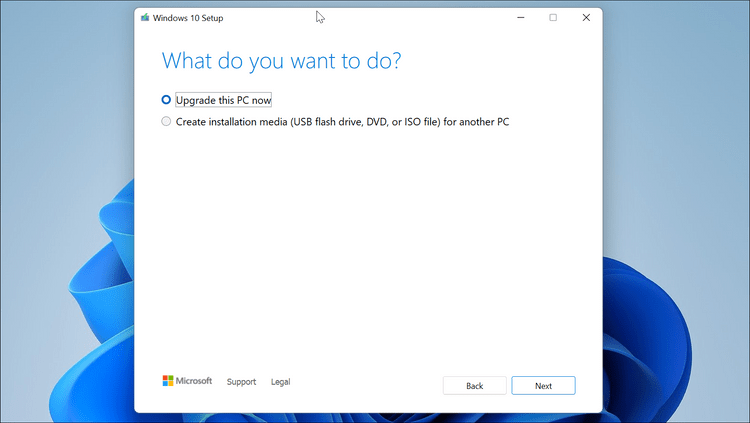
- Go to the Windows 10 download page and download the Media Creation Tool.
- Launch the Media Creation Tool.
- After running the Media Creation Tool, select the Upgrade this PC option and click Next to download Windows 10. Depending on your internet connection speed, this step may take some time.
- After the download is complete, click Next.
- Select Nothing on the Choose What to Keep page, and click Next.
- Click Install to begin the installation process. This process may take some time, so wait until the end of Windows 10 installation.
You can also boot Windows 10 via Flash.
Windows 11 will be free for Windows 10 users; however, trial versions often have issues. If you do not want to use Windows 11 as your primary operating system, uninstall it using the dual-boot feature.
FAQ
What is the easiest way to go back to Windows 10?
If you upgraded within the last 10 days, open Settings → System → Recovery → Go back, then follow the prompts to restore your previous Windows 10 installation.
What to do if the “Go back” option is not available?
Download the official Windows 10 installation media, boot from USB, and perform a clean install — this will erase your system drive, so back up important files first.
Will my files and apps remain intact when downgrading?
If you use the built-in rollback within 10 days, personal files and many settings stay — but some apps or updates after the upgrade may be lost. For a clean install, all apps and settings are wiped; you need to reinstall software and restore backups.