
How to Check If Your PC Is Compatible with Windows 11 — Step-by-Step Guide

One Of The Most Important Questions Users Ask These Days Is Whether Windows 11 Will Be Installed On Our System And, More Importantly, Whether Our System Hardware Can Support Windows 11.
Windows 11 is incompatible with older computers compared to previous versions of Windows, and it may not support some devices, such as CPUs.
However, after the unveiling of Windows 11, Microsoft released a new PC Health Check tool to ensure that Windows 11 can be installed on your system.
Accordingly, Microsoft has released a PC Health Check tool that can evaluate the hardware installed on the systems.
To download and install the above tools, refer to this address to make it easy to rest in this field. The key point is that the motherboard must support the required hardware components. Among these components, the following should be mentioned:
One of the most critical and controversial components is TPM 2.0, which Windows 11 desperately needs.
Windows 11 can only be installed on computers with TPM, so installing it on systems without this chip is impossible.
However, it looks like Microsoft will be a little more flexible in the future, allowing Windows 11 to be installed on systems without the chip under certain conditions.
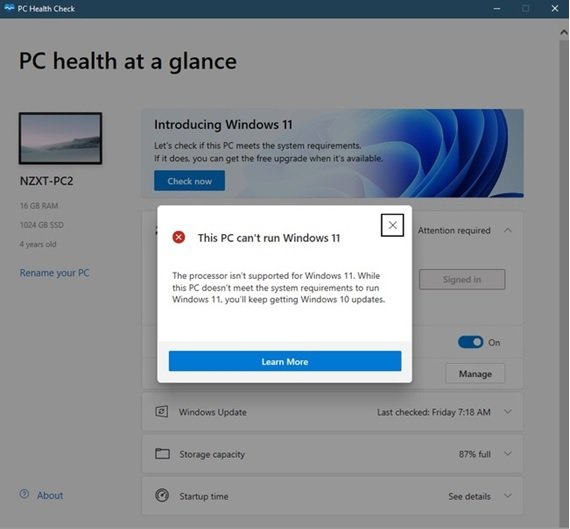
In addition, you do not need the chip listed above to install Windows 11 on your system. For example, even though a system is from the seventh generation of Intel and has a TPM 2.0 chip, Windows 11 does not support it.
For example, Intel i7 6700 series processors in Desktop and laptop versions cannot support Windows 11. As a result, users will not be able to install the new Microsoft operating system on their computers at the time of writing.
Statistics show that over two-thirds of current computers cannot run the new Microsoft operating system, even when Windows 10 is installed. The only way forward is to upgrade the hardware.
Accordingly, MSPowerUser has released a tool that allows users to check their PCs and ensure Windows 11 is compatible with their hardware. This tool, called WhyNotWin11, evaluates users ’systems to determine why their computers cannot install Windows 11. This tool is free of charge; the gateway is available from this address.
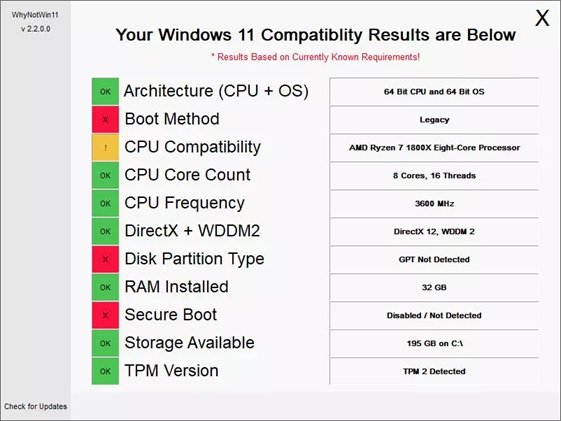
When you install the tool above, it quickly scans the system hardware and generates a report.
For example, as shown in the image above, the Secure Boot feature, the partition type, and the boot method must be addressed, but CPU compatibility is in doubt. However, as mentioned, many users must consider hardware upgrades to make the system compatible with Windows 11.
Interestingly, none of the older eighth-generation processors, such as Coffee Lake, can run Windows 11. To be more precise, not all sixth- and seventh-generation processors in the current list of Intel CPUs are the same.
For example, the Core i7-7700K, Core i7-7700HQ, and Core i7-6700K are bestsellers across most PCs and laptops and are not included with Windows 11.
Therefore, it remains to be seen whether Microsoft will offer a solution or whether some users of the Windows ecosystem will prefer to stay one step behind and use Windows 11.
However, experience has shown that solutions will be devised to circumvent these restrictions until the official release of Windows 11 for information on Windows 11-supported processors.
Checking Windows 11 System Requirements After Hardware Changes
This guide verifies that a device meets Windows 11 system requirements after hardware modifications. Hardware changes may affect upgrade eligibility, and some steps are required to update eligibility information in Settings.
Additionally, this guide is relevant t if the messes displayed in the PC Health Chapp doppio do not match those on the Windows Update page in Settings.
Step 1: Use the PC Health Check App
The simplest way to check eligibility is through the PC Health Check app:
- Download and install the PC Health Check app from this.
- Right-click the Start menu and select Search.
- In the search bar, type:
pc health check - From the search results, select PC Health Check.
- In the app window, click Check Now.
Note: Windows Update may take up to 24 hours to refresh eligibility information. If the information is not updated promptly, you can manually refresh the eligibility assessment.
Important Information
Even with supported hardware, an upgrade to Windows 11 may not be available immediately. Microsoft rolls out upgrades based on various factors, such as:
- Hardware eligibility
- Reliability metrics
- Device age
- Other considerations
Microsoft aims to ensure a high-quality upgrade experience.
Manually Refreshing Windows 11 Eligibility Assessment
Follow one of these methods to refresh eligibility manually:
- Using Task Scheduler
- Right-click the Start menu and select Search.
- In the search bar, type:
task scheduler - Select Task Scheduler from the results.
- In the Task Scheduler window, navigate to Task Scheduler Library > Microsoft > Windows > Application Experience.
- Right-click Microsoft Compatibility Appraiser and select Run.
- Wait for the task to complete. The status will update to Ready.
Note: If you see an error stating you lack permission, use an account with administrator privileges or follow the next method.
- Using an Administrator Command Prompt
- Right-click the Start menu and select Search.
- In the search bar, type:
cmd - From the results, select Run as administrator under Command Prompt.
- If prompted, confirm the User Account Control message or enter admin credentials.
- In the Command Prompt window, enter:
schtasks.exe /Run /TN "\Microsoft\Windows\Application Experience\Microsoft Compatibility Appraiser" - Press Enter to run the command.
- Wait a few minutes for the task to finish.
Viewing Updated Status
To check the updated eligibility status:
- Go to Start > Settings > Update & Security > Windows Update.
- Alternatively, click this shortcut: .
- In the Windows Update window, click Check for updates.
FAQ
What are the minimum system requirements for Windows 11?
At least a 64-bit processor with 2+ cores and 1 GHz or faster, 4 GB RAM, 64 GB storage, DirectX 12-capable graphics with WDDM 2.0 driver, UEFI with Secure Boot, and TPM version 2.0.
How can I quickly check if my PC is compatible with Windows 11?
Use the PC Health Check app: install it, run it, then click “Check now” — it will tell you whether your system meets the requirements or indicate which components need attention.
What if my PC fails the compatibility check due to TPM or Secure Boot?
You can open your BIOS/UEFI settings and enable TPM 2.0 and Secure Boot — if supported by your hardware — then rerun the compatibility check.