
Close Windows 10 Update: Six Ways to Cancel Windows 10 Automatic Update

Windows 10 Automatic Update Is One Of The Problems With Windows 10: The Mandatory Automatic Update. As Soon As You Connect To The Internet, Your Windows Will Download The Latest Updates.
In previous versions of Windows 10, you could easily prevent automatic update downloads by stopping the Windows Update service, but newer versions of the operating system still receive updates.
One of the most controversial features of Windows 10 is its new update model.
A cumulative update will be installed automatically when Windows chooses to do so. This can be very frustrating for Windows 10 users because they are forced to restart their devices at inconvenient times.
In previous versions of Windows 10, you could easily cancel the Windows 10 update by stopping the Windows Update service, but version 1803 of this operating system is much brighter than this.
How to turn off Windows 10 updates?
There are many different ways to prevent Windows 10 updates, and below, we have reviewed six common ways to avoid Windows 10 updates:
Closing the Windows 10 update through the registry
Before starting the Windows 10 automatic update cancellation tutorial, back up all your important data, as a single mistake can cause serious problems. Now, type regedit in the Windows 10 search bar and click on the first result. Go to the following path in the displayed left column:
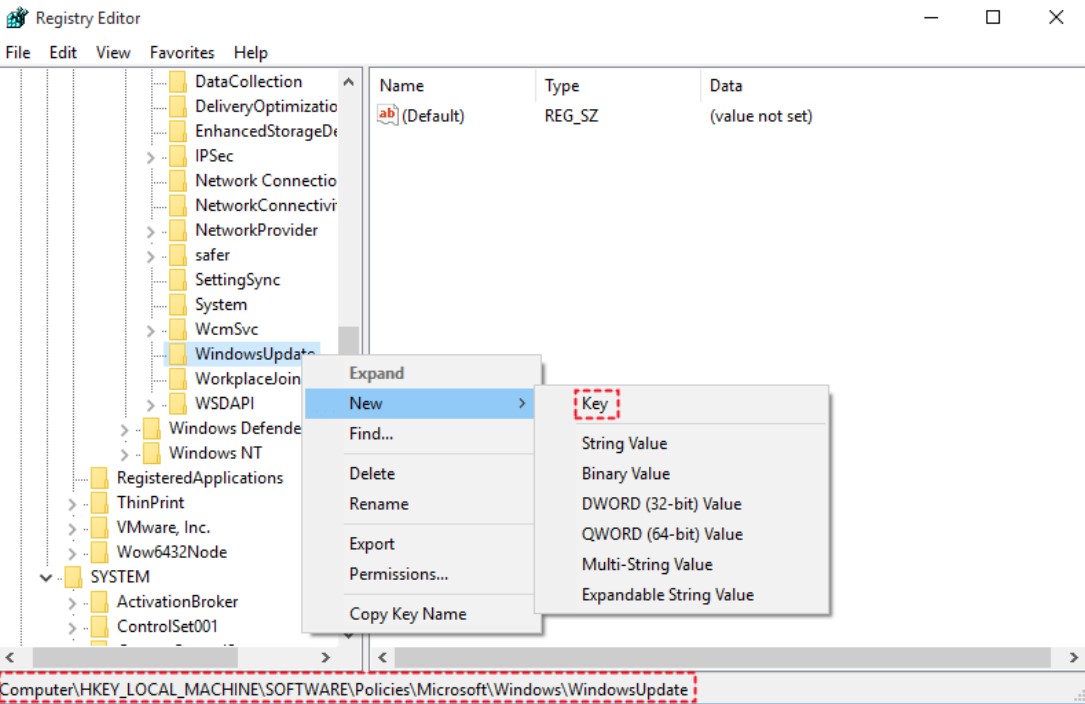
HKEY_LOCAL_MACHINE > SOFTWARE > Policies > Microsoft > Windows
To permanently cancel the Windows 10 update, right-click on the Windows folder and click New > Key. Rename it to WindowsUpdate and press Enter.
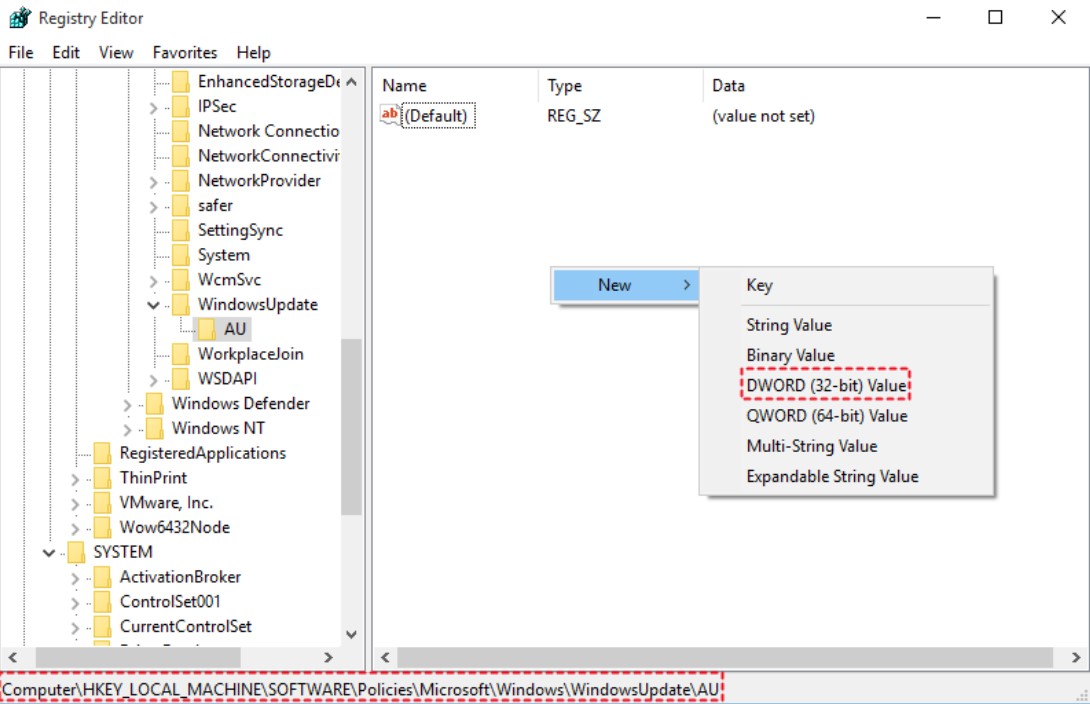
Right-click to the right of this entry and click New > DWORD (32-bit) Value. Also, name this entry “NoAutoUpdate” and press Enter.
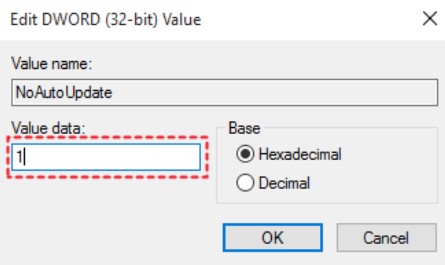
Once you’ve created this, double-click the new entry and set the Value data box to 1. Click OK and restart your computer.
Cancel the automatic update of Windows 10 through the Group Policy Editor.
Note that Group Policy is unavailable in the Home version of Windows and only in the Professional, Enterprise, and Education versions.
To cancel the Windows 10 update, open the Run dialog by pressing Windows + R.
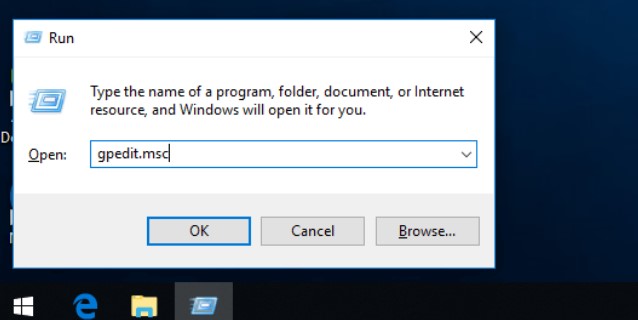
To close the Windows 10 update window after it opens, type gpedit. msc and press enter.
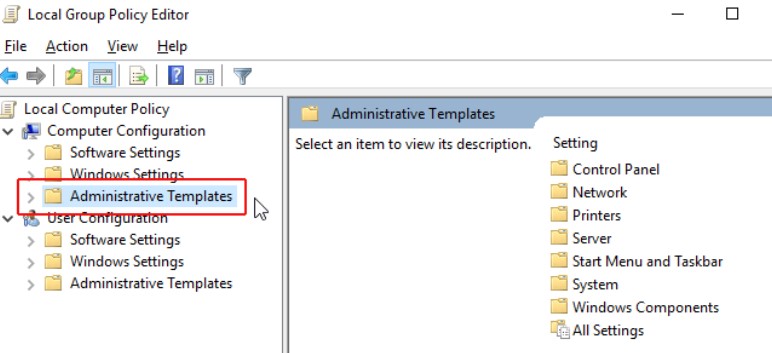
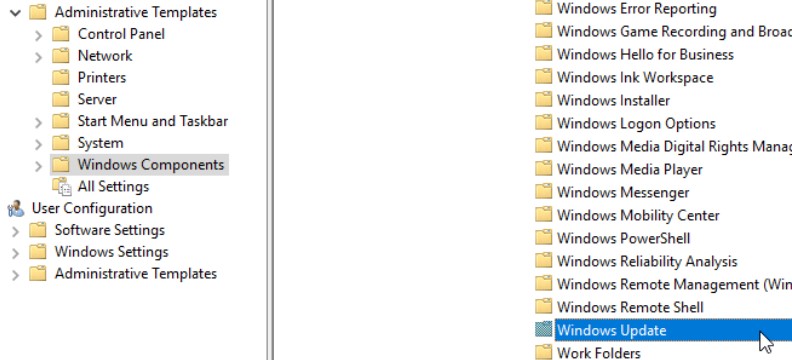
To cancel the Windows 10 automatic update, go to Computer Configuration < Administrative Templates < Windows Components < Windows Update on the left side of the screen.
Then double-click Configure Automatic Updates to disable Windows 10 updates.
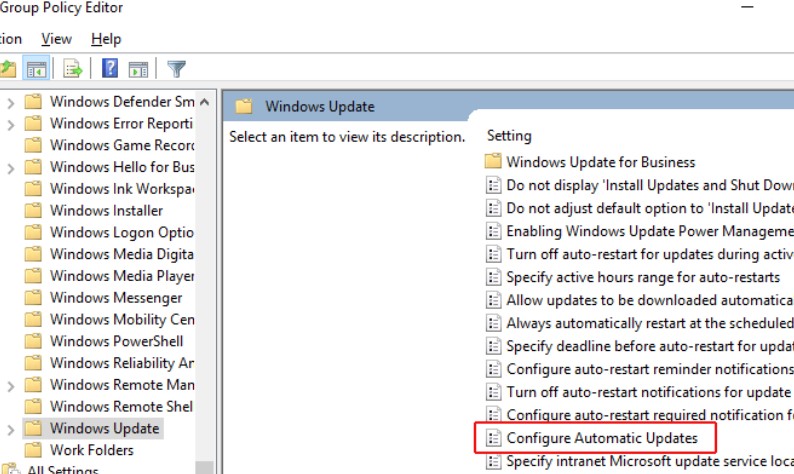
On the open page, set the left part of Configured Automatic Updates to Disabled, click OK, and the Windows automatic update will be stopped temporarily (for 35 days).
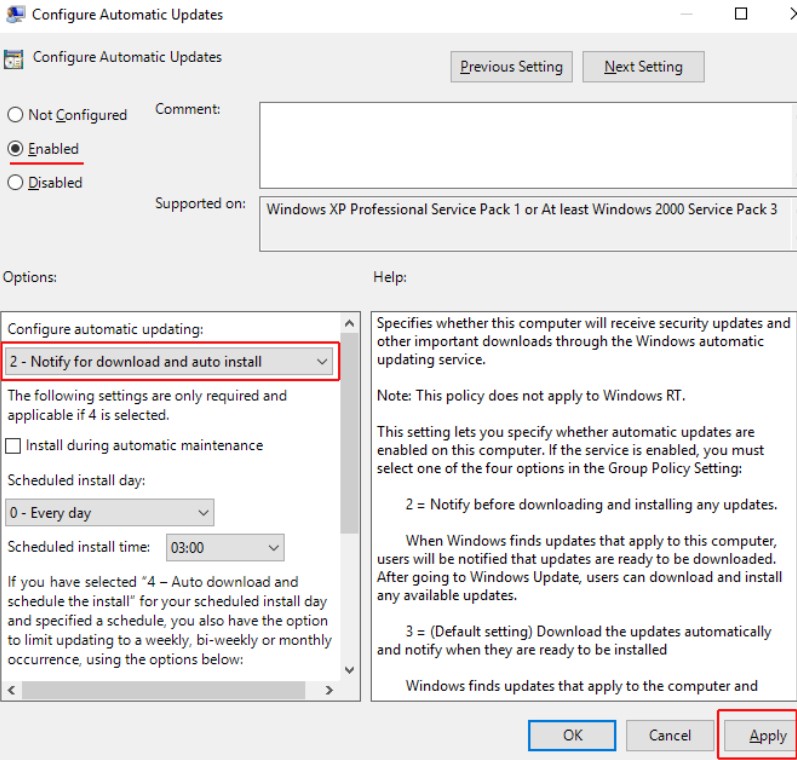
In step 5, when you select Configured Automatic Updates, there are several other options to cancel the Windows 10 update that you can choose according to your needs.
- Notify for download and auto-install: Ask the user to download and install updates.
- Auto-download and notify for installation: Updates are downloaded automatically, but the user must grant permission to install them.
- Auto-download and schedule the install: Automatically download and install updates according to the schedule.
- Allow local admins to set: The system admin should handle update-related settings.
- Auto Download, Notify to Install, Notify to Restart: Automatically download the update and ask the user to install and restart the system.
Turning off the Windows 10 update through the Windows Update Blocker application
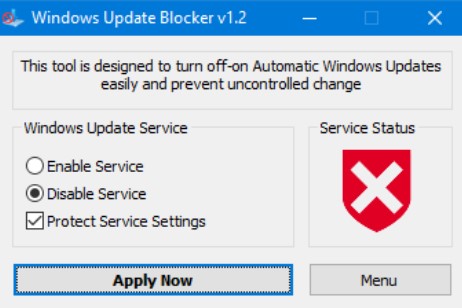
The easiest way to disable Windows 10 updates is to use update-cancellation software such as Windows Update Blocker, which disables all Windows updates. After downloading, open the software, select the Disable Service option, and click Apply Now.
Cancel automatic Windows 10 updates by pausing updates
To prevent Windows 10 from updating, open Settings from the Start menu, then select Update & Security. Next, click on Advanced Options. Finally, to disable the Windows 10 update, set the Pause Updates option to On.
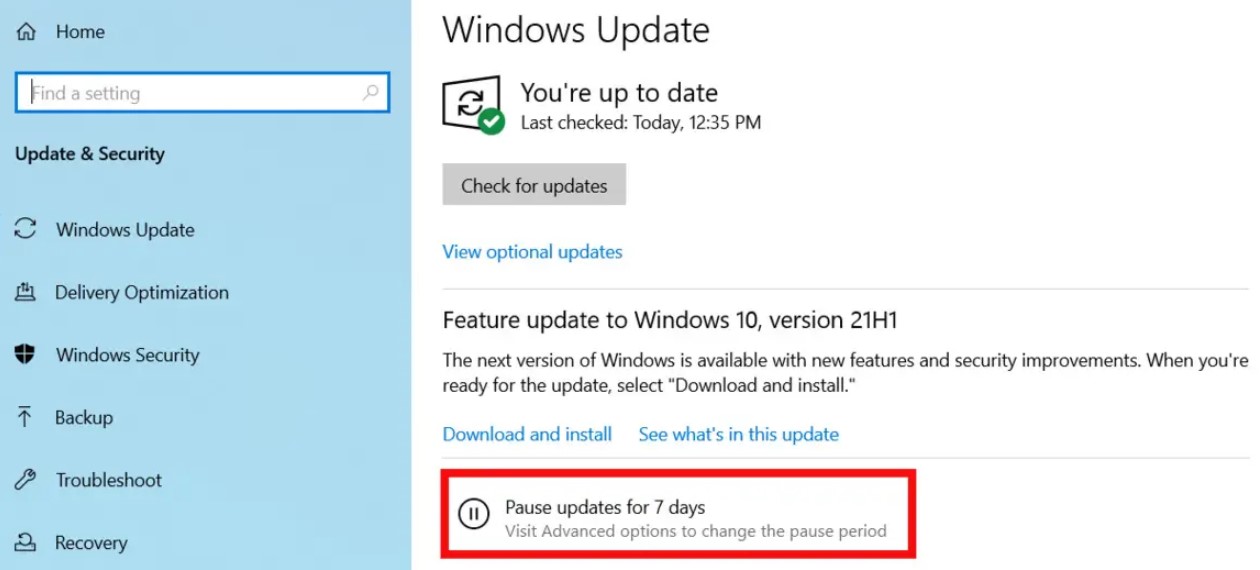
Doing this will prevent Windows 10 from updating for 35 days; the operating system will resume updates after that period. After that, the option to disable automatic Windows 10 updates will be available again.
You can also pause feature updates for up to 365 days and high-quality updates, including critical security fixes, for up to 30 days. You even have to download the latest update before these periods expire.
Using Windows Services to cancel the automatic update of Windows 10
This is the simplest and most widely used method to disable the Windows 10 update: manually close it. To do this, follow the steps below.
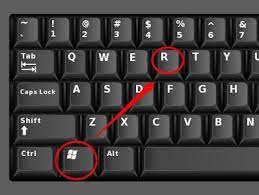
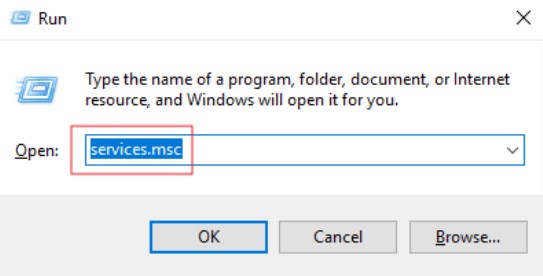
To cancel the automatic update of Windows 10, use the Win + R keys to enter the Windows Run environment and then type Services. msc and click on the OK Key.
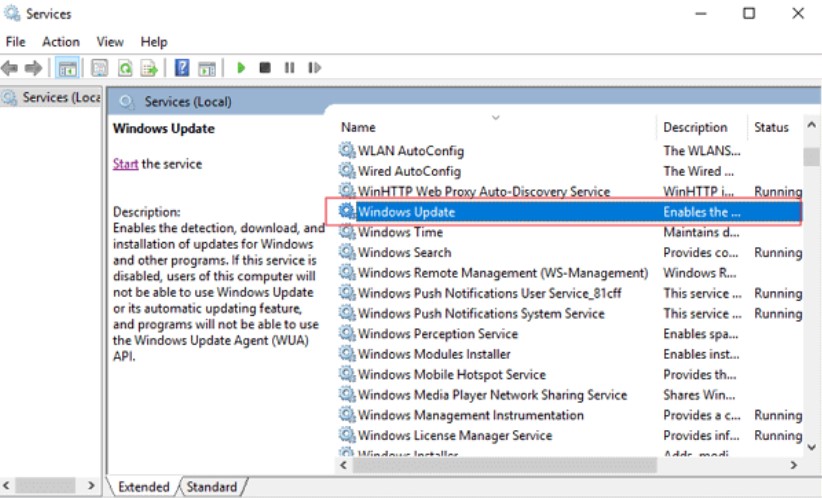
A new window will open; scroll down to the Windows Update option and click it.
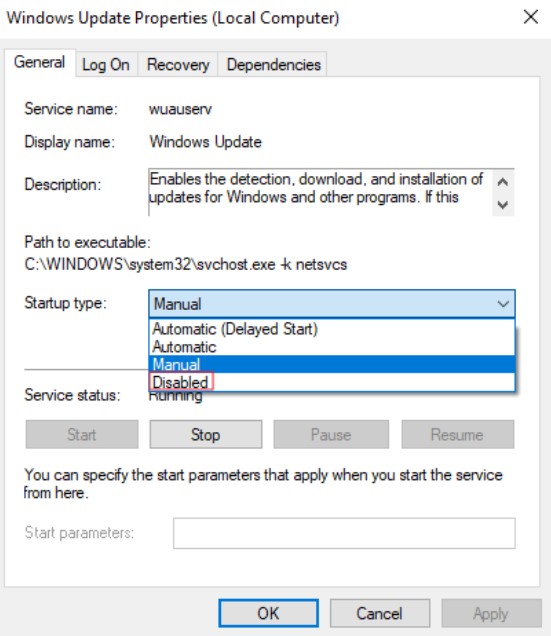
Now, on the General tab, turn off automatic updates, set the Startup type to Disabled, then save the changes and restart your computer.
Using Metered Connection to close Windows 10 updates
Use Wi-Fi to connect to the Internet on your Windows 10 computer or laptop. You can use the Metered Connection option to disable Windows 10 updates.
However, disabling this option will generally prevent the Windows 10 update from installing. However, follow the steps below to disable Windows 10 automatic updates.
To cancel the Windows 10 update simultaneously, open Windows 10 Settings by pressing the Windows + I keys. Then select the Network & Internet option on the settings page.
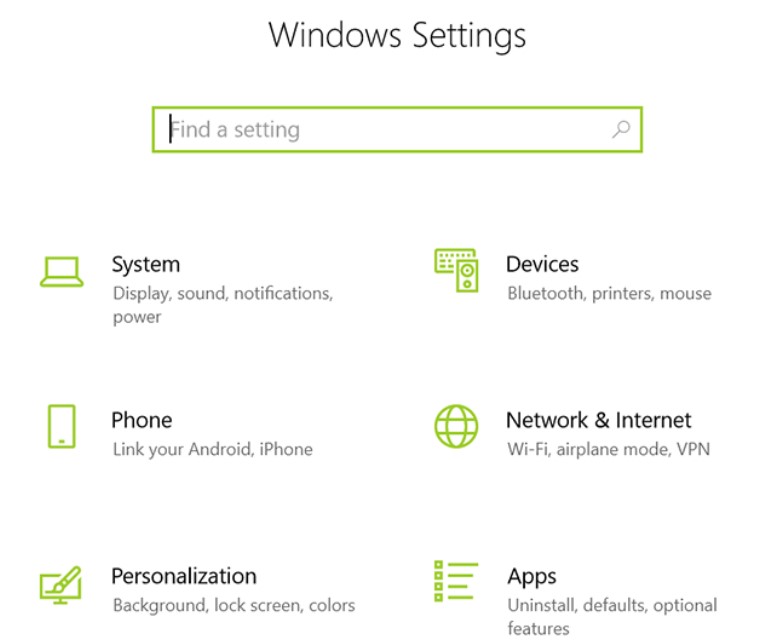
To close the Windows 10 update, in the open window, select the WiFi option from the left menu, then click Manage Known Networks.
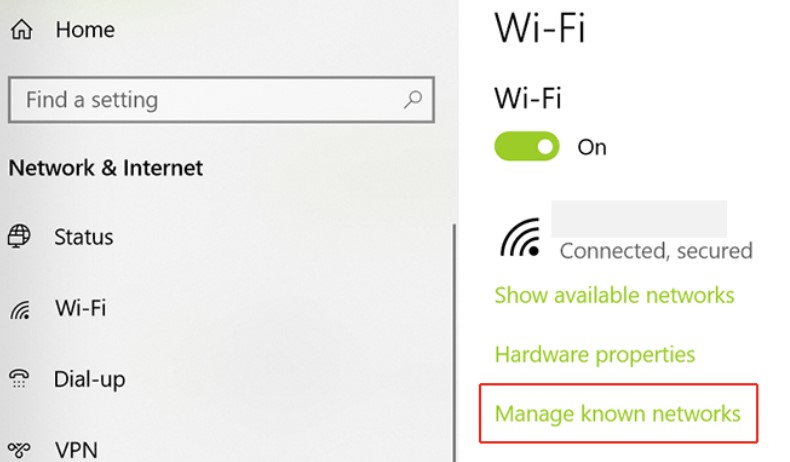
After selecting your Wi-Fi, choose Properties. Click on this option to cancel the Windows 10 automatic update.
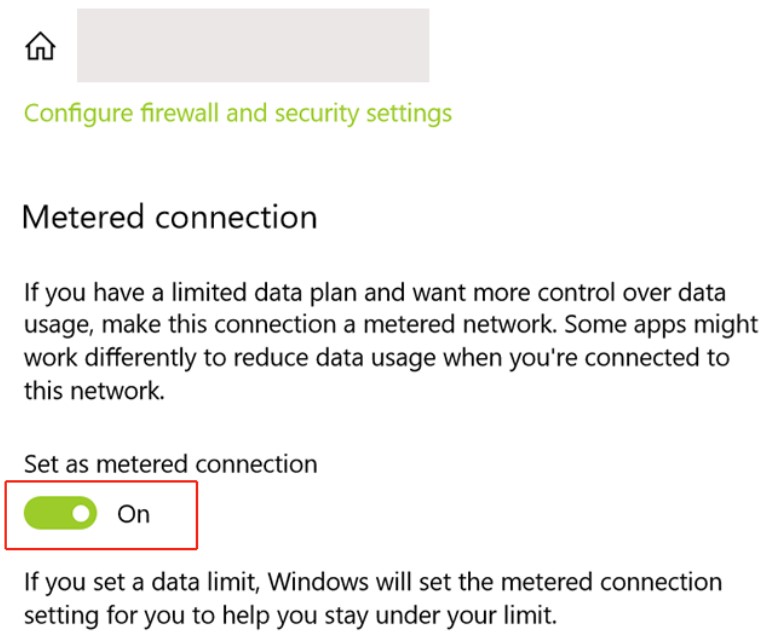
In the end, select Set as a metered connection, as shown in the image above.
Disable Windows 10 update version 1803
If, in the past, you turned off the Windows Update service through services. You and MSc were happy to cancel the automatic Windows 10 update.
Starting with version 1803, this operating system will activate it automatically; previous methods will no longer work. In the following article, we will introduce an alternative method for closing the Windows 10 update, which can reduce your traffic usage.
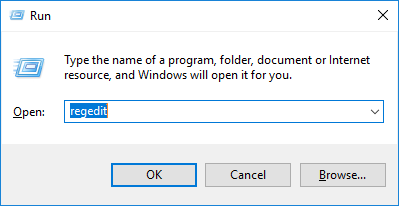
To prevent Windows 10 from updating, open Run and run Registry Editor. Then navigate to HKEY_LOCAL_MACHINE\SOFTWARE\Policies\Microsoft\Windows.
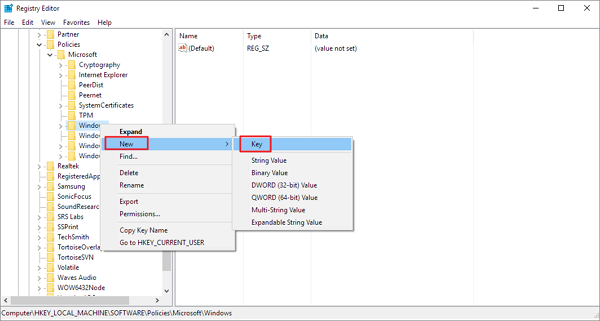
Click the Windows key (folder), select New, then Key to create a new key. Name the created key WindowsUpdate. Right-click the created Key (WindowsUpdate), then choose New> Key. Now right-click AU, select DWORD (32-bit) Value from the New menu, and call it AUOptions. Now click on AUOptions and change its value from 0 to 2, and you’re done!
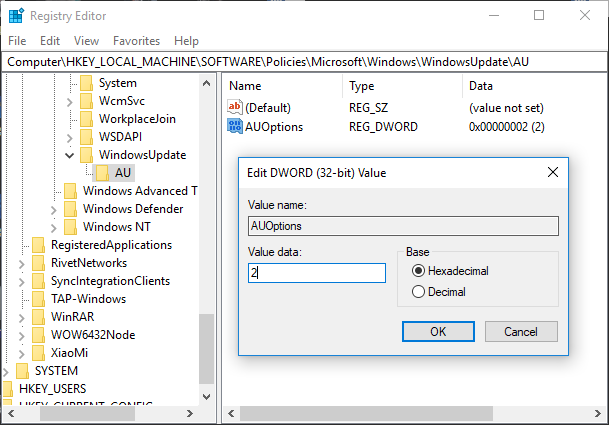
As a result, from now on, Windows 10 will no longer download updates automatically. When new updates are released, a notification will appear that you can easily ignore.
Turning off the update for each user can have its reasons. Users with internet connectivity issues and high data usage are a significant concern for them. They usually have little interest in updating to Windows 10 and prefer to stay on the same version, updating through other methods as needed.
FAQ
Can you pause automatic updates in Windows 10?
Yes, use the Pause updates option in Windows Update settings to temporarily stop updates.
Does disabling the Windows Update service stop updates?
Yes, turning off the Windows Update service in Services can prevent automatic updates from installing.
Can update delivery optimization settings help?
Yes, limiting or turning off delivery optimization can reduce automatic update distribution.