
What Is Wi-Fi Direct Activation and How to Work With Wi-Fi Direct on the Phone

Wi-Fi Direct Provides Us With The Advantage Of High-Speed And Independent Internet Access In One Place. With Wi-Fi Direct, we can transfer large files to our friends’ phones in a few minutes without worrying about quality or data usage.
Many of today’s smartphones, tablets, printers, TVs, and laptops feature Wi-Fi Direct. They support. Using this feature, you don’t need a modem or an internet connection; you can directly send different files to devices that support this feature.
If you’re having trouble using Wi-Fi Direct, you’re probably wondering why Wi-Fi Direct isn’t working. This article introduces the Wi-Fi Direct feature we pay for. Then, you will learn the pros and cons of connecting and using Wi-Fi Direct on TV, phones, printers, etc. There are also solutions to fix the Wi-Fi Direct connection issue.
What is Wi-Fi Direct?
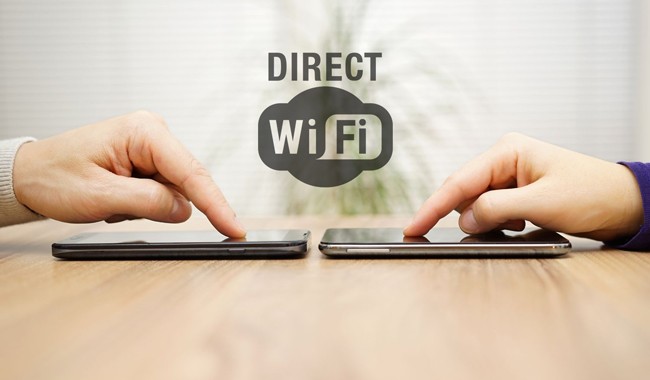
Wi-Fi Direct is a technology that enables direct connection between two devices over Wi-Fi without requiring an internet connection or an access point. This technology uses the same principles as Bluetooth to directly connect mobile phones, printers, and other devices, while enabling much higher data transfer speeds.
In this technique, one device acts as the host, and the other connects to it via WPS or WPA/WPA2.
What is the use of Wi-Fi Direct?
Wi-Fi Direct technology has various uses, but some of the essential benefits of Wi-Fi Direct are:
- Sharing and sending files with Wi-Fi Direct: Wi-Fi Direct offers higher throughput than Bluetooth and is a reliable way to transfer large files.
- Print photos and documents using wireless printers: Direct Wi-Fi technology lets you send a file directly from your phone to the printer.
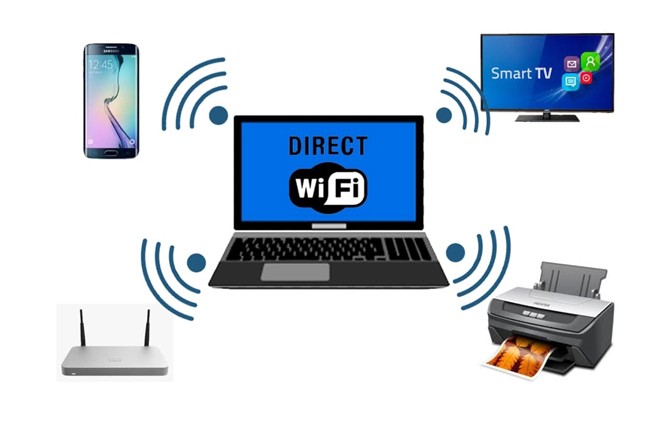
- Sharing the phone screen: Wi-Fi Direct lets you mirror the phone screen on a TV to watch movies, view photos, and play mobile games on a much larger screen.
- Playing multiplayer games: After enabling Wi-Fi Direct on the phone, you can play several multiplayer games that support this technology without a modem. Compete with your friends.
Features of Wi-Fi Direct: What is Wi-Fi Direct, and how does it work?
Wi-Fi Direct Wi-Fi technology scans for other compatible devices and connects to them. Wi-Fi Direct has a more extended range than Bluetooth, reaching up to 200 meters. Of course, obstacles such as walls and metal structures can reduce Wi-Fi coverage, and ultimately, Wi-Fi range directly affects it.
Wi-Fi Direct, part of the IEEE 802.11 standard, uses the 2.4 GHz band to scan for other connectable devices and the 2.4 or 5 GHz band to transmit data.
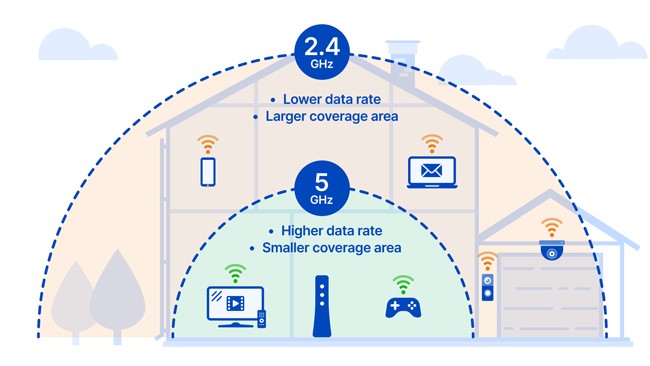
Wi-Fi Direct can also send files at up to 250 megabits per second (Mbps). However, the Direct Wi-Fi connection speed, the Wi-Fi network protocol, and the barriers between the two devices depend on the configuration.
Various electronic devices, such as Roku streaming devices and many Wi-Fi-direct-enabled TVs, are used to broadcast content. In addition, multiple peripherals such as wireless headsets or even printers from Wi-Fi direct support
How to use Direct Wi-Fi varies by device. Sometimes, to connect two devices via Wi-Fi, you scan a QR code; other times, you enter a numeric PIN.
How to work with Wi-Fi Direct on the phone
This section will examine how to work with Wi-Fi directly on the phone. You do not need an Internet connection to connect two phones using Wi-Fi Direct, but on some Android phone models, you must first enable Wi-Fi before activating Wi-Fi Direct.
Most modern cell phones do not require manual Wi-Fi activation; it is enabled automatically when Wi-Fi is on. To ensure Wi-Fi Direct is enabled, you can enable this feature manually.
How to connect two phones with Wi-Fi Direct in Android:
- First, go to the phone settings section and enter.
- On Network & Internet tap
- To the Internet settings section, enter.
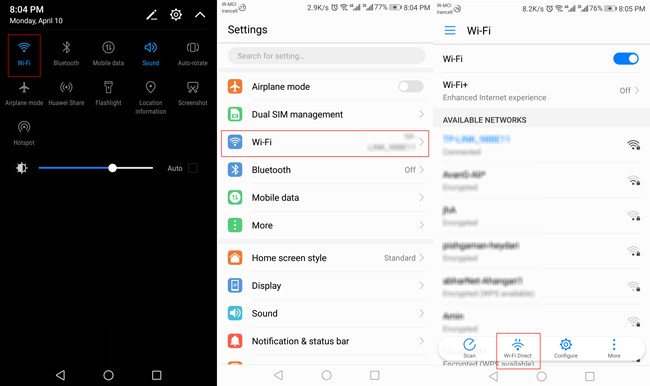 How to activate Wi-Fi Direct on a phone
- Network PreferencesChoose.
- Wi-Fi Direct Choose.
- Select the phone or device you want to connect to.
- Confirm the connection authorization message on the second phone to establish the connection.
To send a file with Wi-Fi Direct, it is enough to go through the following steps:
- Go to the storage location of the desired file on the phone.
- Select the desired file and then tap the Share button.
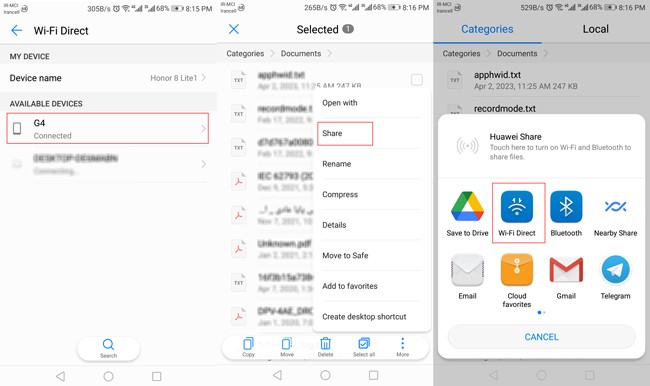
Among the file-sharing options, choose Wi-Fi Direct to initiate the file transfer.
How do you use the Direct Wi-Fi function on Samsung phones?
To use the Samsung Wi-Fi Direct feature and connect two phones, do the following steps:
- Wi-Fi: Turn on both phones. You do not need to connect to the modem, but the Direct Wi-Fi settings on the phone must be enabled.
- In the phone settings, select Wi-Fi.
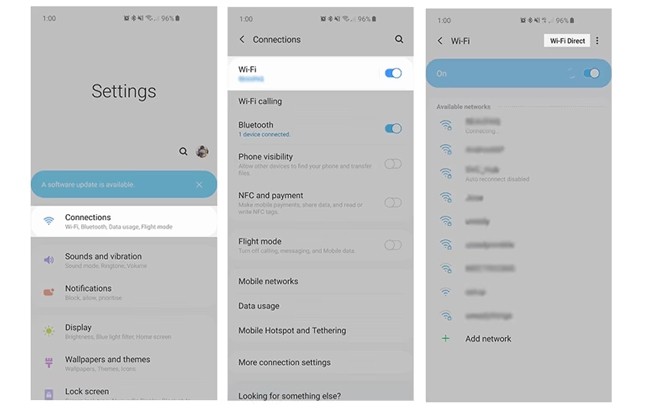 Wi-Fi Direct in Samsung Android 11
- On Wi-Fi, DirectTap will start searching for connectable devices. After entering the phone settings section, tap Connections, then select Wi-Fi. The Direct Wi-Fi option will be displayed by tapping the three dots icon.
- After the scanning process is complete, select the device you want to connect to.
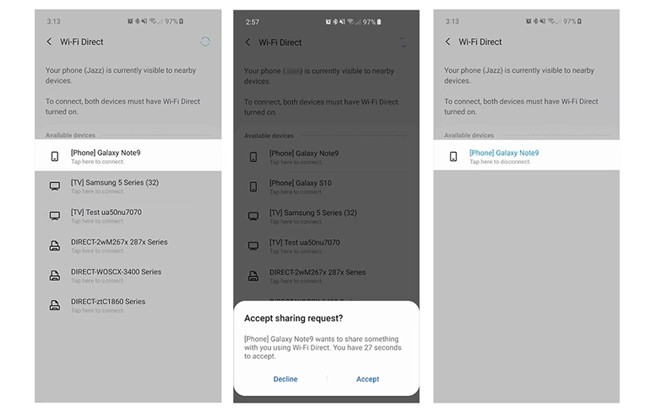 Fix the Samsung Wi-Fi Direct problem
- On the second phone, the message reads “Connect via Wi-Fi Direct.”
Where is Wi-Fi Direct on the Xiaomi phone?
Using Wi-Fi Direct on Xiaomi is similar to that on other Android phones. Follow the steps below to access Xiaomi Direct Wi-Fi:
- First, go to the phone settings section.
- In the Wi-Fi settings section، tap Additional Settings.
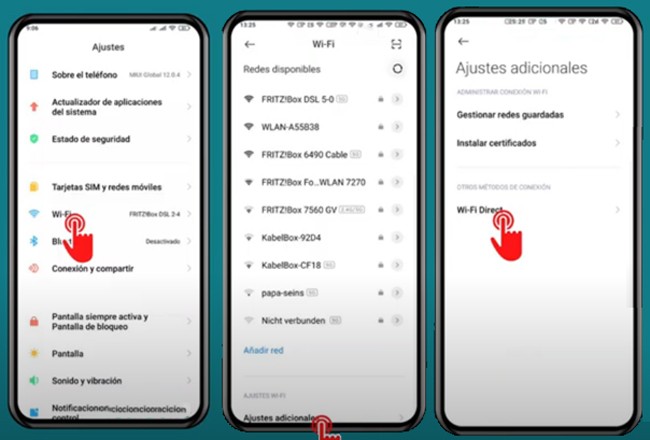 Activating and removing Wi-Fi Direct in an Android 11 Xiaomi phone
- Wi-Fi Direct Choose.
- Select the desired phone or device from the Device Name list to connect via Wi-Fi Direct.
Wi-Fi Direct in television?
Wi-Fi Direct can be used to display content from a phone on a TV. If your TV supports Wi-Fi Direct, you can easily connect your phone to it.
The Wi-Fi Direct connection principles are the same across TVs, and the only way to enable this feature is on the TV itself. To use this feature, turn on Wi-Fi Direct in the TV network settings, then select the TV you want to connect to on your phone.
How to use Wi-Fi Direct on desktop and laptop computers
Computers that support Wi-Fi Direct can connect to Wi-Fi Networks Directly, enabling connections to phones, computers, and other devices. To check the possibility of using Wi-Fi Direct, follow the steps in the Windows environment:
- In the Windows search box, type CMD Search, then click the result.

- In the Command Prompt window, press the Enter key in the statement ipconfig /all kind.
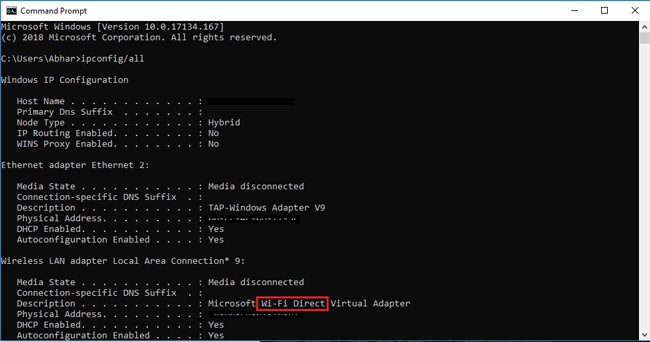 Check Wi-Fi Direct in CMD.
- If the Description is “against,” a Wireless network means Wi-Fi Direct. Your computer supports Wi-Fi Direct.
To connect via Wi-Fi Direct, follow the steps below on the computer:
- From the Start menu, click the gear icon or select Windows Settings.
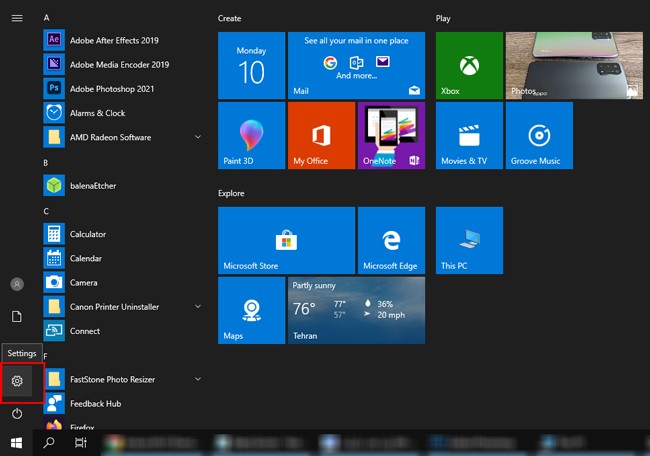
In the Windows Settings window, click on Devices.
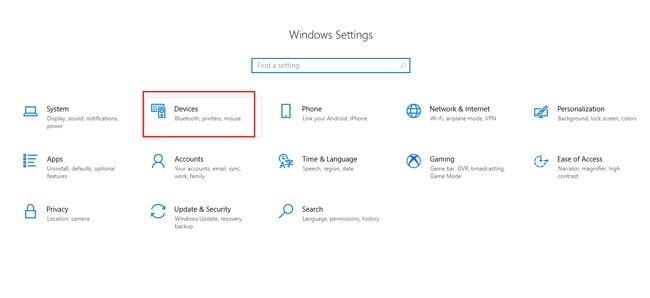 Windows 10 Devices settings
- From the left menu, click Bluetooth & other devices.
- Choose at the top of the Add Bluetooth or another device page.
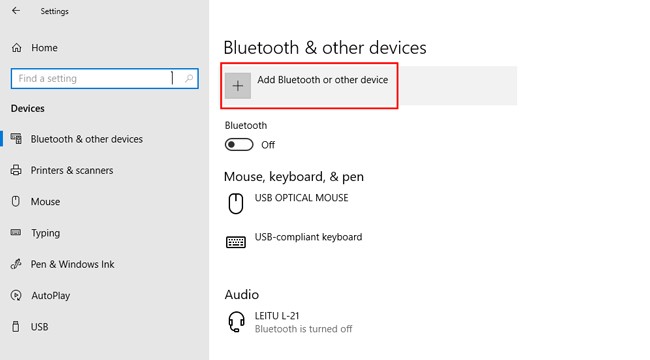 Add Bluetooth or another device.
- If the device you are trying to connect to has Direct Wi-Fi enabled, the device name will be displayed on this screen.
- Select the desired device.
- Wi-Fi Direct connection message. Confirm on the second step to connect.
Connect to the printer via Wi-Fi Direct.
If the printer supports Wi-Fi Direct, you can send multiple files to it. For this, Wi-Fi Direct is sufficient per the printer manufacturer’s instructions; the printer can then be connected via Wi-Fi Direct.
Some companies offer programs that manage printers and support print, scan, and other functions via Wi-Fi Direct. I have presented.
What are the strengths (advantages) of Wi-Fi Direct?
- Direct connection: Wi-Fi Direct enables direct peer-to-peer connectivity among multiple devices without requiring a modem, Internet access, or additional software installation.
- High-speed data transfer: Wi-Fi Direct allows direct high-speed data transfer. This technology is faster than Bluetooth and supports sending large files.
- Secure wireless network: Since Wi-Fi Direct operates independently of the Internet, it is protected from many attacks that originate on the Internet. However, we recommend securing your Direct Wi-Fi connection by enabling a password. increase
Weaknesses (disadvantages) of Wi-Fi Direct: What is it?
Direct Wi-Fi connection has a few weaknesses, and the disadvantages of this technology are more related to our expectations and to how we comply with security principles. However, the disadvantages of Wi-Fi Direct are:
- Lack of Internet access: Wi-Fi Direct does not provide Internet access; it is only used to connect two devices directly.
- Vulnerability to local hackers: If you do not enable security protocols such as passwords, local hackers who intercept the Wi-Fi signal can access your devices and compromise them.
Fix the Direct Wi-Fi problem.
Maybe when using Wi-Fi, DirectFace encounters various issues. In this section, we present solutions to the Wi-Fi Direct issue.
Why is there no Direct Wi-Fi option on some devices?
Most new smartphones do not require Wi-Fi Direct to be enabled. They do not have this feature when Wi-Fi is enabled. To fix the Direct Wi-Fi problem on Android, go to Settings > Network & Internet > Wi-Fi > Wi-Fi Preferences, then tap Wi-Fi Direct. To enable Wi-Fi Direct in Android, turn this feature ON.
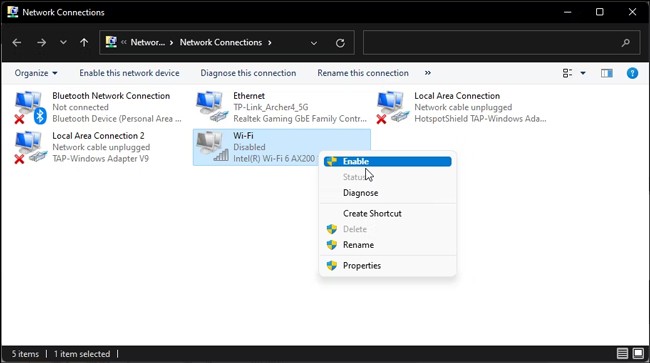 Wi-Fi activation
If you don’t see this feature on Windows 8 or later, it’s probably Wi-Fi in an inactive state in the Windows control panel, under Network and Internet. Then, in the Network and Sharing Center section, click Change adapter settings. On a Wi-Fi network, right-click and then choose Enable.
Wi-Fi Direct simplifies sharing large files between two devices by establishing a direct wireless connection. Since we don’t need an Internet connection to send files via Wi-Fi Direct, it offers higher security than Internet-based file-sharing methods.
Note that devices connected to a Wi-Fi network that support Wi-Fi Direct do not support it before using Wi-Fi Direct. Make sure that both devices support this feature. We recommend that you increase Wi-Fi Direct security by enabling a password.
FAQ
What is Wi-Fi Direct used for?
Wi-Fi Direct lets devices connect directly to share files, stream media, or play games without needing a Wi-Fi network.
How do you activate Wi-Fi Direct on a phone?
Open your phone’s Wi-Fi settings, enable Wi-Fi Direct, and select the device you want to connect to.
Can Wi-Fi Direct work without internet?
Yes, Wi-Fi Direct creates a local connection between devices without requiring internet access.