
8 Secret Tricks to Increase Google Chrome Speed on Windows and Android

Chrome Browser Can Be Considered The Most Popular Internet Browser, But If You Also Think That Google Chrome Is Not As Fast As It Used To Be On Your System, It Might Be Better To Adjust It A Little And Optimize It.
Google Chrome, like any other browser, consumes a large portion of a computer or smartphone’s RAM while running and, over time, can degrade performance.
However, the good news is that adjusting a few hidden settings can quickly speed up Chrome.
You are probably familiar with the Google Chrome browser, which is widely used worldwide. However, this Google product has faced significant criticism, primarily for its speed.
At the browser’s launch, its speed was considered Chrome’s strong point, and more users favored it.
But now, due to the addition of various functions and sections to Chrome, the program is also slowing down, and a large portion of the system’s RAM is occupied.
Fortunately, by making a few simple changes, you can increase Chrome’s speed. We’ll cover how to access these settings and what to change to achieve the highest speed.
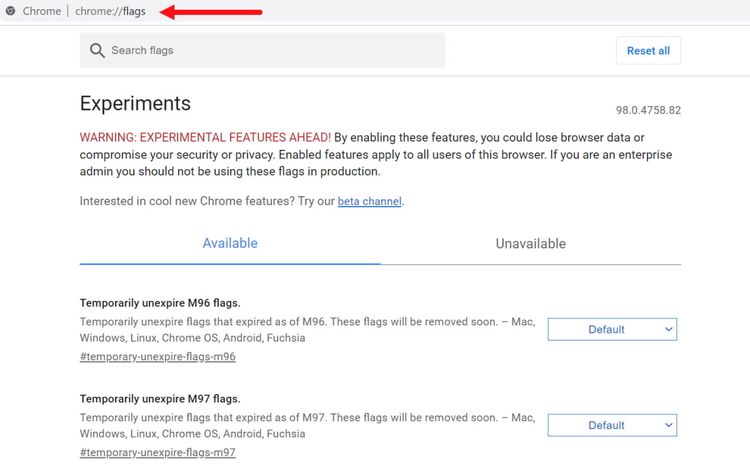
First, note that the Chrome browser’s experimental settings and capabilities are implemented as flags and may be removed in future versions.
Therefore, you may not see some of these settings in your browser. It is even possible to remove all these flags shortly.
In addition, because these solutions are experimental, making changes may introduce unforeseen issues. It is better to act carefully and be aware that settings can be reset in any situation.
The first step is to access Chrome’s hidden menu to get started. Fortunately, we don’t have a difficult task ahead of us; type Chrome://flags in the address bar and press Enter to display a list of hidden settings.
Of course, it should be noted that the number of these flags is substantial, and there appears to be no particular order in their arrangement. Therefore, the Ctrl+F shortcut is better for finding the desired flag.
Enable GPU Rasterization to speed up Chrome.
Chrome does not use your system’s GPU to analyze images and data, but some processing can be offloaded to your graphics card to improve browser performance.

If, for various reasons, your processor is not very powerful or you have a powerful graphics card, enabling this feature can increase Chrome’s speed.
Increase Google Chrome’s speed on Windows by enabling the Override software rendering list feature.
By enabling this method, Chrome renders the graphic effects on the graphics card. If this feature is disabled, the delays will be noticeable when using Gmail or watching YouTube videos.

To solve this problem, open Google Chrome and enable the Override software rendering list option to let the graphics card handle web rendering more smoothly.
Increasing the speed of the Google Chrome browser by activating the Zero-copy rasterizer feature
The zero-copy rasterizer is another feature of the Chrome browser that offloads graphics processing to the GPU and reduces pressure on the processor. If you notice that web pages load slowly or Google Chrome slows down, enable the Zero-copy rasterizer feature.

In explaining this feature, it should be said that the memory speed of the graphics card or VRAM is much higher than the speed of the system RAM. If your computer or laptop’s RAM is low, activating this feature is recommended.
Enabling this option transfers Chrome’s graphics processing to GPU memory, improving web page load speed.
Increasing the speed of video playback in Chrome by disabling the Caching of Streaming Media to Disk
Chrome consumes all the battery power like crazy, and if you use this browser to watch videos, your phone or laptop battery will probably drain quickly. Fortunately, this problem can be easily solved with a simple adjustment.

Disabling Caching of Streaming Media to Disk minimizes browser activity during video playback and reduces power consumption.
Increase Chrome’s speed by enabling the Back-Forward feature.
The Back-Forward cache feature enables fast navigation between website pages. If you notice slower page transitions, this feature can significantly improve your browsing experience.
A straightforward way to speed up Chrome is to increase the browser engine’s cache size and use it more aggressively when navigating multiple pages.

In addition, enabling the Back-Forward cache is helpful for users of web versions of social networks such as Reddit and Facebook.
Speed up Google Chrome by enabling Smooth Scrolling.
As the name suggests, Smooth Scrolling improves scrolling performance for content displayed in the browser. This feature makes it easier to browse text quickly, providing smooth, natural navigation.

Increasing the speed of Android Chrome using Google’s QUIC protocol
Introduced by Google in 2012, the QUIC protocol focuses on reducing bandwidth and latency, and reduces the number of requests. In simple terms, reducing demand prevents Google Chrome on Android from slowing down. It increases Google Chrome’s speed, a cross-platform feature that works on all operating systems.

The QUIC protocol is still an experimental feature and may be further developed. However, you can already enable this protocol in Chrome to improve your browser’s performance.
Increase Chrome download speed using the Parallel Downloading feature.
Enabling the Parallel Downloading feature increases the speed of downloading content and uploading pages.
As its name suggests, this feature splits the content into multiple parts and downloads them simultaneously. Of course, activating this feature is unnecessary if you use a download manager software.

Undoubtedly, enabling the feature mentioned can significantly increase the download speed of large files. To activate this feature, click on the Enable option.
How do we revert the changes?
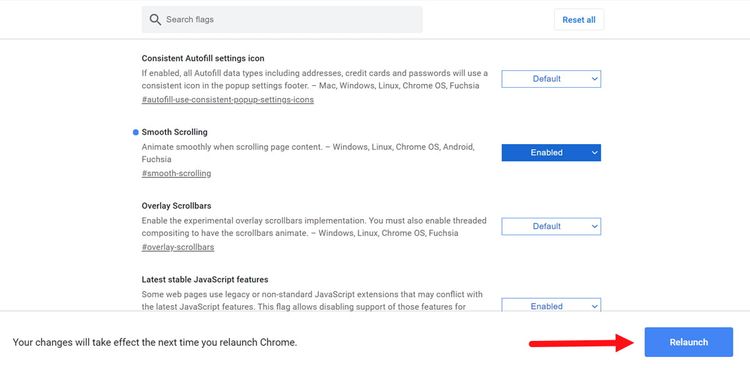
Note that you will need to restart your browser after changing Chrome settings. To do this, select the Relaunch Now option in the image below.
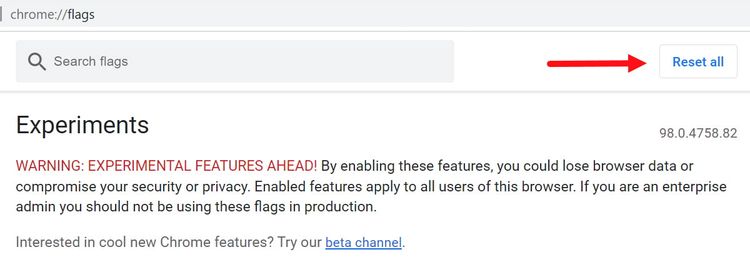
If you selected the wrong settings while working, there is no need to worry; you can use the Reset All option to restore all settings to their defaults.
Conclusion
In this article, several features were mentioned to increase Chrome’s speed, but there are many more options in Chrome’s settings, each of which can affect its performance. In addition, if you make a mistake, you can quickly restore the settings to their previous state.
FAQ
Can clearing cache improve Chrome speed?
Yes, removing cached files frees space and can improve loading times.
Do Chrome flags help performance?
Yes, enabling certain experimental flags can optimize resource use and speed up browsing.
Does updating Chrome affect its speed?
Keeping Chrome updated ensures performance improvements and bug fixes that enhance speed.