
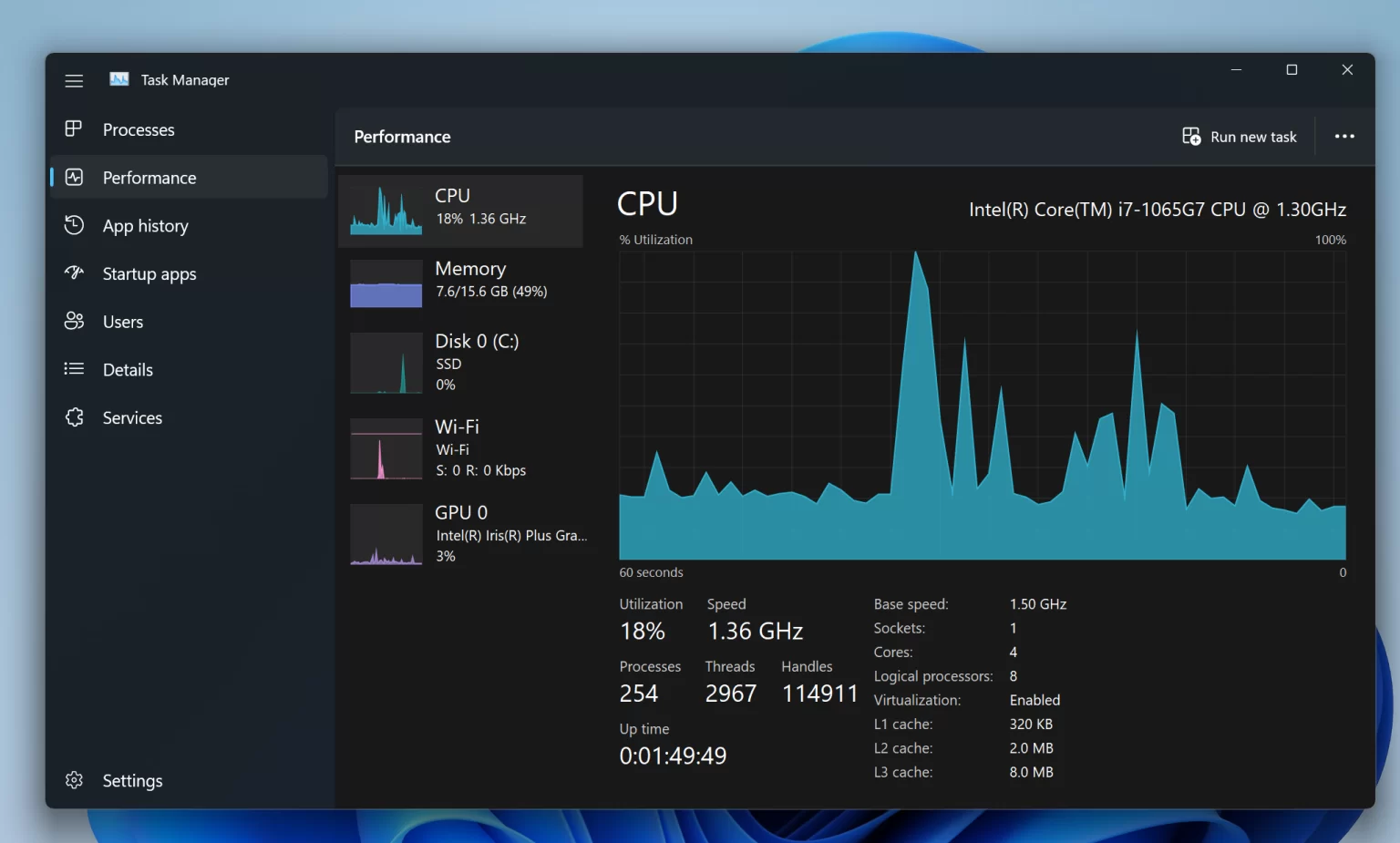
How to Use Task Manager in Windows 11 – Step-by-Step Guide

If a program is not responding correctly or the computer is performing poorly, you can use a task manager to terminate processes that consume too much processing power.
In Windows 11, if one or more processes are misbehaving and consuming system resources, causing your computer to slow down or stop a specific program, you can use Task Manager to end those processes and resolve the issue.
Task Manager is a long-standing program that lets you view and manage running processes and services. The Processes section in this program is the most helpful because it will enable you to quickly monitor the use of system resources, including the processor, memory, drive, and network, for each program. This section also lets you terminate or restart problematic programs.
The following guide will help you find and terminate resource-consuming processes in Windows 11 using Task Manager.
Ways to control processes with high resource consumption with Task Manager
The method for handling processing consumption is straightforward. You need to know how to open Task Manager and identify the process you need to terminate. To do this, open Task Manager.
You can open the Task Manager in at least five ways
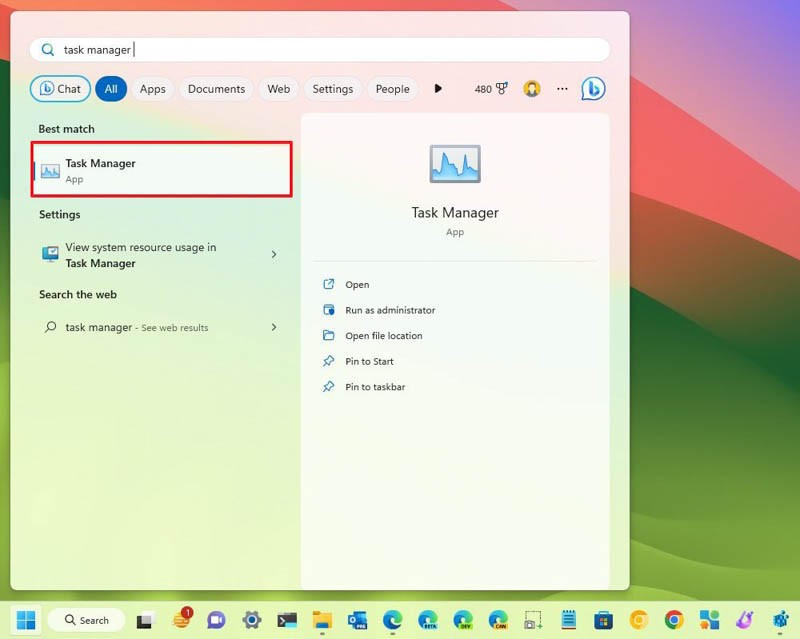
- Search for Task Manager in the Start menu and select it from the results.
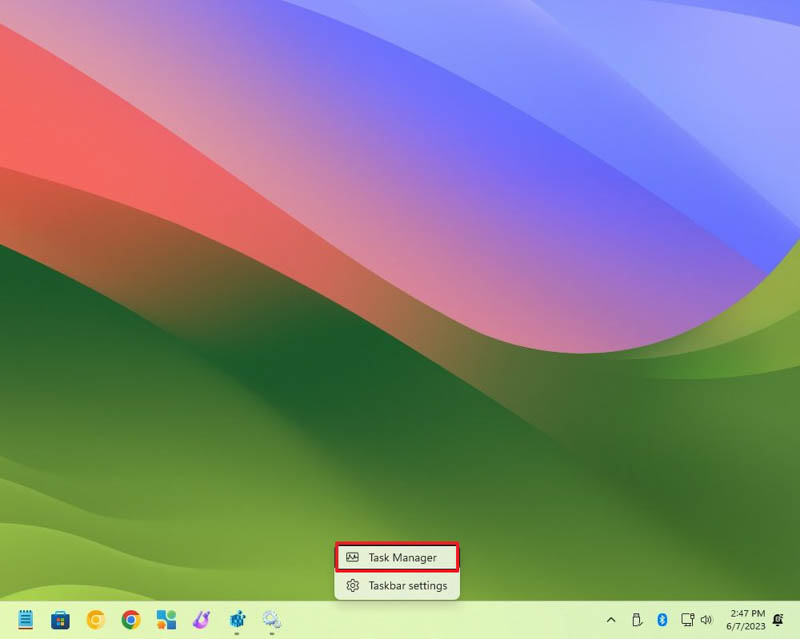
- Right-click on the Taskbar and choose Task Manager from the menu that opens.
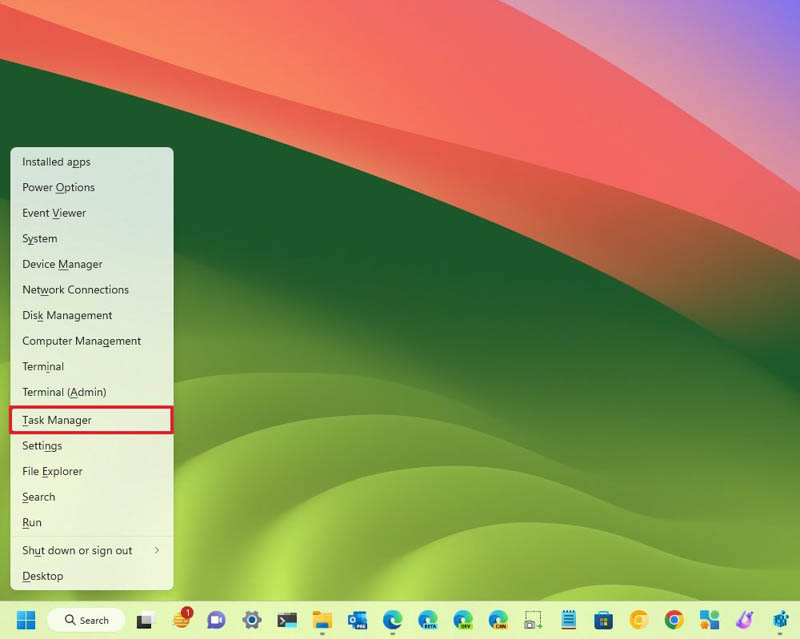
- Right-click the Start button (or use the Windows key + X keyboard shortcut) and select Task Manager.
- Use the keyboard shortcut Ctrl + Shift + Esc.
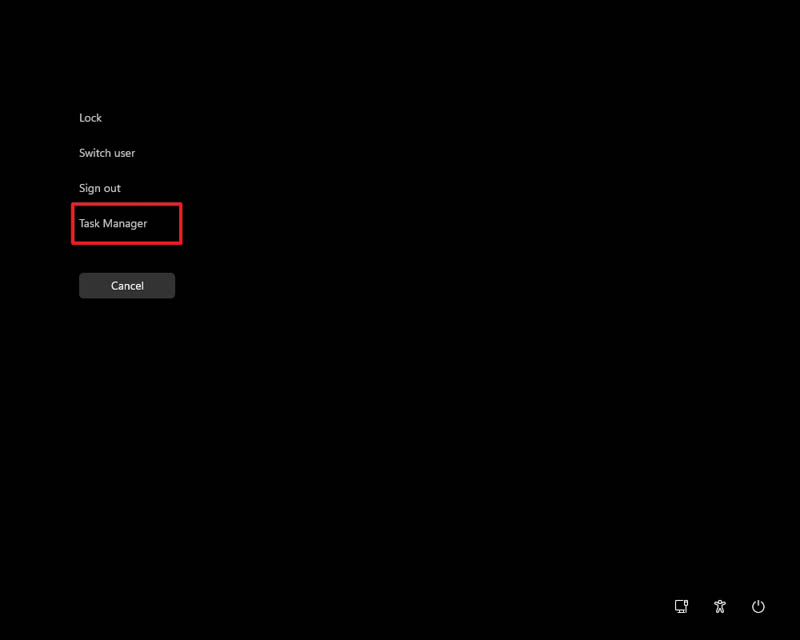
- Press Ctrl+Alt+Del, then click Task Manager.
Processes tab explained
After opening Task Manager, you will see a screen with several tabs in the navigation panel; the correct tab is Processes. Typically, this is the first place to check whether one or more processes are hogging system resources.
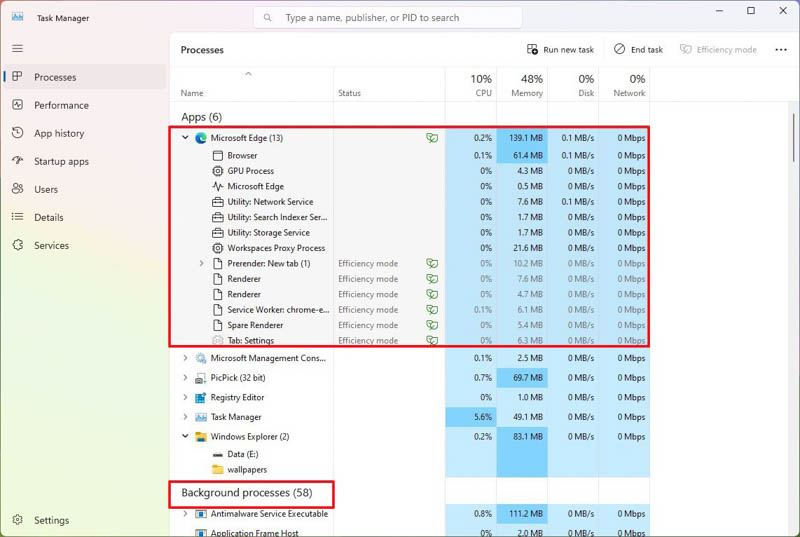
This section lists all running processes, grouped by program, background, and Windows processes. As in previous versions, in Windows 11, you can have multiple other instances or functions within the same process, which helps you understand their organization and resource usage.
To open the process group, you can proceed in several ways. The first method is to double-click on the right Chevron. The second method is to right-click and select Open. Using these methods, you can usually open a group of processes. Note that multiple functions may be available when opening multiple instances of the same program, although this is not always the case.
Find processes with high resources.
If an application is not responding, a web page is not loading, or system fans are running high, open the Processes section of Task Manager and note the current CPU, Memory, Disk, and Network usage statistics.
You can click on each column header and identify the processes that consume the most resources. If you see a process at sixty percent or more, this indicates a problem.
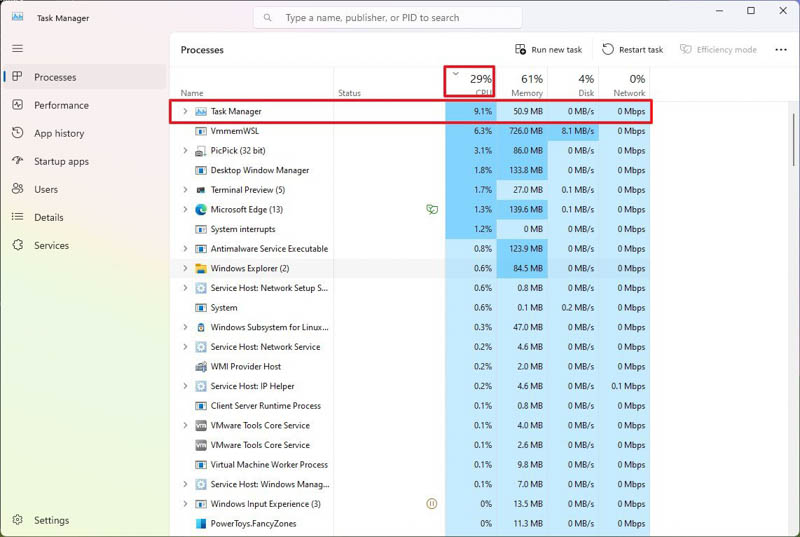
To make things easier, Task Manager uses a newer color to highlight the process consuming the most resources.
If you are not actively using the device and the system is not performing maintenance tasks, the processor usage should not increase by more than 30%.
However, running programs and processes (even if you’re not using them) still consume memory resources, and memory usage will increase as the number of programs loaded increases. However, as long as the system has memory, this is not a problem; even if the physical memory is full, the system can use virtual memory as an accessible resource. Of course, this may slow the system’s performance, but it will not cause strain.
Depending on your system configuration, you should keep memory usage below 60%. Drive usage should be around 5% unless you are rendering or copying files.
Finally, network speed and stability will only slow down operations that require local or Internet connectivity, but will not affect system performance. If the problem is with a streaming application, web application, or file download, the network activity column will stop at 0%.
Termination of processes
Once a system resource problem is detected, you can use several methods to terminate the process. You can:
Right-click on the process and select End task.
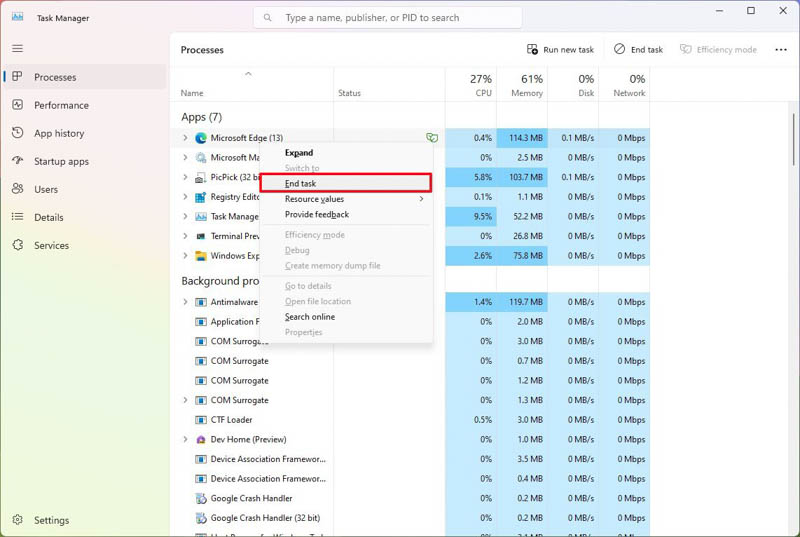
Select the operation and click the End task or Restart task button in the upper right corner of the screen.
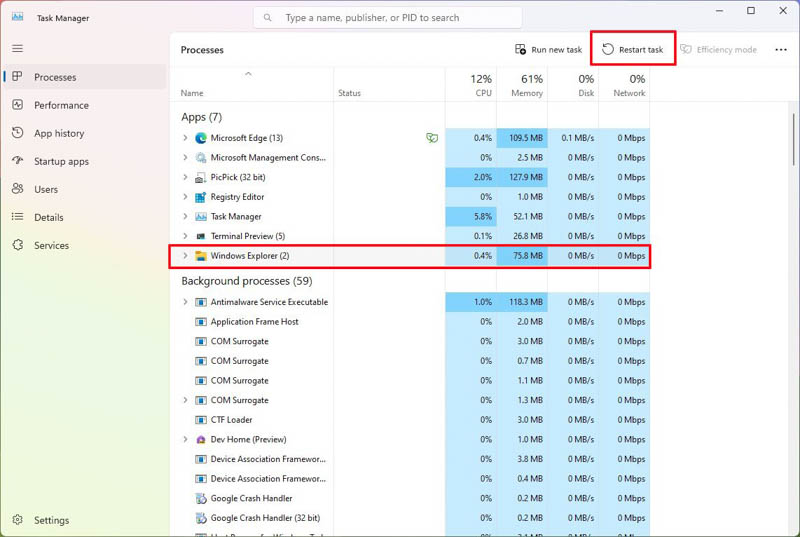
Note that terminating a process or a group of processes may crash the program and, in some cases, the system. Anything not saved will be lost. So keep your work before continuing.
After closing the processes, you can restart the program from the Start menu, which will continue the required operations.
In some cases, you may need to restart the process manually. To do this, click the Run new task button in Task Manager, enter the service name, and click OK.
If you are unsure about the process you want to terminate, right-click it, select Search online, and open a web browser to view results that will help you understand the process. You can also use AI with Bing Chat or Google Bard to get more details about processing.
Also, the system may inform you of procedures required to operate it properly.
FAQ
What is Task Manager in Windows 11?
It is a system tool that shows running apps, background processes, and performance metrics.
How do you open Task Manager?
Use the Start menu, right-click the taskbar, or press Ctrl+Shift+Esc.
What can you do with Task Manager?
You can end tasks, view CPU/memory usage, and manage startup applications.