
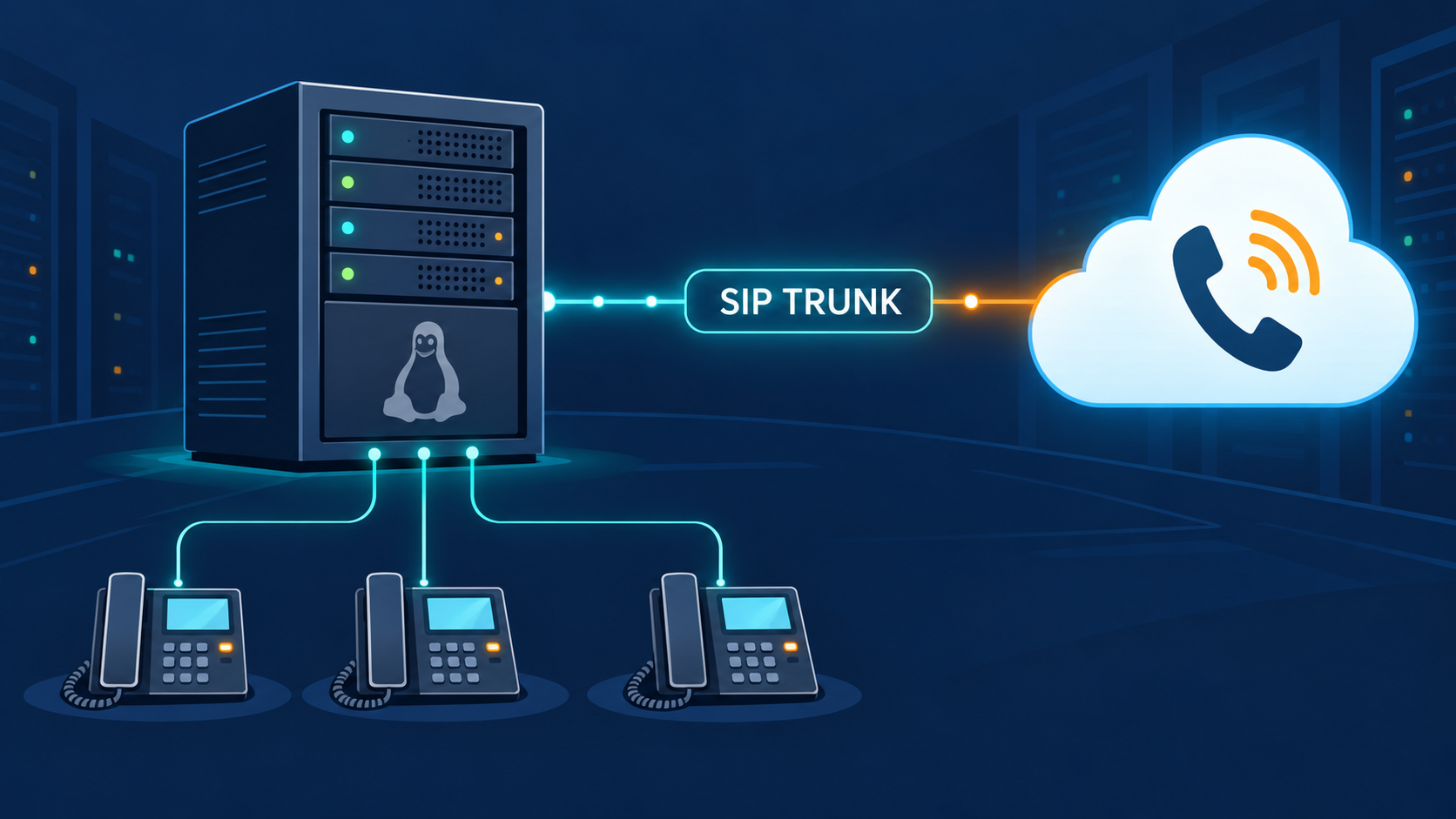
How to Install Issabel and Connect a Phone Number: A Complete Walkthrough

Issabel is an open-source unified communications platform built on top of Asterisk. It bundles the operating system, the Asterisk engine, and a web administration interface into a single installable image, which means you get a working PBX without compiling anything by hand.
This guide covers the full path from a blank server to a working phone line: installing Issabel, creating an extension, connecting a VoIP provider over a SIP trunk, routing calls in both directions, and locking the server down afterward.
All phone numbers, IP addresses, credentials, and domains in this guide are examples. Replace them with the real values from your own provider.
Before You Start
What you need
- A server or virtual machine. Two CPU cores, 4 GB of RAM, and 40 GB of disk space handle a small office comfortably. Issabel installs over the whole disk, so the machine must be dedicated to it.
- A static public IP address. Most VoIP providers let you restrict your account to a single IP, and that protection only works if the address does not change.
- Console access. If you are on a VPS, make sure you can reach the provider’s console before you start. A firewall mistake can lock you out of SSH, and the console is the way back in.
- A SIP account from a VoIP provider. You need a SIP login, a password, and the provider’s SIP server address. You can set this up after installing, but having it ready saves a round trip.
A note on hosting location
If you plan to buy a phone number in a specific country, check that country’s regulations before you commit. Some regulators restrict outbound calling on geographic numbers. In the United Kingdom, for example, Ofcom’s anti-fraud rules block calls to UK numbers from a UK number unless the subscriber is physically in the UK. Your provider’s support team can confirm what applies to the number you want.
Part 1: Installing Issabel
Step 1 — Download the ISO
Go to the Issabel website and download the current stable ISO image. The file is roughly 1 GB.
If you are installing on a physical machine, write the ISO to a USB drive with a tool such as Rufus or BalenaEtcher. If you are installing on a virtual machine, upload the ISO to your hypervisor’s image store and attach it to the VM’s virtual CD drive.
Step 2 — Boot the installer
Boot the machine from the ISO. The first screen offers several options. Choose the standard installation entry and press Enter.
The installer then asks for your language and keyboard layout. These settings affect the server console only, not the web interface, so the defaults are fine unless you have a specific reason to change them.
Step 3 — Set the time zone
Pick the time zone your business actually operates in, not the time zone of the data center.
This matters more than it looks. The time zone drives the timestamps in your call records and, more importantly, it drives Time Conditions — the rules that decide what happens to calls inside and outside business hours. Getting it wrong here means every scheduled rule you build later fires at the wrong time.
Step 4 — Configure the disk
Accept the default partitioning scheme unless you have specific requirements.
Issabel erases the entire disk. The installer warns you before it does, but it is worth repeating: anything already on that disk is gone.
Step 5 — Set the root password
Choose a strong password for the root account. This is the account you will use for SSH and for console access, so store it somewhere safe.
The installer now copies packages to disk. Depending on your hardware, this takes between 10 and 30 minutes. When it finishes, the machine reboots.
Step 6 — Complete the first boot
On the first boot, Issabel asks for two more passwords:
- The MySQL root password, used by the database that stores your configuration.
- The Issabel admin password, used to log into the web interface.
Use different passwords for these and for the system root account.
The console then prints the address of your web interface, something like:
https://203.0.113.45Step 7 — Log into the web interface
Open that address in a browser. Your browser will warn you about the certificate — Issabel generates a self-signed one during installation — so accept the warning and continue.
Log in with the username admin and the Issabel admin password you set during first boot.
You now have a working PBX. It just has no phones and no outside line yet.
Part 2: Creating an Extension
An extension is an internal line. Each desk phone, softphone, or mobile app registers to one.
- Go to PBX → PBX Configuration → Extensions.
- Choose Generic SIP Device and click Submit.
- Fill in the three fields that matter:
| Field | Example value | What it does |
|---|---|---|
| User Extension | 1001 | The number colleagues dial internally |
| Display Name | Reception | The name shown on internal calls |
| secret | A strong password | The password the phone uses to register |
- Click Submit, then click the red Apply Config button at the top of the page.
Nothing you change in Issabel takes effect until you click Apply Config. If a change does not seem to work, this is the first thing to check.
Now configure a softphone — Zoiper, Linphone, and MicroSIP all work — with these settings:
- Domain or server: your server’s IP, for example
203.0.113.45 - Username:
1001 - Password: the secret you just set
Once the softphone shows as registered, confirm it from the server console:
asterisk -rx "sip show peers"A line showing the extension 1001 with a status of OK and a latency figure in milliseconds means the phone is connected.
Part 3: Connecting a Phone Number
A phone number lives with your VoIP provider. A SIP trunk is the connection that carries calls between that provider and your PBX.
There are two ways to authenticate a trunk:
- Registration — your PBX logs in with a username and password. This works from behind NAT and is the simpler option.
- IP authentication — the provider accepts calls only from your server’s IP address, with no login. This requires a static IP and is usually reserved for higher-volume setups.
This guide uses registration.
Step 1 — Collect your provider credentials
From your provider’s control panel, find the SIP account details. You need three things:
| Detail | Example value |
|---|---|
| SIP server | sip.example-voip.net |
| SIP login | 512345 |
| SIP password | (from your provider’s panel) |
While you are in the panel, do two more things:
- Attach your phone number to the SIP account. Most providers call this „connect number to SIP“ or „call routing“. Without it, inbound calls never reach your PBX.
- Restrict the account to your server’s IP. Look for a setting named „IP restriction“ or „allowed IP“ and enter your server address, for example
203.0.113.45. If your SIP password ever leaks, this single setting is what stops a stranger from running up an international call bill on your account.
Step 2 — Create the trunk in Issabel
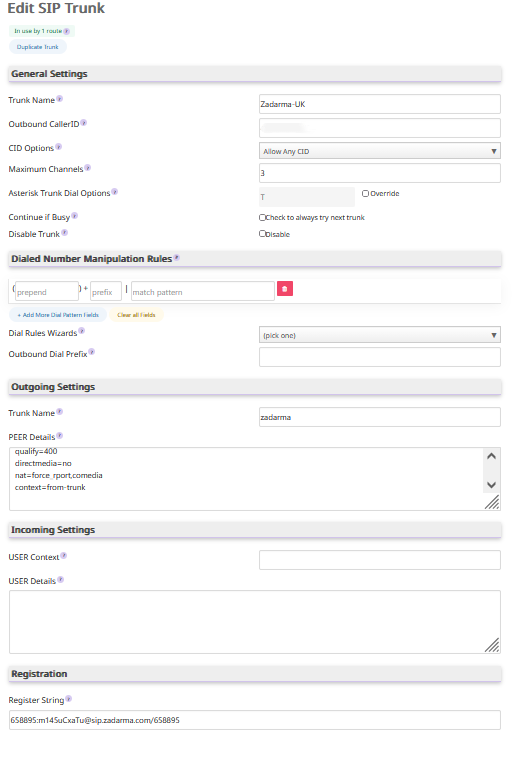
Go to PBX → PBX Configuration → Trunks and click Add SIP Trunk.
General Settings:
| Field | Value |
|---|---|
| Trunk Name | Provider-UK |
| Outbound CallerID | 442079460958 |
| Maximum Channels | 3 |
Set Maximum Channels to the number of simultaneous outbound calls your provider allows. This caps your exposure if the trunk is ever compromised.
Leave the Dialed Number Manipulation Rules section empty. Number formatting is handled in the outbound route instead, and doing it in both places transforms the number twice.
Outgoing Settings:
Set the inner Trunk Name to provider, then clear the PEER Details box completely and paste this in its place:
host=sip.example-voip.net
type=friend
insecure=invite,port
fromdomain=sip.example-voip.net
defaultuser=512345
fromuser=512345
secret=YOUR_SIP_PASSWORD
disallow=all
allow=alaw&ulaw
dtmfmode=auto
qualify=400
directmedia=no
nat=force_rport,comedia
context=from-trunk
Replace YOUR_SIP_PASSWORD with your actual password, and the host, user, and domain values with your provider’s.
Two lines deserve a note. nat=force_rport,comedia tells Asterisk to send audio back to the address the packets actually came from, which is what makes audio work through NAT. directmedia=no keeps the audio stream flowing through your PBX rather than directly between endpoints, which is almost always what you want on a trunk.
Incoming Settings:
Leave USER Context empty, and clear the USER Details box so that it is completely empty. With registration-based authentication, the peer definition above handles both directions.
Registration:
In the Register String field, enter:
512345:YOUR_SIP_PASSWORD@sip.example-voip.net/512345The value after the final slash is what your provider sends as the called number on incoming calls. You will need it again in a moment.
Click Submit Changes, then Apply Config.
Step 3 — Verify the registration
On the server console, run:
asterisk -rx "sip show registry"You should see your provider’s host with a state of Registered:
Host                        Username   Refresh  State
sip.example-voip.net:5060   512345         105  Registered
If the trunk does not appear at all, the configuration never reached Asterisk. Reload and check again:
asterisk -rx "sip reload"
asterisk -rx "sip show registry"
If it still does not appear, go back to the trunk in the web interface and confirm the Register String was saved, then click Apply Config again.
Part 4: Routing Calls
A registered trunk carries calls, but Issabel still needs to be told where incoming calls should land and which calls should leave over which line.
Inbound route
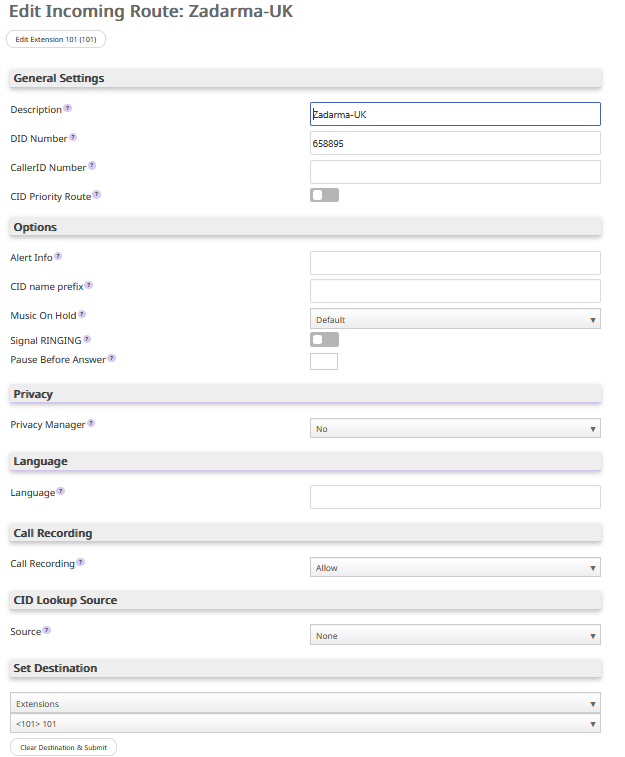
- Go to PBX → PBX Configuration → Inbound Routes and click Add Incoming Route.
- Fill in:
| Field | Value |
|---|---|
| Description | Provider-UK |
| DID Number | 512345 |
| CallerID Number | (leave empty) |
The DID Number must match the number your provider actually sends, which is usually the SIP login rather than the public phone number. If you are not sure, leave the field empty at first so the route catches everything, place a test call, and watch the console to see what arrives:
asterisk -rvvvThen come back and set the field precisely.
- Scroll to Set Destination, choose Extensions, and select an extension
1001. - Click Submit, then Apply Config.
Outbound route
An outbound route matches dialed numbers against a pattern and sends them out over a chosen trunk.
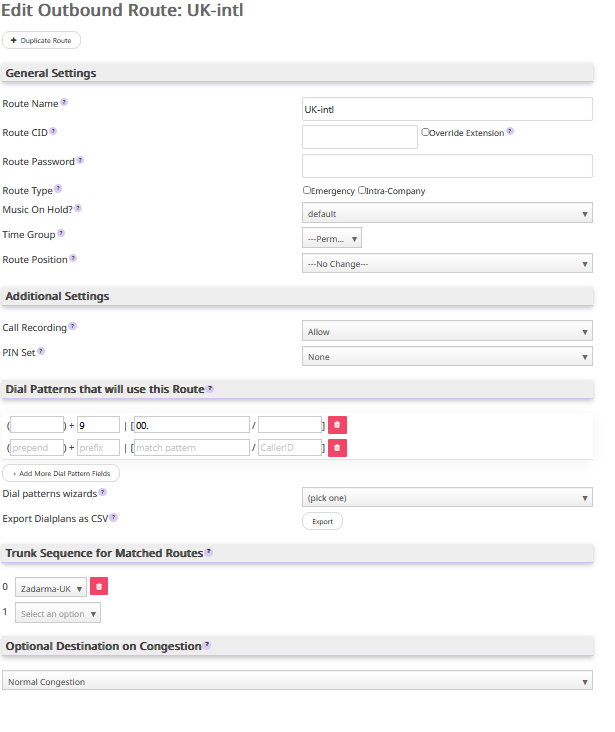
- Go to PBX → PBX Configuration → Outbound Routes and click Add Route.
- Fill in:
| Field | Value |
|---|---|
| Route Name | International |
| Route Position | First in the list |
- In Dial Patterns that will use this Route, enter:
| prepend | prefix | match pattern | CallerID |
|---|---|---|---|
| (empty) | 9 | 00. | (empty) |
- Under Trunk Sequence for Matched Routes, select
Provider-UKin position0. - Leave Dial patterns wizards set to
(pick one)— those presets add North American dial patterns that will conflict with your own. - Click Submit Changes, then Apply Config.
Here is how that pattern works. The prefix is stripped before the call leaves; the match pattern is what remains. The trailing dot means „any number of further digits“. So a user dials 9 to select this line, then 00 and the international number, and the provider receives the number without the leading 9.
To call +1 555 0100 in the United States, a user dials:
9001555 0100Route order
Outbound routes are evaluated from the top down, and the first matching pattern wins. If an existing route uses a catch-all pattern of ., any route that needs to take precedence must sit above it.
In the Outbound Routes list, confirm that your new route appears above any broader route. This is also how a PBX with two providers splits traffic: specific patterns at the top for the cheaper line, a catch-all at the bottom for everything else.
Part 5: Testing
Test each direction separately so that a failure points to one thing.
Inbound: call your phone number from a mobile. Extension 1001 should ring. Answer it and confirm audio works in both directions.
Outbound: from extension 1001, dial an external number using your prefix, for example 9001555 0100. Confirm the call connects, that audio works both ways, and that the person you called sees your number — +44 20 7946 0958 in our example — rather than „unknown“ or a provider default.
If a call connects but one side hears nothing, the problem is almost always NAT or a blocked RTP range. Check that nat=force_rport,comedia is present in your trunk’s PEER Details, and that UDP ports 10000–20000 are open in the firewall.
To watch a call as it happens, run asterisk -rvvv on the console before dialing. Type exit to leave that view.
Part 6: Securing the Server
A PBX reachable from the internet is a target. Compromised trunks get used for international fraud, and the bill lands on you. Spend twenty minutes on these four items.
Restrict the trunk by IP
Covered above, but worth repeating because it is the single most effective protection: set the IP restriction in your provider’s panel so that only your server can use the SIP account.
Move SSH off port 22
Edit /etc/ssh/sshd_config and change the port:
Port 7220Restart the service:
systemctl restart sshdKeep your current session open and test the new port from a second terminal before closing anything. If the new port does not work, your open session is the way back in.
Restrict the web interface and SSH to known addresses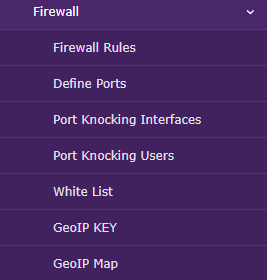
In Security → Firewall → Firewall Rules, create an ACCEPT rule for each address you administer from. For an office at 198.51.100.20, create three rules with that address as the source: one for HTTP, one for HTTPS, and one for your SSH port.
Then deactivate the general rules — the ones with a source address of 0.0.0.0/0 — for HTTP, HTTPS, and SSH.
Two things matter here:
- Order. Firewall rules are evaluated top to bottom, and a general DROP rule sits near the bottom of the chain. Your ACCEPT rules must be above it, or they are never reached.
- Loopback. Make sure a rule allowing traffic on the
Loopbackinterface sits near the top. Issabel’s web interface talks to Asterisk over an internal connection, and if the firewall blocks it, Apply Config fails with a manager connection error even though everything else looks fine.
After applying, test immediately: open the panel from an allowed address, then from a different network such as a mobile connection. The first should work and the second should not.
Cap your spending
In your provider’s panel, set a balance limit or spending cap, and disable calling to any destination you do not need. Prepaid billing is useful here too, since the most you can lose is the balance on the account.
Troubleshooting
Apply Config fails with a manager connection error. Issabel cannot reach Asterisk over the internal connection. Check that the firewall allows loopback traffic and that the rule sits above any general DROP rule.
The trunk never registers. Confirm the Register String saved correctly, check the password against the provider’s panel, and verify that the IP restriction on the provider’s side matches your server’s actual public address. Run curl -s ifconfig.me to see that address.
Inbound calls do not arrive. Check that the number is attached to the SIP account in the provider’s panel, and that the DID Number in your inbound route matches what the provider actually sends. Watch a test call with asterisk -rvvv to see the real value.
One-way or no audio. Almost always NAT. Confirm nat=force_rport,comedia in the trunk, and open UDP 10000–20000 in the firewall.
Outbound calls are rejected. Check whether the destination is permitted on your account, whether your balance is sufficient, and whether a regulatory restriction applies to that destination.
FAQ
Can I install Issabel alongside other software on the same server?
No. Issabel ships as a full operating system image and takes over the whole disk. Use a dedicated machine or a dedicated virtual machine.
Do I need a static IP address?
Not strictly, but you should have one. IP-based trunk restriction — the best protection against trunk fraud — only works with a static address.
How many simultaneous calls can one phone number handle?
That depends on your provider, not on Issabel. Entry-level numbers often allow two or three concurrent calls, with more available at extra cost. Set Maximum Channels on the trunk to match.
Can I connect more than one provider?
Yes. Create a separate trunk for each, then use outbound routes to send each destination over the line you prefer. Specific patterns at the top, a catch-all at the bottom.
What is the difference between Issabel and FreePBX?
FreePBX is a web interface for Asterisk. Issabel is a complete distribution that includes the operating system, Asterisk, and a web interface whose PBX section is built on FreePBX. That is why FreePBX configuration guides generally work on Issabel, with the menu paths adjusted.
Why are my call records showing the wrong time?
The server time zone is wrong. Check it with timedatectl, set it with timedatectl set-timezone Region/City, and reboot so every service picks up the change.