
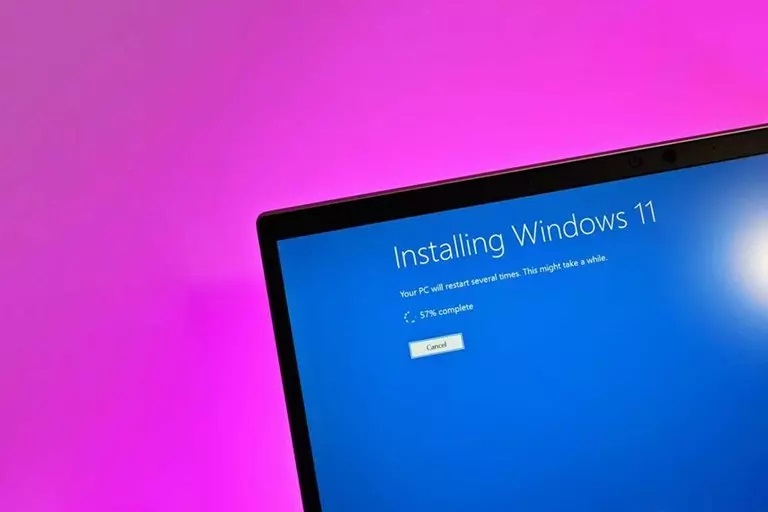
How to Download and Install Windows 11 on Your PC — Complete Installation Guide

If You Want To Experience Windows 11 Sooner Than Other Users And Before Its Official Release, Read This Article To Learn How To Download And Install This Great Windows Update.
Microsoft will unveil Windows 11 or update everyone who calls Windows 11 on June 24 at the What’s Next for Windows online event.
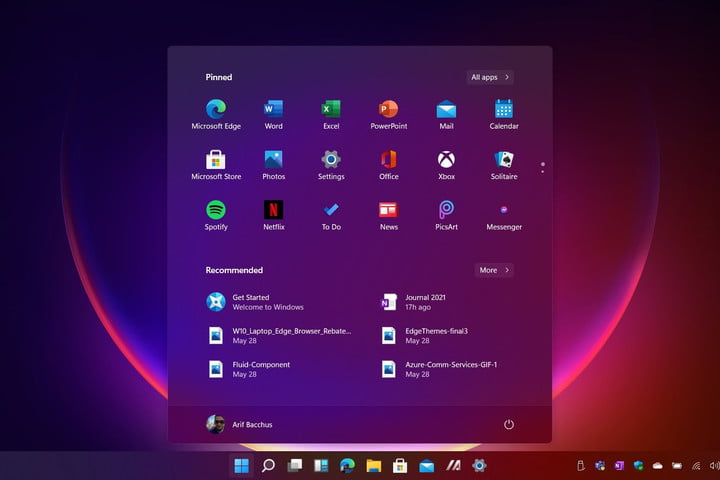
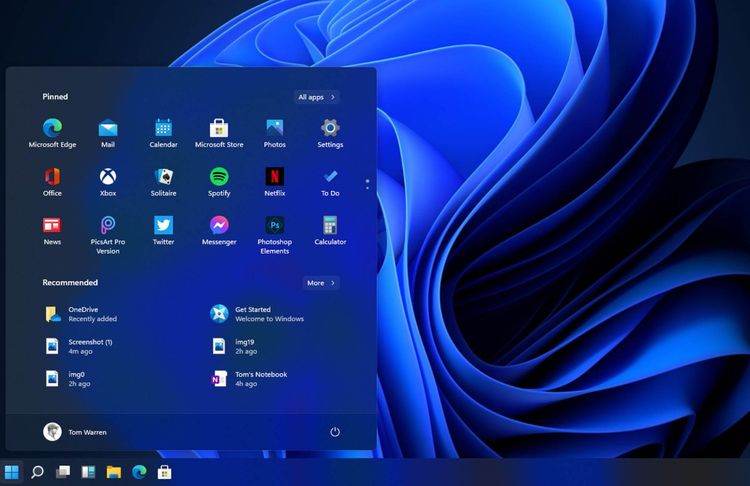
According to leaked images from Windows 11, the most significant changes are related to the operating system’s appearance. The Windows 11 user interface and Start Menu are very similar to what Microsoft had previously planned for Windows 10X.
For example, in Windows 11, Microsoft has placed a toolbar in the middle of the Windows environment, which can also be moved to the left of the screen.
The corners of menus, applications, and the file browser are also rounded off, and a new icon called Widgets has been added to the toolbar. Windows 11 looks cleaner, simpler, and more advanced than Windows 10.
The official release date of Windows 11 will be announced at the Microsoft event, most likely this fall or early 2022.
However, an unofficial and incomplete version of Windows 11 has been released on the Internet, which has excited many of the 1.5 billion Windows 11 users to try it early.
Although installing this leaked version of Windows 11 may seem tempting, waiting for its official release is better. The current version on the Internet is incomplete and undoubtedly has many bugs, some of which may cause serious problems for the operating system.
Suppose you can not wait for the official release of Windows 11 and are eager to join the ranks of people who have experienced this version of the Microsoft operating system earlier than other users.
In that case, it is better not to install it on your original system and instead run it on a device that is not stored on it, or on a virtual machine that allows multiple operating systems to run simultaneously on one computer.
In this article, you will learn how to install Windows 11 in both ways.
Download And Install Windows 11 (unofficial version)
It is impossible to download Windows 11 directly from the Microsoft website. Its official release date will be announced on July 3 at the Microsoft Windows event.
As a result, note that all current hosting sources for the Windows 11 installation file are unofficial, and Microsoft has not yet released the official version.
Due to its incompleteness and many bugs, it is recommended that you install the leaked version of Windows on a virtual machine or device other than your main computer.
This page provides a collection of download links for the Windows 11 ISO file (including a link from Google Drive).
Install Windows 11 on a PC or laptop.
There are two ways to install Windows 11 safely, and this article will explain both methods step by step.
- Installation on the system via a bootable USB drive
- Installation on a virtual machine
If you decide to install Windows 11 on your system, it is recommended that you do not install it on your central system and back up your important files so that you do not lose any files during and after installation.
How to create a bootable USB drive
You need a bootable installation tool, since the Windows file is downloaded as an ISO rather than on a Windows-specific CD or DVD. Because the Windows 11 installer is a little over 4 GB, you can use a USB drive of this size. To convert a USB flash drive to a bootable tool for installing Windows, follow these steps:
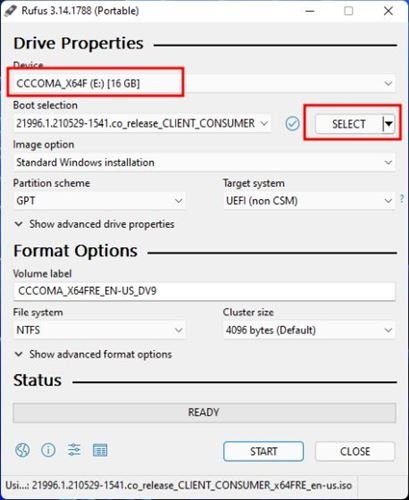
- First, download and install the Rufus software for Windows 10. Then, open the Rufus app.
- Under the Device section, select the USB drive connected to the computer.
- Click Select, then select the Windows 11 ISO file you have already downloaded.
- When done, click the Start button.
Install Windows 11 on a PC or laptop.
After creating a bootable USB drive, follow these steps carefully to install Windows 11 on your device:
1. First, restart your computer and press the boot button regularly to enter the BIOS. The tutorial on different ways to enter the BIOS lists standard BIOS keys for various laptop brands.
2. Select Boot from USB Drive or USB Hard Drive on the boot screen.
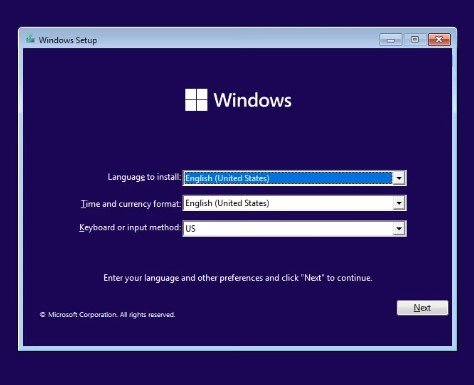
3. The Windows 11 installation process begins now. First, set the language, time, and keyboard, then click Next.
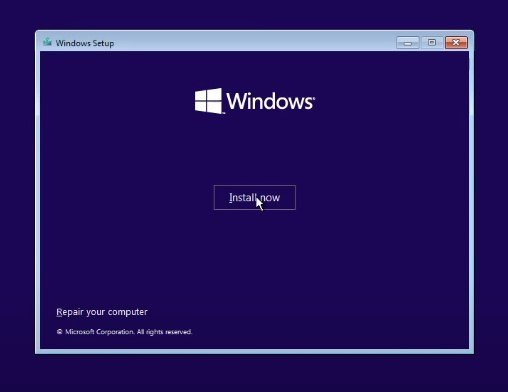
4. On the next screen, click Install Now.
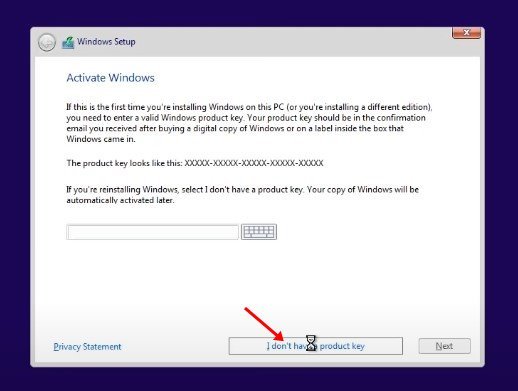
5. Then click I do not have a product key, and on the next screen, select Windows 11.
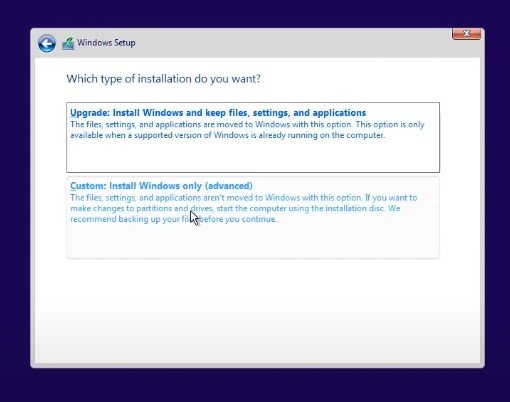
6. On the next screen, click Custom.
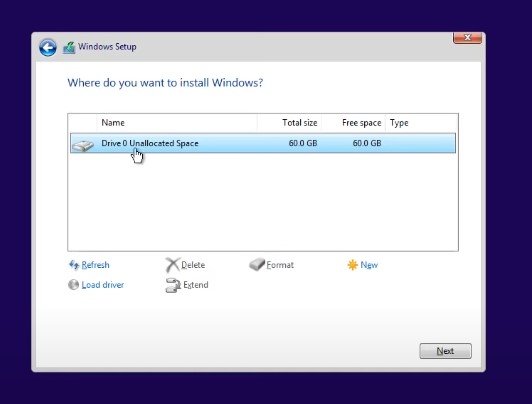
7. In this step, select the partition on which you want to install Windows 1p. Click Next. It is recommended that you choose a partition where Windows 10 is installed, as Windows 11 replaces the original Windows system.
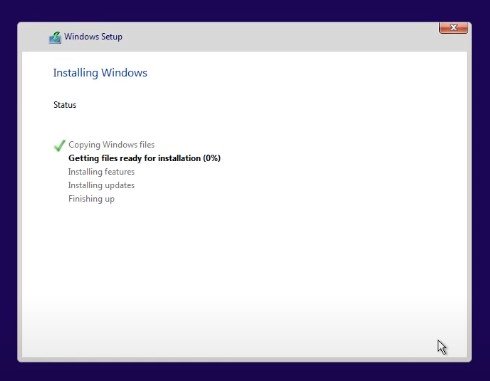
8. Now, wait for the installation process of Windows ۱11 to be completed.
9. After the installation is complete, the computer will restart. You will see the Windows 11 boot screen. Follow the steps on this page to complete the setup.
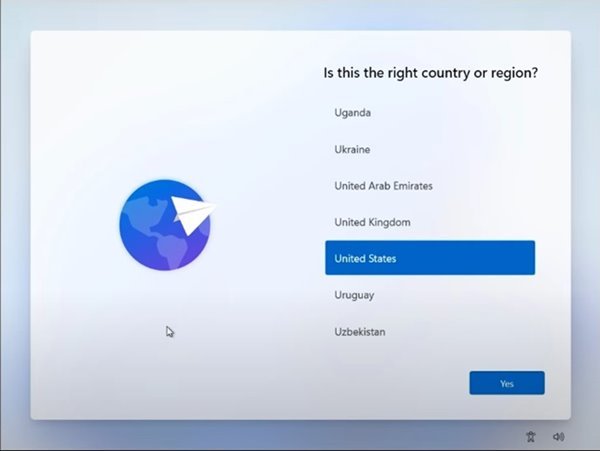
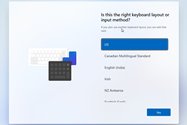
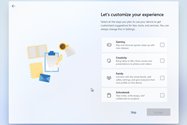
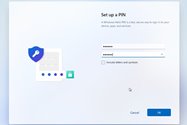
10. After this step, the selected settings in Step 3 will be applied to Windows 11, which will take a few minutes.
Windows 11 is now installed on your computer.
Install Windows 11 on a virtual machine.
Suppose you do not have a device other than your central system. In that case, it is better not to install an unstable, possibly buggy version of Windows 11 on it; instead, install it in a virtual machine that will be mounted on your system as a virtual computer. To do this, you need virtualization software, which we recommend VirtualBox.
1. Go to the official VirtualBox download page and download the VirtualBox .exe file. Download for Windows.
2. Double-click the downloaded file to begin the installation process. After completing the installation process, open the application.
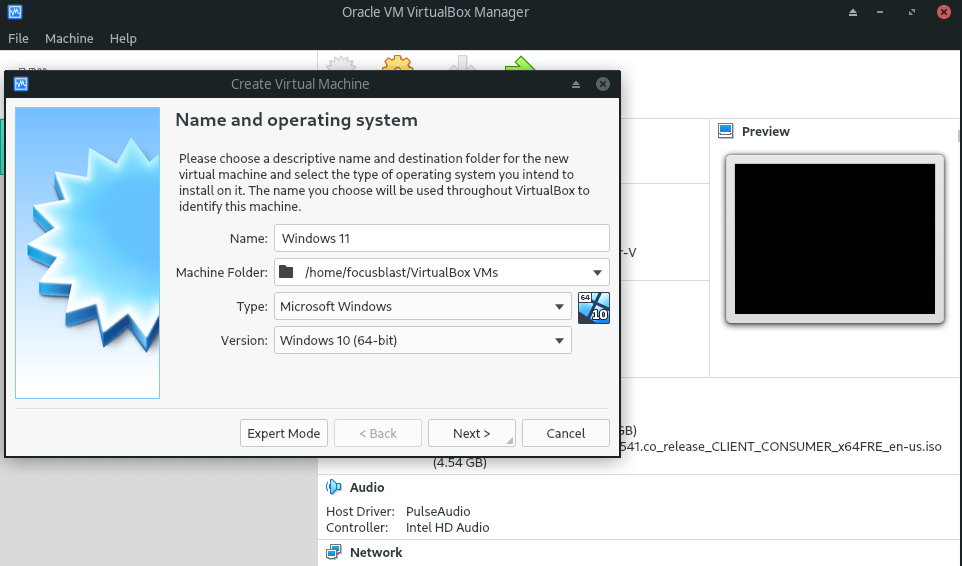
3. Click the New icon at the top of the window. In the Name field, type a name for your virtual machine. In the Type section, select Windows; in the Version section, select Windows 10 64. bit and click Next.
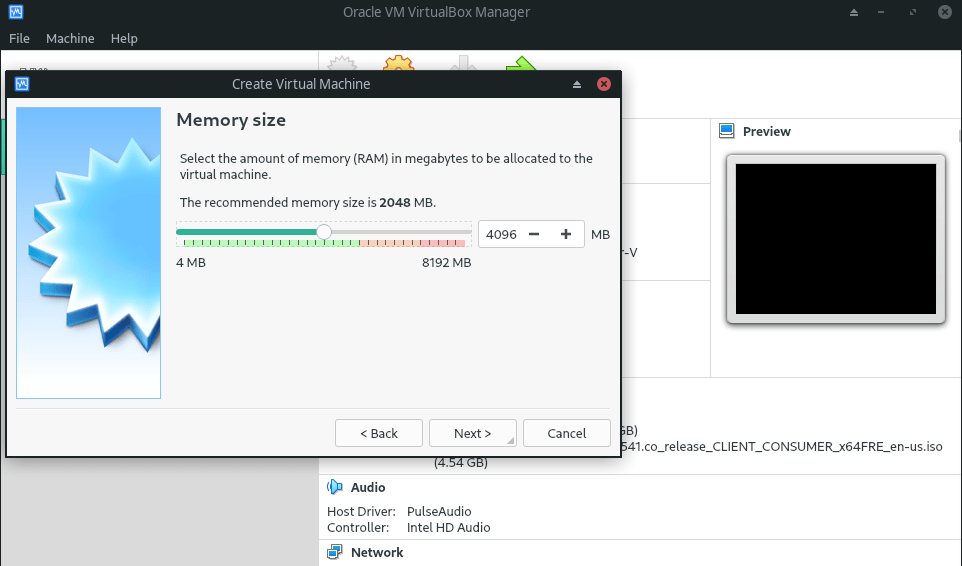
4. Allocate at least 4 GB of memory to start the virtual machine and click Next.
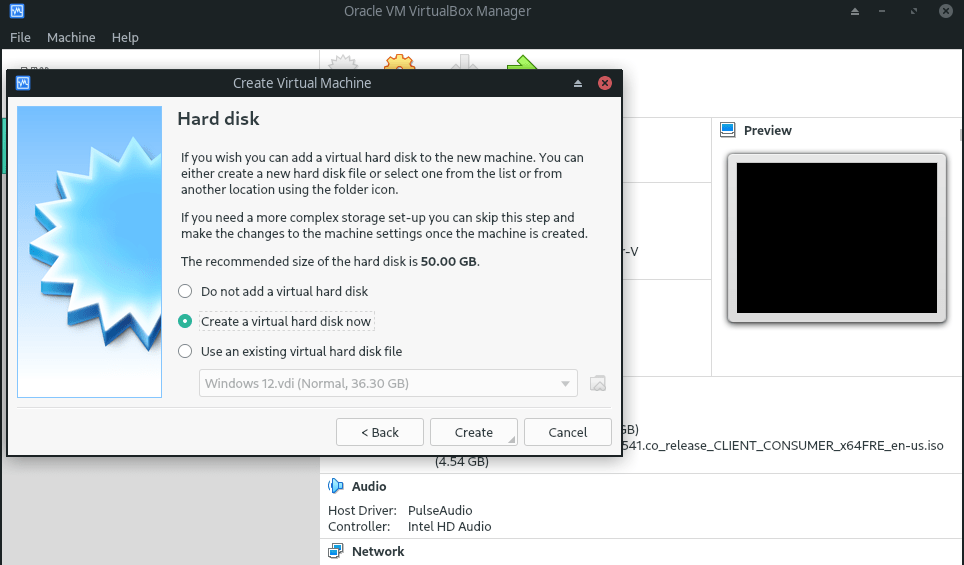
5. Check to create a virtual hard disk now and click Create.
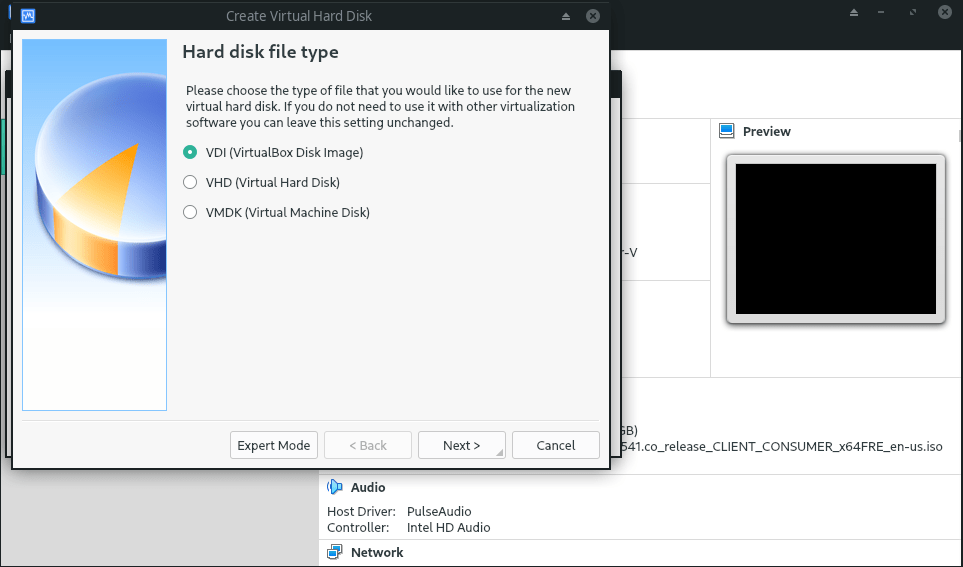
6. Next, check the VDI (VirtualBox Disk Image) option and click Next.
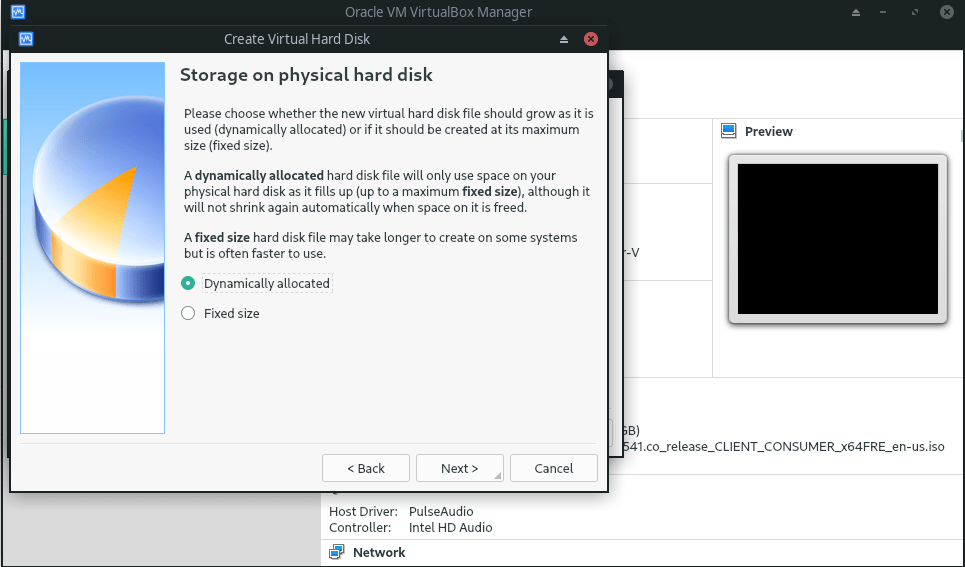
7. Then, check the Dynamically allocated option and click Next.
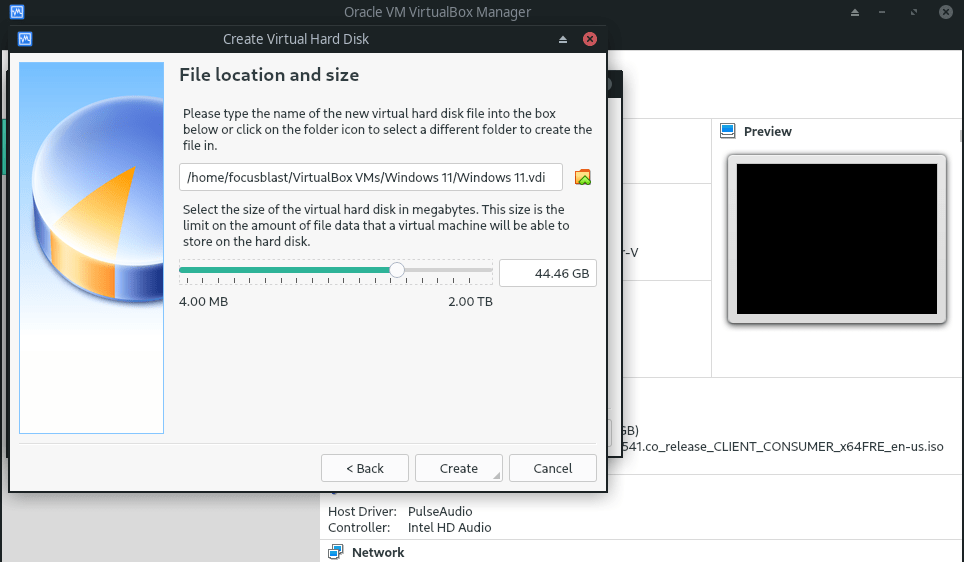
8. Allocate at least 35 GB of your hard disk space to the virtual machine and click Create.
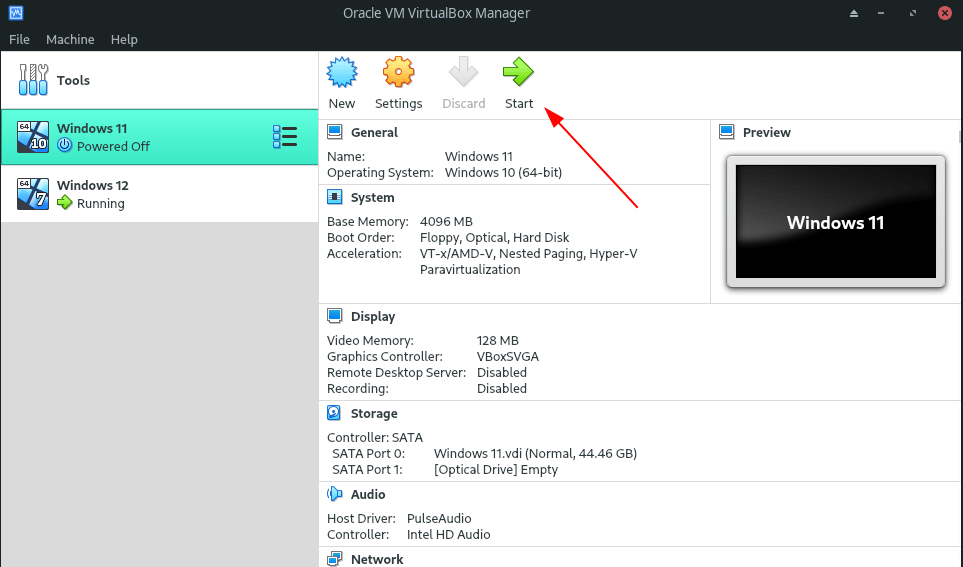
9. After installing the virtual machine on your system, you will see the following screen: Select the virtual machine you created and click the Start icon (green arrow).
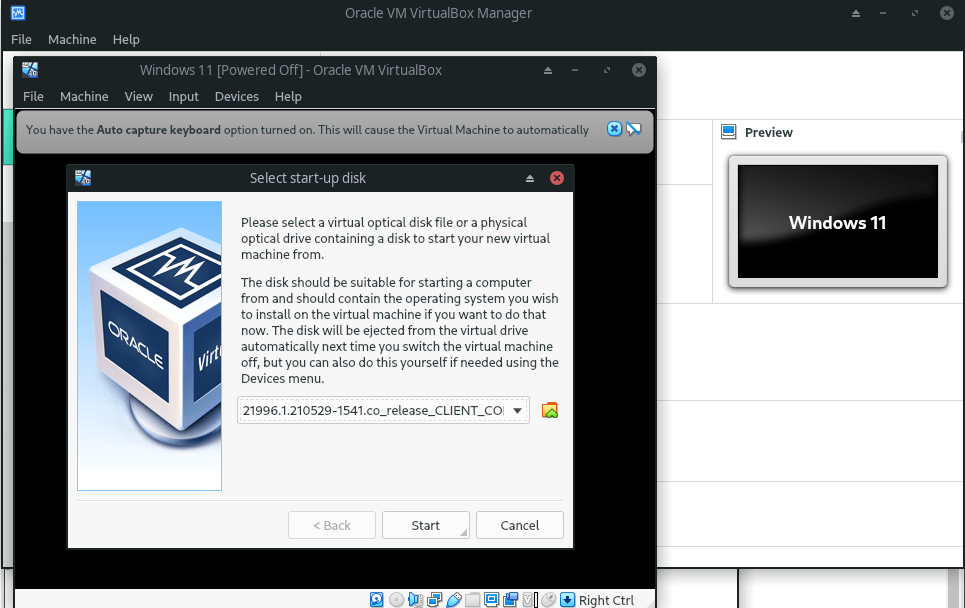
10. Now select the downloaded Windows 11 ISO file and click OK.
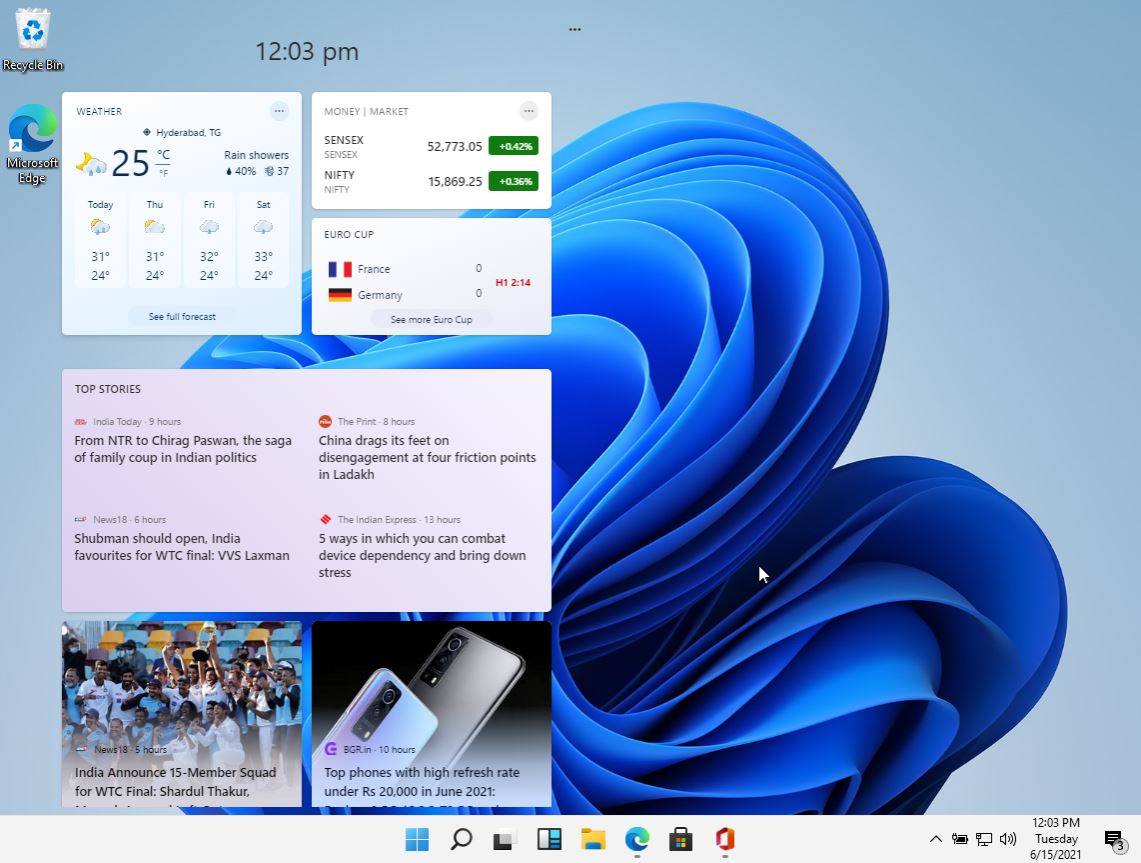
11. Continue the installation process until Windows 11 is installed as a virtual operating system on your device.
When will the official version of Windows 11 be released?
Although we do not expect the official version of Windows 11 to be released until at least this fall, the official launch event will take place on July 3 and be streamed live on the Microsoft website.
After Windows is officially introduced, the first test builds of this operating system are expected to be available to developers for testing. Of course, ordinary users can also register in the Windows Insider program to experience the unstable but official version of Windows before its public release.
To test the beta version of Windows 11, you only need to have a Microsoft account and sign up for Insider.
All registered users will enter this probationary phase as volunteers, but we still recommend against installing this Windows version on your main computer because it is slow.
FAQ
How can I download Windows 11 for my PC?
You can download it from Microsoft’s official page — either using the Installation Assistant for in-place upgrades or by obtaining the ISO via the Media Creation Tool to build installation media.
How do I install Windows 11 using a USB drive?
Use the Media Creation Tool to create a bootable USB (8 GB or larger), restart your PC and boot from the USB, then follow the installation prompts to install Windows 11.
Do I need to backup my data before installing Windows 11?
Yes — especially if you perform a clean install or repartition your drives. Back up important files to avoid data loss.