


Like most technology these days, Windows updates are automatic. The basis for this is that developers love the software they design and have little confidence that end users will perform the updates themselves. To make your life easier and keep your system running smoothly, automatic updates are enabled.
An improperly timed automatic update can really cause a headache. Whether the update causes issues or glitches on your PC or is initiated while you’re working, this article will walk you through how to stop and reverse an update if needed.
How to stop updates in Windows 10?
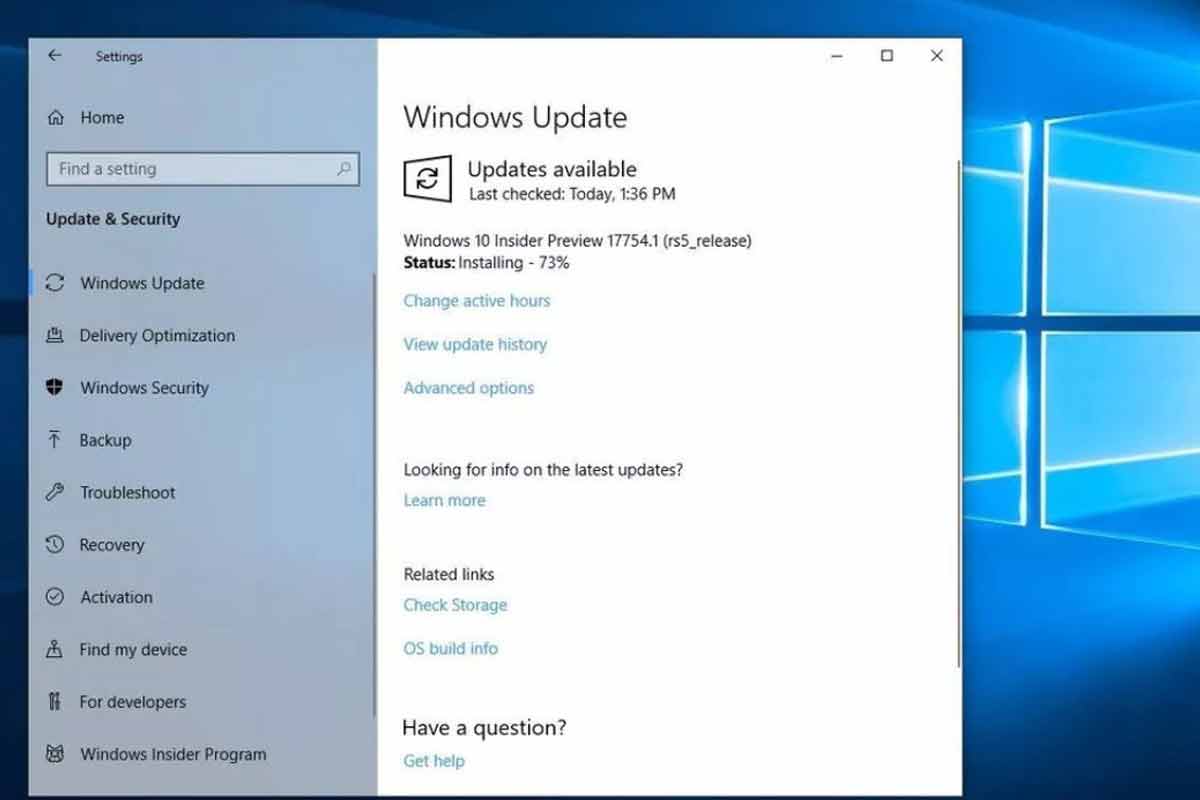

Windows 10 usually downloads and installs updates automatically. You can adjust this update time by modifying specific settings in the Windows Update section.
Windows 10 automatically downloads and installs updates. By following the steps below, you can pause updates for up to 35 days, including the Home version.
How to stop updates for up to 35 days
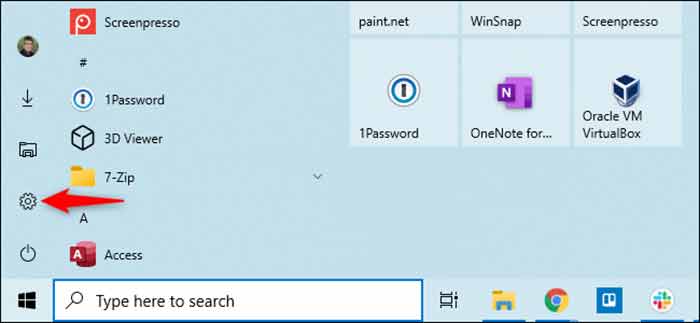
First, open the Settings page from the Start menu, then click the Settings gear icon or press Windows + i.

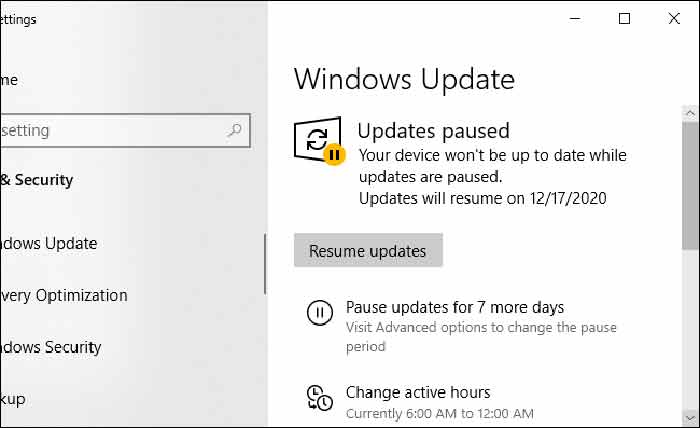
Go to Settings> Update & Security> Windows Update. At the bottom of the page, click Pause updates for 7 days. Windows will not automatically download and install updates for the next seven days.
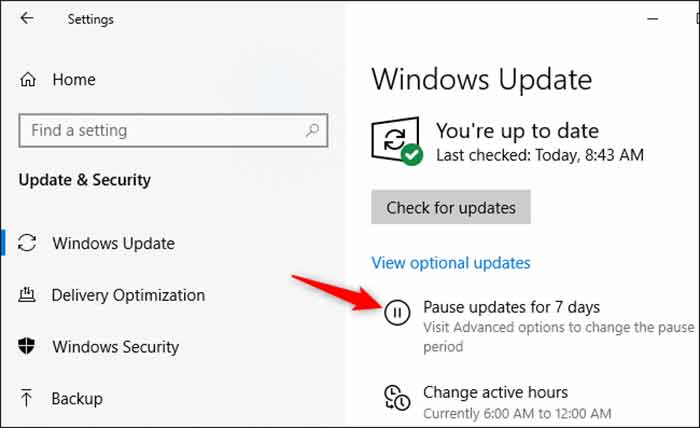

Click Pause updates for 7 days again to increase the pause period. When you reach 35, this option turns gray, because the maximum amount allowed to stop the update is 35 days.
Note: When the downtime ends, Windows Update will automatically download and install the available updates.

How to stop updates by a specific date
You can postpone updates to a specific date. In the Windows Update settings window, click Advanced options.
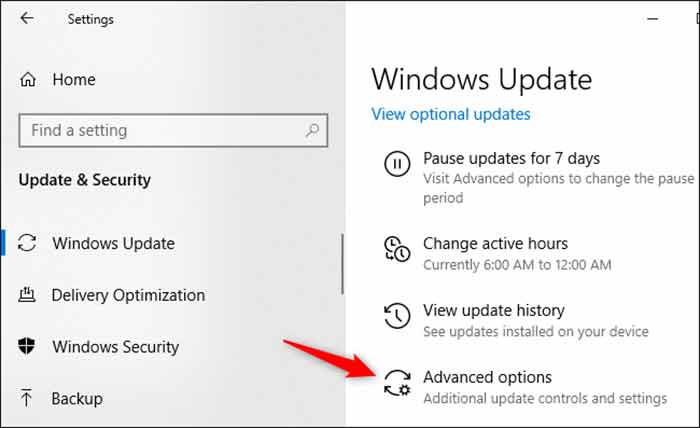
Go to the Pause Updates section and click on Select date. Then select the desired date to resume Windows updates. Next, scroll to the bottom of the list and select a date for the next 35 days.
Note: When the due date expires, Windows will automatically download and install any available updates.
How to avoid significant updates?
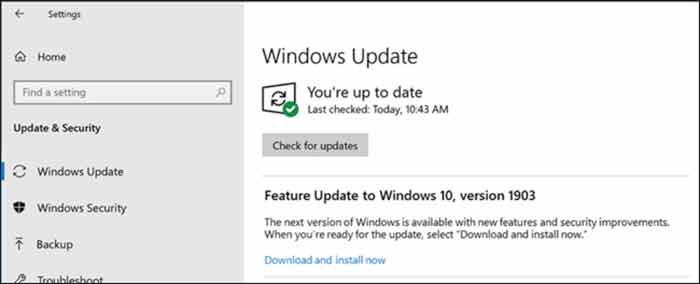
Newer versions of Windows 10 give you more control over major quarterly updates, and these updates are no longer automatically downloaded and installed. If a new update is released, options will be displayed on the Windows Update screen. You can click download and install to update.
Note: Windows Update automatically installs these updates. For example, if the current version of Windows 10 is nearing the end of its support period and your computer needs to be upgraded to continue receiving security updates, these updates will be installed.

How to stop updates for an extended period of time
You can better control updates by converting connections to metered. This option is intended for connections with a limited amount of data that can be downloaded. To convert the connection to metered, go to Settings> Network & Internet. Select Wi-Fi for wireless and Ethernet for wired connections. Click the network name, then select Set as a metered connection.
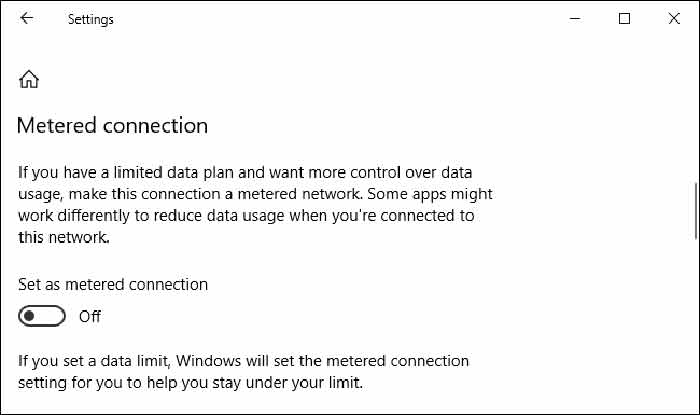

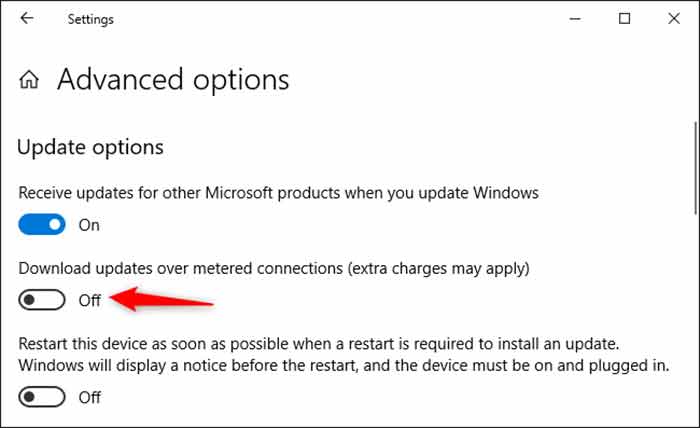
Go to Settings > Update & Security > Windows Update to ensure Windows does not automatically download updates over a metered connection. Click Advanced Options, and make sure “Download updates over the metered connection (extra charges may apply)” is set to off.
Note: Windows Update automatically downloads updates to non-metered connections. For example, if you connect your laptop to a different Wi-Fi network that is not marked as a metered network in Windows, the update will resume.
Use Group Policy for more control.
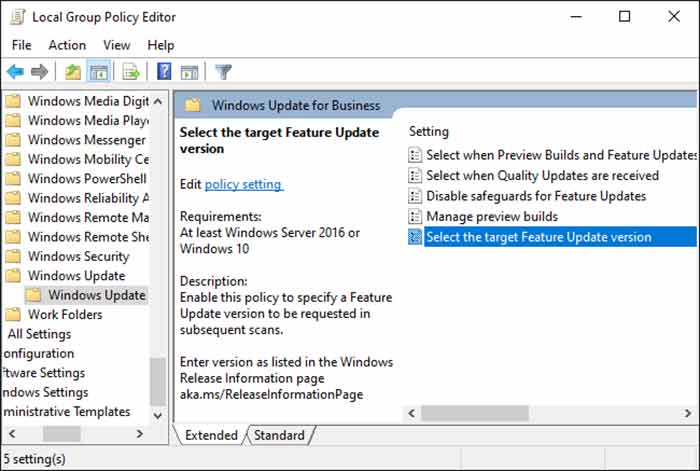
For businesses that want more control over updates, Microsoft offers a set of Windows Updates for Business options that can be managed via Group Policy or MDM policies. To apply these policies, you need the Professional, Enterprise, or Education version of Windows 10.
This version is not compatible with standard Windows 10 Home on most computers. However, you can change the settings using the Local Group Policy Editor on Windows 10 Professional. In Group Policy, you will find these settings under Computer Configuration > Administrative Templates > Windows Components > Windows Update > Windows Update for Business.

Make sure you set Active Hours so Windows 10 does not resume updates at an inconvenient time. You can also restart updates during your regular computer use hours to prevent Windows Update from crashing.
Should We Disable Updates?
As mentioned earlier, operating system updates are vital to the health and security of your machine. But many updates cause more harm than good when first released. If you prefer to wait and install updates at your convenience, disabling updates shouldn’t be an issue.
While updates are vital, they aren’t necessarily crucial on the day they’re released.
Conclusion
For whatever reason, you need to halt Windows 10 Updates. This article has provided you with the best solutions, temporary though they may be, to prevent them from occurring. Even if the only permanent solution is to constantly roll back to a previous version of Windows 10 or remain disconnected from the internet, one does exist.
FAQ
Why do users want to stop Windows 10 updates?
Updates can consume bandwidth, cause restarts, or introduce changes that disrupt workflows.
Can Windows 10 updates be paused instead of disabled?
Yes, Windows 10 allows updates to be paused temporarily through system settings.
Is it safe to stop Windows 10 updates completely?
Disabling updates long-term can increase security risks, so it should be done cautiously and temporarily.