


Wi-Fi Network, When You Intend To Use The Internet, Is A Bitter Experience That Can Be Very Annoying. But By Applying Some Common Troubleshooting Techniques That Follow, You Can Easily Get Rid Of The Trouble Of Not Connecting To Wi-Fi.
In this article, we will provide solutions to check and solve the problem of not connecting to Wi-Fi in all systems, teach how to fix the problem of not connecting to the Wi-Fi modem, and troubleshoot the phone’s hotspot. Not being able to connect to Wi-Fi bothers many users and may affect their performance, especially if they are in the middle of a classroom or a business meeting. Therefore, in the continuation of this article, we have introduced some standard troubleshooting techniques for the problem of not connecting to Wi-Fi, which can help you in critical situations.
Suppose you are facing the problem of not connecting to Wi-Fi in Windows 7 or Windows 10, and are wondering how to fix the problem of not connecting to a Wi-Fi modem. In that case, it is better not to miss the continuation of the following article.
Don’t forget that the reason for the laptop not connecting to Wi-Fi or the smartphone not connecting to Wi-Fi can be very trivial cases that can be easily solved by spending a few minutes reading the current article.
The problem of not connecting to Wi-Fi can happen to everyone, so it is necessary to be able to diagnose and fix the problem of not connecting to Wi-Fi, which can include modems, routers, or hotspots. In the following, you can learn the main reasons for not connecting to Wi-Fi and how to fix them.
Check and re-enter the Wi-Fi password.
To connect to most Wi-Fi routers, a password is required, chosen by the router’s owner. You cannot link to the network if there is even one wrong character in the password. Don’t forget that the most important thing to do after you can’t connect to Wi-Fi in Windows 10 (or any other version) in the first place is to check if the password you entered is correct.
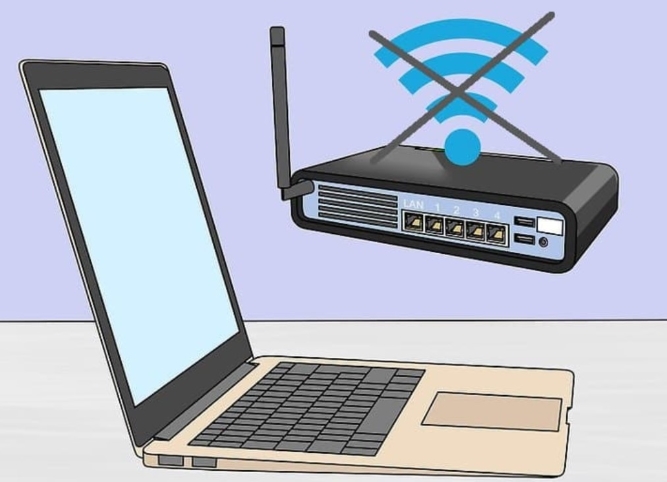

Checking the presence of the login screen in the Wi-Fi Network
Some businesses, such as hotels and restaurants, offer an open Wi-Fi network. To use the Internet, you must enter the login page and enter a specific username and password that you receive from the administration.
If you are connected to a Wi-Fi network but do not have Internet access, open your browser and enter the address of a website. After that, you will be automatically directed to the login page, and you can enter the desired username and password.
Restart the connected devices.
If you are still having trouble connecting to Wi-Fi, you can restart your phone or laptop. Rebooting a smart gadget works in many cases. Some reasons for not connecting the phone to Wi-Fi or any device, in general, are software problems and remaining in some program repetition loops, resolved by actions such as restarting the operating system.
Re-runs when software and device settings are restarted. After the reboot, try to connect again via Wi-Fi. If the problem of not connecting to Wi-Fi persists, go to the next option.
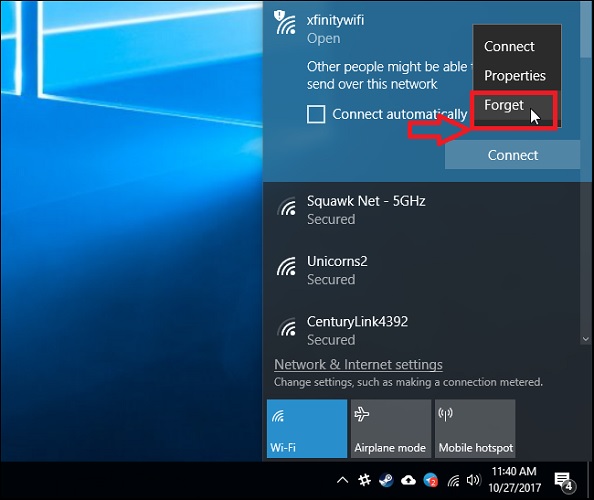

Remove the Wi-Fi network, then try again.
Another solution is to not connect to Wi-Fi, remove that network from the phone, and reconnect. To do this, select the name of the Wi-Fi network you want to connect to from your smartphone, then select the Delete or Forget option. Of course, the way to do this is different depending on the device you are using. After that, scan the networks and try to connect to Wi-Fi again. This technique is beneficial when the router has changed its Wi-Fi settings.
Restart your modem
If the problem of connecting to Wi-Fi remains, you should seek a professional solution to fix the problem. In this situation, of course, you can restart the modem and check again if the problem is solved or not. Rebooting can fix various problems caused by modem firmware errors. Just be aware that restarting the modem may temporarily cut off other users’ access to the Internet. Therefore, it is better to be careful in this work.
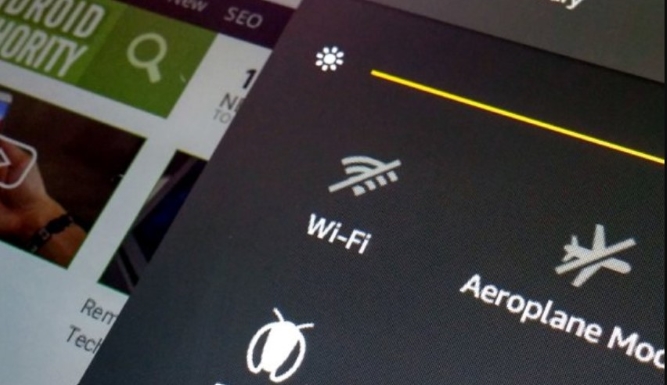

Checking the modem’s access to the Internet to solve the problem of not connecting to Wi-Fi
If you are connected to your Wi-Fi but still do not have access to the Internet, the problem could be related to the modem’s Internet outage. To do this, first, check for an internet outage in your area. If there is no outage, restart your modem and check the cables connected to it and the lights on the modem. When not connected to Wi-Fi, some old modems or modems installed on lines with high interruptions may not be able to show stable performance.
Checking the compatibility of Wi-Fi settings with your device
Many older devices are incompatible with the new Wi-Fi security standards, and you should use older security settings for your router. Some older phones only support the WEP security protocol and are incompatible with more recent standards such as WPA or WPA2.
Try a different frequency band.
New Wi-Fi modems support two frequency bands of 2.4 GHz and 5 GHz. Some routers automatically move connected devices to a higher frequency band, but some modems have a different SSID for each frequency. The 5 GHz frequency band has a higher speed but a shorter range than the 2.4 GHz connection. Therefore, if you have problems receiving a signal, see which frequency band you are connected to solve the problem of not connecting to Wi-Fi.
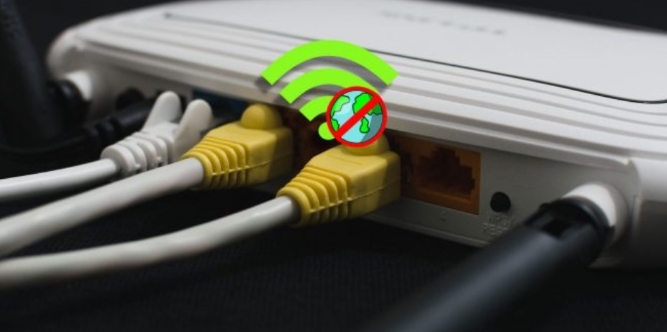

Check the distance and interference of the waves.
A weak signal can also cause the problem of connecting to Wi-Fi. You can move closer to the router or use a giant antenna and a more powerful router. Also, using a Wi-Fi repeater is a good solution. Also, the interference of waves with other modems should not be neglected. To do this, turn off other devices or set your Wi-Fi to a specific channel. Using this technique, you can somewhat solve the problem of not connecting to Wi-Fi.
Try another Wi-Fi device.
As another solution, see if you can connect to the same Wi-Fi with another device. If the answer is yes, the problem is probably with your device. It is also possible that the Wi-Fi network card of your system is broken or its drivers are not updated.
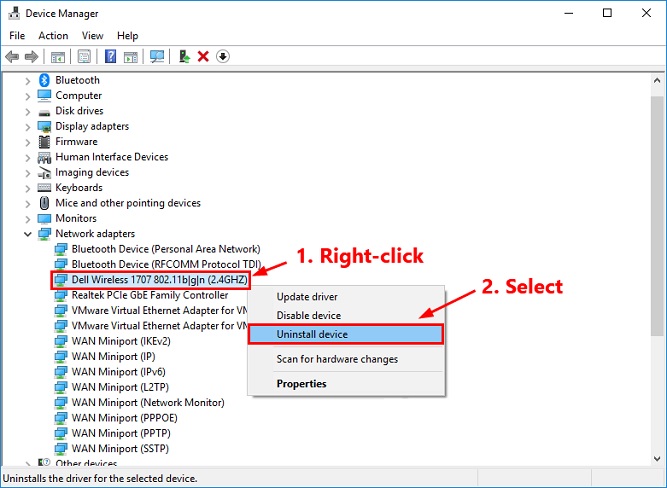

Try updating your Wi-Fi network card driver.
Updating your wireless network card driver is better if you use a laptop or computer. To update the driver in Windows, you need to download the latest driver for your network card from the manufacturer’s website. After updating the driver, restarting your computer, and trying to connect to the network again is better.
To solve the problem of not connecting to Wi-Fi, try a different router.
Finally, if none of these work, your router may be broken. In this case, it is better to get help from an expert. You should probably consider buying a newer model if your router is old. The problem of connecting to Wi-Fi when you try another modem and no result is obtained due to the presence of another device in the environment with frequencies that carry Wi-Fi waves, in which case you should either replace the mentioned device or consider using a wired connection.
Of course, where the problem of not connecting to Wi-Fi has not been solved, there is no solution except to abandon the modem and use the Internet using a SIM card or a wired connection isolated from Wi-Fi.
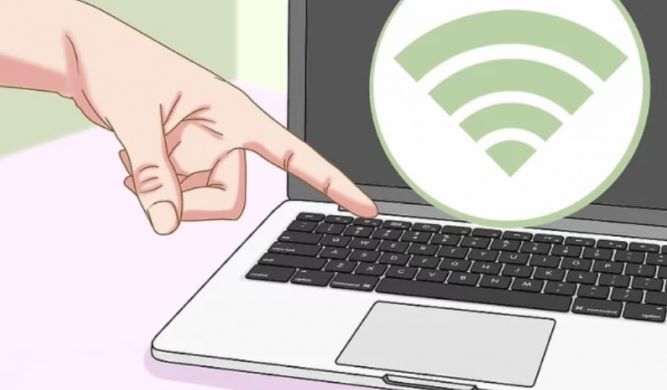

How to solve the problem of connecting a laptop to Wi-Fi
One of the significant problems of laptop users is not connecting to the Wi-Fi of this device. Today, the most common way to connect a laptop to the Internet is to use Wi-Fi networks. This type of connection does not require wires and cables, and it is possible to connect to the global Internet just by activating the wireless laptop and communicating with the modem or network provider.
However, it can be seen that if the Internet is available, the laptop’s Wi-Fi does not connect to the desired network. In this situation, why does the computer not recognize Wi-Fi? Note that not connecting to Wi-Fi can happen on any laptop model.
Usually, the reason for the laptop not connecting to Wi-Fi is rooted in the device’s settings or a malfunction in the software system. In the first step, check if the Wi-Fi system is turned on to prevent this problem. Also, if the flight mode of the laptop is turned on, the communication of the device, including its Wi-Fi, will be turned off. Some laptop models also have a physical switch to control not connecting to Wi-Fi. The lack of Wi-Fi driver installation is another reason for not connecting to Wi-Fi. The first and best solution for not connecting to Wi-Fi, which does not bother you much, is to restart the laptop.
Fortunately, for the problem of not connecting to Wi-Fi in Windows 7, Troubleshooting can automatically find and fix any software problems. If there is still the problem of not connecting to Wi-Fi in Windows 7, it is better to check the IP of your system or use Command Prompt commands.
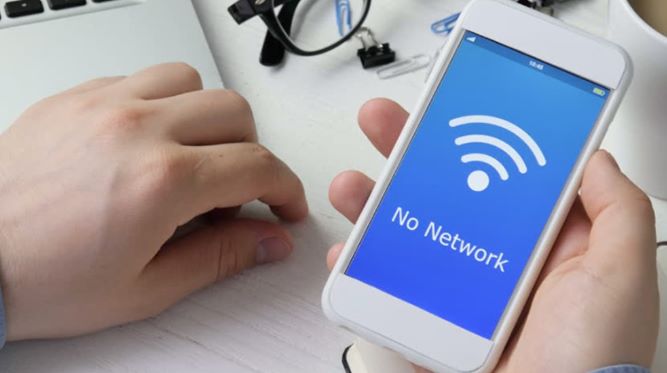

Solving the problem of connecting the phone to the Wi-Fi
The use of smartphones has made people so dependent on the Internet that the issue of connecting to Wi-Fi can be excruciating. Imagine being unable to access the Internet at a critical moment to do banking, shop, call medical centers, or get information from accident victims.
It will be a frustrating moment, and if you can’t discover why the phone is not connecting to Wi-Fi and quickly fix the problem of not connecting to Wi-Fi and the Internet, you may face serious problems. Most mobile phones work with two central operating systems, Android and iOS. Although many phone settings and how to connect to the Internet are similar in both operating systems.
If the Android phone does not connect to Wi-Fi or the phone does not connect to the hidden Wi-Fi, check the phone settings first to ensure the Internet is on. Next, make sure the Wi-Fi is on and check the flight mode. After that, go to Battery Saver mode and turn it off.
After that, check Bluetooth and turn off the Smart Network Switch option. You can also update the phone’s operating system and review the newly installed applications that do not block the Wi-Fi connection. Consider restarting the phone and modem and returning them to factory settings as the last solution, and if the problem is not solved, seek help from experts.
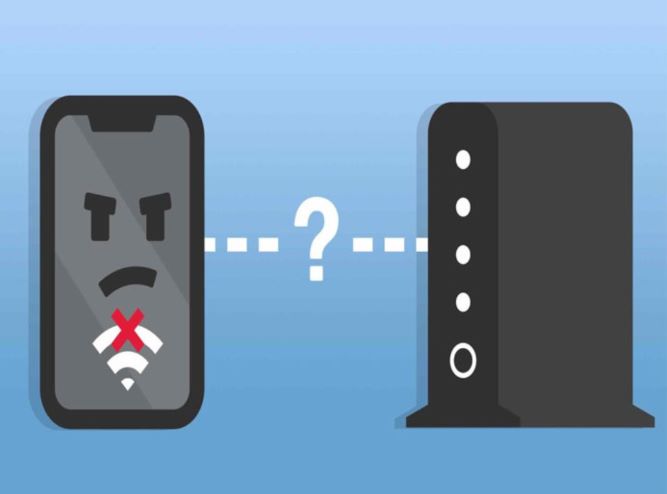

Fixing problems related to not finding the Wi-Fi name on the phone
Many users have experienced issues with being seen and not connecting to their home or company’s Wi-Fi modem. If you do not find the desired network name in your phone’s Wi-Fi network search section, consider the solutions for not connecting to Wi-Fi described below.
In many cases, users do not turn on Wi-Fi in their phones and therefore do not see the desired SSID. Check this issue by dragging the toolbar down or into your phone’s Wi-Fi settings to ensure your phone’s Wi-Fi is turned on. Another thing that can be checked in the phone settings is whether Airplane Mode is turned on or off. If the flight mode is on, all connections, including the Wi-Fi connection of the smartphone, will be disconnected.
So make sure your phone is not in airplane mode.
Many people try to hide the Wi-Fi name or SSID in their modem settings to improve the security of their Wi-Fi modem, and then forget about it. For this reason, after searching for connecting to Wi-Fi, the modem faces the problem of not connecting to Wi-Fi.
Therefore, it is necessary to ensure that the SSID is not hidden by referring to the modem settings through a device connected to Wi-Fi or by connecting the modem to the computer using a cable and entering the modem management panel.
You can also use the Wi-Fi Analyzer software to find out how many users your network has and use a private network if necessary. If your Wi-Fi signal is good, go to the settings section of the phone, touch the modem name for a few seconds, and click the Forget option. Then re-enter your username and password.
Also, check the modem settings and make sure Mac Filtering is not enabled in your modem. This feature does not allow your phone to access the modem.
Summary
The problem of connecting to Wi-Fi is one of the bitter and painful problems that sometimes brings irreparable consequences for users. In this article, an attempt was made to investigate standard troubleshooting techniques for the problem of not connecting to Wi-Fi in smartphones and computers. Some simple and practical solutions for not connecting to Wi-Fi were presented.
FAQ
What should I check first if my Wi-Fi won’t connect?
Make sure you’re using the correct password and restart both your Wi-Fi device and router/modem to clear temporary glitches.
How can router placement affect Wi-Fi connectivity?
Placing your router centrally, high, and clear of physical obstructions and electronics can improve signal strength and reduce interference.
Why might only one device fail to connect while others can?
If other devices connect fine, the problem is likely with that device’s settings, Wi-Fi adapter drivers, or saved network profile.