


The Printer Can Be Added To Windows 11 Manually Or Automatically With A Wireless Or Wired Connection. Learn How To Add A Printer To Windows 11 In This Article.
If you’ve ever had to start a printer, you know how tedious this process can be. Microsoft has made adding a printer to Windows 11 as simple as possible.
Not all aspects of a printer startup can be covered in one article. The method for adding a printer, depending on available features, underlying technologies, and the printer manufacturer’s specific characteristics, is too complex to detail.
After configuring, this tutorial will discuss the most common methods for adding a printer to Windows 11. Note that this process may vary slightly by device and printer brand, but the initial steps are largely the same.
Automatically add a printer in Windows 11 with a wired connection)
- Connect the printer to your computer.
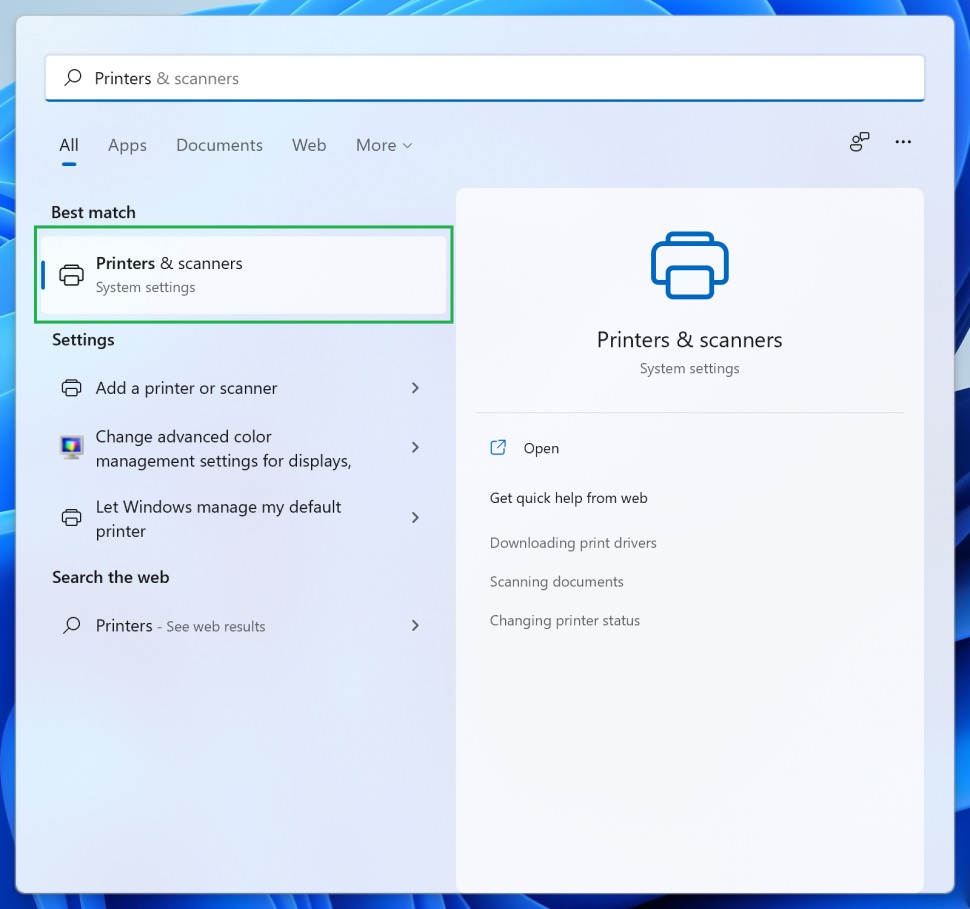
- In the Settings, open the Printers & scanners page :
1. The quickest way to do this is to open the Start menu, search for Printers, and click on Printers & Scanners among the results.
2. You can also open the Settings app, select Bluetooth and devices from the sidebar, and click on Printers and Scanners from the options.

- On this page, a subset of the “Add a printer or scanner” section for the printer connected to the device is displayed. If you see it in the list of pre-saved printers, it means that Windows has successfully detected the printer and that you can use it.
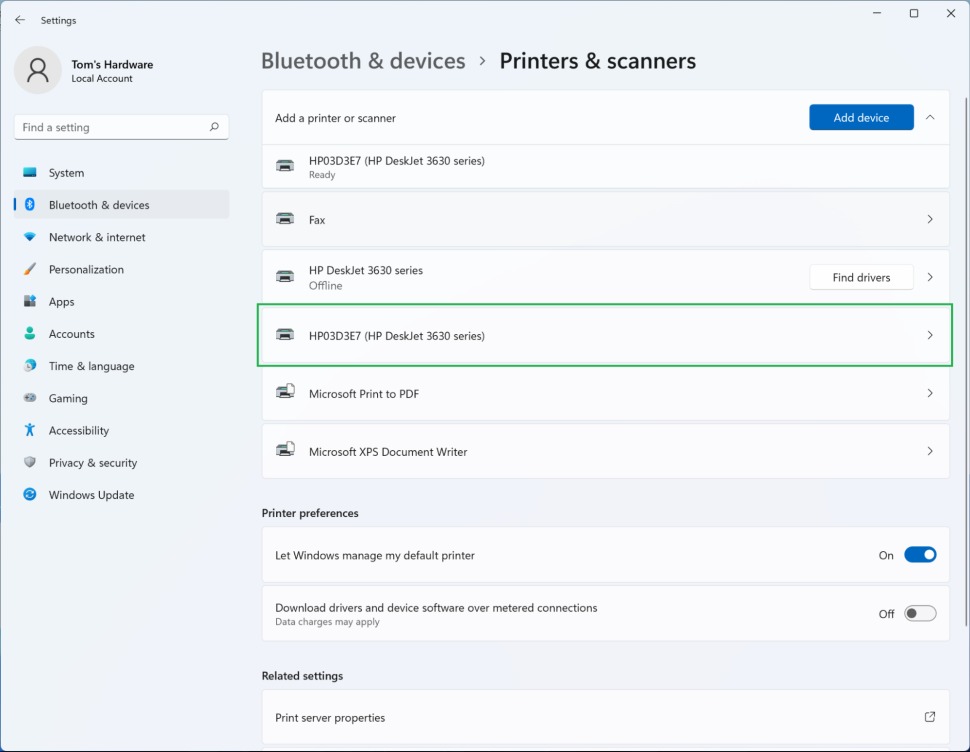

Sometimes, adding a printer to Windows may take a few minutes because Windows searches for a driver. If the printer is old, you may need to download the driver from Windows Update, so it’s a good idea to make sure you have an internet connection when connecting the printer to your laptop or computer.
Also, ensure the cable is secure. If Windows has trouble identifying it, click the Find Drivers option or use the Disk that came with the printer to install the driver. Then, you can manually add the printer if you can not connect the cable directly.
Manually add a printer to Windows 11
If your computer does not detect the printer automatically, you can try adding it manually.
- Open Settings, go to Bluetooth & devices, select Printers & scanners, and click Add device.
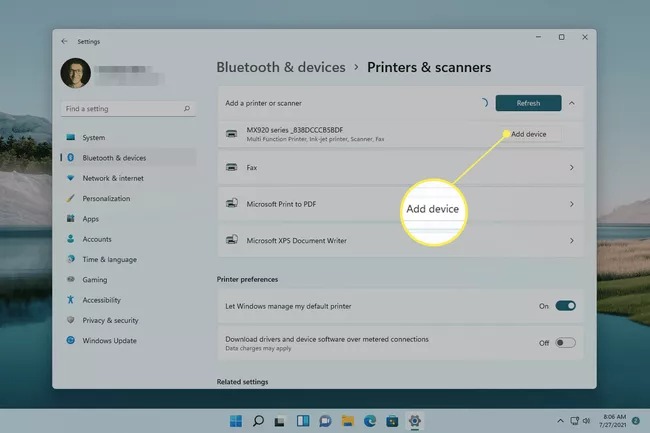

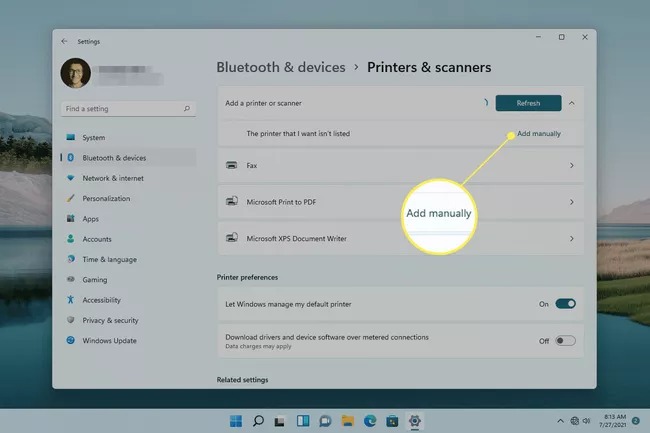
- Please wait a few seconds after the search starts to find the printer. When you see the Add manually option, select it.
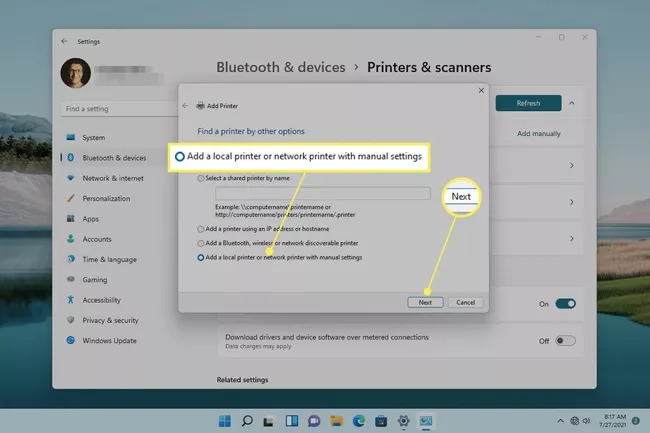
- Several options are available depending on your location and connection method. All five possibilities work for wireless or network-based printers. If your printer is connected locally or directly to the computer, select Add a local printer or network printer with manual settings, then choose Next.
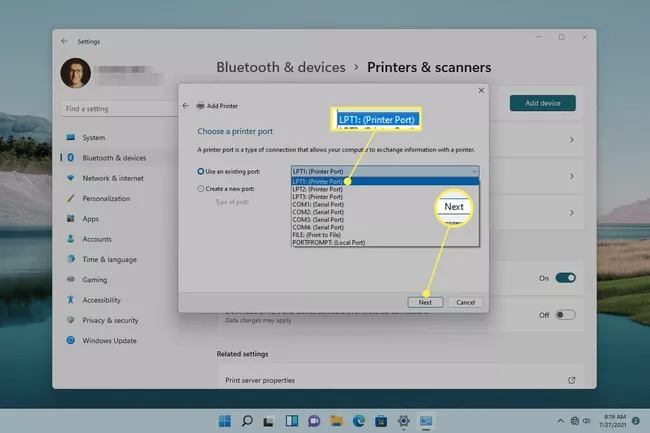
- Suppose the printer is connected via USB. At the bottom of the list, select USB001. Select the port the printer is connected to, then click Next.
Note that for older printers that use serial or LPT ports, if a number from the input of these ports on your device is present, the printer will usually be identified and installed by selecting the first port, LPT1 or COM1. If this does not work, try the following ports, or find the port number in the Device Manager> Ports section.
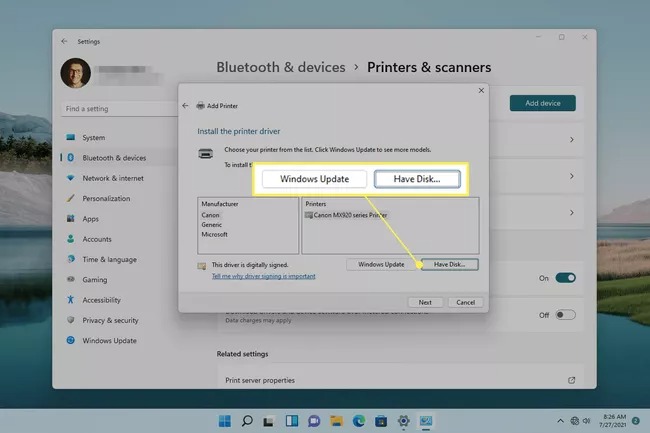
- The next step is to install the printer driver. If the printer has a disk containing the driver, select Have Disk to search for it. Otherwise, choose Windows Update.
- Wait for Windows to display a list of options. You will see a page with the message “Windows is updating the list of printers.” It may take a few minutes.
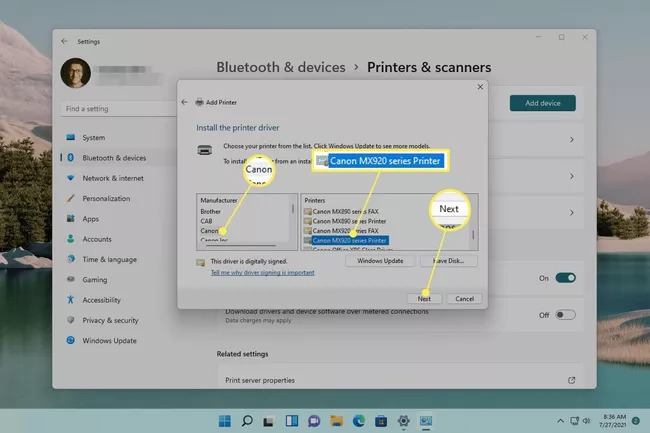
- After updating the list of available printers, select the manufacturer from the left column and then the model from the right column. Click Next.
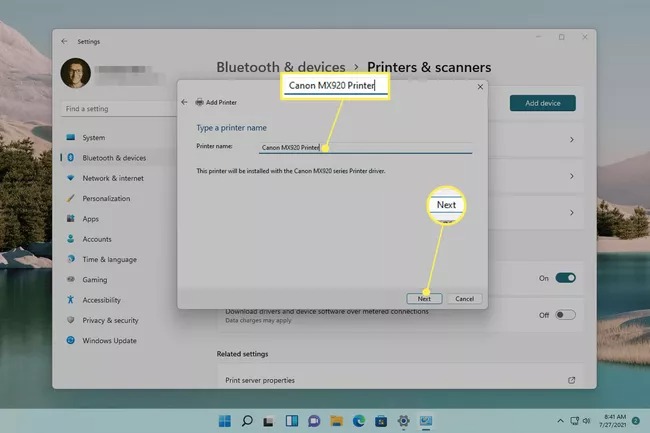
- Choose a custom name for the printer and click Next.
Note: If you see a page asking which driver version you are using, select Replace the current driver.
However, if you are sure the driver installed is correct, select Use the currently installed driver.
- Wait for the printer to install on Windows 11.
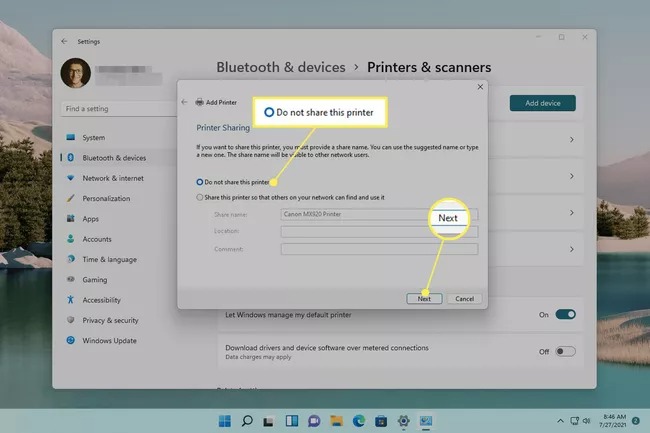
- Select the “Do not share this printer” option, then click Next. If you want to share the printer with other devices on your network, select Share this printer, then enter the details.
- The work must now be completed successfully. To test the printer, select Print a test page; otherwise, select Finish to see the printer in your list of devices.
Add a printer in Windows 11 via wireless protocols
Few people like to have a lot of cables from different devices connected to their computers. If you do not want to add a printer to your computer with a wired connection, you should know that it is much easier to have a wireless connection, at least when the network works correctly.
To do this, note that both your printer and your computer must support compatible versions of Bluetooth or Wi-Fi before connecting the printer to your computer wirelessly. This tutorial will explain the steps to add a printer using WiFi, but the steps are similar for printers with Bluetooth.
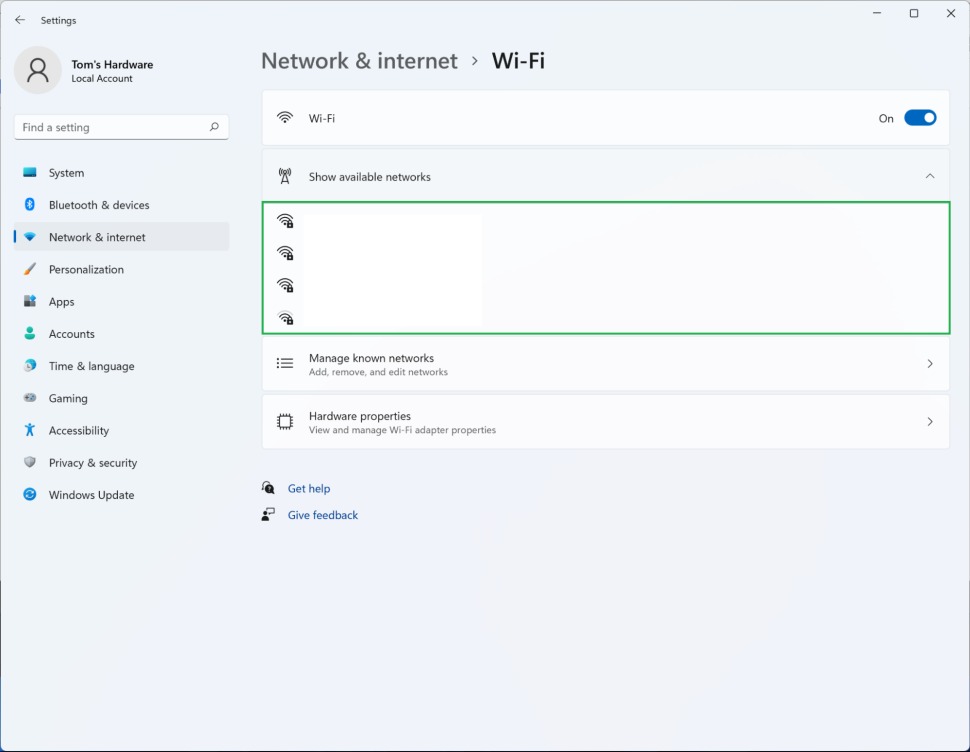
- First, make sure your devices are on the same network.
- From the Printers & Scanners page in Settings, click Add Device.
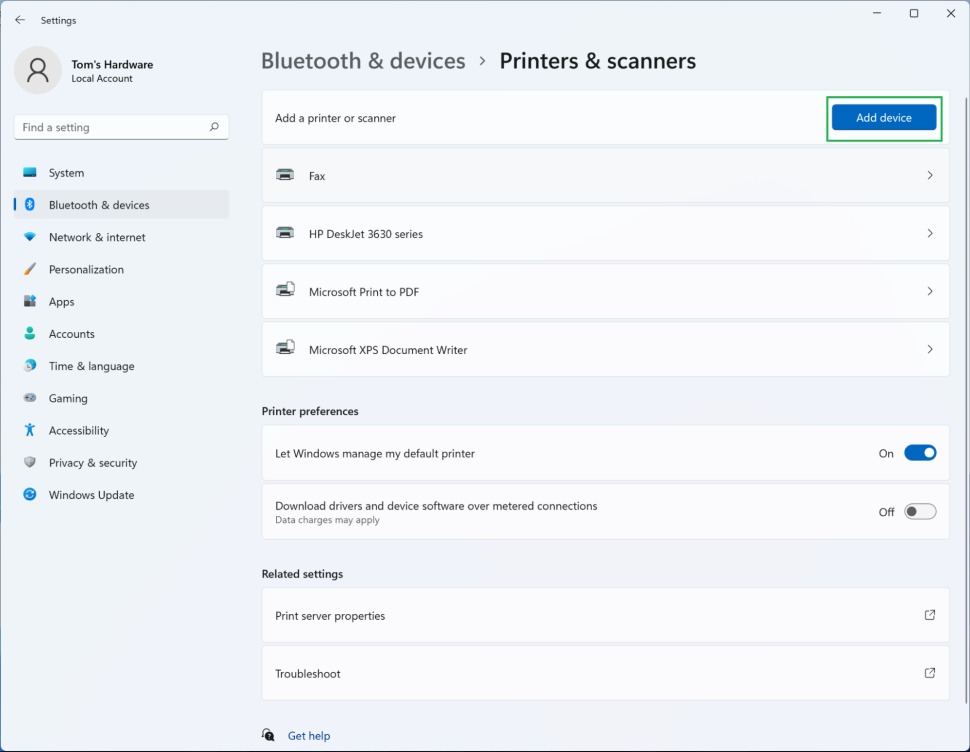
- Click the Add Device button next to your printer name to replace the main Add Device button with the Refresh button. If your printer is found (it should be if you are on a network), you can click the Add Device button next to the list of detected devices.
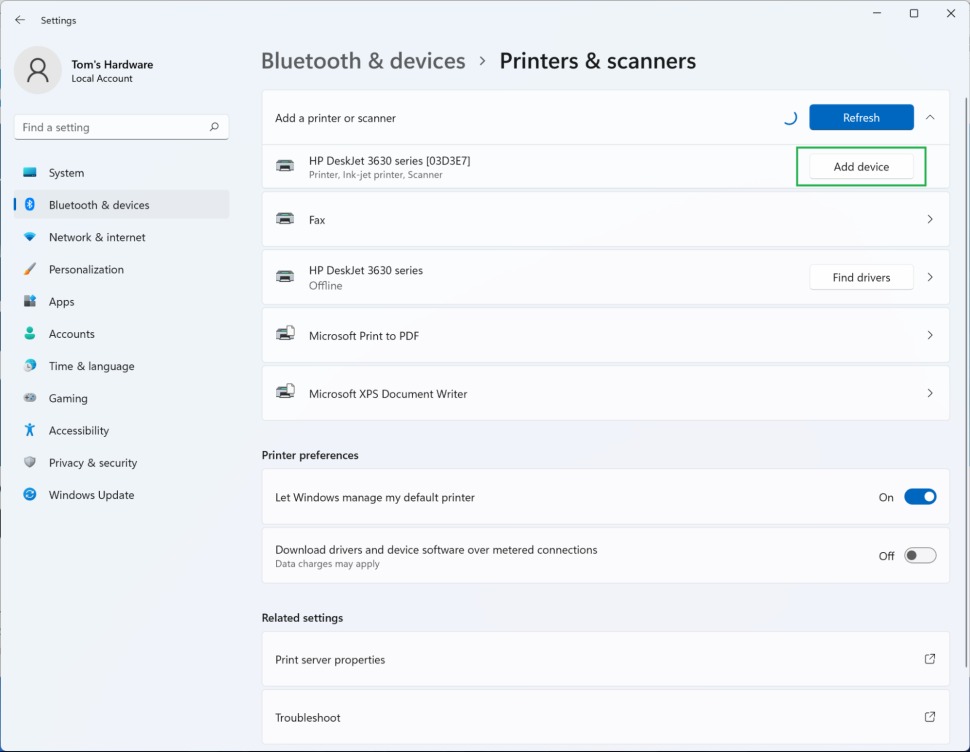
- Some printers require authentication before connecting to devices on the same WiFi network. You must enter a password, PIN, or another authentication method upon request. The default information is usually somewhere in the box or manual that came with the printer.
- Verify that your printer has been added. The printer should now appear in the list of devices on the Printers & Scanners page in Settings.
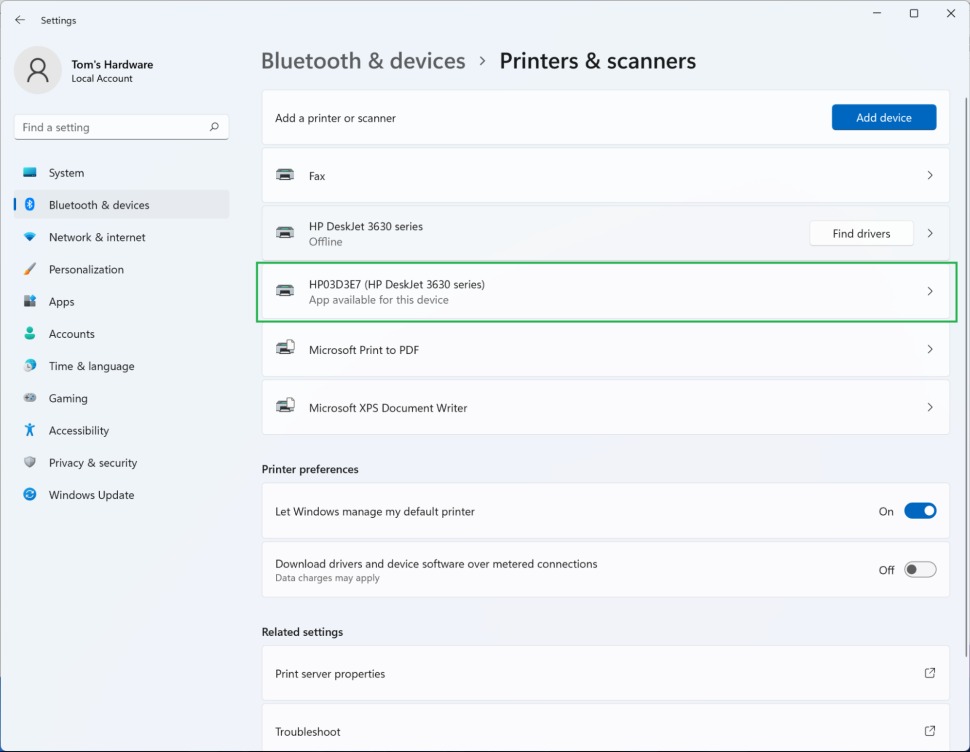
If both devices are connected to the same network, your printer should now be available as a print destination. Windows 11 can detect whether a developer has made a management application available in the Microsoft Store.
If an application is available, Windows will display the message “App available for this device,” and a button will take you to the application download page.
We hope you find this tutorial helpful. If you have any questions about adding a printer to Windows 11.
FAQ
How do I add a printer automatically in Windows 11?
Open Settings > Bluetooth & devices > Printers & scanners, click Add device, wait for Windows to search, then select your printer from the list and click Add device.
What if my printer doesn’t appear in the detected devices list?
Choose Add manually in Printers & scanners, then follow options like Add a local printer or network printer with manual settings and install drivers manually if needed.
Can I add a wireless printer in Windows 11?
Yes; ensure the printer and PC are on the same Wi‑Fi network, then use Add device under Printers & scanners to detect and install the wireless printer.