


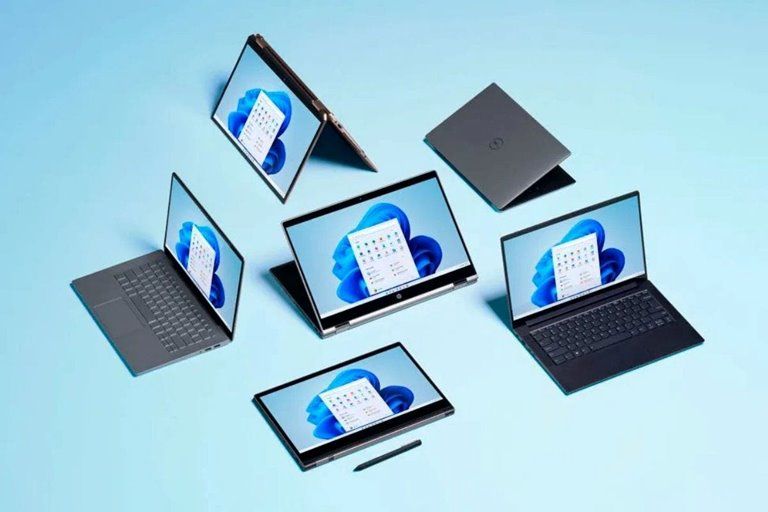
Windows 10 And Windows 11: Microsoft Windows 11 Has Just Been Released, And You Can Download And Install It Now. In This Article, We Will Compare The Features Of Windows 10 And Windows 11.
Windows 10 and Windows 11: Microsoft has just released Windows 11 with many changes and new features. This operating system introduces many of the old Windows parts, new features, and changes to the look.
Windows 11 has a new feature for almost all users. The capabilities of this operating system have made it one of the essential components of the computing world in the last three decades.
According to Tom’s Guide, Panos Panay, a senior product manager at Microsoft, spoke about home and tight spaces and introduced the AR childhood earlier this year. According to Pana, Windows 11 is designed to be relaxing:
Windows 11 is more than just an operating system. This platform is like a fabric woven into our lives.
The concept of continuity and familiarity is an essential part of Windows 11. In many ways, this operating system is similar to the previous version of Windows, except that it now looks better and more beautiful.
Microsoft’s new operating system is familiar to many users, but it has undergone many changes. Programs you used to work with are still available and supported. Microsoft has now added the ability to run Android applications to its new operating system.
The Redmondians are currently making final adjustments to this feature.
In Windows 11, your favorite multitasking features are organized in a new layout called Snap Layouts, and the virtual desktop offers more flexibility and features than before.
The latest Windows operating system’s appearance is more cohesive and visually improved than before. From icons to toolbars and on-screen fonts, Windows 11 changes make the user feel better about working with the operating system.
Significant changes have also been made to the heart of Windows 11, including extensive support for stylus, touch, and voice input; improved gaming performance; enhanced security; and overall system performance. Stay tuned to see the most significant changes in this version of Windows compared to Windows 10.
Windows 11 vs. Windows 10: New design
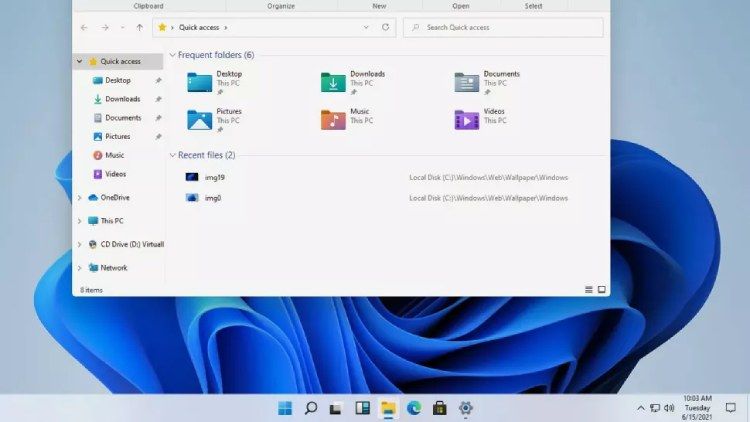

One of the main features of Windows 11 is the visual changes it introduces. Microsoft has come a long way since introducing early Windows versions to the latest operating system version.
Now, the Windows 11 logo has changed, and we once again see the use of unique sounds to enter the Windows environment, A feature that has received less attention since the introduction of Windows 8.
Now, the various icons have been redesigned, and a new color scheme adds depth to Windows’ two-dimensional appearance.
All parts of Windows 11 have changed in appearance
Microsoft has redesigned almost every component of Windows. Menu windows, panels, and notification boxes all use rounded corners, making these sections look smoother.
Other visual changes made to Windows 11 include adding a dark mode across parts of the operating system. Users can now choose between light, colorful colors or darker, softer colors. By changing the overall color scheme of Windows, all its visual components, including the wallpaper, menus, and programs, will be updated in unison.
Windows 11 vs. Windows 10: Change the taskbar
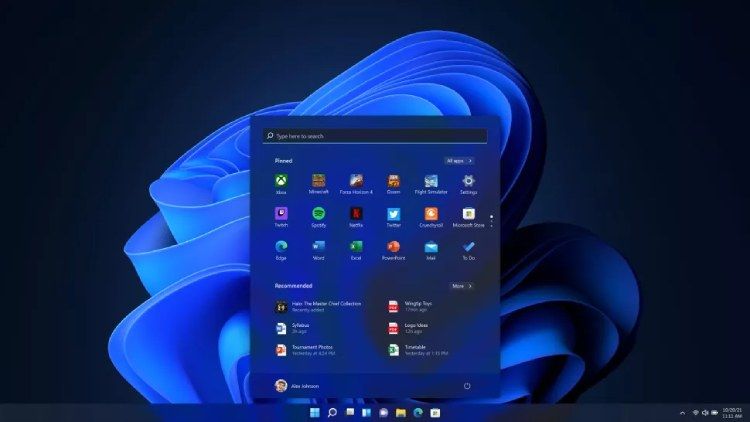
The programs in the taskbar have also changed a bit since before, and now you can use the tools represented by graphic symbols to pin the program icon in this section. If you are still interested in the old Windows taskbar, you can move this menu to the lower-left corner of the screen.
Windows 11 vs. Windows 10: Start menu
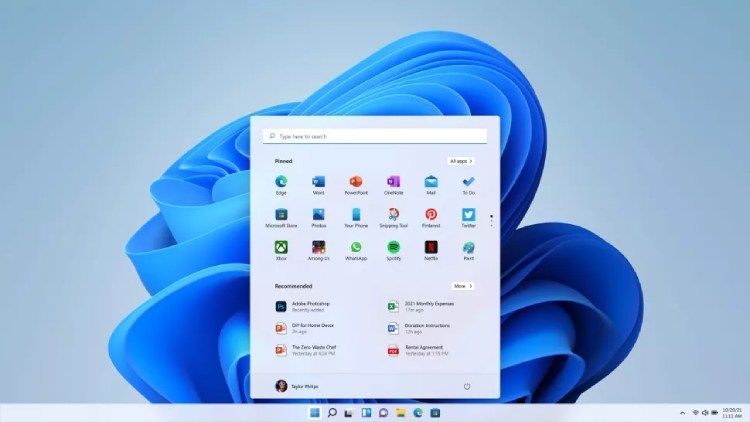
Many changes have been made to the Windows 11 Start menu. For example, live tiles added to the operating system since Windows 8 have now been removed and replaced with large, separate live tiles for applications. Users can now manage icons in this section more efficiently.
Microsoft has skipped the long menu for scrolling through the list of applications and uses a better layout to display the software. In this way, the files and tools the user interacts with the most are displayed more prominently and within reach.
Also, switching between software is faster, and you can now open the app with just one touch. The cool thing about this feature is that it will access your files by reopening apps as you leave them.
Windows 11 vs. Windows 10: Snap layout and multitasking
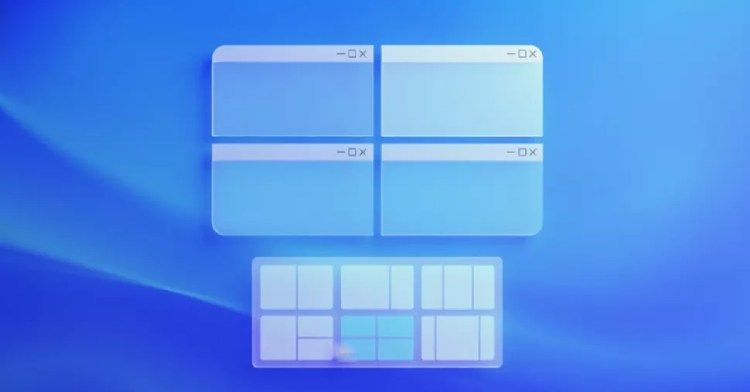

SNAP Layout in Windows 11 provides users with several network design options. This feature allows you to customize the layout of your open applications. New designs have been added to the side-by-side window layout mode, placing different windows in a predefined structure.
These layouts include a quadrilateral and a triangular shape with three windows side by side. Resize tools for windows and side panels are also available for browsing web feeds and chats.
SNAP layout organizes open windows for you in a new, optimal style
These layouts are adjusted to the user’s display screen dimensions and resolution. Multi-monitor management lets you avoid having to change or reset windows when connecting other screens or opening a laptop. SnapGroups will also let you open a group of windows with a single click.
Microsoft has improved the virtual desktop section to provide more open space for the work environment. You can now use any number of virtual desktops you need.
Virtual desktops let you create multiple work environments on a single system. Various virtual desktop options let you customize your favorite wallpapers and easily group programs and projects.
Windows 11 vs. Windows 10: Touch, stylus, and sound
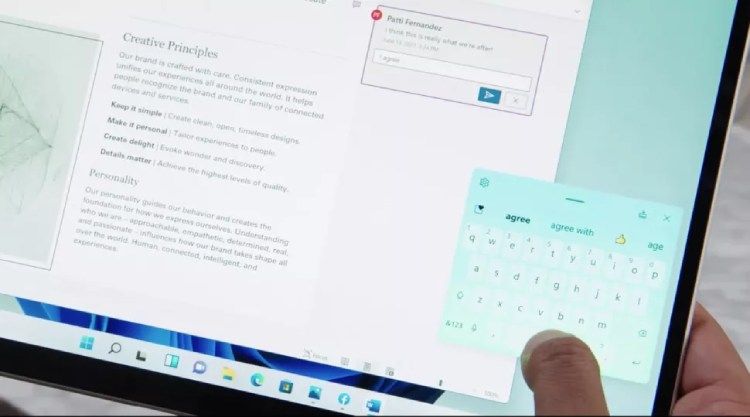

Many of the changes made to Windows 11 from smartphones have made their way into the operating system, which has allowed Microsoft’s new Windows to support a variety of inputs.
As always, the mouse and keyboard are the two main inputs, and now Microsoft has redesigned the user interface to support touch and stylus commands better.
Users whose systems use touch screens will undoubtedly enjoy the changes in Windows 11. This operating system has become more efficient for handling touch commands and resizing or moving various components, such as Windows.
Touchpad gesture performance has also been improved, and you can still use gestures previously used in Windows 10 and Windows 11.
Microsoft’s new operating system uses a unique virtual keyboard that makes touch-typing easier, and users can easily use emoji emoticons.
Support for a variety of inputs, such as voice commands, touch, and stylus, is one of the essential features of Windows 11
The use of stylus pens in Windows 11 has been improved, and tactile feedback is better. You will no longer need to install additional software to use voice commands in Windows. The voice recognition and automatic scoring system also performs better than before.
That way, you don’t have to use phrases like “comma” or “exclamation point” to insert commas and exclamation marks when typing audio in Windows 11.
Windows 11 vs. Windows 10: Widgets
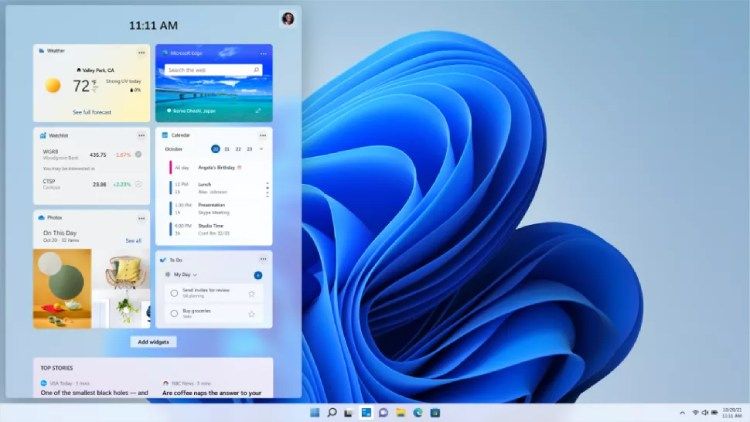
Windows 11 widgets display live information about user-specific suggestions. This includes calendar items, weather, and news that are automatically categorized based on the user’s preferences and desired geographic areas.
The widgets section is embedded in the hidden sidebar on the left edge of the screen. To access the widgets, drag the bar to view the items quickly.
This section’s interface components are housed in transparent windows, allowing you to return to your work environment without opening a new window.
Do not expect the Widgets section to make much of a difference to your user experience when you first start using Windows, as many Windows 11-compatible gadgets are not yet available.
Windows 11 vs. Windows 10: Ability to run Android applications
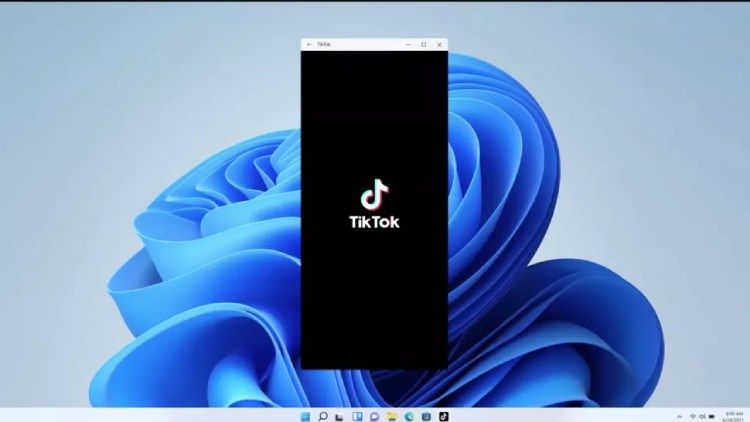
One of the essential features of Windows 11 is the support for running Android applications. These apps are displayed in separate windows, and with the SNAP layout, you can organize them and work with them using touch commands, a keyboard, a mouse, and any other input.
Like other Windows software, you can add Android applications to the taskbar and Start menu. This way, you can easily access the applications that you use daily.
One of Windows 11’s most attractive features is the ability to run Android apps directly in Windows 11.
Microsoft is currently conducting final tests on this feature, and not all users may have access to it. Support for Android apps is expected to be added to Windows 11 next year.
After adding the mentioned feature, Microsoft will allow users to browse and download these applications through the Windows Store.
In partnership with the Amazon App Store, Microsoft plans to make it possible to search directly between Android apps in its software store.
Of course, users can install and run the application from the Google Play Store. Thanks to Intel Bridge technology, Android applications will run smoothly on tablets, laptops, and desktops running Windows 11.
Windows 11 vs. Windows 10: From Skype to Microsoft Thames
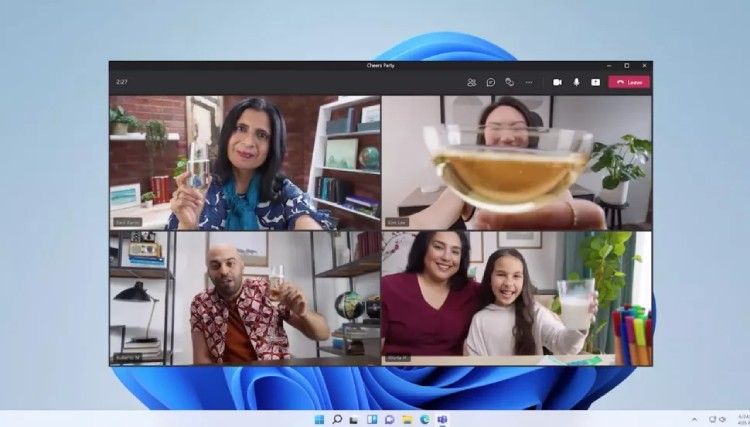

Microsoft has also improved the online communications sector in Windows 11. The Thames platform can now be used directly through the taskbar menu. In other words, Microsoft Thames is now part of Windows, and users can use it for free.
This section also works with different platforms and devices. With the new approach taken by the world’s software giant in Windows 11, it is now easy to switch between desktop, mobile, and tablet while working in Microsoft Teams.
Windows 10 and Windows 11: Upgrade gaming capabilities
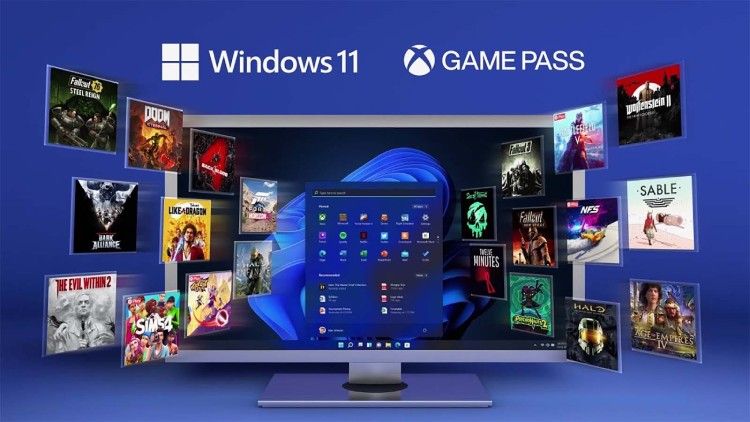
The performance of computer games on Windows 10 has improved. The operating system now supports DirectX 12, so games can run at higher frame rates. The enhanced auto HDR feature eliminates the need to adjust your graphics card settings to move game content between screens.
In the latest version of Windows, Microsoft has paid particular attention to Xbox Game Pass. Of course, most of the features of this section, including the ability to run the game on PC and continue it on the console, have already been available to users.
Windows 11 vs. Windows 10: Performance
In addition to changing the appearance and adding new features to Windows 11, Microsoft has also improved its performance.
The company has announced that it can now enter the Windows environment more quickly using Windows Hello. Starting Windows from sleep mode and browsing web pages have also increased in this operating system.
According to Microsoft, the volume of new Windows update packages has been reduced by 40%. Overall, Windows 11 offers better performance and better battery life. Thus, the battery life of tablets and laptops equipped with this operating system will likely be longer than in the past.
Your comment users change Drmqays·hba Windows 11 or Windows 10. Have these features and new changes to Microsoft’s operating system prompted you to upgrade to Windows?
FAQ
Why does audio and video go out of sync in Windows 11?
Common causes include outdated drivers, incorrect audio settings, system latency, or heavy background processes.
How can I quickly fix sync issues?
Start by updating audio and graphics drivers, disabling audio enhancements, and restarting the media player or browser.
What if the desync happens only in one app?
Reset that specific app, clear its cache/data, or reinstall it to eliminate configuration issues.