


Here, We Introduce Several New Features In Windows 11 That Can Improve The Experience Of Working With This Operating System.
If you are using Windows 11 on your System, maybe you should look at the rest of this text! Windows 11 is probably Microsoft’s most powerful operating System to date.
Microsoft has always tried to design the Windows operating system to be user-friendly and optimal. However, in the new generation of this operating System, the Redmond company has set a new level of efficiency for Windows by providing various features that improve the Windows user experience and optimize performance.
In the following, we will mention some features of Windows 11 that improve its efficiency significantly. Some of these features were previously present in Windows 10 or earlier versions of this operating System and have now been optimized. Some other parts are entirely new and current for the first time in Windows 11.
Please note that the method of activating and setting up each feature will be taught based on the 22H2 update of Windows 11. However, the way to access some of these features may change.
Key features of Windows 11 that can transform its users
Widgets of Windows 11
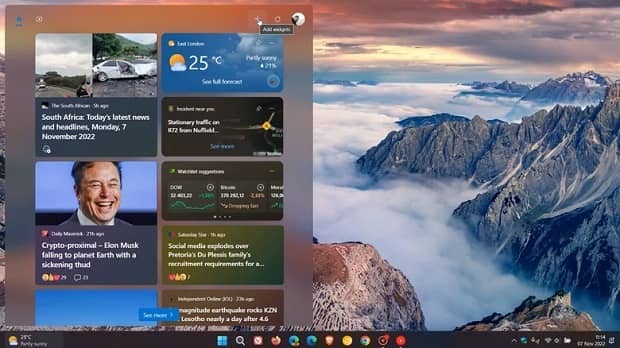

Widgets are new features in Windows 11 that display information, such as the weekly schedule, clock, and weather, in a compact, concise format.
Microsoft Edge powers widgets on Windows 11. Therefore, all the data they displayed has been collected and processed in real time.
To enable widgets in Windows 11, follow the steps below:
- Click on the Widget icon on the Taskbar.
- To add a widget, click on the word “+” in the upper right part to display the list of available devices.
- To remove the widget, click the three dots key and select the Unpin Widget option.
- If you want to change the widget’s size, choose one of the small, medium, or large sizes after clicking the three-dot button.
- Changing the order of widgets is also possible by dragging and dropping them to the desired section.
Voice-to-text conversion with new features
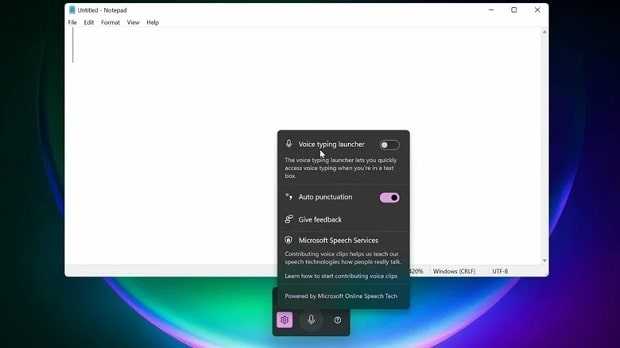
Although the ability to convert voice to text has been present in Windows for a long time, in Windows 11, with the improvement of the speech recognition system, we see the recognition of natural stops in sentences, such as short pauses or complete pauses.
In addition to this automatic recognition system, the Dictation function can now fully recognize commands such as “next paragraph” or “delete the previous sentence” and change the text accordingly.
If you want to activate the ability to convert voice to text with its new features, follow the steps below:
- Open the app you want to type in.
- Press the Windows and H keys simultaneously.
- After displaying the voice-to-text tool, click on the settings section.
- Enable the Auto Punctuation option.
- Go back to the page you were typing on.
- Now, click the microphone icon to start the application.
Virtual Desktop
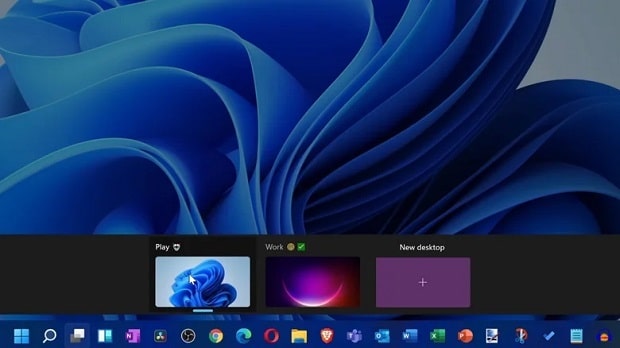
The ability to use multiple desktops simultaneously on one System is one of the attractive features of Windows 11, which lets you open applications on different desktops to make it easier to organize programs and prevent clutter on the desktop.
To activate and use the virtual desktop, you must go through the following steps:
- Click on the Task View button on the Taskbar. You can also press the Windows and Tab keys together.
- In this section, you can view your current desktop or add a new one.
- Click on the New Desktop option to add a new desktop called Desktop 2 to your main desktop.
- You can change its name or background image by right-clicking on this desktop.
- You can view and select each desktop in the Task View section to switch between them.
Focus Assist
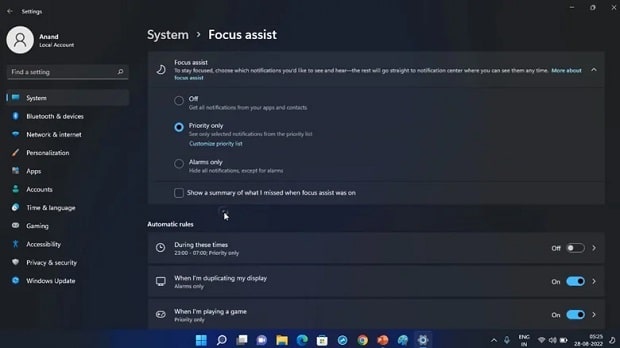
Despite the many benefits of notifications, too many can be distracting for users. The Focus Assist feature can manage message display and prevent messages from appearing at set times.
Focus Assist can also be used in three modes: Off, Priority Only, and Alarms Only.
Follow the steps below to customize and activate Focus Assist:
- Go to Settings> System> Focus Assist.
- In the next step, select the mode you want. You must also sort your priorities if you choose the Priority Only option.
- Further, on this page, you can select the times you want to activate Focus Assist in the Automatic Rules section.
- Depending on your settings, you can check whether Focus Assist mode is active by seeing a month icon on the right side of the Taskbar.
Clipchamp
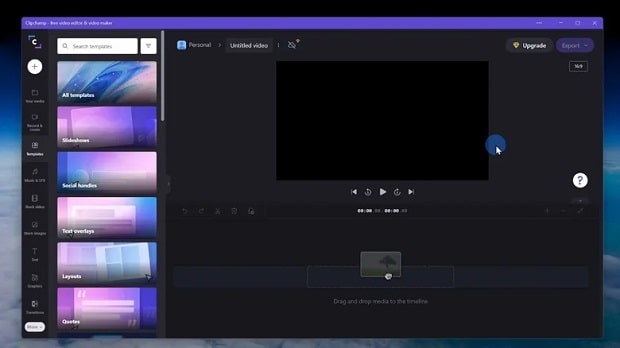
Clipchamp is a free application for creating and editing video clips, available to Windows 11 users and an updated version of Windows Movie Maker.
This application allows users to cut, merge, color-correct, and add audio, along with other AI-powered video edits. It is considered an incredibly comprehensive package for video creation and editing.
The basic version of this application is free. However, to access advanced features such as watermark removal, you must purchase the paid version of this application.
The method of activating and using Clipchamp is as follows:
- Open the Microsoft Store app.
- Search for “Clipchamp”.
- Click the Get button on the Clipchamp application page and download it.
- After downloading the program, please open it and log in using your Microsoft account.
- Now, you can start editing or upgrading the app by clicking the diamond button in the right corner of the screen.
Windows Explorer tabs
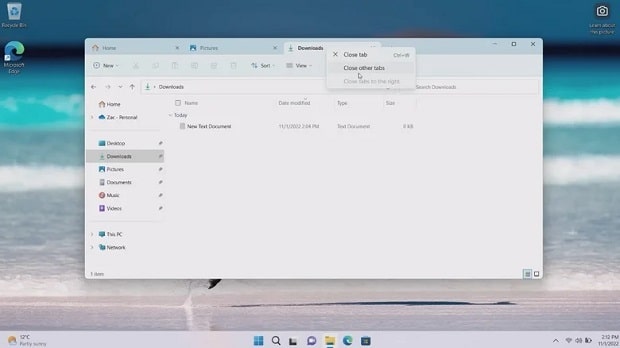
With the recent Windows 11 update, it is now possible to open different files and folders in separate tabs, making viewing, managing, and comparing them much more accessible.
This way, you can have a better visual experience and keep the Windows space cleaner without opening different windows for each folder.
- In your Windows Taskbar, open File Explorer.
- At the top of the screen, you can see the + sign, which will open a new tab. If you intend to use Windows Explorer tabs, you must follow the following steps:
- No, you can open different files and folders in other tabs. For example, you can open it in a new account by right-clicking the file location and selecting Open New Window.
- You can also click the X in the corner to close any tab.
Screen recording via Windows Snipping Tool
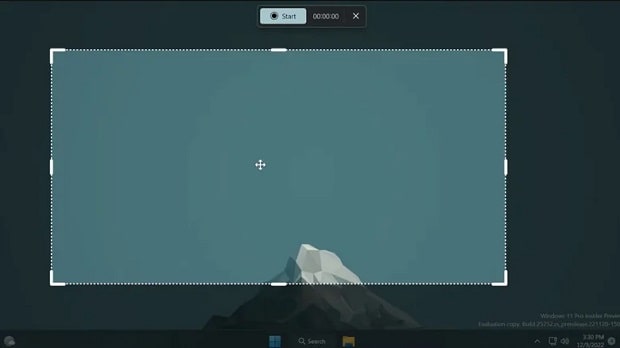
In the past, Windows users had to use third-party applications to record their screens. Meanwhile, Windows 11 now allows recording screen video using the Windows Snipping Tool.
Of course, this feature is still in beta and cannot record audio. However, even in this situation, it is considered a handy feature.
To activate the Windows Snipping Tool, follow the steps below:
- Open the Windows Snipping Tool application.
- If you do not find this application, install or update it through the Microsoft Store.
- After the Windows recording tool opens, click on the video camera icon.
- Now, press the + key, then select Start after you’ve selected the area you want to record.
- Stop recording by clicking on the red box next to the timer.
- You can now save or delete the video.
Snap
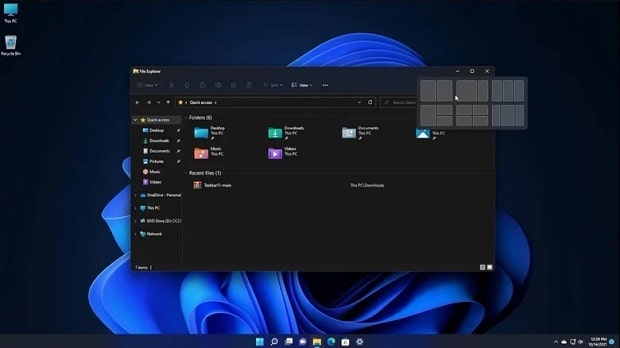
Snap is another attractive feature of Windows 11 that lets you arrange open windows in the desired layout side by side.
The Snap feature is well-suited for managing open windows and prioritizing them, and it can significantly improve Windows 11 performance.
The method of setting up and using Snap is as follows:
- Navigate to the Settings section and select System.
- Click Multitasking, then select Toggle Windows to reveal additional checkboxes.
- Be sure to check the “Show snap layouts when I hover over a window’s maximize button” option, and adjust the other options as you see fit.
- When a window opens, you can see the window arrangement modes by hovering over the Maximize button.
- Please do this for the other windows to ensure they are all arranged as you want.
- To undock a window, drag it away from the screen.
Redesigned task manager
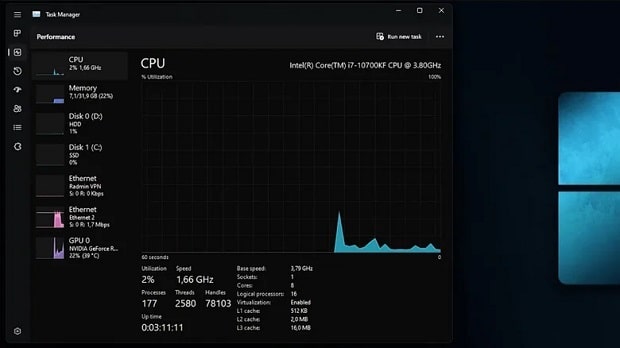
Over the years, the Windows Task Manager has undergone a few changes. However, the recent Windows 11 update aims to improve efficiency by making essential changes to Task Manager, including visual upgrades and the addition of several performance modes.
First, the tabs previously seen in Task Manager have now been removed and replaced by a vertical panel on the left side, which has a more functional design.
In addition, the most compelling feature of the new Windows 11 task manager should be Efficiency Mode, which limits access for applications and services to system resources to prevent excessive processor load.
The method of viewing and using the new task manager of Windows 11 is as follows:
- Right-click the Start menu and select Task Manager.
- Select an application to enable optimal mode, then click the Efficiency Mode button on the top and right sides.
- In the pop-up window that appears, select the optimal way.
- To turn off this mode, click on the corresponding button again.
Windows Spotlight
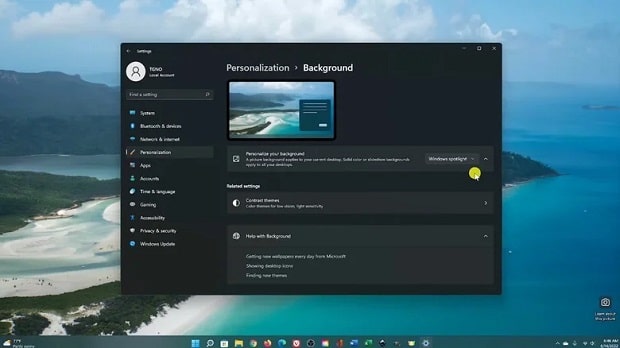
Windows 10 users are probably familiar with the Spotlight feature. This feature places random images on the Windows lock screen and changes them periodically.
In addition, a camera button was displayed in the corner of the image, providing the user with more information about these high-quality images.
Following requests from many Windows users, Microsoft added a similar feature in Windows 11. It allowed users to use these periodic, high-quality images as desktop backgrounds.
In this way, Windows users can now take advantage of a collection of attractive desktop images and manage them in the same way they always have.
If you want to enable Spotlight for your desktop, follow these steps:
- Go to Settings and then Personalization.
- Click on Background and then select Personalize your Background.
- In the menu that appears, choose Windows Spotlight.
- Your background image will change immediately, and the camera icon will appear on your screen.
Custom start menu
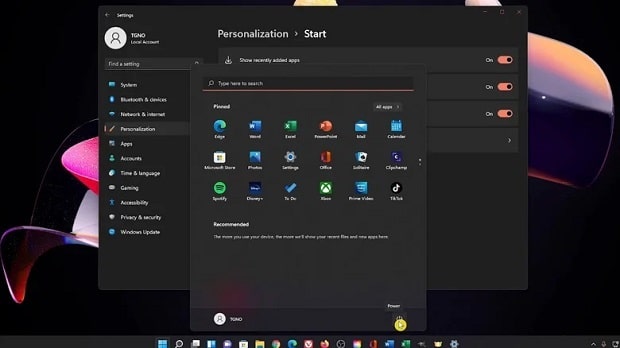
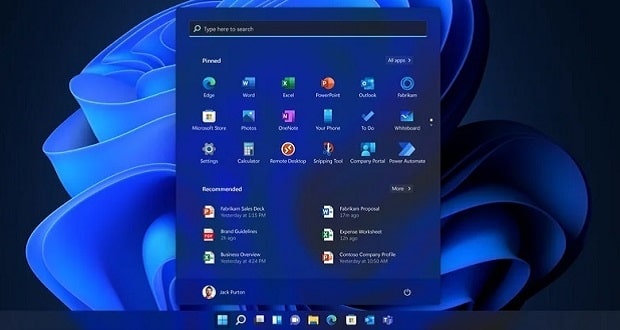
Another attractive feature of Windows 11 that can improve your user experience is the ability to customize the Start menu. The Windows 11 start menu has undergone extensive changes compared to before and has now become more user-friendly. You can see the search bar, pinned apps, recently opened files, profile information, and the computer shutdown key by clicking the Start menu.
In the new Microsoft operating system, you can stop displaying various sections, such as recent items, in the start menu or add virtual folders, such as downloads, documents, music, etc., to it. Also, the ability to pin applications has expanded, facilitating access to different information on your System.
In addition, the ability to change the desktop color is a new feature that lets you set a custom color for the start menu and break up monotony.
FAQ
What performance improvements does Windows 11 offer?
Features like improved memory management and prioritization help apps run more efficiently.
Can Windows 11 boost productivity?
Yes, tools like Snap Layouts and virtual desktops help organize workflows and multitasking.
Do new visuals affect performance?
Windows 11’s refined design balances aesthetics with optimized system responsiveness.