



If you have high-speed internet but suddenly notice slow speeds, someone may be using your Wi-Fi without your permission. To identify this problem, you must examine each Wi-Fi-connected device, which is tedious.
In this article, we will introduce solutions for quickly identifying connected devices on your phone.
Identify devices connected to Wi-Fi through a smartphone
Wi-Fi is widely used, and almost everyone has their own network. But sometimes unauthorized users can obtain your password and access your Wi-Fi network. This issue causes your bandwidth to be shared, reducing your network speed. You can use an Android or iOS device to resolve this issue and identify the connected devices.
The first method is to identify devices connected to the network
First, download the Fing software and install it on your Android device. (iPhone users can also use the iOS version of this software.)


In the next step, scan all devices connected to the Wi-Fi network.
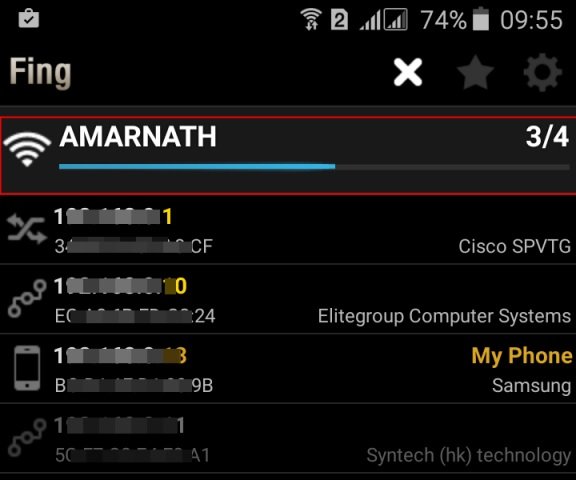

After that, you will see a list of devices connected to the Wi-Fi network.
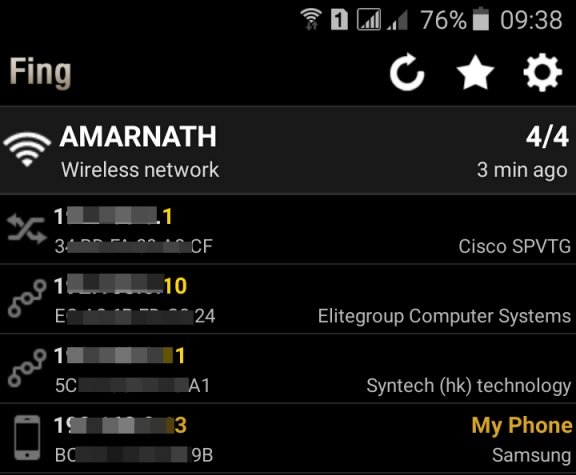

You can now view the details of connected devices by clicking on them.
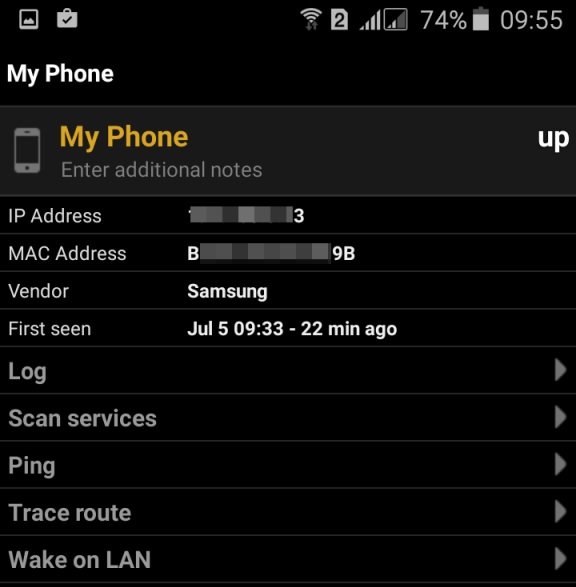

Done. You can now prevent the device from connecting to the network by blocking it by MAC address on the router.
Device identification through Wi-Fi Inspector software
Another exciting program with the same functionality as Fing and is just as easy to use is Wi-Fi Inspector. A simple tool that lets you view all devices connected to the network (wireless or wired), including TVs, PCs, tablets, and phones. This tool can provide information about an IP address, manufacturer, device name, and MAC address.
In the first step, install Wi-Fi Inspector on the Android device and run it.
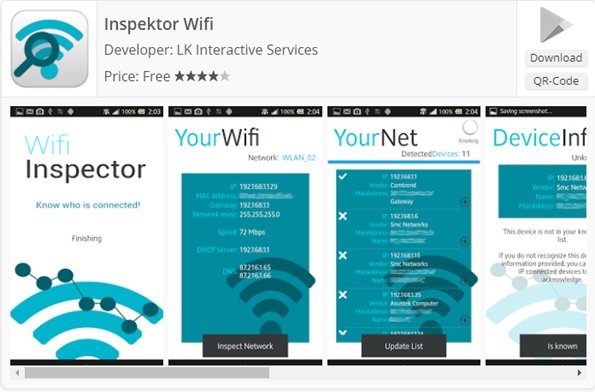

It will now display the Wi-Fi network name. Touch Inspect Network to start the scan.
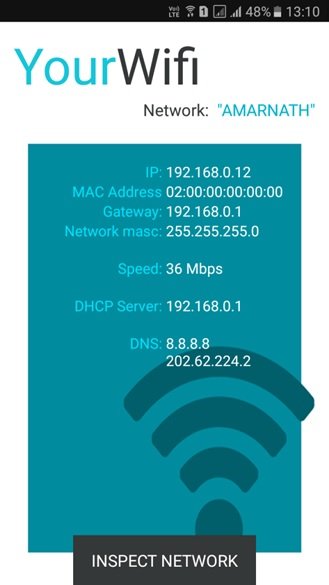

The scanning process starts, and all devices connected to the Wi-Fi network are detected.
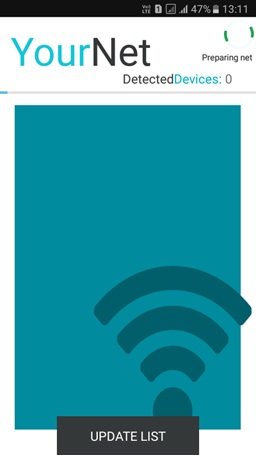

You can now see a list of all devices connected to the Wi-Fi network.
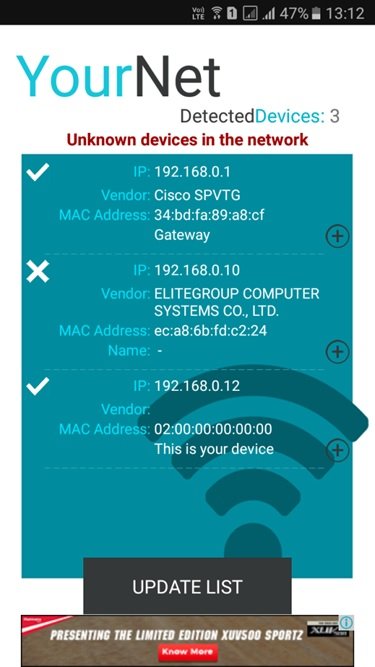

You can now prevent devices from connecting to the network using the device’s MAC address and router settings.
Using NetCut
NetCut is a free tool that works only on rooted Android devices. But if you want to identify people connected to your Wi-Fi without rooting the device, you can use NetCut.
First, download and install the NetCut program on your Android phone and run it.
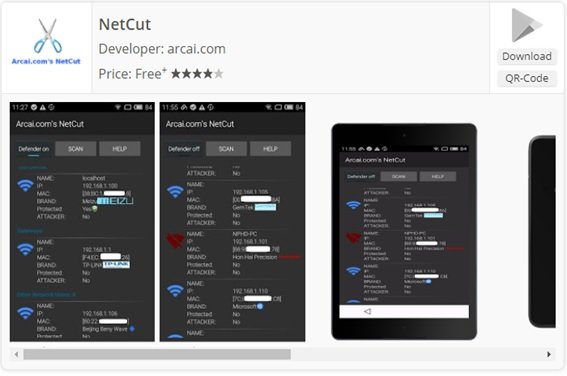

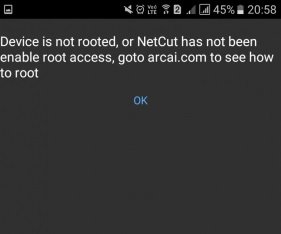
Make sure you are connected to the Wi-Fi network you plan to scan. In this case, you will see a message that the device is not rooted. Touch Ok to continue.

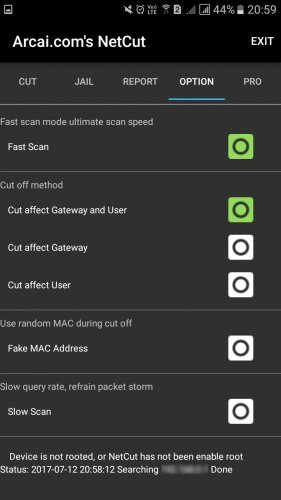
Now, click the option and enable the Fat Scan checkbox.

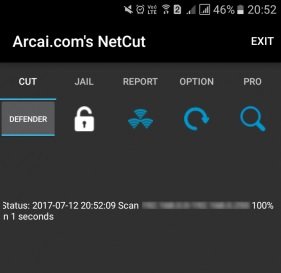
On the main screen, select the Refresh icon.

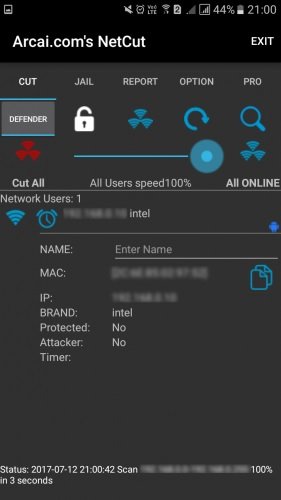
The software shows a list of devices connected to the Wi-Fi network. You can block devices by MAC address.
Achieve Effortless Network Visibility with Lansweeper’s IP Scanner
Lansweeper’s powerful IP scanner simplifies the discovery of all devices on your network, delivering unmatched visibility into your network infrastructure. By scanning every IP address, Lansweeper collects detailed hardware, software, and device information, providing real-time insights tailored to your needs.
With automated, customizable scanning options, you can eliminate blind spots and shadow IT, thereby strengthening your network security. Additionally, Lansweeper seamlessly integrates with your existing IT tools, enriching your entire tech stack with comprehensive asset data.
Key Features of LanSweeper’s IP Scanner:
- Advanced IP Discovery: Identify every device connected to your network, including IT, OT, and IoT devices.
- Automated Scanning: Schedule scans to run automatically, ensuring continuous network monitoring.
- Credential-Free Device Recognition: Instantly recognize devices without requiring credentials, delivering fast and accurate results.
- Advanced Reporting and Analytics: Gain detailed insights into your network to make informed decisions about IT resources.
- Integration with Your Tech Stack: Easily connect Lansweeper with your existing IT tools for enhanced functionality.
Why Choose Lansweeper’s IP Scanner?
Lansweeper’s IP Scanner provides unparalleled visibility into your IT environment. Its comprehensive device discovery ensures that no device goes unnoticed, offering a complete overview of your network. The Asset Radar feature instantly detects devices when they connect to the network, using credential-free recognition to provide real-time visibility.
This allows for quick identification of unauthorized devices and performance bottlenecks. With advanced reporting and analytics, Lansweeper empowers you to optimize your IT resources and maintain robust network security.
How Does It Work?
Lansweeper offers multiple asset-scanning options, with the IP scanner among the most powerful. You can customize scanning settings to target specific IP ranges and schedule scans as needed. Once the scan is complete, Lansweeper’s scanning engine retrieves detailed asset data from every IP within the specified range.
The intuitive console lets you easily manage scanned devices by grouping, tagging, or categorizing them for ongoing monitoring, troubleshooting, and auditing. With Lansweeper, IP discovery is seamless, ensuring complete visibility and control over your network infrastructure.
Why Lansweeper Stands Out as the Top IP Scanner
Lansweeper’s IP scanner excels at gathering detailed asset data for any device connected to your network, whether it runs Windows, Linux, or macOS, or is an IT, OT, or IoT device, virtual or physical. It provides in-depth information such as:
- MAC address
- Manufacturer
- Device type
- Operating system and version
- Model details
The scanning engine is designed for speed, delivering quick results without compromising on detail. Flexible settings let you tailor scans to your requirements, including defining IP ranges, selecting scan types, setting scan frequency, and including or excluding specific assets for more targeted results.
Conclusion
Lansweeper’s Advanced IP Scanner is the ultimate solution for achieving complete network visibility. With its robust scanning capabilities, real-time insights, and seamless integration with your IT ecosystem, Lansweeper helps you tighten security, optimize resources, and maintain complete control over your network infrastructure. Whether you’re managing a small business or a large enterprise, Lansweeper ensures that no device goes unnoticed, empowering you to make smarter, data-driven decisions.
FAQ
What app can show connected Wi‑Fi devices on a phone?
Network scanner apps like Fing or similar tools list connected devices with names and IP addresses.
Can you check Wi‑Fi devices without an app?
Yes, you can access your router’s admin page through your phone’s browser to view the connected devices list.
Why is it helpful to find connected Wi‑Fi devices?
It helps identify unknown or unauthorized connections and improves network security.