


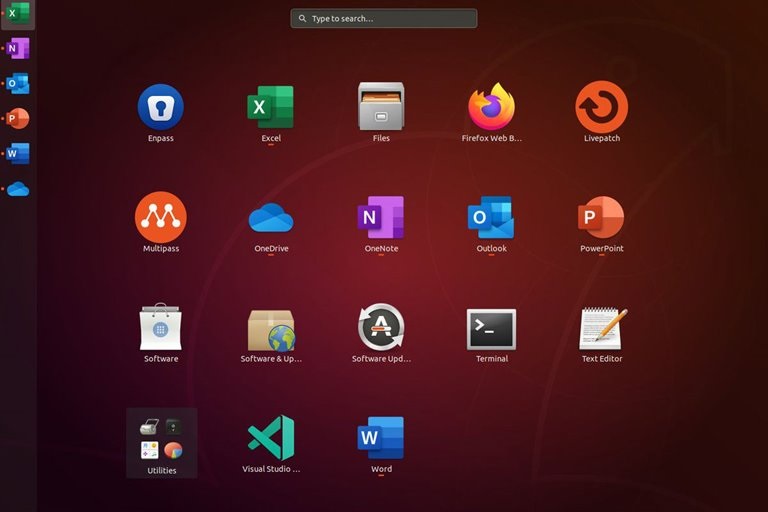
Excel Installation: There Are Several Ways To Open Excel Spreadsheets In Linux, Such As Using A Virtual Machine; But It Can Also be installed directly on Ubuntu Linux.
Migrating from Windows to Linux is very simple, but the problems get worse when you try to install a specific application or video game on Linux. A simple example is Microsoft Office. You may have a much-needed and relatively complex spreadsheet.
This file can be an XLS or XLSX file you have worked with for years and can only be opened with Microsoft Excel. Solving this problem is simple. In this article, you will learn how to install Microsoft Excel on Ubuntu.
How to install Microsoft Excel on Ubuntu Linux
You can install the full version of Microsoft Office on Linux, but if you only want to use Excel, what is the solution? Installing Excel on a Linux computer is not difficult, but it is not always straightforward. Now the question arises: what alternatives to Excel are available on Linux?
Excel installation alternatives in Linux
You do not necessarily need Excel to open an XLS or XLSX spreadsheet; other suitable alternatives are available, but they are not ideal for all scenarios.
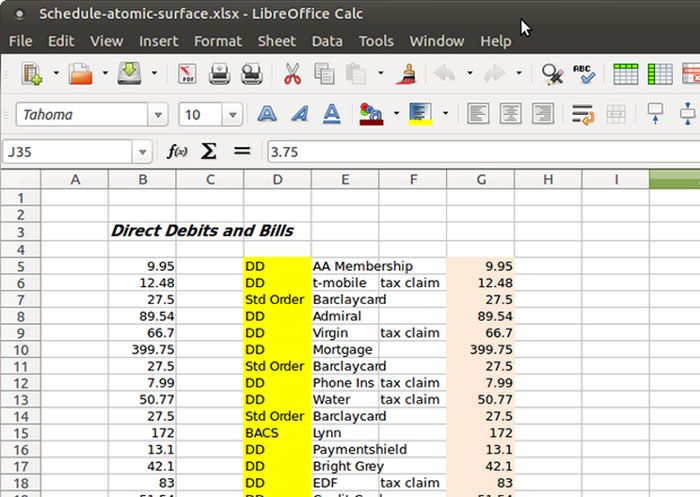
Run LibreOffice Calc
LibreOffice is the most widely used alternative to Microsoft Office on Linux. Most Windows immigrants can see the relationship between Calc and Excel.
However, this software does not work well with macros and does not print spreadsheets accurately; therefore, it is not a good option if you use macros in a spreadsheet.

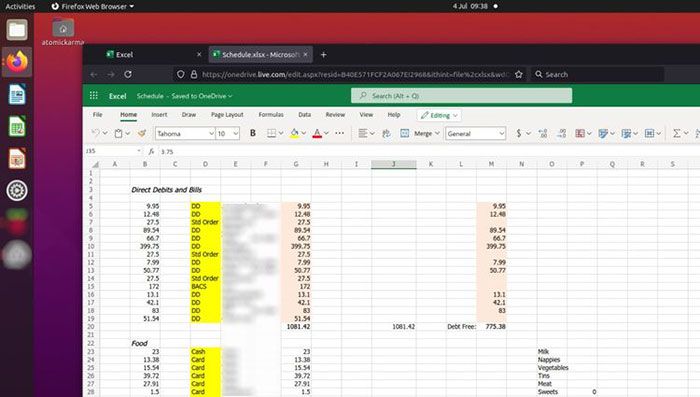
Use Microsoft Office online.
The Microsoft Office browser version is instrumental because it is free and supports tasks such as text processing, email, spreadsheets, and presentations. It is the fastest and most efficient version of Excel on Ubuntu or other Linux distributions, and all you need is an Internet connection and a browser. Mozilla Firefox and Chromium are both ideal options for using Microsoft Office online.

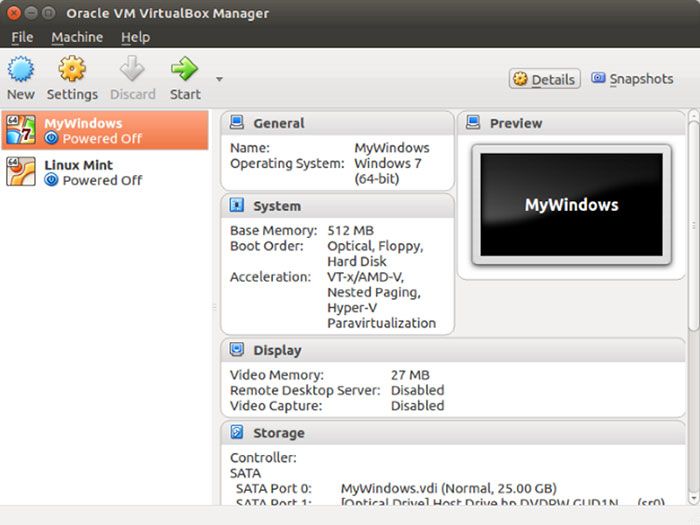
Run Excel on Linux using a virtual machine.
The virtual machine is a popular option for users with medium- to advanced-level computers. Usually, computers with Intel Core i5 or more powerful processor support can easily use Virtual Machine Excel.
Weaker processors, such as Intel Core i3 or ARM processors, do not perform as well as a virtual machine; therefore, if you are running Linux on an older computer, you will not be able to run Windows in a virtual machine. However, in most cases, the most innovative way is to install Excel directly on Linux.

How to install Windows software on Linux?
Fortunately, you can install Windows software on Linux. Sometimes software installation is natively possible, and sometimes simulation is required. For example, older MS-DOS software can be run on Linux, Windows, and macOS using DOSBox.
DOSBox is an emulator for MS-DOS; however, other systems can also run MS-DOS with the appropriate software. To install Excel on Linux, you need the installable version of Excel and Wine and its accompanying application, PlayOnLinux.
Check the compatibility of the Excel version with PlayOnLinux.
With PlayOnLinux, you can find the latest version of Microsoft Excel running on Linux. At the time of writing, the 2016 version is available.
In general, there is a slight difference between this version and the new version, but it is always better to install the latest version. In addition, Wayne supports embedded software from EXO and ISO files, as well as physical media.
Install Microsoft Excel on Linux using Wine and PlayOnLinux.
Many current Linux distributions include Wine and PlayOnLinux by default. To install them, open the app menu and find Games.
You can also find them in the Accessories category; Otherwise, you have to install them manually. You can find both in the default package manager for your Linux distribution.
Search for Wine and PlayOnLinux, and then click Install. After installing Wine and PlayOnLinux on the system, start installing them:
1. Open PlayOnLinux.
2. Click Install a program to open the search tool.
3. Search Microsoft Office.
Install Winbind
You will need Windbound software to complete the installation and verify your license with your Microsoft account. To do this, open the terminal and enter the following phrase:
Sudo apt install playonlinux winbind –y
Wait until the installation is complete, and then return to PlayOnLinux. Install Excel from Microsoft Office 2016 as follows:
1. Click Install.
2. Wait for the Microsoft Office installation wizard to appear.
3. Select Microsoft Excel 2016.
4. Click Install.
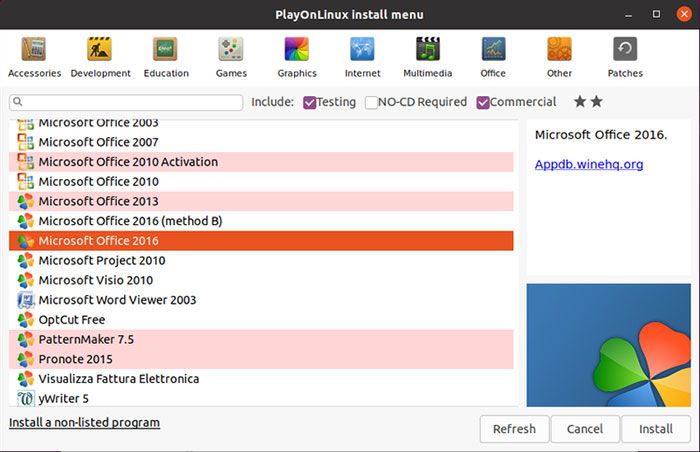

5. Agree with EULA.
6. Click Install again.
Next, PlayOnLinux manages the installation of Microsoft Excel on the Linux system. After completing this process, you may encounter errors when installing OneNote, Outlook, Word, or PowerPoint. Since you did not select these options, you can ignore the messages by clicking Next.
Once completed, Microsoft Excel creates a desktop shortcut. All you have to do is double-click on the shortcut, and Microsoft Excel will run on Linux.
Install Excel Viewer on Linux
Another option is to use Microsoft Excel Viewer 2003. This free software can open Excel files, but does not allow editing them. PlayOnLinux automatically downloads and installs ExcelVivor on Linux.
1. Search for Excel.
2. Select Microsoft Excel Viewer.
3. Click Install.
4. Click Next until the installation begins.
5. Select Download the program.
6. Click Next to continue the installation.
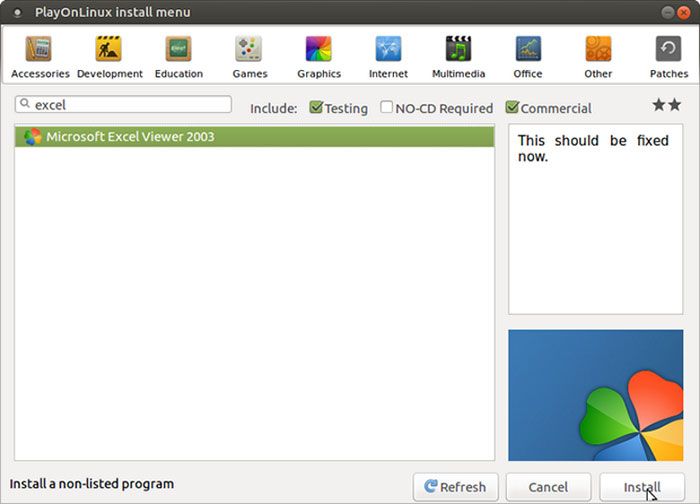

Wait for Microsoft Fonts to install and display. After sorting, you will see the leading Excel Viewer installer. Based on the initial warnings, accept the default options and complete the installation wizard. Moments later, Excel Viewer is installed.
You no longer need to create new spreadsheets, and with this tool, you can print existing spreadsheets. If no desktop shortcut is created, the Excel viewer will run on the PlayOnLinux application window.
Enjoy adapting your Windows application to Wine.
Many applications and games can run on Linux, thanks to Wine. Software settings and support are added through PlayOnLinux.
Microsoft Excel Viewer is also a viable alternative for most people who do not need to edit Excel files. Still, LibreOffice and OpenOffice are generally better alternatives to Microsoft tools on Linux.
FAQ
Can I install Microsoft Excel natively on Linux?
Microsoft Excel is not natively supported on Linux, but you can run it using compatibility layers or virtual machines.
What tools help run Excel on Linux?
Wine and PlayOnLinux allow many Windows applications, including Excel, to run on Linux; alternatively, you can use a Windows virtual machine.
Are there Linux alternatives to Excel?
Yes—applications like LibreOffice Calc and web-based Microsoft Office Online can open and edit spreadsheet files without installing Excel.