


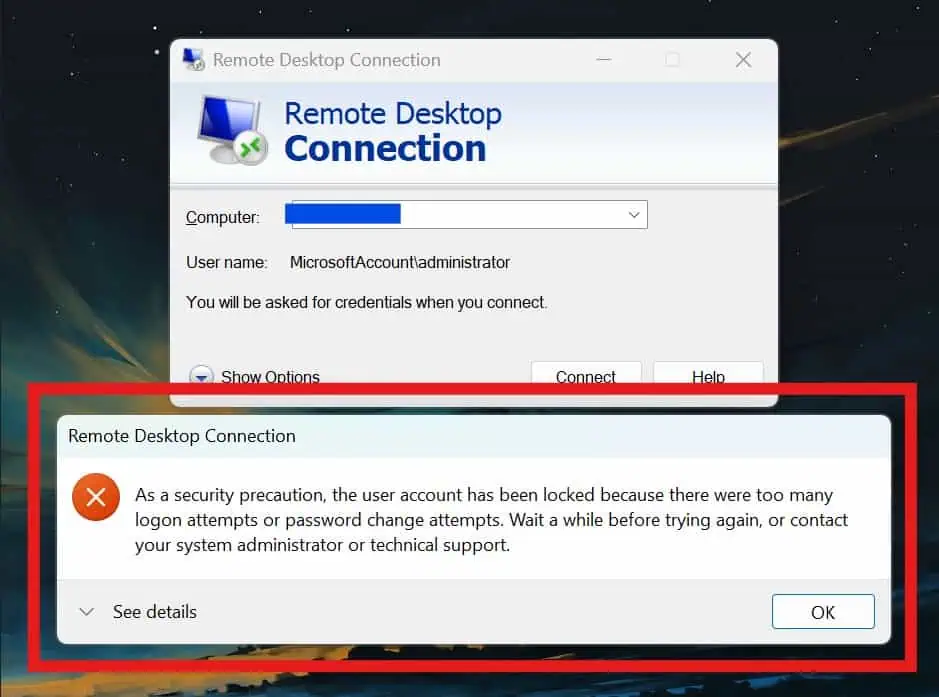
In recent years, Microsoft has focused on increasing the security of its server operating systems. One of the important changes in Windows Server 2025 is stricter authentication mechanisms and the prevention of Brute-Force attacks. For this reason, many server administrators encounter the following message after installing Windows Server 2025 when connecting via Remote Desktop:
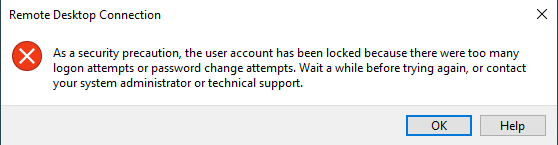

As a security precaution, the user account has been locked due to excessive logon or password change attempts.
This error indicates that the user account has been temporarily or permanently locked due to a high number of unsuccessful login attempts or password changes. In this article, we will examine why this error occurs, which part of Windows is responsible for it, and how to manage or fix it systematically.
What is Account Lockout?
Account Lockout is a security feature in Windows designed to prevent password-guessing attacks. When a certain number of unsuccessful login attempts to a user account are recorded, Windows automatically locks that account.
The main purpose of this feature is to prevent brute-force attacks. In such attacks, an attacker tries to access a user account by trying a large number of different passwords. If there is no account lockout mechanism, the attacker can try millions of passwords before finally reaching the correct one.
Why is this error more common in Windows Server 2025?
Microsoft has made the default security settings stricter in Windows Server 2025 than in previous versions. For this reason, many server administrators who were previously using Windows Server 2019 or Windows Server 2022 have experienced an increase in account lockouts in the new version.
Some of the most important reasons are:
- More sensitivity to failed logins
- More stringent Remote Desktop authentication
- Enabled new security features
- Intelligent detection of suspicious behavior
- More restrictions on the number of failed logins
As a result, even a few failed attempts may lock an account out.
Which part of Windows controls Account Lockout?
This feature is managed by the Windows Security Policy section. Its settings are located in the following path:
Local Security Policy
→ Account Policies
→ Account Lockout Policy
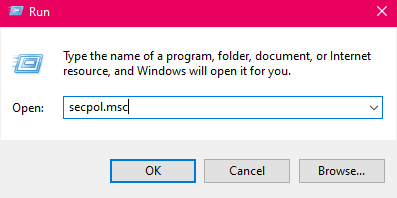
To access this section, simply run the following command in Run:
secpol.msc

There are three main settings in this section.
Account Lockout Threshold
The number of times a user can enter an incorrect password.
For example:
5
This means that after five failed login attempts, the account will be locked.
Account Lockout Duration
The duration the account will remain locked.
For example:
15 Minutes
This means that after 15 minutes, the account will be automatically unlocked.
Reset Account Lockout Counter After
The amount of time after which the failed login counter will be reset.
For example:
15 Minutes
If the user has no unsuccessful attempts for 15 minutes, the error count will be zero.
Main Reasons for Account Lockout
Entering the wrong password
The most common cause of this error is entering the wrong password.
This can happen for the following reasons:
- Typo
- Caps Lock is on
- Change the password and use the old password
- Using the wrong language keyboard
The old password is saved in the Remote Desktop
Many users save the password in Remote Desktop. After changing the password, the system continues to use the old password and makes several unsuccessful attempts.
Eventually, the user account is locked.
Outdated services or programs
Some Windows software or services may run with the old password.
For example:
- Backup Software
- Monitoring Software
- Scheduled Tasks
- IIS Application Pools
In such a situation, without the user realizing it, the system repeatedly attempts to log in unsuccessfully.
Brute Force Attacks
If the Remote Desktop port is open on the Internet, Internet bots will continuously try to guess the password.
In this case, even if the password is strong, a large number of unsuccessful attempts will result in the account being locked.
Simultaneous use of multiple devices
Sometimes a user changes the password on one device, but other devices still use the previous password.
As a result, multiple unsuccessful attempts are recorded, and the account will be locked.
How to determine what caused the account to be locked?
Windows logs all security events.
To view the logs:
eventvwr.msc
Then open the following path:
Windows Logs
→ Security
Event ID 4740
This event indicates that the user account has been locked out.
Event ID 4625
This event indicates a failed login attempt.
By reviewing these logs, you can see the IP address, username, and the exact time the error occurred.
How to unlock a locked account?
If you are using a Local account:
lusrmgr.msc
Then:
Users
→ User Properties
If there is a Lockout option, disable it.
If you are using Active Directory:
Active Directory Users and Computers
Delete Saved Passwords in Remote Desktop
One of the most important solutions is to delete the saved credentials.
To do this:
control keymgr.dll
Or:
Credential Manager
Then delete all saved information related to the server.
Then log in again with the correct password.
Recommended settings to prevent frequent lockouts
For most self-managed servers, the following settings are suitable:
Account Lockout Threshold = 10
Account Lockout Duration = 15
Reset Counter After = 15
These settings still provide adequate security but reduce the chance of unwanted lockouts.
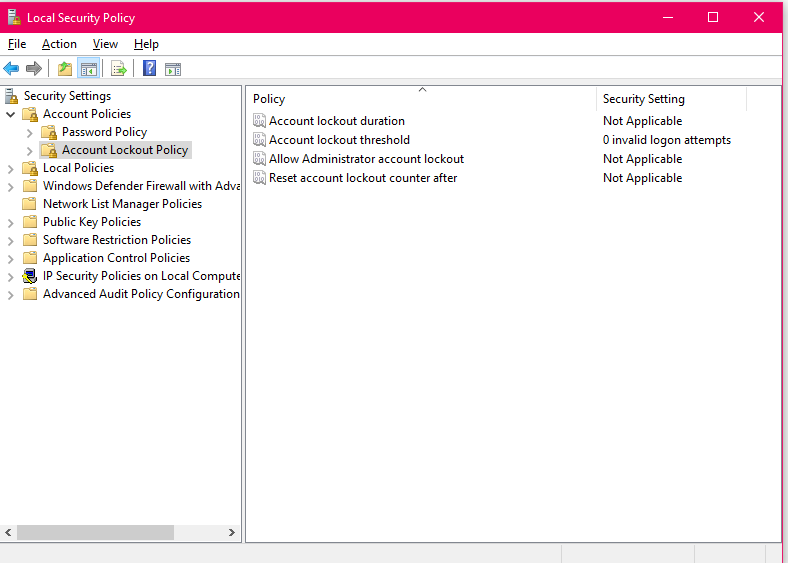

Is it recommended to disable Account Lockout?
Some server administrators set the Threshold value to zero to avoid this problem.
Account Lockout Threshold = 0
This will ensure that the account is never locked out.
Although this method solves the problem, it is not recommended from a security perspective because it leaves the server vulnerable to password-guessing attacks.
It is better to increase the Threshold value rather than disable the feature completely.
The Role of Smart Lockout in Windows Server 2025
Microsoft is introducing Smart Lockout technology in new versions of Windows.
This feature analyzes user behavior and, if it detects suspicious patterns, may temporarily restrict an account even before a specified threshold is reached.
Smart Lockout aims to prevent advanced attacks that attempt to guess passwords by making a small but consistent number of login attempts.
Methods to Prevent Account Lockout in Remote Desktop
To reduce the likelihood of this problem, it is recommended to:
- Use a complex and long password
- Enable a firewall
- Restrict RDP access to specific IPs
- Use a VPN before connecting to RDP
- Delete old credentials
- Regularly check security logs
- Enable multi-factor authentication
- Change the default Remote Desktop port
- Prevent old passwords from being saved
Summary
The account lockout error in Remote Desktop is one of the most common problems for Windows Server 2025 administrators. This error is actually a security mechanism to deal with Brute Force attacks and unauthorized access. In most cases, entering the wrong password, storing old credentials, or suspicious attempts from the Internet cause Account Lockout to be activated. By checking the Account Lockout Policy settings, viewing security logs, and modifying the Remote Desktop configuration, this problem can be fully managed and repeated account lockouts prevented.
Is Account Lockout an error?
No. This feature is a Windows security mechanism to protect user accounts from password guessing attacks.
How do we find out what caused the account to be locked?
By checking the Event Viewer and viewing events 4740 and 4625, we can identify the exact cause and source of the failed attempts.
Is it recommended to disable Account Lockout?
No. Completely disabling this feature reduces server security and it is better to set the Threshold and Duration values in principle instead.
